Old-School Front-End / 2026 ・ No.03
Old-School Front-End
Part 3: forms, building the claim form in HTML and seeing what gets sent
Published
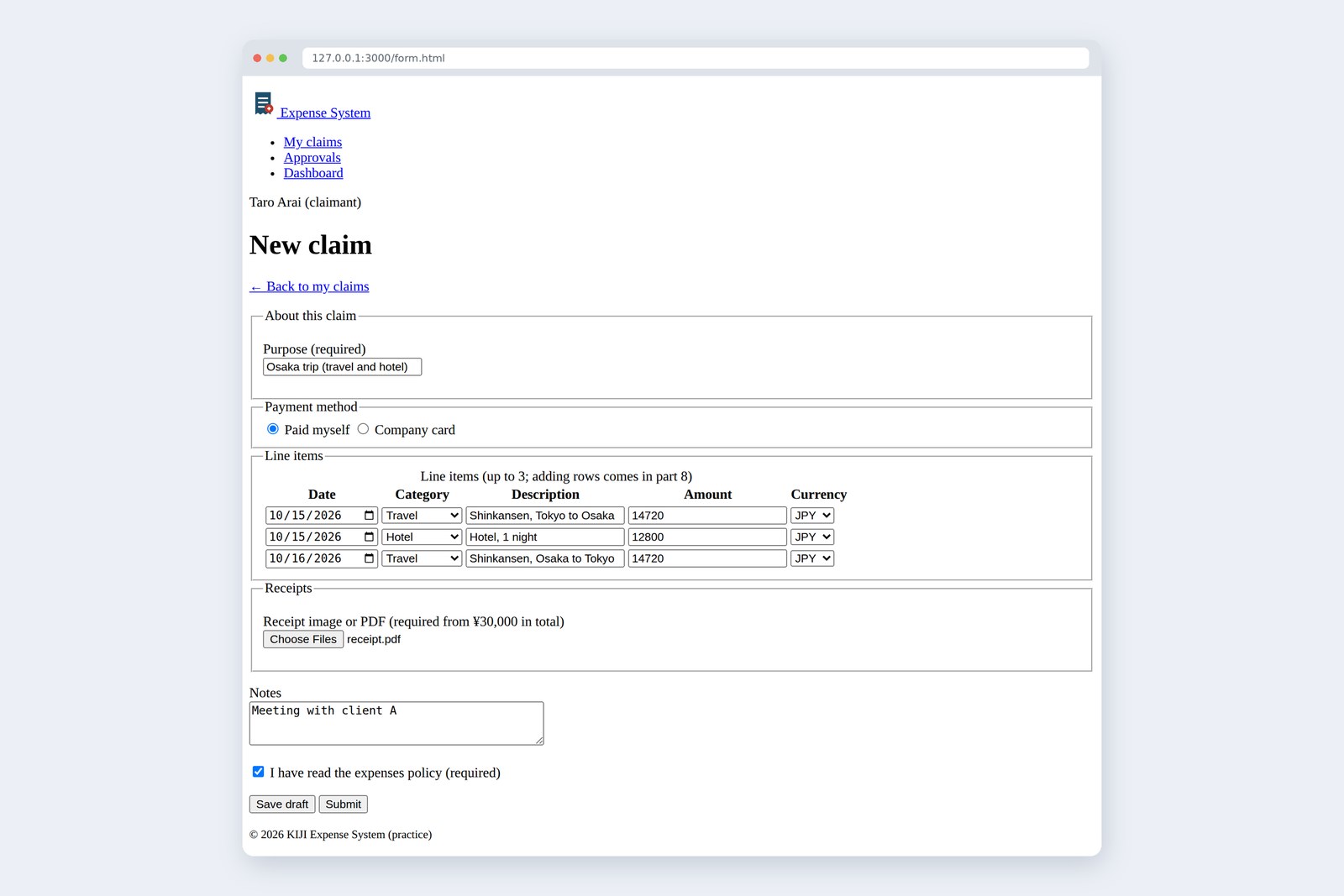
The old-school front end: no asking an AI, just writing every line by hand. Part 3 tackles the heart of any business app: forms.
We build the claim form behind the claims list's "+ New claim" link, again in nothing but HTML.
How to name fields, which controls to pick, and the input checks the browser gives you for free. Then we actually submit it
and look at exactly what is sent the moment you press the button.
This part's goal
AraiFurui, the AI made me a claim form too! Faint "Purpose" text inside the box. Pretty slick, right?
FuruiI see. And once you type a purpose, what happens to that faint text?
AraiIt disappears. …Wait, so after typing, you can't tell what the field was?
FuruiExactly. Today is about a form's name tags and what is inside.
You are here: part 3
This time we build form.html, the claim form page. It contains:
- About this claim — the purpose (required)
- Payment method — paid myself, or company card
- Line items — date, category, description, amount and currency, up to three rows (adding rows comes in part 8)
- Receipts — an image or PDF, required from 30,000 yen in total (enforcing that rule comes in part 9)
- Notes and confirmation — a notes box, a policy checkbox, and Save draft and Submit buttons
How a form is sent
A form wraps its fields and buttons in <form>. When a button is pressed, the browser works through these steps.
From pressing the button to reaching the server
| form attribute | Meaning | Value here |
|---|---|---|
| action | The URL to send to | /api/expenses (a stand-in server we set up in part 10) |
| method | How to send: get (on the end of the URL) or post (in the body) | post |
| enctype | How the body is packed. Sending files needs multipart/form-data | multipart/form-data |
The rule of thumb: GET to look things up, POST to create or change them. GET suits searches, where the same URL should always show the same results, but registering a claim is a POST. With GET, everything typed stays in the URL and in the browser's history.
Naming fields: label and name
A field has two kinds of name: one for people (the label) and one for the server (name).
How label, id and name fit together
The faint text inside the box that Arai liked is the placeholder attribute. What happens if you use it instead of a label?
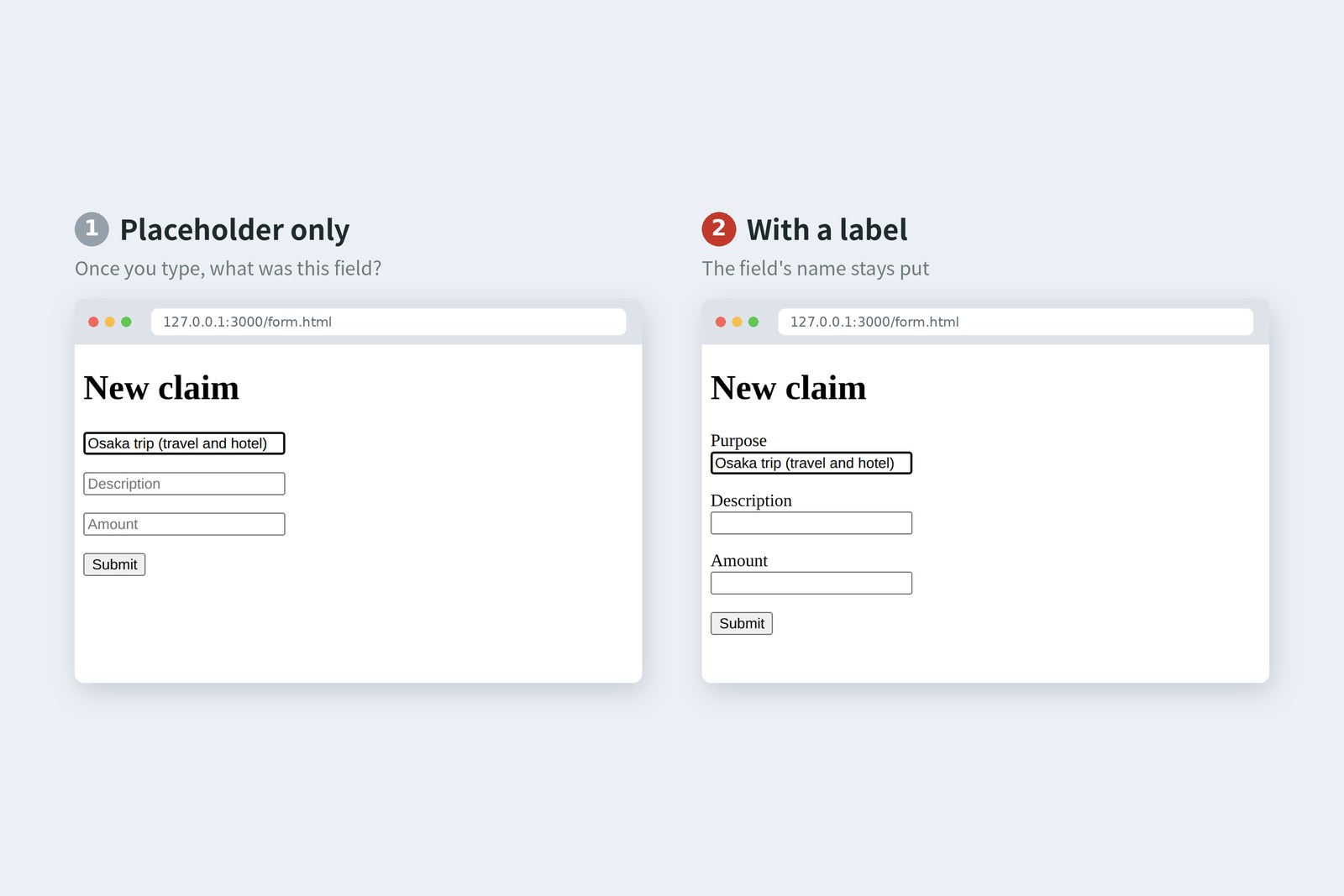
Beyond the looks, we compared the accessibility trees the browser builds (real output pulled out with Playwright).
# (1) Placeholder only
- paragraph:
  - textbox "Purpose": Osaka trip (travel and hotel)
- paragraph:
  - textbox "Description"
- paragraph:
  - spinbutton
- paragraph:
  - button "Submit"

# (2) With labels
- paragraph:
  - text: Purpose
  - textbox "Purpose": Osaka trip (travel and hotel)
- paragraph:
  - text: Description
  - textbox "Description"
- paragraph:
  - text: Amount
  - spinbutton "Amount"
- paragraph:
  - button "Submit"
Chrome sometimes falls back on the placeholder as a name, but the amount field in (1), a type="number", lost its name and became a bare spinbutton. W3C's accessibility tutorials say it plainly: a placeholder is not a replacement for a label. It disappears as soon as you type, is faint and hard to read, and assistive technologies handle it inconsistently.
Use placeholder for an example of what to type, such as "e.g. Osaka trip, October 2026", and always name the field with a label. AI-generated forms often have placeholders and nothing else. "Is there a label?" is the first thing to check when reading a form.
Form controls
Most fields are <input>, switched between kinds by the type attribute. Here are the ones our expense app uses.
Form controls
| Control | Common attributes | Tips |
|---|---|---|
| type="text" | maxlength, autocomplete | Purpose, description. autocomplete tells the browser how to treat autofill |
| type="number" | min, max, step | Amount. Phones show a number pad. step="1" rules out decimals |
| type="date" | min, max | Dates. A calendar to pick from, and no more "10/15" versus "15 Oct" versus "Oct. 15th" |
| select and option | value | Category, currency. For long or fixed lists. Put "Choose one" first |
| type="radio" | name, checked | Payment method. Radios sharing a name form a group, and only one can be picked |
| type="checkbox" | value, checked | Policy check. Left unticked, nothing is sent at all (see chapter 9) |
| textarea | rows, maxlength | Notes. It has an end tag, and its content is the starting value |
| fieldset and legend | — | Group related fields and give the group a name. Especially important for radio groups |
AraiCouldn't the date just be a text field? People can type "10/15".
FuruiPicture someone in accounts trying to total up "10/15", "15 Oct" and "Oct. 15th" in one column.
Arai…date it is.
Line items and files
The line items are last part's table with inputs in its cells. They are data in rows and columns, so a table is the natural fit.
<tr>
  <td><input type="date" name="date" aria-label="Row 1 Date" required></td>
  <td><select name="category" aria-label="Row 1 Category" required>…</select></td>
  <td><input type="text" name="item" aria-label="Row 1 Description" required></td>
  <td><input type="number" name="amount" aria-label="Row 1 Amount" min="1" step="1" required></td>
  <td><select name="currency" aria-label="Row 1 Currency">…</select></td>
</tr>
- aria-label — inputs inside a table have nowhere to put a visible label. The column headers are visible, but we still give each a spoken name with aria-label ("Row 1 Amount" and so on)
- Same names on all three rows — three fields named amount reach the server as three amounts in a row, and their order says which row is which (we see the real thing in chapter 9)
- Only row 1 is required — at least one line item; rows 2 and 3 may stay empty
Receipts use type="file".
<input type="file" id="receipt" name="receipt" accept="image/*,.pdf" multiple>
accept narrows what the file picker shows (images and PDFs), and multiple lets people choose several files at once. To send the file contents, the form needs both method="post" and enctype="multipart/form-data". Miss either one and only the file name arrives.
Kinds of button
Buttons are <button>, and type decides what they do.
button types
Our form has two submit buttons, both name="action", with the values draft (Save draft) and submit (Submit). Only the pressed button's value is sent, so the server can tell a draft from a real claim. The draft button has formnovalidate, so a draft saves even with required fields empty.
FuruiIn the old days, every form came with a Reset button.
AraiAnd if you hit it after typing ten line items…
FuruiGone. All of it. An old-school trap. Business apps leave it out.
Putting the claim form together
Here is the whole of form.html, built from those parts. The header and footer are the same as last part's index.html.
<!DOCTYPE html>
<html lang="en">
<head>
  <meta charset="UTF-8">
  <meta name="viewport" content="width=device-width, initial-scale=1">
  <title>New claim | Expense System</title>
</head>
<body>
  <header>
    <p><a href="/"><img src="img/logo.svg" alt="" width="32" height="32"> Expense System</a></p>
    <nav>
      <ul>
        <li><a href="/">My claims</a></li>
        <li><a href="approve.html">Approvals</a></li>
        <li><a href="dashboard.html">Dashboard</a></li>
      </ul>
    </nav>
    <p>Taro Arai (claimant)</p>
  </header>

  <main>
    <h1>New claim</h1>
    <p><a href="/">← Back to my claims</a></p>

    <form action="/api/expenses" method="post" enctype="multipart/form-data">
      <fieldset>
        <legend>About this claim</legend>
        <p>
          <label for="title">Purpose (required)</label><br>
          <input type="text" id="title" name="title" required maxlength="50">
        </p>
      </fieldset>

      <fieldset>
        <legend>Payment method</legend>
        <label><input type="radio" name="payment" value="personal" checked> Paid myself</label>
        <label><input type="radio" name="payment" value="corporate"> Company card</label>
      </fieldset>

      <fieldset>
        <legend>Line items</legend>
        <table>
          <caption>Line items (up to 3; adding rows comes in part 8)</caption>
          <thead>
            <tr><th scope="col">Date</th><th scope="col">Category</th><th scope="col">Description</th><th scope="col">Amount</th><th scope="col">Currency</th></tr>
          </thead>
          <tbody>
            <tr>
              <td><input type="date" name="date" aria-label="Row 1 Date" required></td>
              <td><select name="category" aria-label="Row 1 Category" required><option value="">Choose one</option><option value="transport">Travel</option><option value="hotel">Hotel</option><option value="meeting">Meetings</option><option value="supplies">Supplies</option><option value="other">Other</option></select></td>
              <td><input type="text" name="item" aria-label="Row 1 Description" required></td>
              <td><input type="number" name="amount" aria-label="Row 1 Amount" min="1" step="1" required></td>
              <td><select name="currency" aria-label="Row 1 Currency"><option value="JPY">JPY</option><option value="USD">USD</option></select></td>
            </tr>
            <tr>
              <td><input type="date" name="date" aria-label="Row 2 Date"></td>
              <td><select name="category" aria-label="Row 2 Category"><option value="">Choose one</option><option value="transport">Travel</option><option value="hotel">Hotel</option><option value="meeting">Meetings</option><option value="supplies">Supplies</option><option value="other">Other</option></select></td>
              <td><input type="text" name="item" aria-label="Row 2 Description"></td>
              <td><input type="number" name="amount" aria-label="Row 2 Amount" min="1" step="1"></td>
              <td><select name="currency" aria-label="Row 2 Currency"><option value="JPY">JPY</option><option value="USD">USD</option></select></td>
            </tr>
            <tr>
              <td><input type="date" name="date" aria-label="Row 3 Date"></td>
              <td><select name="category" aria-label="Row 3 Category"><option value="">Choose one</option><option value="transport">Travel</option><option value="hotel">Hotel</option><option value="meeting">Meetings</option><option value="supplies">Supplies</option><option value="other">Other</option></select></td>
              <td><input type="text" name="item" aria-label="Row 3 Description"></td>
              <td><input type="number" name="amount" aria-label="Row 3 Amount" min="1" step="1"></td>
              <td><select name="currency" aria-label="Row 3 Currency"><option value="JPY">JPY</option><option value="USD">USD</option></select></td>
            </tr>
          </tbody>
        </table>
      </fieldset>

      <fieldset>
        <legend>Receipts</legend>
        <p>
          <label for="receipt">Receipt image or PDF (required from ¥30,000 in total)</label><br>
          <input type="file" id="receipt" name="receipt" accept="image/*,.pdf" multiple>
        </p>
      </fieldset>

      <p>
        <label for="note">Notes</label><br>
        <textarea id="note" name="note" rows="3" cols="40" maxlength="500"></textarea>
      </p>

      <p>
        <label><input type="checkbox" name="agree" value="yes" required> I have read the expenses policy (required)</label>
      </p>

      <p>
        <button type="submit" name="action" value="draft" formnovalidate>Save draft</button>
        <button type="submit" name="action" value="submit">Submit</button>
      </p>
    </form>
  </main>

  <footer>
    <p><small>© 2026 KIJI Expense System (practice)</small></p>
  </footer>
</body>
</html>
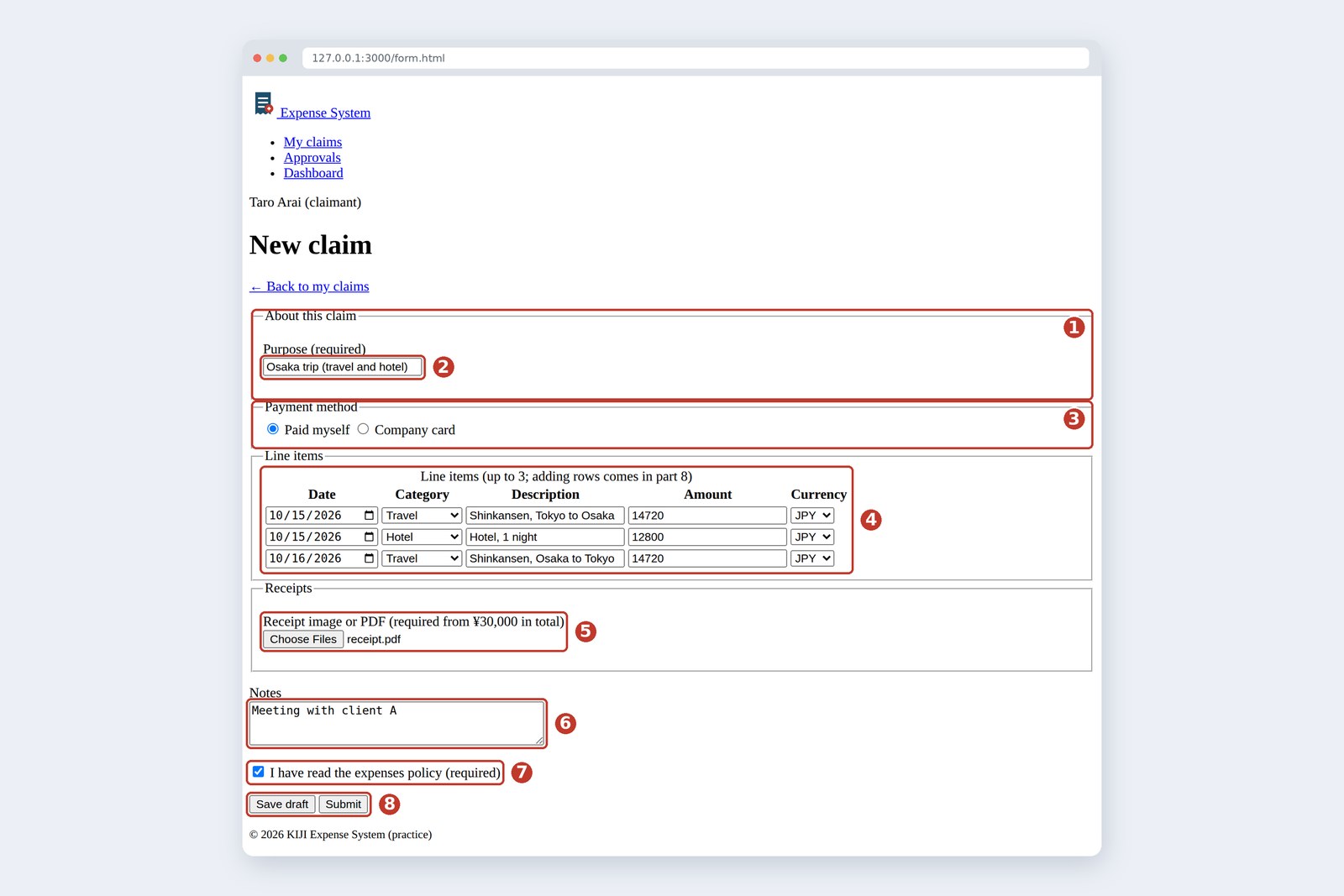
This is the page behind the "+ New claim" link on the claims list. You can now move back and forth between the two.
Trying the browser's checks
Press Submit with nothing filled in and the browser stops the submission, showing a bubble on the first empty field. We pulled each field's message out of the browser (the actual wording from Chromium set to English).
Purpose (required)  →  Please fill out this field.
Row 1 Date  →  Please fill out this field.
Row 1 Category  →  Please select an item in the list.
Row 1 Description  →  Please fill out this field.
Row 1 Amount  →  Please fill out this field.
I have read the expenses policy (required)  →  Please check this box if you want to proceed.
Amount 0  →  Value must be greater than or equal to 1.
Amount 12.5  →  Please enter a valid value. The two nearest valid values are 12 and 13.
All that checking, without a single line of JavaScript. Here is what HTML alone can check.
HTML checks, and their limits
Browser checks are a courtesy to users, not a defence. Delete required in DevTools and the form goes through empty. OWASP, the standard security reference, says the same: client-side validation can be bypassed, so validate on the server too. The same goes when you ask an AI to "add validation" and it only adds it on the page. In a system that handles money, the server's checks are the real ones.
What actually gets sent
Finally, what is sent the moment you press the button? First, with the method switched to GET (the real URL after pointing the form at /echo; only its start is shown, then the same thing decoded).
/echo?title=Osaka+trip+%28travel+and+hotel%29&payment=personal&date=2026-10-15&category=transpor…

title = Osaka trip (travel and hotel)
payment = personal
date = 2026-10-15
category = transport
item = Shinkansen, Tokyo to Osaka
amount = 14720
currency = JPY
...(rows 2 and 3 follow with the same names: date, category, item, amount, currency)...
receipt = receipt.pdf
note = Meeting with client A
agree = yes
action = submit
Each name and its value become a name=value pair, joined with & on the end of the URL. Non-ASCII text is converted to forms like %E5%A4… (URL encoding). And receipt is just the name "receipt.pdf": GET cannot carry file contents.
Next, the body the server received from a proper POST (multipart/form-data). We caught it with a tiny server in the cloud sandbox that only records what arrives (long parts trimmed).
POST /api/expenses HTTP/1.1
Content-Type: multipart/form-data; boundary=----WebKitFormBo…

------WebKitFormBoundaryYH…
Content-Disposition: form-data; name="title"

Osaka trip (travel and hotel)
------WebKitFormBoundaryYH…
Content-Disposition: form-data; name="payment"

personal
...(date, category, item, amount and currency for each of 3 rows)...
------WebKitFormBoundaryYH…
Content-Disposition: form-data; name="receipt"; filename="receipt.pdf"
Content-Type: application/pdf

%PDF-1.4
% demo receipt
%%EOF
------WebKitFormBoundaryYH…
Content-Disposition: form-data; name="note"

Meeting with client A
------WebKitFormBoundaryYH…
Content-Disposition: form-data; name="agree"

yes
------WebKitFormBoundaryYH…
Content-Disposition: form-data; name="action"

submit
------WebKitFormBoundaryYH…--
Each field is fenced off by a separator line (the boundary), and the receipt part carries the file's contents themselves. Last, what arrived when Save draft was pressed with nothing filled in (tidied up to read).
title = (empty)
payment = personal
date = (empty)
category = (empty)
item = (empty)
amount = (empty)
currency = JPY
receipt = (empty)
note = (empty)
action = draft
...rows 2 and 3 are empty too. agree (the checkbox) was not sent at all
- It arrived without checks — thanks to formnovalidate, it was sent with required fields empty. The server sees action=draft and decides empty is fine for a draft
- Empty fields arrive as empty — title, amount and the rest arrive as names with no value
- An unticked checkbox is not sent at all, not even its name — agree has vanished. The server has to read "no agree" as "not ticked"
AraiSo all that flies off with one press of a button…
FuruiKnow what's inside and you can talk to the server people. When they ask "why isn't agree coming through?", you won't panic.
§ — On one page, and what is next
- Wrap a form in form and decide its action (where to) and method (how). Registering is a POST, and files need enctype="multipart/form-data".
- Give fields a label (the name for people) and a name (the name for the server). A placeholder is no substitute for a label.
- Pick the type that fits the data: number for amounts, date for dates, radio or select for one choice. Group related fields with fieldset.
- required, min, step and friends let the browser check input for you. That is a courtesy, not a defence: always check on the server too.
- What is sent is name=value pairs. Empty fields arrive empty, unticked checkboxes do not arrive at all, and Save draft skips checks with formnovalidate.
AraiThat's the HTML skeleton done! But it still looks like it's from the last century…
FuruiNext time, CSS at last: time to get dressed. Part 4 is selectors and boxes, styling the list with our own CSS.
References
- MDN — <input>: The HTML Input element
- MDN — <label>: The Label element
- MDN — Sending form data
- MDN — Client-side form validation
- MDN — HTMLButtonElement: formNoValidate property
- MDN — HTML attribute: autocomplete
- W3C WAI — Forms Tutorial: Labeling Controls
- W3C WAI — Forms Tutorial: Form Instructions
- OWASP — Input Validation Cheat Sheet
- WHATWG — HTML Living Standard: Forms
The screenshots show the author's demo pages, captured on 17 October 2026 with Chromium (Playwright) in a cloud sandbox. The validation messages are the actual wording pulled from Chromium set to English; the GET URL, the POST body and the draft contents were recorded by actually submitting the form (the POST was received by a small recording server in the cloud sandbox). The accessibility trees are output from Playwright's ariaSnapshot(). Message wording and placeholder handling differ between browsers. The characters are fictional.
Old-School Front-End, part 3 — Forms: building the claim form in HTML and seeing what gets sent / 2026.10