Old-School Front-End / 2026 ・ No.04
Old-School Front-End
Part 4: CSS selectors and the box model, dressing the claims list in hand-written CSS
Published
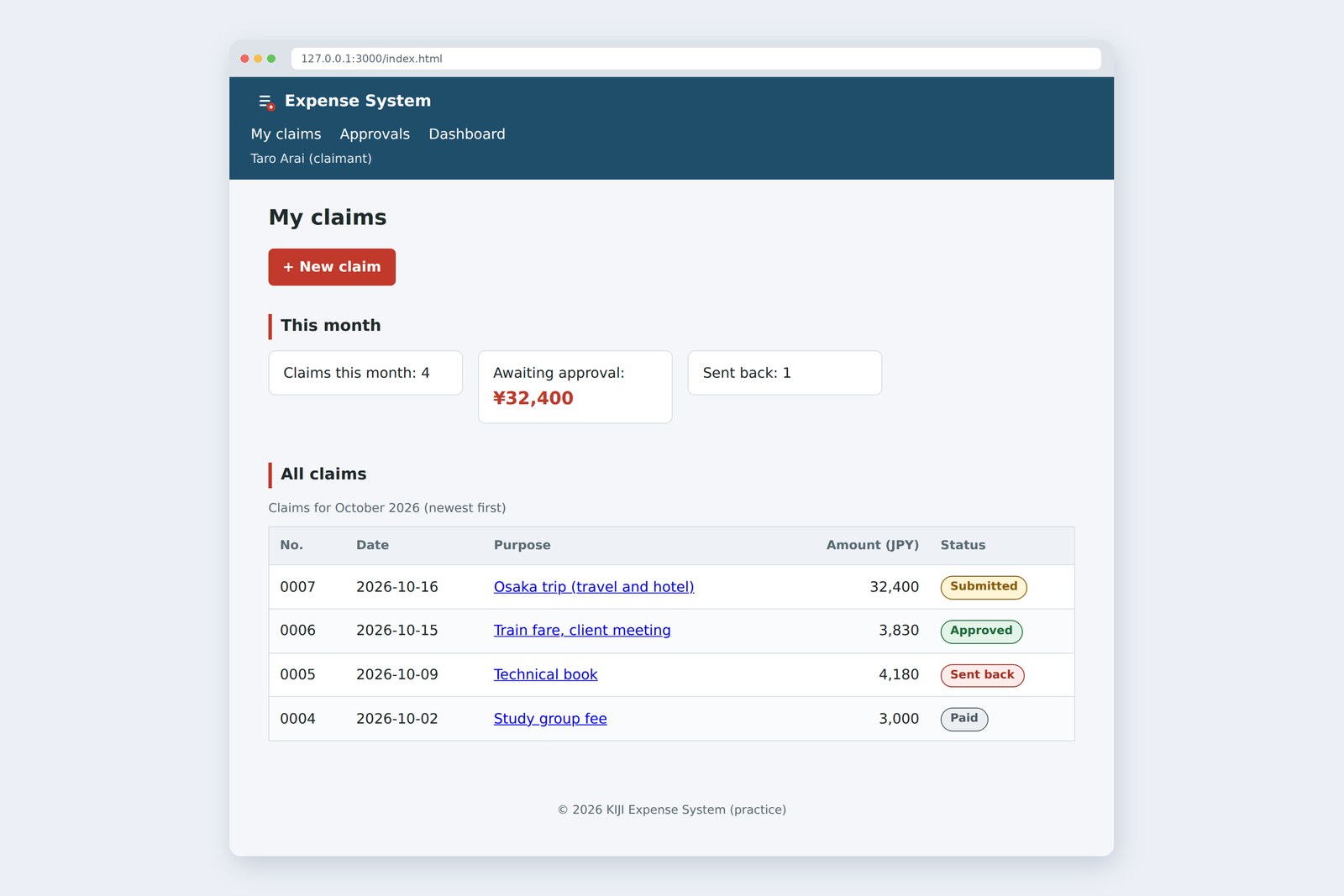
An "old-school" front-end course: no AI doing it for you, every line typed by hand. Part 4 is where CSS finally arrives.
We take the claims list from part 2 and dress it in CSS we write ourselves, with no library.
Three ideas carry the whole part: which elements a rule hits (selectors), who wins when rules clash (the cascade),
and every element is a box (the box model).
This part's goal
AraiFurui, the AI wrote my CSS too! Only, when I fixed the button colour the table broke, and when I fixed the table the button broke… In the end I added !important and everything was fine!
FuruiHow many of those !importants are there?
Arai…Twenty-three.
FuruiThat's emptying a fire extinguisher in every room each time something smokes. Today we write CSS by hand and learn how it decides who wins.
You are here: part 4
This time we give part 2's claims list (index.html) a CSS file called css/style.css. On the HTML side the only changes are one line that loads the CSS, and a few classes. Here is the difference it makes.
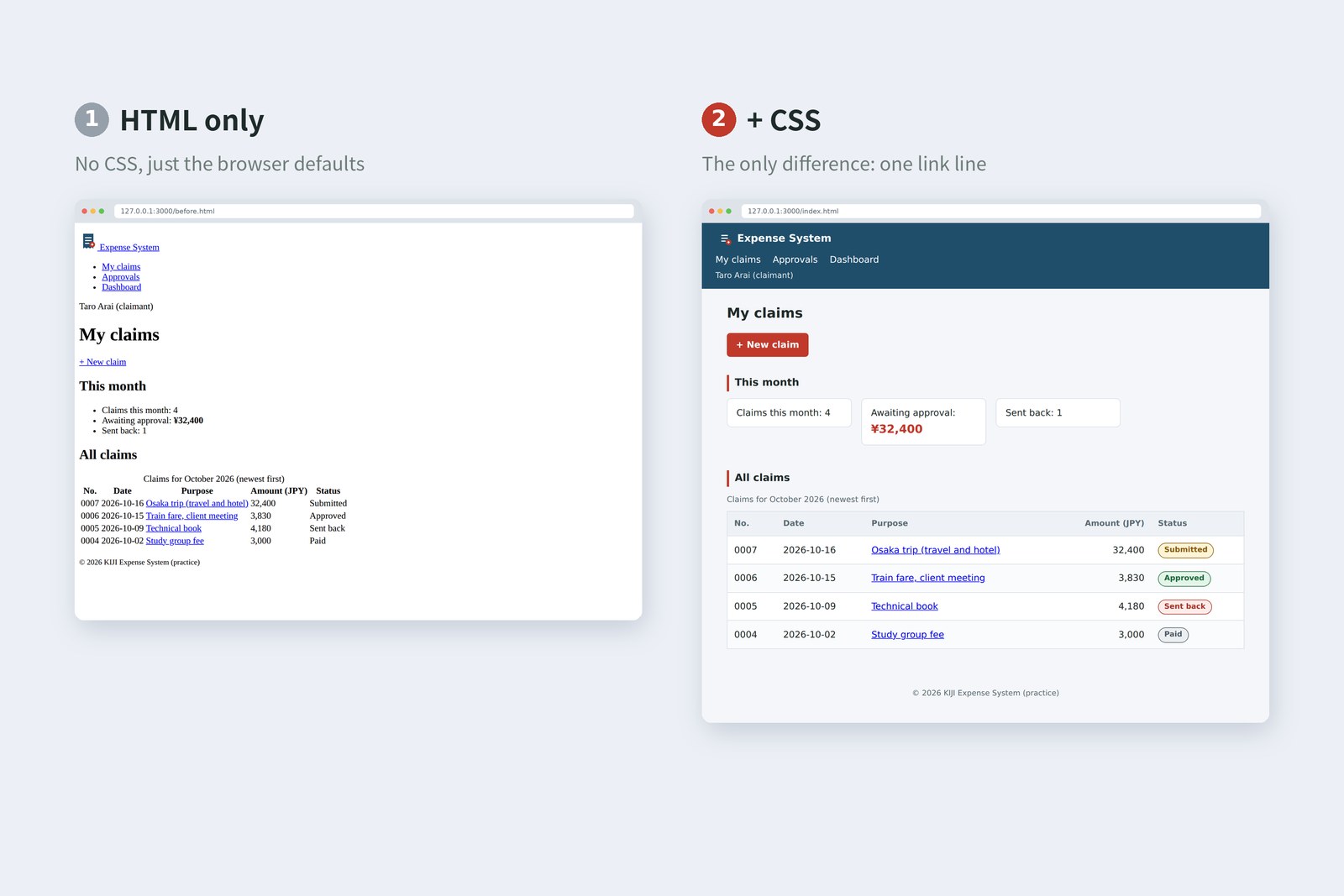
Version 1 loads no CSS. The big bold headings and blue underlined links come from the browser's own default styles. Version 2 layers our CSS on top. CSS is a language for changing how HTML looks without touching the HTML itself.
In vibe coding, CSS is where "it works, somehow" piles up fastest. You can't see why something looks wrong, so you add another rule to override it, and another. The goal of this part is to be able to read the reason yourself.
Attaching CSS
There are three ways to attach CSS to HTML.
Three ways to attach CSS
For real work, use number 3: one link element in the head.
<head>
  <meta charset="UTF-8">
  <meta name="viewport" content="width=device-width, initial-scale=1">
  <title>My claims | Expense System</title>
  <link rel="stylesheet" href="css/style.css">
</head>
The href is a location relative to this HTML file. In the folder layout we chose in part 1, it looks like this.
expense/
├─ index.html      ← starting from here
├─ form.html
├─ css/
│   └─ style.css   ← style.css in the css folder
└─ img/
    └─ logo.svg
With all the CSS in one file, form.html and the approval screen we build later get the same look by adding the same link. When the button colour needs to change, you change one place in style.css.
FuruiBefore CSS caught on, we wrote <font color="red"> around every bit of text we wanted coloured.
AraiSo when the colour changed…
FuruiYou opened every page and changed every one. CSS was proposed in October 1994 and became a W3C Recommendation, CSS1, in December 1996. Keeping content and looks apart is wisdom the old-timers paid for.
The shape of a rule
A stylesheet is a list of rules. Each rule has this shape, and that's all there is to it.
Taking a CSS rule apart
Which elements (selector), what to change (property), and how (value). In plain words: "make the width of the li elements in the summary 220px".
When CSS contains a mistake, the browser quietly ignores it. Forget the ; after color: red and follow it with background: #fff; on the next line, and the browser sees a single declaration, "color: red background: #fff", and throws both away. No error appears. When something "doesn't work", check your semicolons and braces first.
Selectors: which elements
A selector picks elements out of the HTML tree from part 2. Let's see which elements each selector picks in the claims list.
The elements each selector picks
Look at C, .summary li. The nav has li elements too, but only the li elements inside the summary are picked. Had we written li { width: 220px; }, the nav links would be 220px wide as well.
| Syntax | Name | Picks | Used here for |
|---|---|---|---|
| h2 | Type | every element of that kind | the red line left of headings |
| .button | Class | elements with that class | making a link look like a button |
| #warn | ID | the element with that id (one per page) | not used (too strong; see section 5) |
| * | Universal | every element | box-sizing (section 6) |
| .summary li | Descendant (space) | elements inside, at any depth | the summary boxes |
| body > header | Child (>) | direct children only | the page header |
| th, td | List (,) | any of them | padding in table cells |
| a:hover, tr:nth-child(even) | Pseudo-class (:) | by state or position | the row under the mouse, even rows |
The basic habit: give the parts you want to style a class, and select by class. The classes we added to the HTML are site, user, button, summary, amount and status, six in all. Name them by role, not by looks: amount, not red-text. Then if the colour becomes blue, the name still tells the truth.
AraiWouldn't an ID be quicker? One shot, straight to the element.
FuruiSpeed isn't the issue. An ID is too strong. That "strength" is the next section.
When rules clash, who wins
One element is often hit by several rules. If they set different colours, which one wins? The answer is the first C in CSS: the cascade, styles flowing down in steps.
Specificity, and how the winner is decided
Every selector has a three-column score called specificity: the number of IDs, the number of classes, pseudo-classes and attributes, and the number of type names. You compare from the left, so a single ID beats any pile of classes.
Does it really work that way? I built a test page and pulled out the colour the browser computed for each element.
# The test CSS
p      { color: gray; }
.note  { color: blue; }
p.note { color: green; }
#warn  { color: red; }
.later { color: blue; }
.later { color: orange; }
.vip   { color: teal !important; }

# The colour the browser computed for each element (getComputedStyle)
<p>
    → gray   rgb(128, 128, 128)  only p matches
<p class="note">
    → green  rgb(0, 128, 0)      p.note (0-1-1) beats .note (0-1-0)
<p id="warn" class="note">
    → red    rgb(255, 0, 0)      #warn (1-0-0) wins
<p class="note" style="color: purple">
    → purple rgb(128, 0, 128)    the style attribute beats selectors
<p class="later">
    → orange rgb(255, 165, 0)    a tie, so the later .later wins
<span class="vip" style="color: purple">
    → teal   rgb(0, 128, 128)    !important beats the style attribute
Just as the diagram says. In case 2, p.note wins the green-or-blue fight. In case 5 the scores tie, so orange, written later, wins. And in case 6 !important pushes aside even the style attribute.
!important jumps straight to the top step. Once you use it, overriding it takes another !important, and an arms race begins. The 23 in the opening scene is exactly that. When AI-written CSS is full of !important, ID selectors and style attributes, read it as the scars of fights settled by raw score. When you write by hand, keep specificity low and even, with one class (0-1-0) as the norm. That is what keeps CSS maintainable.
Inheritance: what children get from parents
There's one more way a value gets decided without any rule hitting the element: inheritance.
# color, border and font-family on the parent; nothing on the child p
.parent { color: #1f4e6b; border: 3px solid #1f4e6b; font-family: serif; }

child color → rgb(31, 78, 107) (inherited)
child font-family → serif (inherited)
child border-top-width → 0px (not inherited)
Text colour and typeface pass down to children; borders do not. A rule of thumb that is almost always right: text things (color, font-family, font-size, line-height and so on) are inherited, box things (border, padding, margin, background and so on) are not. Our CSS sets the text colour and typeface once, on body, precisely to use inheritance.
The box model: everything is a box
The browser lays out every element as a rectangular box. From the inside out, a box has four layers: content, padding (space inside), border and margin (space outside). Here is a summary box drawn with its real numbers.
The box model of a summary box
The key question is what width: 220px actually measures. That is decided by box-sizing.
content-box versus border-box
With the default, content-box, width is the content alone. Add the padding and border and a box you declared as 220px comes out at 254px. "I lined up three 220px boxes and they spilled over" is a classic accident from way back. So our CSS starts with this.
*, *::before, *::after {
  box-sizing: border-box;
}
This common snippet makes every element (*), and the pseudo-elements before and after it, use border-box. Now width means "up to the border", which matches intuition. Here are the values measured on the test page.
# 1. The real width of a box with width: 220px; padding: 12px 16px; border: 1px
box-sizing: content-box → 254px (220 + 16x2 + 1x2)
box-sizing: border-box → 220px (the content shrinks to 186px)

# 2. A paragraph with margin 16px, directly above one with margin 24px
gap between them → 24px (not 16 + 24 = 40)
Case 2 is margin collapsing. When boxes stack vertically, their top and bottom margins are not added; only the larger one survives. If a gap is narrower than you expected, suspect this.
| display | How it flows | width and vertical spacing | Examples here |
|---|---|---|---|
| block | stacks vertically, full width | work | p, h2, section, ul (by default) |
| inline | flows inside text | width has no effect; vertical spacing doesn't push neighbours away | a, span, strong (by default) |
| inline-block | sits side by side like text | work | .button, .summary li, .status, nav li |
An a element is inline by default, so padding alone won't turn it into a neat button-shaped block. Asking the browser to "treat it as a box" with display: inline-block is the trick behind button-style links. The summary boxes sit side by side with inline-block too; better tools for that arrive with layout in the next part.
Units, colours and variables
| Unit | Based on | Used here for |
|---|---|---|
| px | a dot on the screen | spacing, borders, box widths |
| rem | the html element's font size (measured: 16px, so 0.875rem = 14px) | text sizes |
| em | the element's own font size | (not used here) |
| % | the parent's size | table width (width: 100%) |
Text sized in rem grows when a user turns up the font size in their browser settings. Colours can be written as #1f4e6b (red, green and blue in hexadecimal), as rgb(31, 78, 107), or by name, like gray.
When the same colour appears in many places, give it a name with a CSS variable (custom property).
:root {
  --brand: #1f4e6b;    /* names start with -- */
  --accent: #c0392b;
}
body > header { background: var(--brand); }   /* read it with var() */
.button       { background: var(--accent); }
:root is the outermost element of the page (html). Variables are inherited too, so defining them here makes them available everywhere. If the company colours change, you edit one line.
Once the colours are chosen, check the contrast ratio between text and background. The WCAG accessibility guidelines ask for at least 4.5:1 for normal text. I calculated our combinations with the WCAG formula.
| Where | Text / background | Contrast ratio |
|---|---|---|
| New claim button | #ffffff / #c0392b | 5.44 : 1 |
| Header | #ffffff / #1f4e6b | 8.9 : 1 |
| Table caption | #5b6b75 / #f4f6f9 | 5.1 : 1 |
| Submitted | #8a5a00 / #fff4d6 | 5.41 : 1 |
| Approved | #1d6b3a / #e3f4e9 | 5.72 : 1 |
| Sent back | #a93226 / #fdecea | 5.79 : 1 |
| Paid | #4d5b66 / #eceff2 | 6.06 : 1 |
The status badges are colour-coded and keep their words. People see colour differently, so never let colour alone carry the meaning ("red means sent back"). That, too, is a WCAG rule.
Finishing the claims list
Now we finish the claims list with these tools. Here are the HTML changes, pulled out on their own. That's all of them.
  …
  <link rel="stylesheet" href="css/style.css">
  …
    <p class="site"><a href="/"><img src="img/logo.svg" alt="" width="32" height="32"> Expense System</a></p>
  …
    <p class="user">Taro Arai (claimant)</p>
  …
    <p><a class="button" href="form.html">+ New claim</a></p>
  …
      <ul class="summary">
  …
            <th scope="col" class="amount">Amount (JPY)</th>
  …
            <td class="amount">32,400</td>
            <td><span class="status status-submitted">Submitted</span></td>
  …
And here is the whole of css/style.css. It runs ground rules, header, main content, table, footer: the same order as the page, top to bottom.
/* ===== 1. Ground rules (colour variables, box sizing, text) ===== */
:root {
  --ink: #1f2b2a;
  --muted: #5b6b75;
  --brand: #1f4e6b;
  --accent: #c0392b;
  --line: #d7dee5;
  --bg: #f4f6f9;
}
*, *::before, *::after {
  box-sizing: border-box;
}
body {
  margin: 0;
  font-family: system-ui, "Segoe UI", Roboto, "Noto Sans", sans-serif;
  line-height: 1.6;
  color: var(--ink);
  background: var(--bg);
}

/* ===== 2. Header ===== */
body > header {
  background: var(--brand);
  color: #fff;
  padding: 12px 24px;
}
body > header a {
  color: #fff;
  text-decoration: none;
}
.site {
  margin: 0;
  font-size: 1.125rem;
  font-weight: 700;
}
.site img {
  vertical-align: middle;
}
nav ul {
  list-style: none;
  margin: 8px 0 0;
  padding: 0;
}
nav li {
  display: inline-block;
  margin-right: 16px;
}
nav a:hover,
nav a:focus-visible {
  text-decoration: underline;
}
.user {
  margin: 4px 0 0;
  font-size: 0.875rem;
  opacity: 0.85;
}

/* ===== 3. Main content and headings ===== */
main {
  max-width: 960px;
  margin: 0 auto;
  padding: 24px;
}
h1 {
  margin: 0 0 16px;
  font-size: 1.5rem;
}
h2 {
  margin: 32px 0 12px;
  padding-left: 10px;
  border-left: 4px solid var(--accent);
  font-size: 1.125rem;
}

/* A link that looks like a button */
.button {
  display: inline-block;
  padding: 8px 16px;
  border-radius: 6px;
  background: var(--accent);
  color: #fff;
  font-weight: 700;
  text-decoration: none;
}
.button:hover {
  background: #a93226;
}
.button:focus-visible {
  outline: 3px solid #f5b041;
  outline-offset: 2px;
}

/* Summary: small boxes side by side */
.summary {
  list-style: none;
  margin: 0;
  padding: 0;
}
.summary li {
  display: inline-block;
  width: 220px;
  margin: 0 12px 12px 0;
  padding: 12px 16px;
  border: 1px solid var(--line);
  border-radius: 8px;
  background: #fff;
  vertical-align: top;
}
.summary strong {
  display: block;
  color: var(--accent);
  font-size: 1.25rem;
}

/* ===== 4. Table ===== */
table {
  width: 100%;
  border-collapse: collapse;
  border: 1px solid var(--line);
  background: #fff;
}
caption {
  padding-bottom: 8px;
  color: var(--muted);
  font-size: 0.875rem;
  text-align: left;
}
th,
td {
  padding: 10px 12px;
  border-bottom: 1px solid var(--line);
  text-align: left;
}
thead th {
  background: #eef2f6;
  color: var(--muted);
  font-size: 0.875rem;
}
tbody tr:nth-child(even) {
  background: #fafbfc;
}
tbody tr:hover {
  background: #fdf2e9;
}
.amount {
  text-align: right;
  font-variant-numeric: tabular-nums;
}

/* Status badges (keep the words; never colour alone) */
.status {
  display: inline-block;
  padding: 2px 10px;
  border: 1px solid;
  border-radius: 999px;
  font-size: 0.8125rem;
  font-weight: 700;
}
.status-submitted { color: #8a5a00; background: #fff4d6; }
.status-approved  { color: #1d6b3a; background: #e3f4e9; }
.status-returned  { color: #a93226; background: #fdecea; }
.status-paid      { color: #4d5b66; background: #eceff2; }

/* ===== 5. Footer ===== */
body > footer {
  padding: 24px;
  color: var(--muted);
  text-align: center;
}
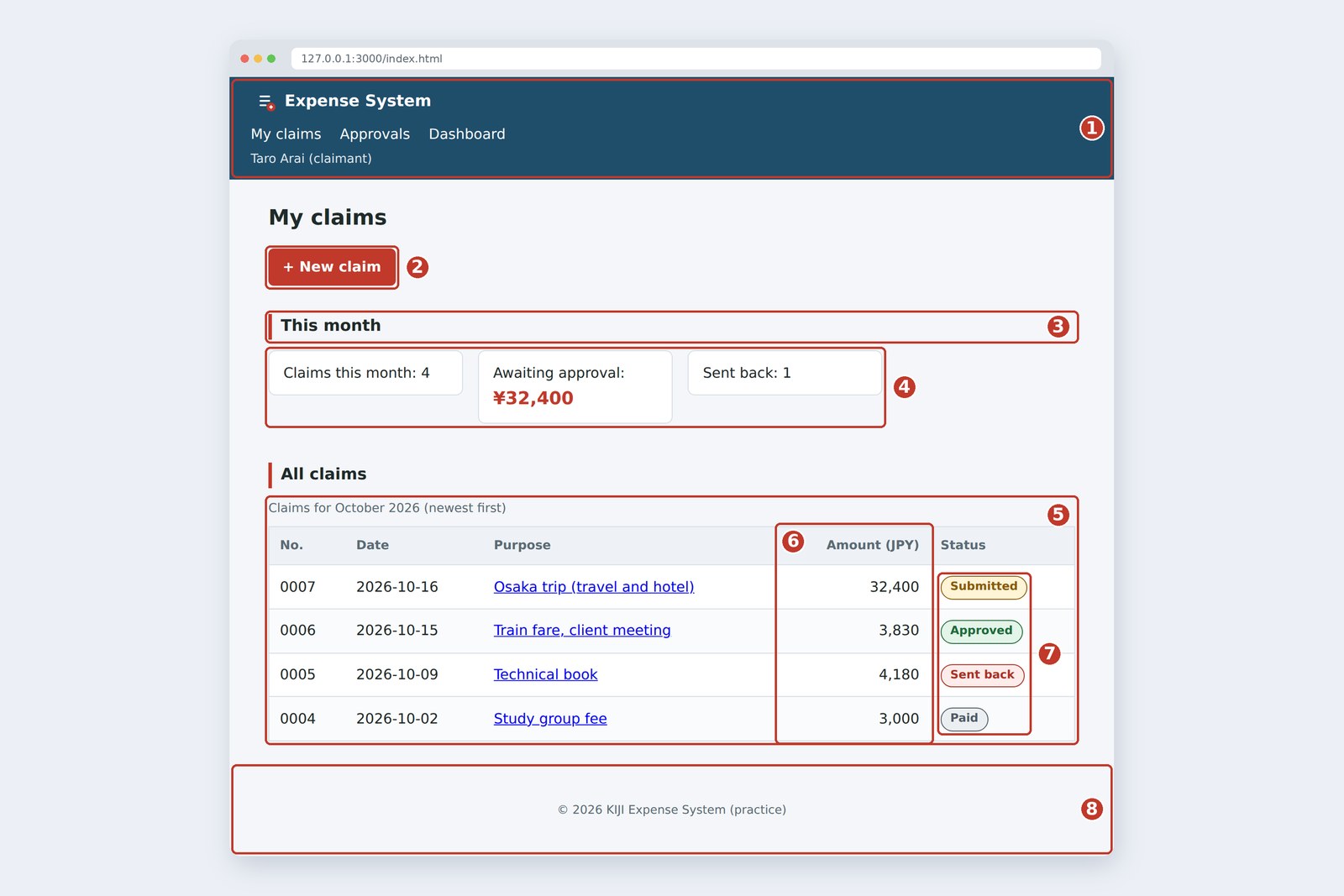
- body > header: picks only the page header. A header inside a section won't get caught up in it
- border-left on h2: a thick line on the left only, to mark headings. Each side of a border can be set separately
- border-collapse: collapse: merges the table cell borders into single lines. Without it, neighbouring cells show two lines side by side
- tbody tr:nth-child(even): tints even rows only, for zebra stripes that help the eye follow long rows
- .amount: right-aligned, with font-variant-numeric: tabular-nums so every digit has the same width. The digits line up and large amounts stand out at a glance
- .status-…: the shared shape lives in .status, and only the colours go in .status-approved and friends. One element carries two classes
AraiNot a single !important.
FuruiNo ID selectors or style attributes either. Nothing with a big score, so there's no fight to start.
States: :hover and :focus-visible
Pseudo-classes let the look change with state: while the mouse is over something, while it's selected with the keyboard, and so on.
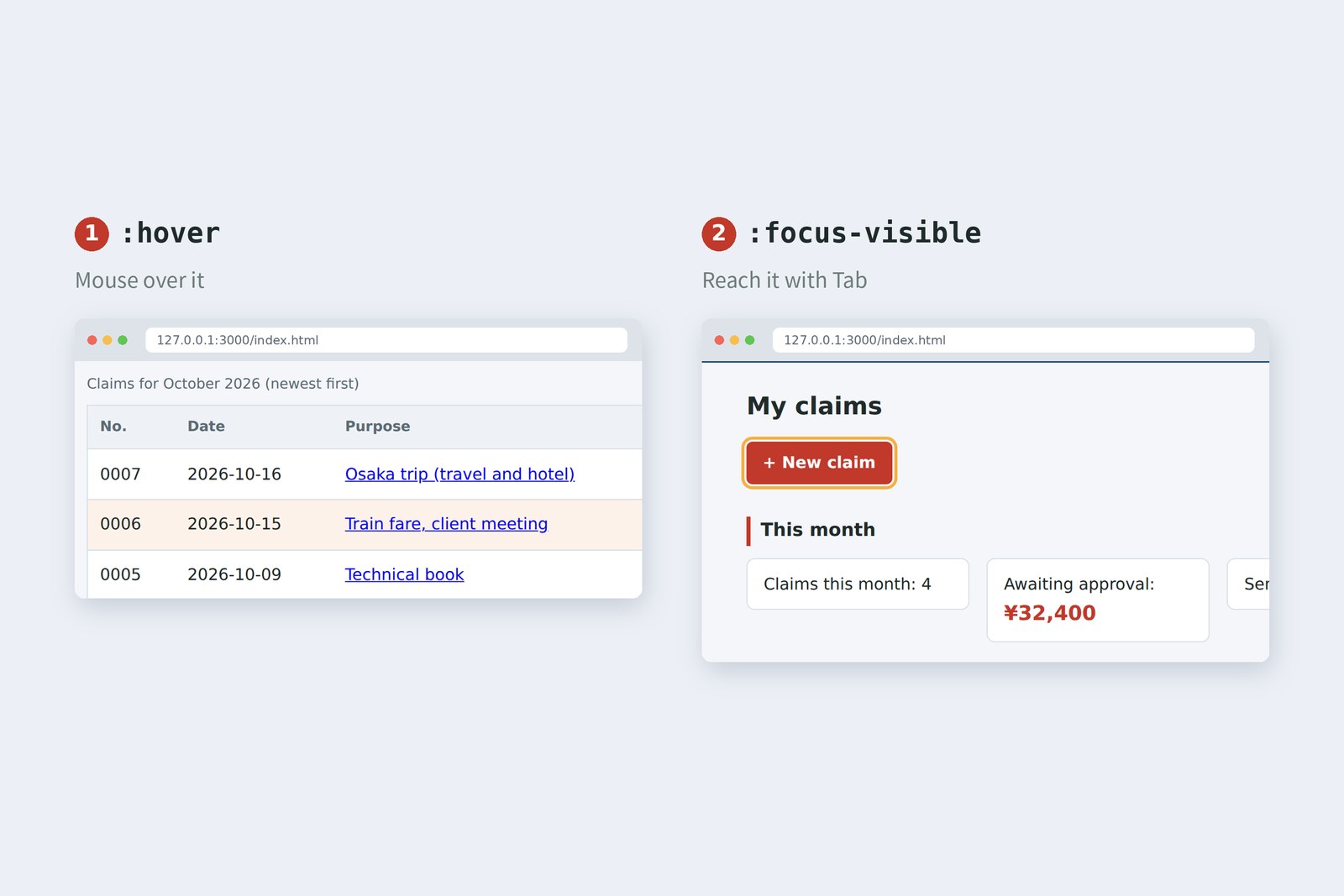
tbody tr:hover {
  background: #fdf2e9;          /* the row under the mouse */
}
.button:focus-visible {
  outline: 3px solid #f5b041;   /* when reached with the keyboard */
  outline-offset: 2px;
}
:focus-visible applies only when the browser decides the focus should be shown. Tab to the button and the ring appears; click it with the mouse and it usually doesn't.
AraiIsn't that focus ring a bit ugly? The AI says outline: none gets rid of it.
FuruiSome people never touch a mouse and work with the keyboard alone. For them, that ring is the only sign of where they are.
AraiLike deleting the "you are here" pin from a map?
FuruiExactly. If you remove it, put another marker in its place. WCAG requires visible focus, too.
Finding out why
When CSS doesn't do what you expect, ask the browser why before adding anything. Right-click the element and choose Inspect to open DevTools.
- Styles: the rules hitting the element, winners first. Declarations that lost are struck through, so you can see at a glance which rule beat yours
- Computed: the final values, including those that came from inheritance, with a diagram of the box model
- Live edits: click a value to try changes without touching the file. When it works, copy it into style.css
You can check CSS syntax with the W3C CSS Validation Service, or with the Nu Html Checker from part 2 (add --css). Our style.css and index.html both came back with no errors.
Even when you ask an AI to fix your CSS, look at the "why" in DevTools first. Once you know "this colour is losing to .note", your request becomes specific ("change the colour in p.note") and the !important pile stops growing. Vibe coding by someone who knows the reasons is fast and doesn't fall apart.
§ — On one page, and what is next
- Load CSS as a separate file with a link element. Keep content (HTML) and looks (CSS) apart, and every change happens in one place.
- A rule is selector { property: value; }. Mistakes are silently ignored, so mind your semicolons and braces.
- Select by class, and name classes by role, not looks. Narrow the selection with descendant, child and pseudo-class selectors.
- Clashes are settled by !important, then the style attribute, then specificity, then whichever comes later. Keep specificity low and even, and don't lean on !important. Text colour and typeface are inherited.
- Every element is a box of content, padding, border and margin. box-sizing: border-box makes width reach the border. Vertical margins collapse.
AraiIt looks like a different app! I'll open it on my phone and show the boss right now.
Furui…Read the next part before you open it on a phone. Part 5 is layout and mobile, and the real tools for arranging boxes.
References
- MDN — CSS selectors
- MDN — Introduction to the CSS cascade
- MDN — Specificity
- MDN — !important
- MDN — Inheritance
- MDN — The box model
- MDN — box-sizing
- MDN — Mastering margin collapsing
- MDN — Using CSS custom properties (variables)
- MDN — :focus-visible
- MDN — font-variant-numeric
- W3C WAI — Understanding SC 1.4.3: Contrast (Minimum)
- W3C WAI — Understanding SC 1.4.1: Use of Color
- W3C WAI — Understanding SC 2.4.7: Focus Visible
- Chrome for Developers — Chrome DevTools
- W3C — CSS Validation Service
- W3C — Cascading Style Sheets, designing for the Web: The CSS saga
The page photos show the author's demo pages, captured on 17 October 2026 in Chromium (Playwright) in the cloud. Segoe UI isn't available there, so the screenshots fall back to other system fonts; your fonts will differ. The colours in the specificity test come from getComputedStyle(), and the box widths and gap from getBoundingClientRect(), all real values from the same Chromium. Contrast ratios were calculated with the WCAG 2.2 relative-luminance formula. index.html and style.css were checked with the Nu Html Checker (vnu) and showed no errors. Dates in the history of CSS follow W3C sources. The characters are fictional.
Old-School Front-End, part 4: CSS selectors and the box model / 2026.10