Old-School Front-End / 2026 ・ No.05
Old-School Front-End
Part 5: CSS layout and phones, arranging with flex and grid and fitting any screen width
Published
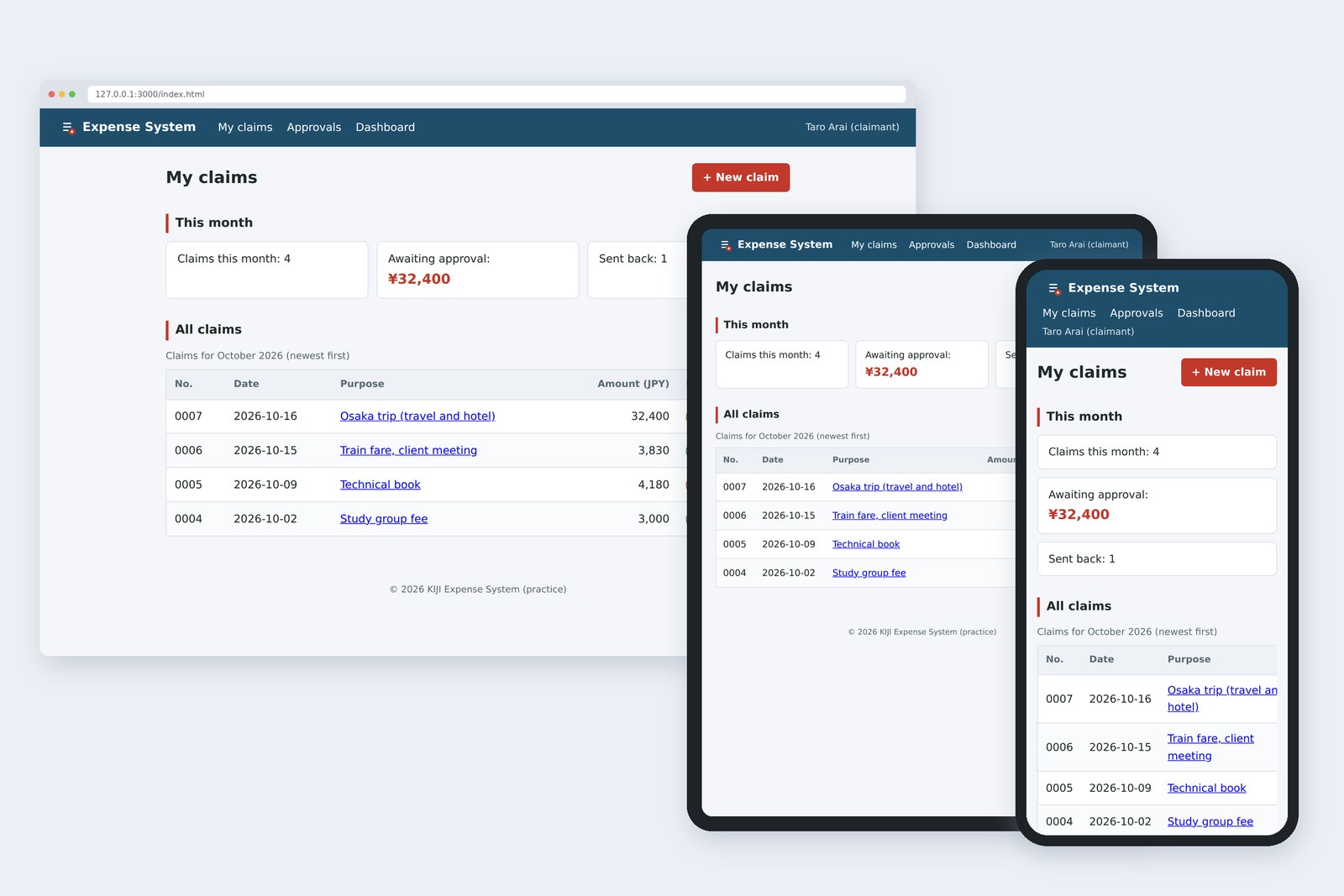
An "old-school" front-end course: no AI doing it for you, every line typed by hand. Part 5 is about layout.
Last time we dressed up the claims list. Then we opened it on a phone… and it wasn't pretty.
This time we use flex (line things up), grid (put things in cells) and media queries (switch by screen width)
so that one HTML file and one stylesheet read well on both a PC and a phone.
This part's goal
AraiFurui… I showed the boss on my phone, and she asked where the Status column had gone.
FuruiI told you to read part 5 before opening it on a phone.
AraiI asked the AI to "make it mobile-friendly" and the CSS came back twice as long. Now I don't know where to start.
FuruiThere are really only three tools for arranging things. Learn those and mobile stops being scary.
You are here: part 5
First, where we stand. I opened the claims list on a phone, 390px wide.
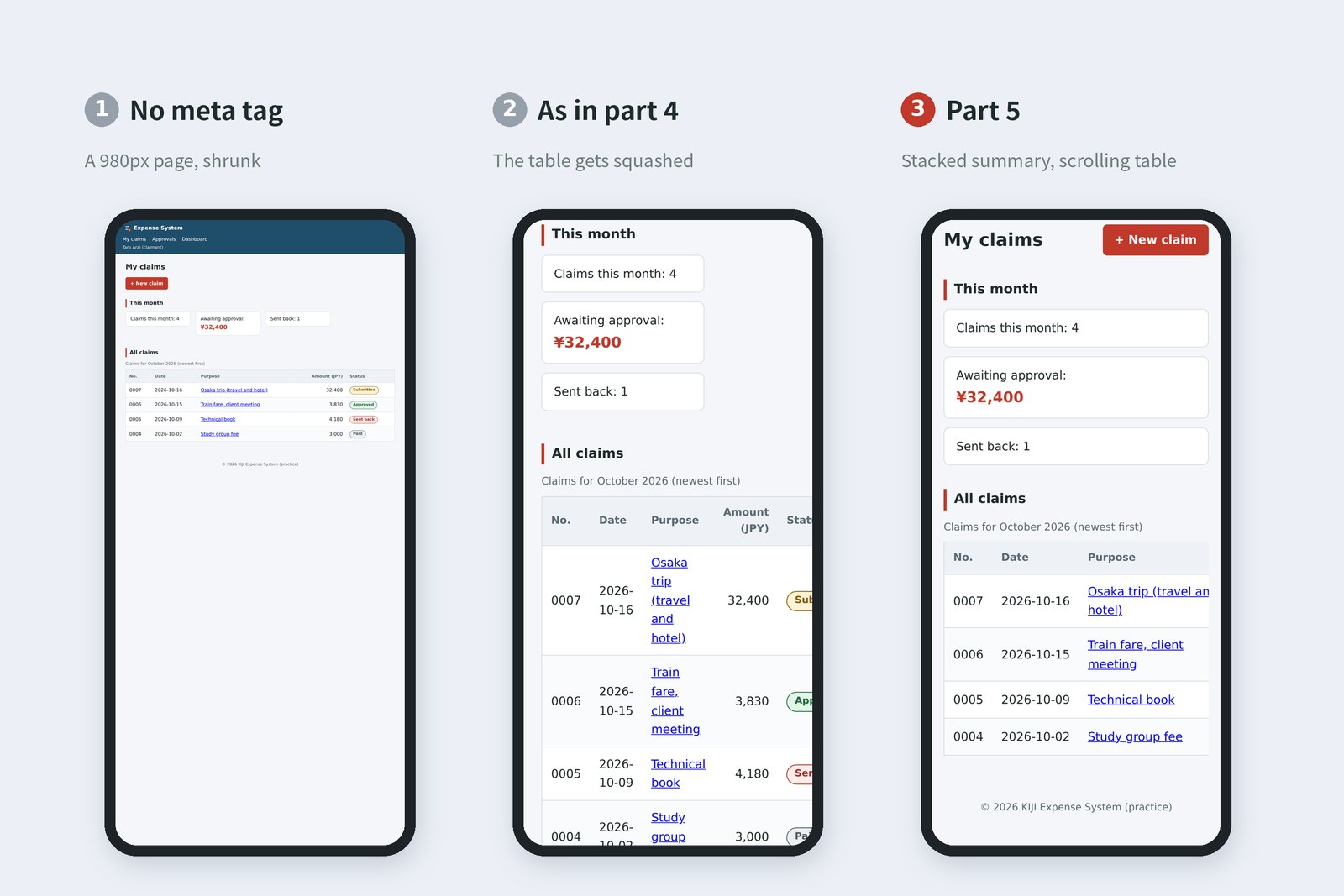
Number 2 is last part's CSS as it was. The table can't squeeze any narrower, so the page grows wider than the screen and the Status column ends up off the right edge. (In the Japanese and Chinese versions the table squeezes instead, and the status badges end up one character per line.) Number 1 also has the HTML's meta viewport tag removed. Number 3 is where we're headed. The HTML only gains two wrapper divs; CSS does the rest.
Know the phone screen: meta viewport
Remember this line we've had in the head since part 2?
<meta name="viewport" content="width=device-width, initial-scale=1">
Without it, a phone browser assumes "this page was made for PCs", lays it out as if the screen were 980px wide, then shrinks the result. Here is what I measured with the page open on a phone.
# Measured on a phone (390×844)
 no meta as in part 4 part 5
layout width 980px 468px 390px
zoom 0.398 1 1
table width 912px 443px 640px (box 358px, scrolls)
purpose column 334px 97px 205px
status badge height 27px 27px 27px
With and without meta viewport
Without the meta tag the page is shrunk to 0.398 of its size, so 16px text comes out at about 6.4px. You can't read it without pinching to zoom. width=device-width means "lay out at the device's screen width" and initial-scale=1 means "start at full size". Mobile support starts with this one line.
Even with it, though, things break as in number 2. The meta tag only gets the page laid out at the phone's width. Making the content fit that width is CSS's job.
Three ways to arrange boxes
In part 4 we learned that every element is a box. Broadly, there are three ways to arrange those boxes.
Three ways to arrange boxes
- Normal flow: what you get without asking. Block elements (p, h2, section and so on) stack vertically; inline elements (a, span and so on) flow inside text. Up to part 4, the claims list used almost nothing else
- flex: put display: flex on the parent and its children line up in one direction. Great for a header's contents, or a heading next to a button
- grid: put display: grid on the parent, decide the columns and rows first, then drop the children in. Great for cards or boxes in several columns
FuruiBefore flex and grid, we built columns with float, a feature meant for wrapping text around a picture.
AraiA text-wrapping trick, for the whole page?
FuruiYes. Columns never matched in height, and you needed a clean-up charm called clearfix. Today, just use flex and grid. Leave the old pain in the old days.
flex: lining things up
At PC width we want the header, stacked in three rows until now, to become a single row. That's a job for flex.
The header as flex
body > header {
  display: flex;          /* line the children up */
  flex-wrap: wrap;        /* wrap if they don't fit */
  align-items: center;    /* centre them vertically */
  gap: 8px 32px;          /* 8px between rows, 32px between items */
}
.user {
  margin: 0 0 0 auto;     /* take all the space on the left, go far right */
}
Flex has two directions. The direction the children line up in is the main axis (horizontal by default); the one at right angles is the cross axis (vertical). justify-content arranges things along the main axis and align-items lines them up on the cross axis. I measured where the children land for different justify-content values on a test page.
justify-content and where the children land (measured)
The margin-left: auto on the header is a classic flex trick. Give a flex child an auto margin and that margin swallows all the leftover space, pushing just that child to the far right. "Logo and nav on the left, user name alone on the right" takes one line.
The heading-and-button row is flex too. We wrapped it in div class="page-head" and split it to both ends with justify-content: space-between. This row stays side by side even on phones: the h1 and the button are short enough to fit in one row (and flex-wrap folds them if they ever don't).
grid: putting things in cells
Last time the summary boxes used inline-block and width: 220px. With the width fixed, a PC leaves empty space on the right, and a phone stacks them one per line with a gap on the right as well. Let's swap that for grid.
.summary {
  display: grid;
  grid-template-columns: repeat(auto-fit, minmax(200px, 1fr));
  gap: 12px;
}
Line two looks like a spell, but read it from the inside out and it's simple.
- minmax(200px, 1fr): each column is "at least 200px, at most 1fr". fr is a grid-only unit meaning "a share of the leftover width"; all 1fr means equal shares
- repeat(auto-fit, …): repeat that column "as many times as fit". The browser works out how many 200px columns the width allows
I changed the screen width and measured the actual columns.
auto-fit: number and width of columns (measured)
One column on a phone, two at 600px, three at 768px, without a single media query. At 1024px there's room for four, but there are only three boxes, so auto-fit folds the empty fourth column down to 0px and the three boxes stretch across the row. With auto-fill the empty column stays, leaving a column-sized gap on the right. Here we chose auto-fit, so the boxes fill the row.
With grid you state only the minimum width and leave the number of columns to the browser. That's far shorter than spelling out "1 column on phones, 2 on tablets, 3 on PCs", and it copes with widths you never thought of.
Let only the table scroll
A table's value lies in its rows and columns lining up. Squash it and it becomes unreadable; let it push the page wider and the whole page wobbles sideways, as in number 2. So we wrap the table in a div and let only that wrapper scroll sideways.
<div class="table-wrap" tabindex="0" role="region" aria-label="All claims">
  <table> … </table>
</div>
.table-wrap {
  overflow-x: auto;      /* if it overflows, scroll inside this box */
}
table {
  width: 100%;
  min-width: 640px;      /* don't squash below this */
}
.amount, td time, .status {
  white-space: nowrap;   /* never wrap amounts, dates or statuses (really one line in each rule) */
}
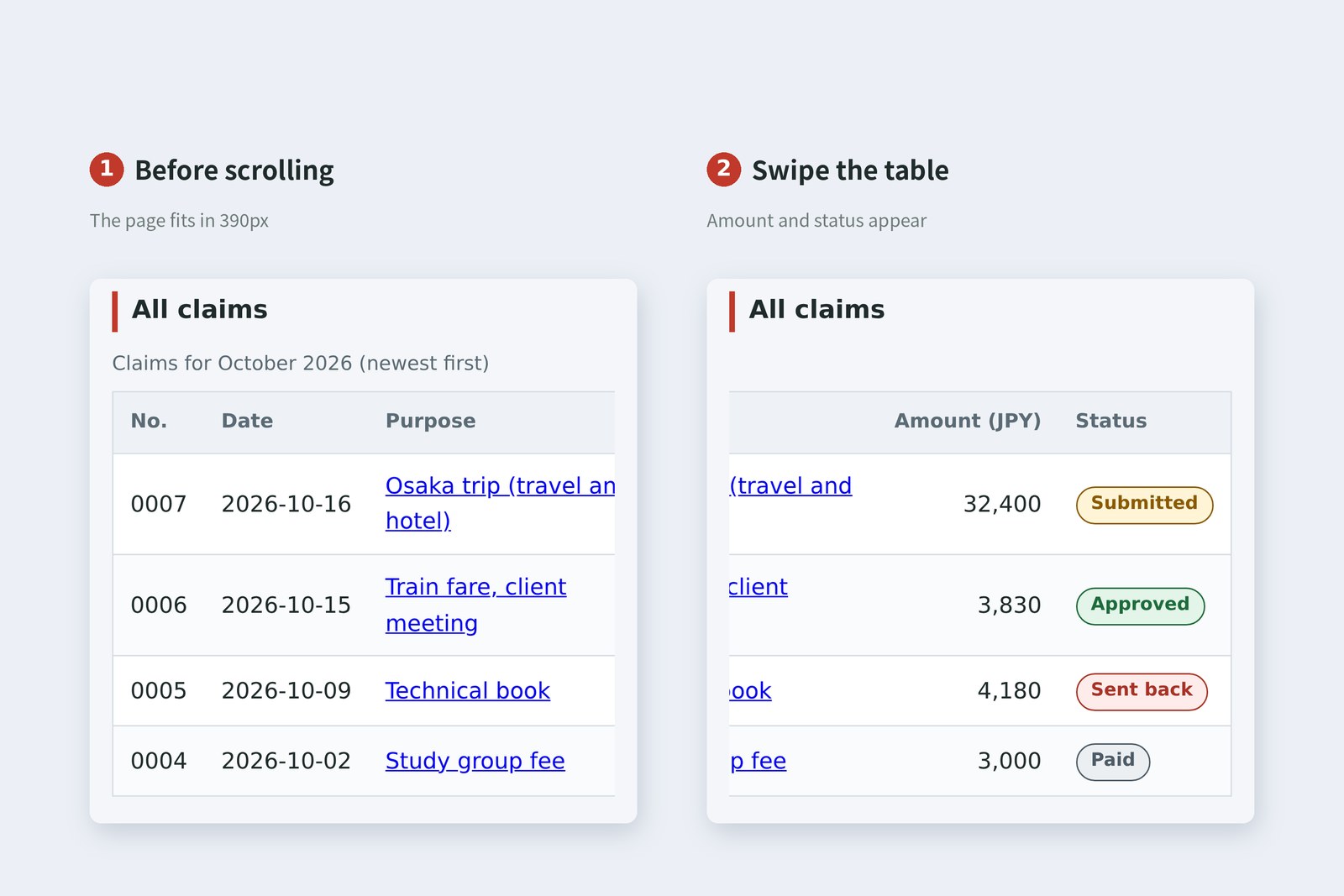
- min-width: 640px: the table's minimum width. On narrower screens the table stops shrinking and overflows inside the wrapper, which then scrolls
- white-space: nowrap: keeps dates, amounts and badges in one piece, so "2026-10-" and "16" never end up on separate lines
- tabindex="0": lets the wrapper take keyboard focus. Once focused, the arrow keys scroll it sideways, no mouse needed
- role="region" and aria-label: anything focusable needs a name. This tells screen readers it's a region called "All claims"
Media queries: switching by width
We only want the header in one row on wide screens such as PCs. On a phone, the logo, nav and user name would be crammed together. Switching CSS by screen conditions like this is what media queries do.
/* everything up to here applies to every screen (written for phones) */
body > header { background: var(--brand); padding: 12px 24px; }

@media (min-width: 768px) {
  /* added only when the screen is 768px or wider */
  body > header { display: flex; … }
}
Here we write for phones first and add rules for wider screens with min-width, an approach called mobile first. The narrowest screens get the fewest rules, which keeps things simple. I stepped the screen width 1px at a time and noted where the look changes.
# Screen width stepped 1px at a time from 300px to 1300px: where things change
 300px+   1 summary column, table scrolls, header stacked
 444px+   2 summary columns
 656px+   3 summary columns
 672px+   table fits its box (no sideways scroll)
 768px+   media query kicks in: header in one row (display: flex)
Screen width and where things change (measured)
The interesting part: the media query only switches the header and main's padding. The number of summary columns (grid) and the table scrolling (overflow) change on their own with the available width. Treat media queries as a last resort, and reach first for layouts that stretch and shrink naturally.
AraiIs 768px some kind of rule? An iPad's width?
FuruiPick breakpoints by device name and you'll be chasing every new model. Let the content decide. 768px is simply about where our logo, nav and name sit comfortably in one row.
The finished CSS
The HTML changes (new lines in bold):
  <main>
    <div class="page-head">
      <h1>My claims</h1>
      <p><a class="button" href="form.html">+ New claim</a></p>
    </div>

    <section>
      <h2>This month</h2>
      <ul class="summary">
        <li>Claims this month: 4</li>
        <li>Awaiting approval: <strong>¥32,400</strong></li>
        <li>Sent back: 1</li>
      </ul>
    </section>

    <section>
      <h2>All claims</h2>
      <div class="table-wrap" tabindex="0" role="region" aria-label="All claims">
        <table>
          <caption>Claims for October 2026 (newest first)</caption>
          <thead>
          …
        </table>
      </div>
    </section>
And the whole of css/style.css. Lines in bold changed or were added since part 4.
/* ===== 1. Ground rules (colour variables, box sizing, text) ===== */
:root {
  --ink: #1f2b2a;
  --muted: #5b6b75;
  --brand: #1f4e6b;
  --accent: #c0392b;
  --line: #d7dee5;
  --bg: #f4f6f9;
}
*, *::before, *::after {
  box-sizing: border-box;
}
body {
  margin: 0;
  font-family: system-ui, "Segoe UI", Roboto, "Noto Sans", sans-serif;
  line-height: 1.6;
  color: var(--ink);
  background: var(--bg);
}

/* ===== 2. Header ===== */
body > header {
  background: var(--brand);
  color: #fff;
  padding: 12px 24px;
}
body > header a {
  color: #fff;
  text-decoration: none;
}
.site {
  margin: 0;
  font-size: 1.125rem;
  font-weight: 700;
}
.site img {
  vertical-align: middle;
}
nav ul {
  list-style: none;
  margin: 8px 0 0;
  padding: 0;
}
nav li {
  display: inline-block;
  margin-right: 16px;
}
nav a:hover,
nav a:focus-visible {
  text-decoration: underline;
}
.user {
  margin: 4px 0 0;
  font-size: 0.875rem;
  opacity: 0.85;
}

/* ===== 3. Main content and headings ===== */
main {
  max-width: 960px;
  margin: 0 auto;
  padding: 16px;
}
h1 {
  margin: 0;
  font-size: 1.5rem;
}
/* Heading and button on opposite sides */
.page-head {
  display: flex;
  flex-wrap: wrap;
  align-items: center;
  justify-content: space-between;
  gap: 12px;
}
.page-head p {
  margin: 0;
}
h2 {
  margin: 32px 0 12px;
  padding-left: 10px;
  border-left: 4px solid var(--accent);
  font-size: 1.125rem;
}

/* A link that looks like a button */
.button {
  display: inline-block;
  padding: 8px 16px;
  border-radius: 6px;
  background: var(--accent);
  color: #fff;
  font-weight: 700;
  text-decoration: none;
}
.button:hover {
  background: #a93226;
}
.button:focus-visible {
  outline: 3px solid #f5b041;
  outline-offset: 2px;
}

/* Summary: a grid, as many across as fit (at least 200px) */
.summary {
  display: grid;
  grid-template-columns: repeat(auto-fit, minmax(200px, 1fr));
  gap: 12px;
  list-style: none;
  margin: 0;
  padding: 0;
}
.summary li {
  padding: 12px 16px;
  border: 1px solid var(--line);
  border-radius: 8px;
  background: #fff;
}
.summary strong {
  display: block;
  color: var(--accent);
  font-size: 1.25rem;
}

/* ===== 4. Table ===== */
/* Table: on narrow screens, only the table scrolls sideways */
.table-wrap {
  overflow-x: auto;
}
.table-wrap:focus-visible {
  outline: 3px solid #f5b041;
}
table {
  width: 100%;
  min-width: 640px;
  border-collapse: collapse;
  border: 1px solid var(--line);
  background: #fff;
}
caption {
  padding-bottom: 8px;
  color: var(--muted);
  font-size: 0.875rem;
  text-align: left;
}
th,
td {
  padding: 10px 12px;
  border-bottom: 1px solid var(--line);
  text-align: left;
}
thead th {
  background: #eef2f6;
  color: var(--muted);
  font-size: 0.875rem;
}
tbody tr:nth-child(even) {
  background: #fafbfc;
}
tbody tr:hover {
  background: #fdf2e9;
}
.amount {
  text-align: right;
  font-variant-numeric: tabular-nums;
  white-space: nowrap;
}
td time {
  white-space: nowrap;
}

/* Status badges (keep the words; never colour alone) */
.status {
  display: inline-block;
  padding: 2px 10px;
  border: 1px solid;
  border-radius: 999px;
  font-size: 0.8125rem;
  font-weight: 700;
  white-space: nowrap;
}
.status-submitted { color: #8a5a00; background: #fff4d6; }
.status-approved  { color: #1d6b3a; background: #e3f4e9; }
.status-returned  { color: #a93226; background: #fdecea; }
.status-paid      { color: #4d5b66; background: #eceff2; }

/* ===== 5. Footer ===== */
body > footer {
  padding: 24px;
  color: var(--muted);
  text-align: center;
}

/* ===== 6. Screens 768px and wider (tablets, PCs) ===== */
@media (min-width: 768px) {
  /* Header in one row */
  body > header {
    display: flex;
    flex-wrap: wrap;
    align-items: center;
    gap: 8px 32px;
  }
  nav ul {
    margin: 0;
  }
  /* Push the user name to the far right */
  .user {
    margin: 0 0 0 auto;
  }
  main {
    padding: 24px;
  }
}
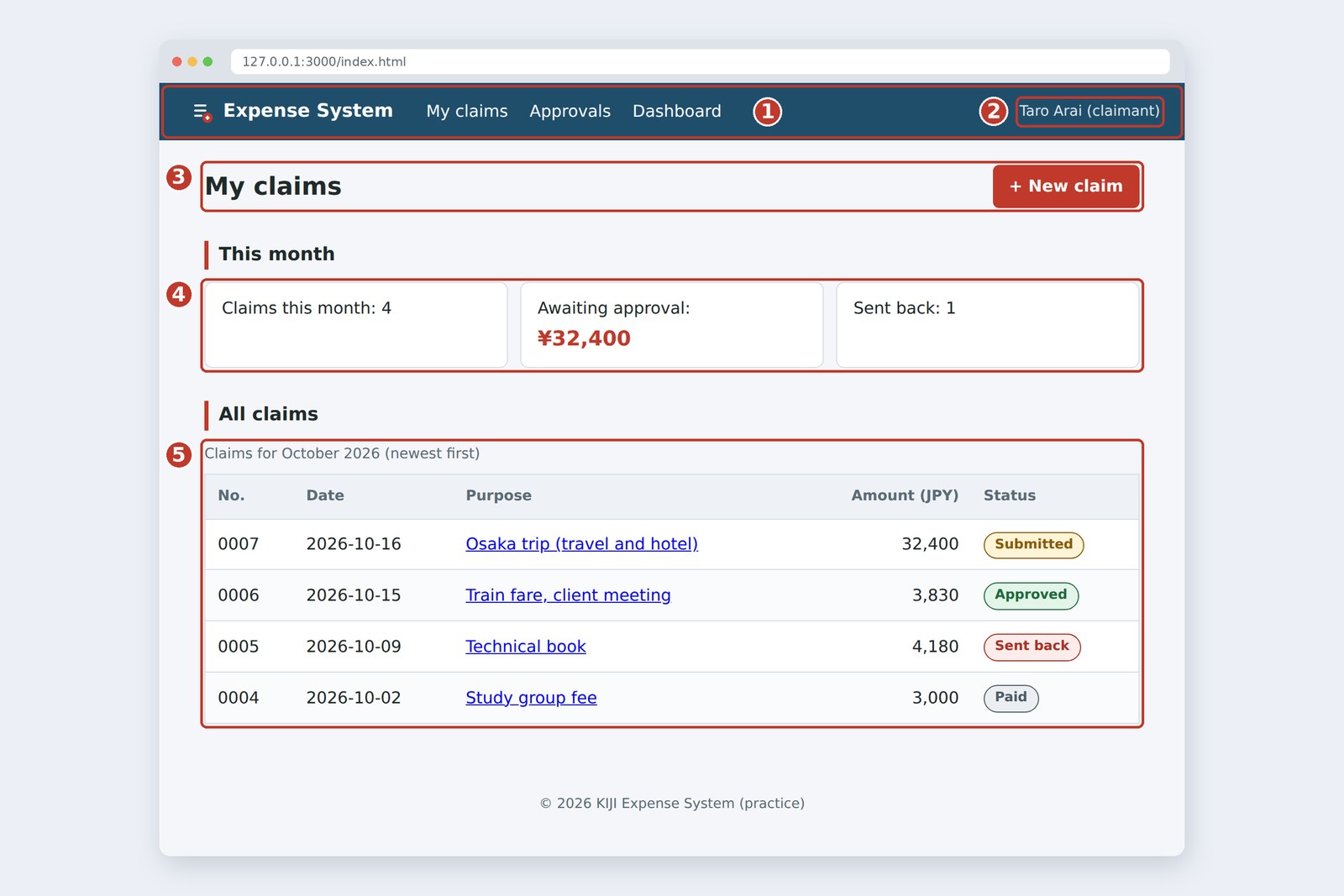
- main's padding: 16px on phones, 24px from 768px. Narrow screens get slightly tighter margins too
- width and inline-block removed from .summary li: the grid columns decide the box widths, so the children get no width. Give them one and they fight the grid
- h1 margin set to 0: the vertical position of heading and button is left to align-items: center on .page-head
AraiThe AI's "mobile version" had five media queries, overriding the same rules again and again.
FuruiOurs has one, because grid and overflow handle the stretching. Short CSS is easy to find your way around when it needs fixing.
How to check
You don't have to send the page to a real phone every time. Chrome DevTools has device mode.
- Opening it: open DevTools and click the phone-and-tablet icon at the top left (the device toolbar). The shortcut is Ctrl+Shift+M on Windows and Cmd+Shift+M on Mac
- Drag the width: drag the edge of the screen to change the width and find where things break. Try narrow widths such as 320px too
- Check in Styles: confirm that rules inside the media query apply at that width (no strikethrough)
Device mode is a handy approximation, not a real phone. Check fonts and the feel of touch on a real device. And when an AI has made something "mobile-friendly" for you, drag the width from 320px to 1280px and look for breakage with your own eyes. That's the old-school inspection.
§ — On one page, and what is next
- Mobile support starts with meta viewport. Without it, the page is laid out for a 980px screen and shrunk.
- There are three ways to arrange boxes: normal flow, flex and grid. One row means flex; cells mean grid.
- Flex has a main axis and a cross axis. Arrange with justify-content and align-items; push to the right with margin-left: auto.
- Grid's repeat(auto-fit, minmax(200px, 1fr)) changes the number of columns without media queries. Tables scroll inside their own wrapper.
- With media queries, write for phones first and add with min-width. Let the content, not the device, choose the breakpoints.
AraiMy hand-written CSS is half the size of the AI's. But do I really write buttons and tables by hand like this every time…?
FuruiGood question. Next time is Bootstrap: the toolbox people built because they were tired of writing it all again. Now that you know what's inside, the tool won't end up using you.
References
- MDN — <meta name="viewport">
- MDN — Viewport concepts
- MDN — Basic concepts of flexbox
- MDN — Basic concepts of grid layout
- MDN — Relationship of flexbox to other layout methods
- MDN — Using media queries
- MDN — Responsive web design
- Chrome for Developers — Simulate mobile devices with device mode
The page photos show the author's demo pages, captured on 17 October 2026 in Chromium (Playwright) in the cloud. The phone and tablet are Playwright's mobile emulation (isMobile), not real devices. Segoe UI isn't available there, so the screenshots fall back to other system fonts. Layout widths and zoom, table and column widths, badge heights, flex child positions, grid column widths and the widths where things switch are real values measured in the same Chromium (they shift slightly with text width). index.html and style.css were checked with the Nu Html Checker (vnu) and showed no errors. The characters are fictional.
Old-School Front-End, part 5: CSS layout and phones / 2026.10