Old-School Front-End / 2026 ・ No.07
Old-School Front-End
Part 7: JavaScript basics, writing a function that totals the line items
Published
An "old-school" front-end course: no AI doing it for you, every line typed by hand. Part 7 is where JavaScript finally arrives.
If HTML is the bones and CSS the clothes, JavaScript is the muscle. Its first job is the line-item total Arai has been doing on a calculator.
Kinds of value, variables, functions and loops, plus the trap everyone hits with money: "I added them, and they got glued together".
We won't touch the page (the DOM) yet. We'll write functions that only calculate, and test them ourselves.
This part's goal
AraiFurui, I had the AI write the total! …But the Osaka trip comes out as ¥0147201280014720.
FuruiA 147-trillion-yen business trip. Accounts will faint.
AraiIt looks like all the numbers just got stuck together…
FuruiExactly. JavaScript's + has two faces. That's where we start today.
You are here: part 7
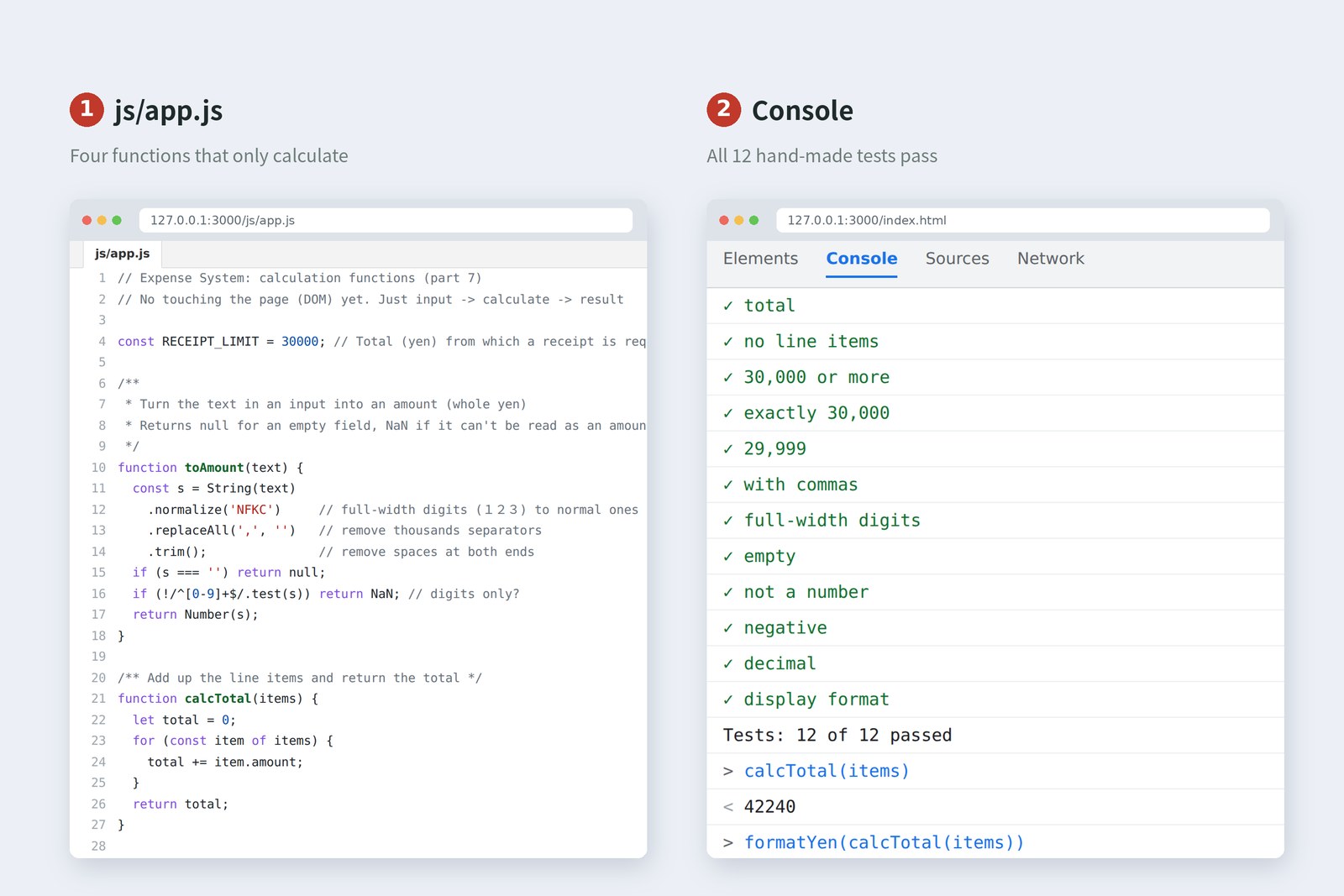
This time we write js/app.js, the last empty room in the folder layout from part 1. It holds four functions that only calculate.
- toAmount: turns the text in an input ("14,720", or full-width "14720") into an amount
- calcTotal: adds up the list of line items
- needsReceipt: answers "receipt required" when the total is ¥30,000 or more
- formatYen: turns 42240 into "¥42,240"
Reading values from the page's inputs and showing the total on the page is next time (part 8). Keeping calculation apart from the page means you can lift the calculation out and check it on its own. This time we do that with tests we write ourselves.
Where JavaScript goes
Just as CSS is loaded with link, JavaScript is loaded with a script element. The question is where to put it. HTML is read top to bottom, so the position changes when the script runs. I tried three positions and checked whether document.body (the page's body) existed at that moment.
Where the script goes, and when it runs (measured)
Put plainly in the head, it runs before the body has been read, so it can't find anything on the page. Add defer ("put it off") and it runs once the HTML has been read. From now on, the claim form's head says:
<link rel="stylesheet" href="css/custom.css">
<script src="js/app.js" defer></script>
The place to try out JavaScript is the console in DevTools. In Chrome, press Ctrl+Shift+J on Windows or Cmd+Option+J on Mac. Type an expression after >, press Enter, and the result comes straight back. It works as a calculator too, so do try things as you read.
FuruiJavaScript was prototyped in 1995 in about ten days.
AraiTen days! And now it's everywhere?
FuruiSo it has the quirks of something made in a hurry. Today you learn to live with them.
Kinds of value
JavaScript values come in kinds (types). Here are the ones an expense app meets.
Kinds of value, with expense-app examples
The key point: 14720 as a number and 14720 as a string are different things. And a value read from an HTML input is always a string, even from a type="number" field (the name=value pairs we saw in part 3 were all strings too). typeof tells you which kind a value is.
> typeof 14720
< 'number'
> typeof '14720'
< 'string'
Variables: const and let
A variable gives a value a name so you can keep it. Modern JavaScript has two ways to declare one.
const RECEIPT_LIMIT = 30000;   // const: never reassigned
let total = 0;                 // let: will be reassigned
total = total + 14720;         // fine
RECEIPT_LIMIT = 50000;         // a const can't be reassigned: error
- const first: anything you don't plan to reassign is const. Overwrite it by accident and you get an error on the spot
- let only when needed: for things that grow as you go, like a total
- no var: the old way. Old articles online, and AI that learned from them, still use it. Change it to let or const when you see it
Use English names that say what's inside: total and items rather than x or data. Write fixed values (¥30,000) in capitals, like RECEIPT_LIMIT, so it's obvious that this is the number from the policy.
The two faces of +
Here is where the 147 trillion yen came from.
Does + add or join? (measured)
If both sides are numbers, + adds; if either is a string, it joins. Input values are strings, so adding them as they are…
![A console. Adding the string array ['14720', '12800', '14720'] in a for loop as it is gives the string '0147201280014720', and typeof says 'string'. Converting with toAmount first gives 42240](blog-img/frontend-07/shot-bug-en-1600.jpg)
Even starting the total at 0, the moment 0 + '14720' happens it becomes the string '014720', and from then on everything gets glued on. To make it more confusing, - converts strings to numbers before subtracting, so subtraction alone works. So always convert input values to numbers before adding. That's the biggest lesson of this part.
I gathered more traps you meet with money and actually ran them.
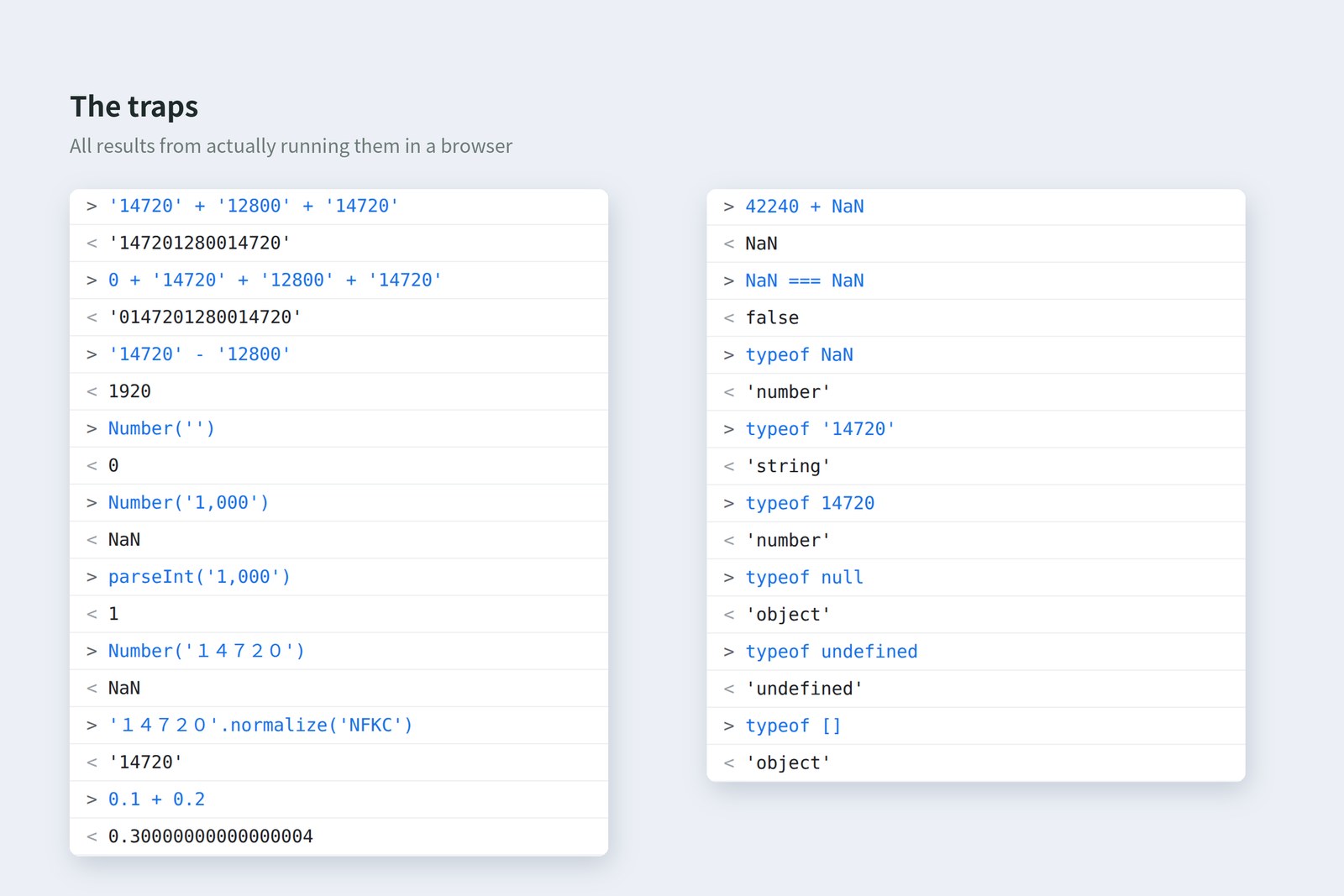
# Run in the Chromium 141 console (Node.js 22 gives the same results)
> '14720' + '12800' + '14720' → '147201280014720'
> 0 + '14720' + '12800' + '14720' → '0147201280014720'
> '14720' - '12800' → 1920
> Number('') → 0
> Number('1,000') → NaN
> parseInt('1,000') → 1
> Number('14720') → NaN
> '14720'.normalize('NFKC') → '14720'
> 0.1 + 0.2 → 0.30000000000000004
> 42240 + NaN → NaN
> NaN === NaN → false
> typeof NaN → 'number'
> typeof '14720' → 'string'
> typeof 14720 → 'number'
> typeof null → 'object'
> typeof undefined → 'undefined'
> typeof [] → 'object'
- Number('') is 0: an empty field quietly becomes ¥0. "Not filled in" and "zero" should be told apart
- parseInt('1,000') is 1: it stops reading at the comma, so a thousand yen becomes one
- Full-width digits are NaN: Japanese and Chinese input often produces full-width "14720"
- NaN (Not a Number): a special value meaning "not a number". Add anything to it and you get NaN, ruining the whole total. And NaN === NaN is false, so compare with Number.isNaN or Object.is
- 0.1 + 0.2: computers can't always represent decimals exactly. The golden rule: handle money in whole numbers (yen as yen, dollars as cents)
Functions and loops
Giving the total calculation a name so it can be reused makes it a function.
The shape of a function
The items that calcTotal receives is an array of objects (bundles of named values), one per line item.
const items = [
  { date: '2026-10-15', item: 'Shinkansen, Tokyo to Osaka', amount: 14720 },
  { date: '2026-10-15', item: 'Hotel, 1 night', amount: 12800 },
  { date: '2026-10-16', item: 'Shinkansen, Osaka to Tokyo', amount: 14720 },
];
items.length       // 3 (the number of rows)
items[0].amount    // 14720 (row 1's amount; counting starts at 0)
for (const item of items) takes the array's contents one at a time and repeats the same work. I recorded total on every round.
total growing on each round (actual run)
AraiThe AI wrote it in one line: items.reduce((a, b) => a + b.amount, 0). Isn't that cooler?
FuruiIt does the same thing. But right now, which one can you explain? The for loop. Five lines you can explain beat one you can't. reduce can wait until you're comfortable.
Turning input into an amount
To dodge the + trap, we write toAmount, which turns an input's text into an amount. I fed it the kind of input you really get on a Japanese keyboard, full-width spaces, digits and comma included.
What happens inside toAmount (actual run)
Strings come with handy tools (methods) such as .normalize() and .trim() that you can chain with dots. The last one, /^[0-9]+$/, is a stock phrase (a regular expression) meaning "digits from start to end"; more on those in part 9.
The other trick is using the return value to report a state.
- a number (e.g. 14720): it read as an amount
- null: the field was empty. Kept apart from ¥0
- NaN: it couldn't be read as an amount ("about 10k", "-500", "12.5" and so on)
The caller can then show different messages: "please fill this in" for null, "use digits for the amount" for NaN. We'll use that in part 9, on validation.
The whole of app.js
// Expense System: calculation functions (part 7)
// No touching the page (DOM) yet. Just input -> calculate -> result

const RECEIPT_LIMIT = 30000; // Total (yen) from which a receipt is required

/**
 * Turn the text in an input into an amount (whole yen)
 * Returns null for an empty field, NaN if it can't be read as an amount
 */
function toAmount(text) {
  const s = String(text)
    .normalize('NFKC')     // full-width digits (123) to normal ones (123)
    .replaceAll(',', '')   // remove thousands separators
    .trim();               // remove spaces at both ends
  if (s === '') return null;
  if (!/^[0-9]+$/.test(s)) return NaN; // digits only?
  return Number(s);
}

/** Add up the line items and return the total */
function calcTotal(items) {
  let total = 0;
  for (const item of items) {
    total += item.amount;
  }
  return total;
}

/** Is a receipt required? (total of ¥30,000 or more) */
function needsReceipt(total) {
  return total >= RECEIPT_LIMIT;
}

/** Format an amount as ¥42,240 */
function formatYen(amount) {
  return '¥' + amount.toLocaleString('en-US');
}
- Policy numbers in one place: ¥30,000 is written once, in RECEIPT_LIMIT. If the policy changes, you edit one line
- "Or more" is >=: if the policy says "¥30,000 or more", use >=; if it says "over ¥30,000", use >. One character decides what happens to a claim of exactly ¥30,000
- /** … */ notes: say above each function what it takes and what it returns. Editors show it when you hover over the function
- Display format last: calculate with numbers, and turn them into "¥42,240" text only just before showing them. Add after turning them into text and you're back to gluing
Home-made tests
Typing into the console every time to check the functions gets tiring. So we turn the checking itself into code. That's a test. There are dedicated tools for this, but in the old-school spirit we start with ten home-made lines.
// Tests
let passed = 0, failed = 0;
function check(label, actual, expected) {
  if (Object.is(actual, expected)) {
    passed++;
    console.log('✓ ' + label);
  } else {
    failed++;
    console.error('✗ ' + label + ' → ' + actual + ' (≠ ' + expected + ')');
  }
}

const items = [
  { date: '2026-10-15', item: 'Shinkansen, Tokyo to Osaka', amount: 14720 },
  { date: '2026-10-15', item: 'Hotel, 1 night', amount: 12800 },
  { date: '2026-10-16', item: 'Shinkansen, Osaka to Tokyo', amount: 14720 }
];

check('total', calcTotal(items), 42240);
check('no line items', calcTotal([]), 0);
check('30,000 or more', needsReceipt(42240), true);
check('exactly 30,000', needsReceipt(30000), true);
check('29,999', needsReceipt(29999), false);
check('with commas', toAmount('14,720'), 14720);
check('full-width digits', toAmount('14720'), 14720);
check('empty', toAmount(''), null);
check('not a number', toAmount('約1万'), NaN);
check('negative', toAmount('-500'), NaN);
check('decimal', toAmount('12.5'), NaN);
check('display format', formatYen(42240), '¥42,240');

console.log('Tests: ' + (passed + failed) + ' of ' + passed + ' passed');
The result of running it in the browser:
✓ total
✓ no line items
✓ 30,000 or more
✓ exactly 30,000
✓ 29,999
✓ with commas
✓ full-width digits
✓ empty
✓ not a number
✓ negative
✓ decimal
✓ display format
Tests: 12 of 12 passed
The key to testing is testing the boundaries. For the ¥30,000 rule, that's 29,999, 30,000 and above. The "exactly" case is where both specs and code most often go wrong.
When an AI writes code for you, ask for tests too, and read them yourself. "29,999 is false, 30,000 is true" states the rule more precisely than words. If a test disagrees with the policy, that's a misunderstanding to fix before the code. The 147 trillion yen in the opening scene would have been caught before release by a single line saying "the total is 42240".
§ — On one page, and what is next
- Load JavaScript with a script element with defer. Try things in the DevTools console.
- Values have kinds. An input's value is always a string; typeof will tell you.
- Variables: const first, let only for what you reassign. No var.
- + joins as soon as a string is involved. Convert input to numbers before adding. Watch for empty fields, full-width digits, commas, NaN and decimals; handle money in whole numbers.
- Put calculations in functions kept apart from the page, and check them with tests that include the boundaries.
Arai¥42,240, right there! …But that's only in the console, isn't it? The total box on the page is still empty.
FuruiNext time: the DOM and events. Type, and the total changes; press a button, and a line item appears. The page finally comes to life.
References
- MDN — <script>: The Script element
- MDN — Grammar and types
- MDN — Addition (+)
- MDN — Number() constructor
- MDN — parseInt()
- MDN — NaN
- MDN — String.prototype.normalize()
- MDN — for...of
- MDN — Functions
- Chrome for Developers — Console overview
- Wirfs-Brock & Eich — JavaScript: The First 20 Years (HOPL IV)
The page photos show the author's demo pages, captured on 17 October 2026 in Chromium (Playwright) in the cloud. The console screen is a home-made imitation that writes console.log output onto the page, not the real DevTools. The trap expressions and the tests were run in Chromium 141 and Node.js 22, and the results matched. The script-position results were measured in the same Chromium. The characters are fictional.
Old-School Front-End, part 7: JavaScript basics and the total function / 2026.10