Old-School Front-End / 2026 ・ No.08
Old-School Front-End
Part 8: the DOM and events, adding and removing line items with a total that keeps up
Published
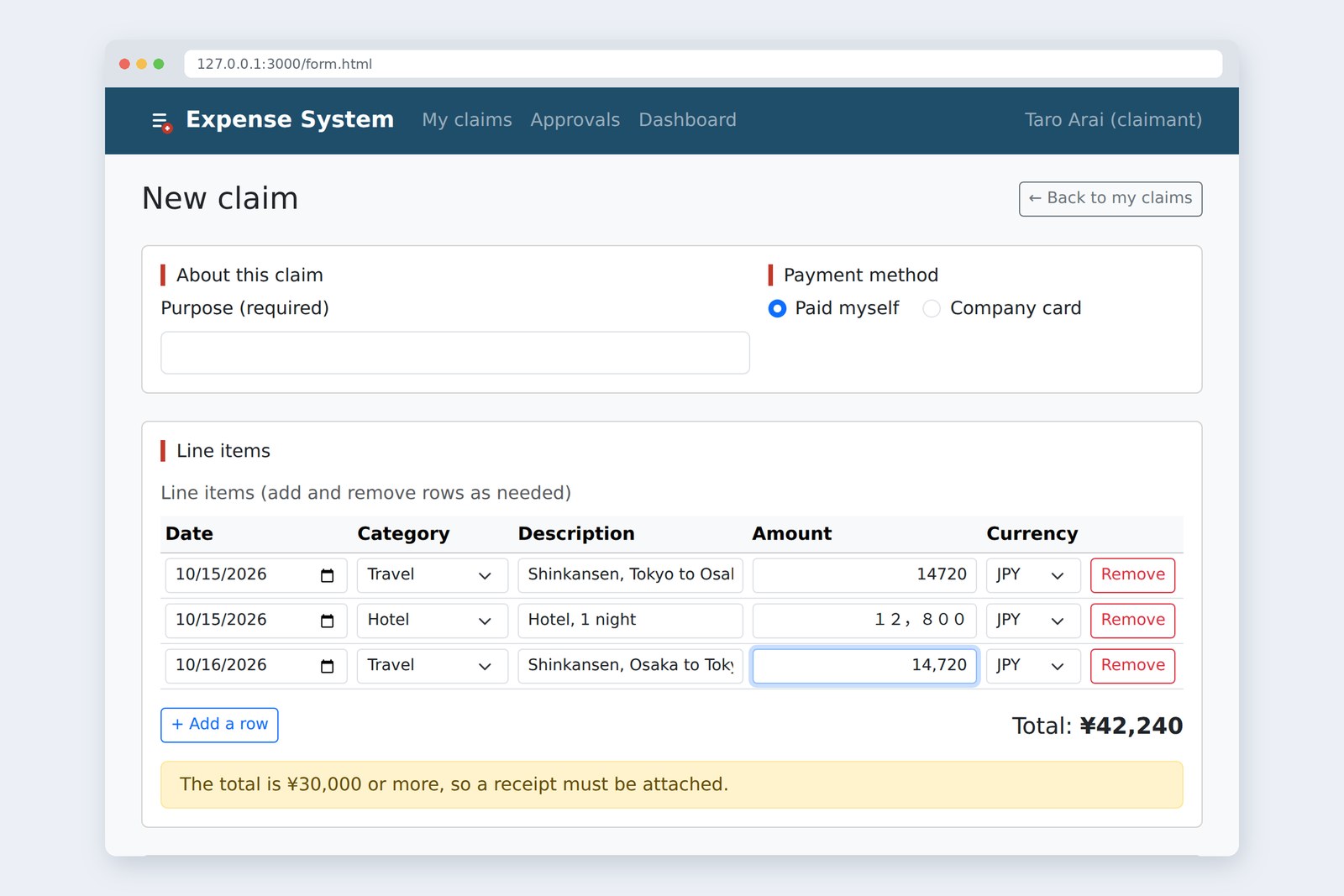
An "old-school" front-end course: no AI doing it for you, every line typed by hand. In part 8 the page finally moves.
We meet HTML as JavaScript sees it (the DOM) and the way to catch "clicked" and "typed" (events).
The line items we promised in part 3 ("adding rows comes in part 8") get Add and Remove,
and we wire them to part 7's functions so the total updates as you type.
This part's goal
AraiFurui, my Fukuoka trip has five line items, but the form only takes three…
FuruiIn part 3 I said adding rows comes in part 8. Today's the day.
AraiI asked the AI, and it rebuilt the whole page with innerHTML. Whatever I type vanishes.
FuruiThat's rebuilding the house every time you move a chair. Today you learn to move one part at a time.
You are here: part 8
We give part 6's Bootstrap claim form these behaviours.
- Add and remove rows: + Add a row adds a line item, each row's Remove takes it away (up to 10 rows, at least 1)
- A live total: the total changes every time you type an amount, full-width digits and commas included (part 7's toAmount)
- Notes: "receipt required" from ¥30,000, and a note when amounts can't be read or a row isn't in yen
The new file is js/form.js. Part 7's js/app.js doesn't change by a single line.
The DOM: HTML as JavaScript sees it
When the browser reads HTML, it builds the "tree" we saw in part 2. The DOM (Document Object Model) is that tree made available to JavaScript. form.js starts by finding the parts it will touch and keeping them in variables.
The DOM around the line items, and form.js's variables
const tbody = document.querySelector('#items');        // the one element with id items
const rows = document.querySelectorAll('#items tr');   // every matching element
totalOutput.textContent = '¥42,240';                   // replace the text inside
receiptNote.hidden = false;                            // drop the hidden attribute to show it
You find parts with exactly the same selectors as CSS in part 4: #items for an id, [name="amount"] for an attribute. What you learned for CSS pays off right here.
Events: catching "clicked"
Things that happen, such as a button being pressed or text being typed, are events. With addEventListener you ask in advance: "when this happens, call this function".
addButton.addEventListener('click', () => addRow());
//          ↑ kind of event  ↑ function to call when it happens
Inputs have two events with similar names. I measured the difference.
input and change (measured)
We want the total to change as you type, so we use input. The called function receives information about the event (event), and event.target tells you which part it happened on.
Keep calculation and page apart
This is why, in part 7, we went out of our way to keep the calculation functions away from the page.
From typing an amount to a new total
The head loads both files with defer. Deferred scripts run in the order they're written, so app.js (the calculations) comes first and form.js, which uses it, comes second.
<script src="js/app.js" defer></script>   <!-- calculation -->
<script src="js/form.js" defer></script>  <!-- the page (uses app.js's functions) -->
AraiWouldn't one file be easier?
FuruiAt first. But if the total comes out wrong, where do you look? Mix page concerns with calculation and you have twice as many places to search. Kept apart, the calculation is checked by part 7's tests and the page in the browser, separately.
Adding rows: template and cloning
One line item is five inputs and a button: quite a lot of HTML. Building it from JavaScript strings is hard to read and easy to get wrong. So we write the row's pattern in an HTML template element and let JavaScript simply copy it.
    <tbody id="items"></tbody>
  </table>
</div>
<template id="row-template">
  <tr>
    <td><input type="date" class="form-control form-control-sm" name="date" data-label="Date" required></td>
    <td><select class="form-select form-select-sm" name="category" data-label="Category" required>…</select></td>
    <td><input type="text" class="form-control form-control-sm" name="item" data-label="Description" required></td>
    <td><input type="text" class="form-control form-control-sm text-end" name="amount" data-label="Amount" inputmode="numeric" autocomplete="off" required></td>
    <td><select class="form-select form-select-sm" name="currency" data-label="Currency">…</select></td>
    <td><button type="button" class="btn btn-outline-danger btn-sm" data-action="remove">Remove</button></td>
  </tr>
</template>
<div class="d-flex flex-wrap justify-content-between align-items-center gap-2 mt-3">
  <button type="button" class="btn btn-outline-primary btn-sm" id="add-row">+ Add a row</button>
  <p class="mb-0 fs-5">Total: <output id="total" class="fw-bold">0</output></p>
</div>
<p class="alert alert-warning py-2 mt-3 mb-0" id="receipt-note" hidden>The total is ¥30,000 or more, so a receipt must be attached.</p>
<p class="small text-body-secondary mt-2 mb-0" id="skip-note" hidden></p>
Copy the pattern, add it to the table
- What's in a template is asleep: it isn't shown and isn't sent as form data. It becomes a real row only once copied into the table
- Screen-reader names come from JS: inputs in a table have no room for a label beside them, so, as in part 3, they get aria-label. Which row is which isn't known until it's added, so the names are redone on every add and remove
- After adding, go to the new row: focus moves to its first field, so keyboard users can carry on typing
Removing rows: event delegation
Every row has a Remove button, and rows are added later. Attach addEventListener to each button when the page opens and rows added afterwards won't have one. This is where event bubbling comes in.
Events travel up to the parents
tbody.addEventListener('click', (event) => {
  const button = event.target.closest('[data-action="remove"]');
  if (button) removeRow(button.closest('tr'));
});
A click travels from the part that was pressed up through its parents. So one listener on the box that holds the rows (tbody) catches buttons in rows added later too. closest() returns the first matching element going up from itself, so you know at once which row was pressed. This is called event delegation. The input events for the total are caught on tbody the same way.
Showing the total
The total uses an output element: the HTML element for "the result of a calculation", which screen readers treat as a status message.
We also changed the amount field from part 3's type="number" to type="text" (with inputmode="numeric" for a number keypad). Typing into Chromium shows why.
# The value of a type="number" field after typing (measured in Chromium)
'14720' → value = '14720'
'14,720' → value = '14720'
'14720' → value = '14720'
'abc' → value = '' can't tell it from empty
Chromium's number field quietly fixes or drops what you type before handing over the value (other browsers may differ). Above all, "abc" becomes '', the same as an empty field, so you can't tell "not filled in" from "typed something that isn't a number". So we take the text exactly as typed and read it with our own toAmount. Empty fields don't count; unreadable rows and non-yen rows are left out of the total, and a note says how many.
textContent versus innerHTML
Whenever form.js writes text to the page, it uses textContent. Its look-alike, innerHTML, reads the string as HTML. What happens if text a user typed goes into innerHTML? I tried it.
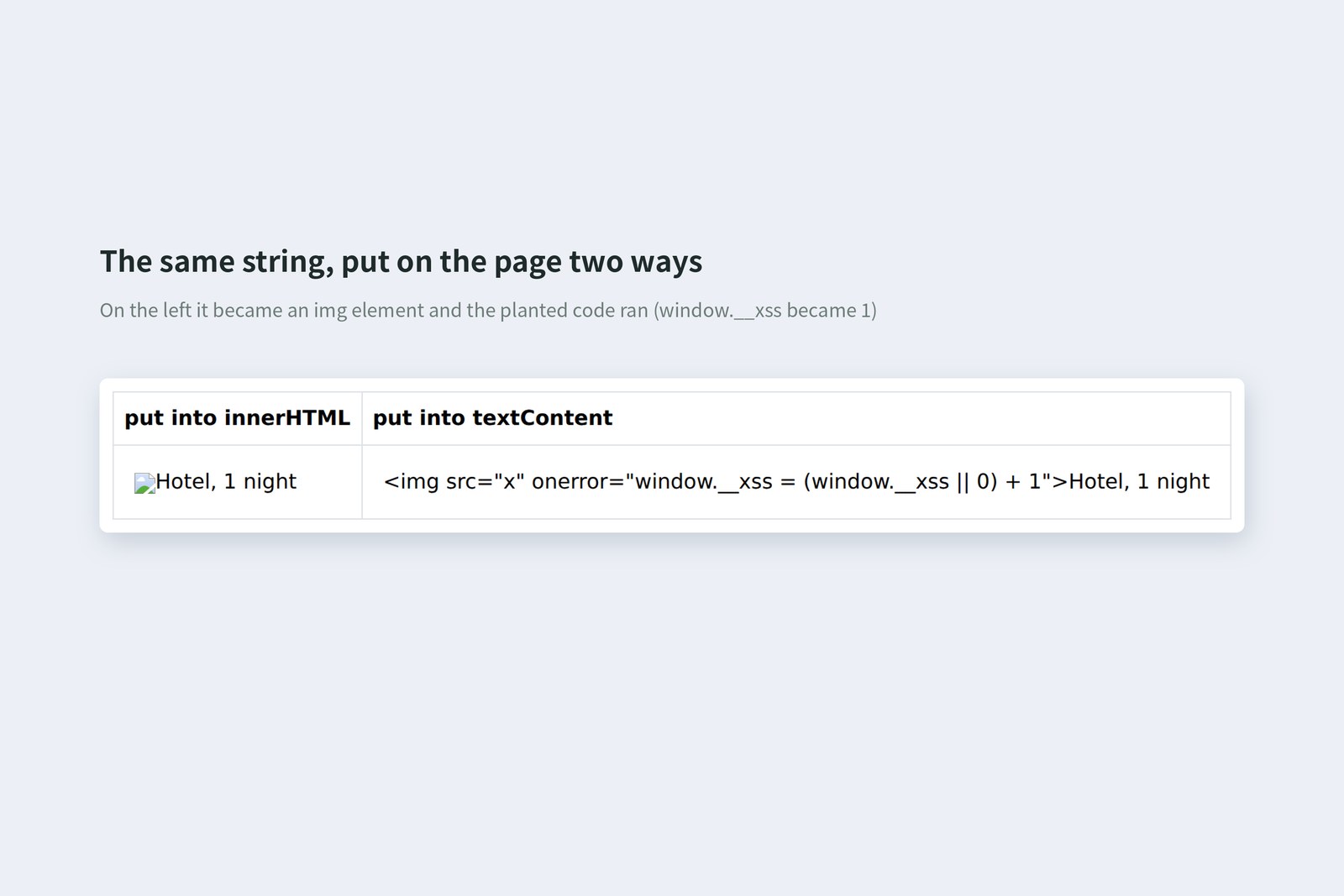
const typed = '<img src="x" onerror="window.__xss = 1">Hotel, 1 night';
a.innerHTML = typed;     // an img element was created and onerror ran (__xss became 1)
b.textContent = typed;   // shown as plain text
Here it only raised a flag (window.__xss), but a real attack would run something like stealing other people's sign-in details (cross-site scripting, XSS). The Description field in an expense claim is free text that anyone filing a claim can write. Show text people typed with textContent. That rule hasn't changed since the old days.
AI-written page code often builds whole rows with innerHTML. Arai's "what I type vanishes" in the opening scene came from rebuilding the entire table with innerHTML every time the total changed (rebuild it, and the half-typed field is replaced with a fresh one). When you see innerHTML, check whether typed text could end up there, and whether a rebuild is really needed. That alone prevents a lot of accidents.
Taking it for a spin
Playwright typed and clicked for real, and after each step I recorded the row count, total, notes and where focus was.
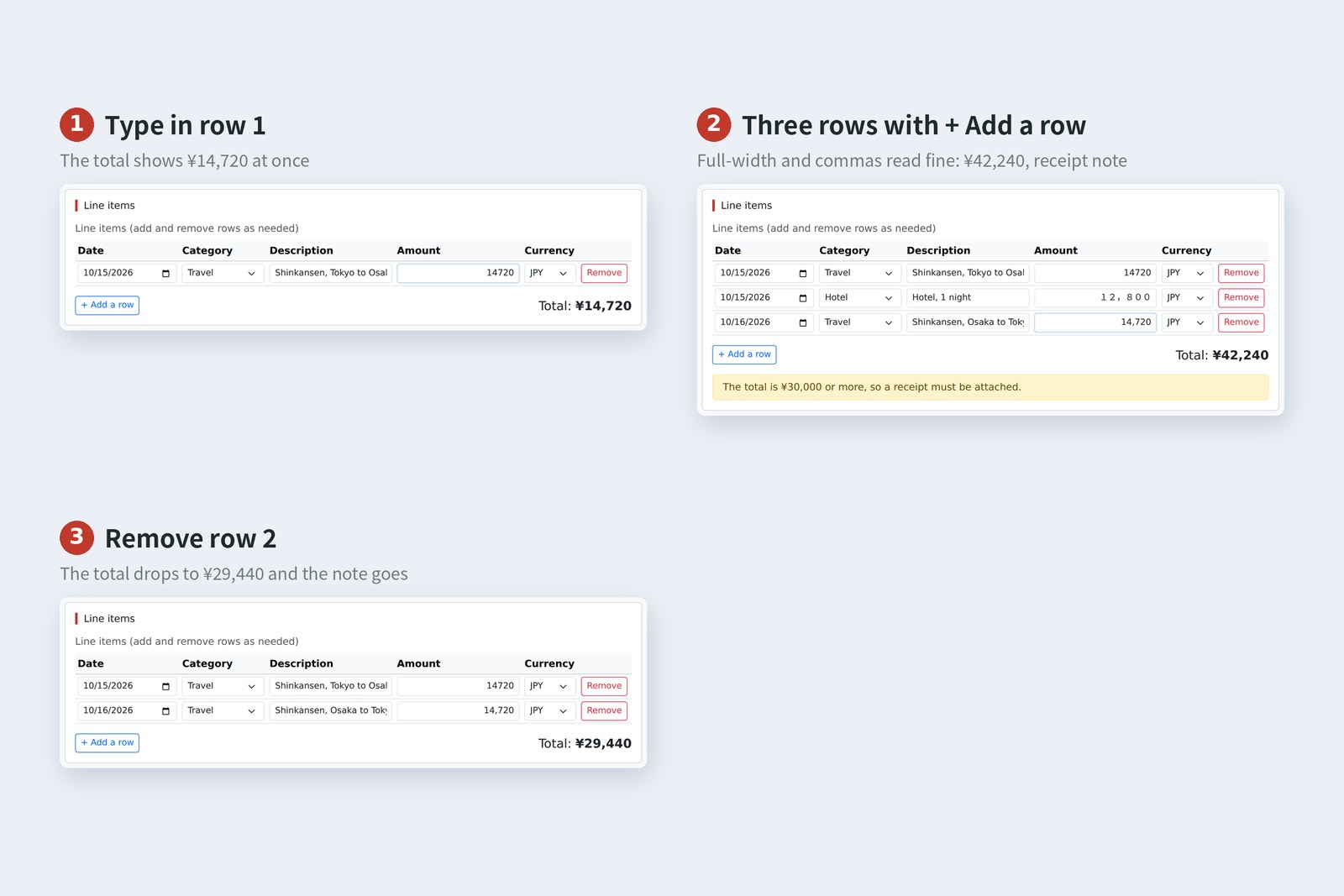
# Values recorded while actually using the form (Chromium)
action rows total receipt focus
just opened 1 ¥0 - -
row 1: typed 14720 1 ¥14,720 - Row 1 Amount
+ Add a row 2 ¥14,720 - Row 2 Date
row 2: typed 12,800 2 ¥27,520 - Row 2 Amount
row 3 added: 14,720 3 ¥42,240 needed Row 3 Amount
row 3 currency to USD 3 ¥27,520 - -
 └ 1 row(s) are not in yen (conversion comes in part 10; not included)
row 2 changed to "約1万" 3 ¥29,440 - Row 2 Amount
 └ 1 row(s) have an amount that can't be read (not included in the total)
row 2 back to 12800 3 ¥42,240 needed Row 2 Amount
Remove row 2 2 ¥29,440 - #add-row
Look at the focus column. Adding a row moves focus to the new row's Date; removing one moves it to + Add a row. Focus in a removed row has nowhere to go, so deciding where to send it is part of the page's job. Finally, the whole of form.js.
// Expense System: the claim form's line items (part 8)
// Calculations stay in app.js; this file only reads the page, writes to it and reacts to the user

const MAX_ROWS = 10; // Up to 10 line items

// Find the page parts once, at the start
const tbody = document.querySelector('#items');
const template = document.querySelector('#row-template');
const addButton = document.querySelector('#add-row');
const totalOutput = document.querySelector('#total');
const receiptNote = document.querySelector('#receipt-note');
const skipNote = document.querySelector('#skip-note');

/** Add one row */
function addRow(moveFocus = true) {
  const row = template.content.firstElementChild.cloneNode(true);
  tbody.append(row);
  renumber();
  if (moveFocus) row.querySelector('input').focus(); // Move to the new row's first field (not for the very first row)
}

/** Remove a row */
function removeRow(row) {
  row.remove();
  if (tbody.rows.length === 0) addRow(false); // Always keep at least one row
  renumber();
  updateTotal();
  addButton.focus(); // After removing, go back to the Add button
}

/** Rename the fields for screen readers to match the row numbers */
function renumber() {
  [...tbody.rows].forEach((row, i) => {
    const n = i + 1;
    for (const field of row.querySelectorAll('[data-label]')) {
      const label = field.dataset.label;
      field.setAttribute('aria-label', `Row ${n} ${label}`);
    }
    row.querySelector('[data-action="remove"]').setAttribute('aria-label', `Remove row ${n}`);
  });
  addButton.disabled = tbody.rows.length >= MAX_ROWS; // No more adding once there are 10 rows
}

/** Read the line items from the page and show the total and notes */
function updateTotal() {
  const items = [];
  let unreadable = 0;
  let foreign = 0;
  for (const row of tbody.rows) {
    const amount = toAmount(row.querySelector('[name="amount"]').value);
    const currency = row.querySelector('[name="currency"]').value;
    if (amount === null) continue;                          // Empty fields don't count
    if (Number.isNaN(amount)) { unreadable++; continue; }  // Can't be read as an amount
    if (currency !== 'JPY') { foreign++; continue; }       // Not yen: don't add it yet
    items.push({ amount });
  }
  const total = calcTotal(items);
  totalOutput.textContent = formatYen(total);
  receiptNote.hidden = !needsReceipt(total);

  const notes = [];
  if (unreadable > 0) notes.push(`${unreadable} row(s) have an amount that can't be read (not included in the total)`);
  if (foreign > 0) notes.push(`${foreign} row(s) are not in yen (conversion comes in part 10; not included)`);
  skipNote.textContent = notes.join(' / ');
  skipNote.hidden = notes.length === 0;
}

// Recalculate on every input (listen on tbody so rows added later work too)
tbody.addEventListener('input', (event) => {
  const name = event.target.name;
  if (name === 'amount' || name === 'currency') updateTotal();
});

// The Remove buttons (also handled on tbody)
tbody.addEventListener('click', (event) => {
  const button = event.target.closest('[data-action="remove"]');
  if (button) removeRow(button.closest('tr'));
});

addButton.addEventListener('click', () => addRow());

// Make the first row and show the total
addRow(false);
updateTotal();
§ — On one page, and what is next
- The DOM is HTML's tree as JavaScript sees it. Find with querySelector; change with textContent or hidden. You find things with CSS selectors.
- Catch events with addEventListener: input to react as people type, change to react when they leave a field.
- Put the row pattern in a template; JS only copies and adds it, then renames the fields for screen readers and moves focus.
- For parts added later, listen on the parent and tell them apart with closest() (event delegation).
- Show typed text with textContent; innerHTML runs it as HTML. Calculation in app.js, page in form.js.
AraiAll five Fukuoka rows are in! …Oh, but if I press Submit with no purpose, it looks like it would just go.
FuruiGood catch. Next time: validation. We'll make receipts required under the ¥30,000 rule and tell people clearly what to fix and where.
References
- MDN — Document: querySelector() method
- MDN — EventTarget: addEventListener() method
- MDN — Element: input event
- MDN — HTMLElement: change event
- MDN — Event bubbling
- MDN — <template>: The Content Template element
- MDN — Node: cloneNode() method
- MDN — Element: closest() method
- MDN — Node: textContent property
- MDN — Element: innerHTML property
- MDN — <output>: The Output element
- MDN — inputmode
- MDN — Cross-site scripting (XSS)
- OWASP — DOM based XSS Prevention Cheat Sheet
The page photos show the author's demo pages, captured on 17 October 2026 in Chromium (Playwright) in the cloud. Segoe UI isn't available there, so the screenshots fall back to other system fonts. Row counts, totals, notes, where focus went, the screen-reader names, the delegation experiment, the input and change counts, the number-field values and the innerHTML experiment are real values recorded by driving the same Chromium with Playwright. form.html was checked with the Nu Html Checker (vnu) and showed no errors. The characters are fictional.
Old-School Front-End, part 8: the DOM and events / 2026.10