Old-School Front-End / 2026 ・ No.11
Old-School Front-End
Part 11: signing in and moving between screens, asking "who are you?" on every page
Published
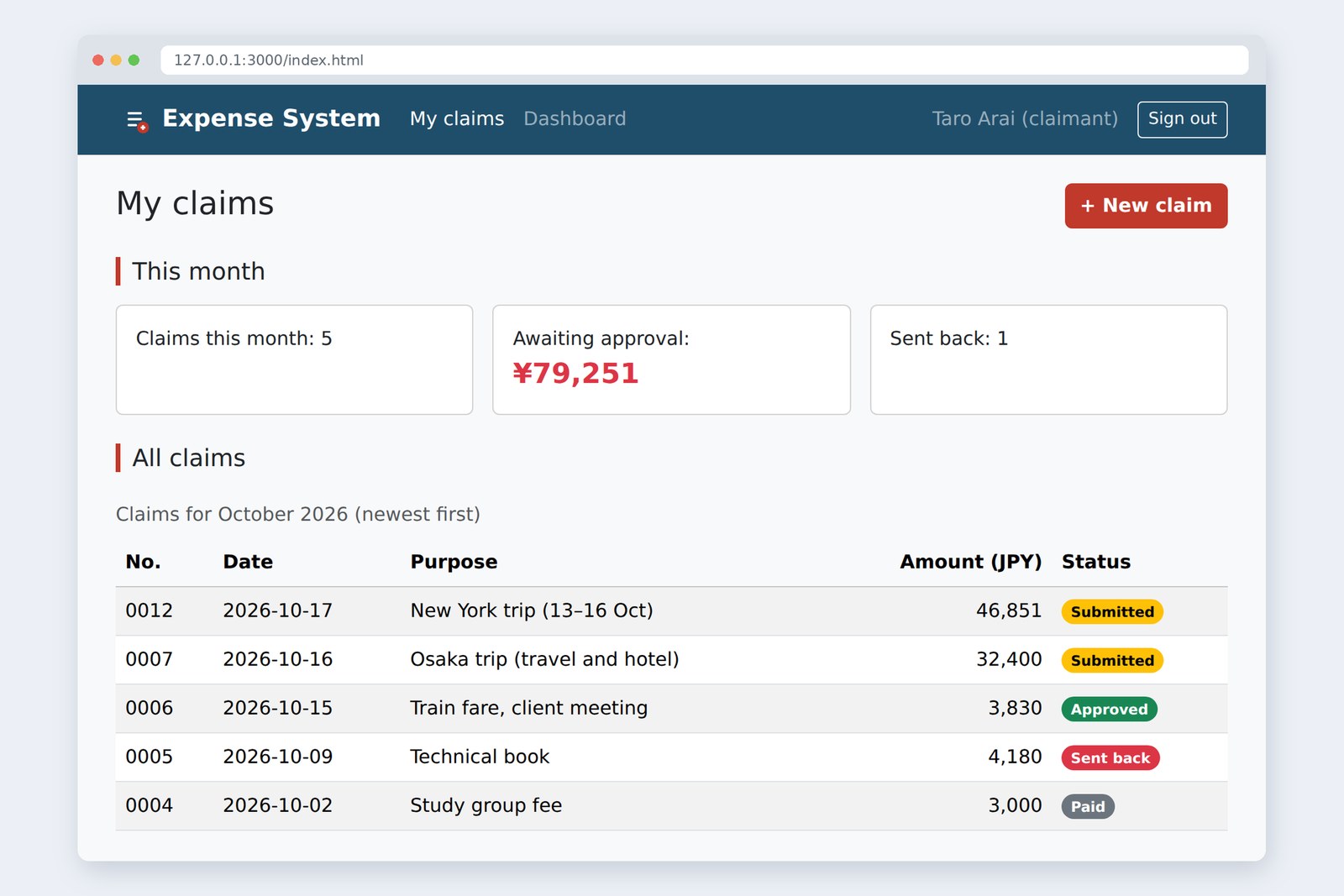
An "old-school" front-end course: no AI doing it for you, every line typed by hand. Part 11 is about signing in and moving between screens.
Until now, "Taro Arai (claimant)" in the header was just decoration written into the HTML.
This time we build a sign-in page, and whichever page you open (My claims, the claim form or Approvals), it first asks the server "who are you?".
We'll also try out the difference between hiding things on the page and refusing them on the server.
This part's goal
AraiLast time I got a claim number! But Furui, who is that claim supposed to be from?
FuruiNobody, for now. "Taro Arai" in the header is still just text written in the HTML.
AraiSo if I changed it to "Ichiro Furui", could I approve things in your place…?
FuruiToday we build what stops that.
You are here: part 11
- A sign-in page — identify yourself with an email address and password. If it's wrong, say so without saying which part
- Check on every page — My claims, the claim form and Approvals first ask the server who you are. Not signed in? Off to the sign-in page, then back to where you were
- Different for different people — My claims shows only your own claims. Only approvers see the Approvals menu, and the server only gives approval data to approvers
- Sign out — throw the session away and go to the sign-in page
The other end is last part's practice server with sign-in and lists added (not the topic). The accounts and passwords ([email protected] / demo-arai and so on) are made up for this demo.
A map of the screens
The sign-in page and three screens
We switch screens the old-school way: one HTML file per screen, and the menu is plain <a href> links. Click one and the browser loads the next page. The menu item for the current page carries aria-current="page", so screen readers know where you are too.
The important point here: anyone can fetch the screens (the HTML files) themselves. I tried from a browser that wasn't signed in.
# From a browser that is not signed in (measured in Chromium)
what was fetched status
/approve.html (the page HTML) 200   anyone can get it
/api/me 401   not signed in
/api/expenses (my claims) 401
/api/approvals (waiting list) 401
The Approvals HTML comes back with 200. Its table is empty, because the data is fetched from /api/… and filled in. What needs protecting isn't the screen but the data the server returns. Everything in this part follows from that.
How signing in works
The password once; after that, the session ID
When you sign in successfully, the server adds Set-Cookie to its reply and hands the browser a session ID, a kind of password-of-the-day. The browser keeps it as a cookie and attaches it to every request to the same site. The server looks it up in its own table: "this one is Arai".
| Cookie flag | Meaning |
|---|---|
| HttpOnly | JavaScript can't read it (tried in section 8) |
| SameSite=Lax | not sent with, for example, POSTs coming from other sites |
| Path=/ | sent with requests to any page on this site |
| Max-Age=28800 | thrown away after 8 hours (then sign in again) |
On a real https site you also add Secure (only sent over encrypted connections). The practice server uses plain http, so it's left out.
Building the sign-in page
<form id="login-form">
  <div>
    <label for="email">Email address</label>
    <input type="email" id="email" name="email" autocomplete="username" required>
  </div>
  <div>
    <label for="password">Password</label>
    <input type="password" id="password" name="password" autocomplete="current-password" required>
  </div>
  <p id="login-error" role="alert" hidden></p>
  <button type="submit">Sign in</button>
</form>
- type="password" — hides what you type behind dots
- autocomplete — with username and current-password, the browser and password managers know these are the sign-in fields and can save and fill them
- Leave the checks to the browser — with just two fields, part 9's required bubbles are enough. Only long forms like the claim form need the extra effort
// Expense System: the sign-in page (part 11)
// Once signed in, go back to the page they came from (next)

const loginForm = document.querySelector('#login-form');
const loginError = document.querySelector('#login-error');

// When the sign-in button is pressed
loginForm.addEventListener('submit', async (event) => {
  event.preventDefault();
  loginError.hidden = true;
  const button = event.submitter;
  button.disabled = true;
  try {
    const res = await fetch('/api/login', { method: 'POST', body: new FormData(loginForm) });
    if (res.status === 401) { // deliberately don't say whether the email or the password was wrong
      loginError.textContent = 'The email address or password is incorrect.';
      loginError.hidden = false;
      loginForm.elements.password.select(); // select the password so it's easy to retype
      return;
    }
    if (!res.ok) throw new Error(`HTTP ${res.status}`);
    const next = new URLSearchParams(location.search).get('next');
    location.replace(safeNext(next, location.origin)); // replace: Back won't return to the sign-in page
  } catch (error) {
    loginError.textContent = "Couldn't sign in. Check your connection and try again.";
    loginError.hidden = false;
  } finally {
    button.disabled = false;
  }
});
The message on failure is "The email address or password is incorrect". It deliberately doesn't say which. "Wrong password" would tell a stranger that the email address is registered. I checked that a wrong password and a wrong email address produce the same message (see the table in section 9).
The trap in "go back to"
If you were sent to the sign-in page on your way to the claim form, you'd like to land on the claim form after signing in. So we put the destination in the sign-in page's URL.
/login.html?next=%2Fform.html
But anyone can rewrite next. Send someone a link with ?next=https://evil.example/ and right after signing in they'd be taken to a convincing fake site (a trap known as an open redirect). It's tempting to think "starts with / means same site", but try it…
The parts of a URL, and same site or not
# safeNext results (measured in Chromium; the page is http://127.0.0.1:3000)
next read as a URL goes to
/form.html (same site)/form.html /form.html
/approve.html?tab=1 (same site)/approve.html?tab=1 /approve.html?tab=1
(empty) (same site)/index.html /index.html
https://evil.example/ https://evil.example/ /index.html   <- another site
//evil.example/x http://evil.example/x /index.html   <- another site
/\evil.example/x http://evil.example/x /index.html   <- another site
javascript:alert(1) javascript:alert(1) /index.html   <- another site
Both //evil.example/x and /\evil.example/x, with a backslash after the slash, start with /, yet the browser read them as another site. So safeNext doesn't judge by the text: it parses with new URL() exactly as the browser would, then checks that the origin (which site) is the same. If not, it goes to My claims.
One more thing: after signing in we move on with location.replace().
# Moving on after signing in (measured in Chromium)
how history pressing Back goes to
location.assign() 3 the sign-in page
location.replace() 2 before the sign-in page (about:blank)
With assign (like a normal link) the sign-in page stays in the history, and Back brings it up again. replace swaps out the current history entry, so the sign-in page isn't left behind.
"Who are you?" on every page
The work every page shares lives in js/auth.js. My claims, the claim form and Approvals all call requireLogin() first.
// Expense System: checking who is signed in and filling the header (part 11)
// Loaded first on every page. Not signed in? Off to the sign-in page

const ROLE = { applicant: 'claimant', approver: 'approver' };

/** Is this a safe place to go back to? Only paths on this site are allowed */
function safeNext(next, origin) {
  try {
    const url = new URL(next || '/index.html', origin); // no next: go to the claim list
    if (url.origin !== origin) return '/index.html';     // other sites are not allowed
    return url.pathname + url.search;
  } catch {
    return '/index.html';
  }
}

/** Ask who is signed in. If nobody, send them to the sign-in page */
async function requireLogin() {
  const res = await fetch('/api/me');
  if (res.status === 401) { // 401 = not signed in
    const next = location.pathname + location.search;
    location.replace(`/login.html?next=${encodeURIComponent(next)}`);
    return new Promise(() => {}); // don't run anything else until the page changes (a ticket that never pays out)
  }
  if (!res.ok) throw new Error(`HTTP ${res.status}`);
  const me = await res.json();
  showUser(me);
  return me;
}

/** Show the name in the header and hide menus they can't use */
function showUser(me) {
  document.querySelector('#user-name').textContent = `${me.name} (${ROLE[me.role]})`;
  for (const el of document.querySelectorAll('[data-role]')) {
    el.hidden = el.dataset.role !== me.role; // hiding only; the server does the protecting (section 7 of part 11)
  }
}

// Sign out
document.querySelector('#logout')?.addEventListener('click', async () => {
  await fetch('/api/logout', { method: 'POST' });
  location.replace('/login.html');
});
- 401 means the sign-in page — if /api/me answers 401 (not signed in), put the current location in next and go to the sign-in page
- A ticket that never pays out — new Promise(() => {}) is a Promise whose reply never comes. Return it, and the code after the caller's await requireLogin() never runs, so no table gets drawn from empty data while the page is changing
- The name goes in with textContent — the name from the server is shown with textContent, as agreed in part 8
Sending the claim form (part 10) now handles 401 too. If the sign-in expires while you're filling it in, nothing you typed is wiped; it just asks you to sign in again.
Hiding is not refusing
Only approvers need the Approvals menu. Its li carries data-role="approver" and hidden, and showUser removes hidden only for approvers.
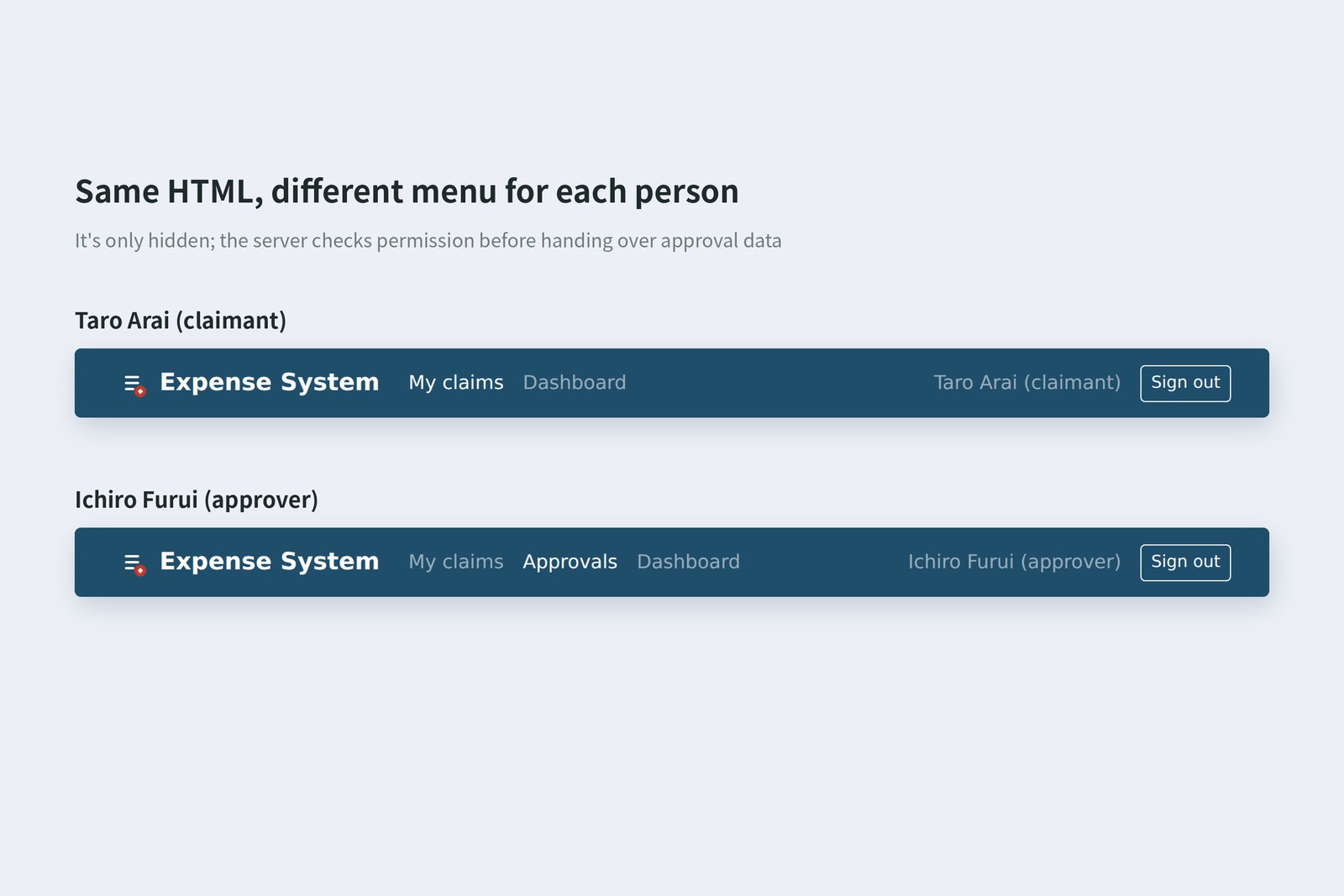
But that's only cosmetic. With the menu hidden, typing approve.html into the address bar still opens the page (as section 2 showed, anyone can fetch the HTML). So it's the server that decides whether the approval data is handed over.
The server's checkpoint: 401 and 403
// Expense System: the approvals page (part 11)
// Approvers only. Anyone else gets a 403 from the server

async function showApprovals() {
  await requireLogin();
  const res = await fetch('/api/approvals');
  if (res.status === 403) { // 403 = signed in, but not allowed
    const note = document.querySelector('#forbidden');
    note.textContent = "You don't have permission to see this page (approvers only).";
    note.hidden = false;
    return;
  }
  if (!res.ok) throw new Error(`HTTP ${res.status}`);
  // …
}
401 means "I don't know who you are" (go and sign in). 403 means "I know who you are, and you can't do that" (signing in again won't help, so say so). The numbers are close, but the page has to do different things.
AraiI asked the AI to "show the approve button only to approvers", and it just wrote code to hide the button.
FuruiIt did what you asked. You said "hide", so it hid. You never said "protect".
Where to keep the token
Articles on the web often keep the sign-in token in localStorage. I compared that with an HttpOnly cookie.
# Where it is kept (measured in Chromium)
localStorage.setItem('token', …) → another script could read it: 'secret-123'
document.cookie after signing in → ''  (JavaScript can't see an HttpOnly cookie)
then fetch('/api/me') → 200  (the browser attaches the cookie itself)

# The cookie the server set: sid (36 characters), HttpOnly, SameSite=Lax
An HttpOnly cookie and localStorage
Anything in localStorage can be read by any script running on the page. As with part 8's XSS, if a stranger's script runs even once, the token walks out the door. An HttpOnly cookie is invisible to JavaScript, yet the browser still sends it. Keeping the token away from JavaScript is the solid, old-school approach.
Taking it for a spin
I ran the practice server and let Playwright actually type and click. Halfway through, every session on the server was thrown away to cause an "expired" sign-in.
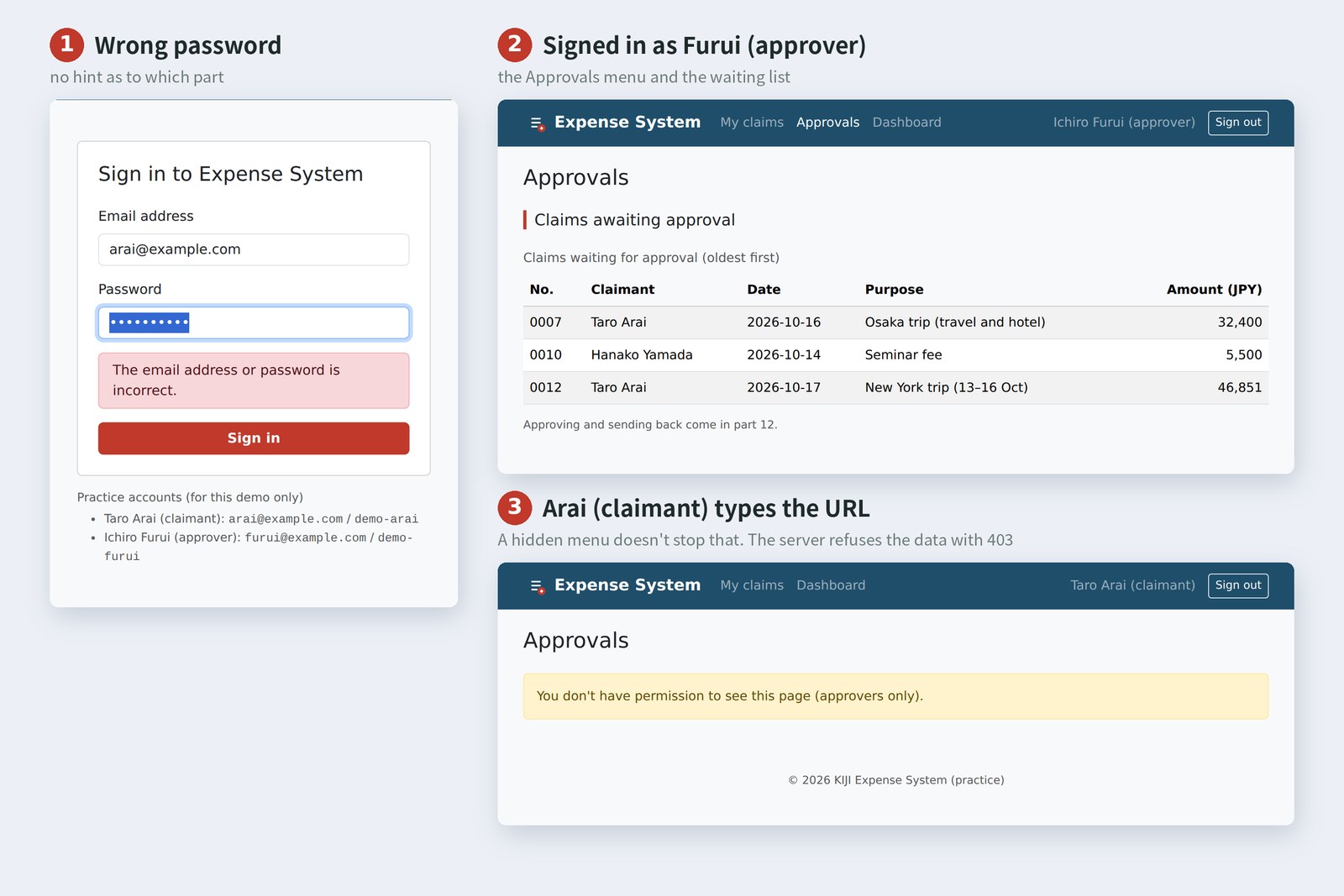
# Values recorded while actually using it (Chromium; practice server)
action ended up at header page
open My claims, not signed in /login.html?next=%2Findex.html - -
wrong password /login.html?next=%2Findex.html - The email address or password is incorrect.
wrong email /login.html?next=%2Findex.html - The email address or password is incorrect.
sign in as Arai /index.html Taro Arai (claimant) 5 rows, awaiting ¥79,251, sent back 1
type the Approvals URL /approve.html Taro Arai (claimant) You don't have permission to see this page (approvers only).
Save draft (sign-in expired) /form.html Taro Arai (claimant) Your sign-in has expired. Please sign in again (what you typed is still on this page).
open Approvals (still expired) /login.html?next=%2Fapprove.html - -
sign in as Furui /approve.html Ichiro Furui (approver) 3 waiting
Sign out /login.html - -
- Opening My claims without signing in led to the sign-in page with next=%2Findex.html; after signing in it came back to My claims
- Arai's list has only his five claims. Yamada's never left the server
- When Arai typed the Approvals URL the page opened, but the data was a 403, and the page said he isn't allowed
- Signed in as Furui, the Approvals menu appeared with three waiting claims (two from Arai, one from Yamada)
The real work of signing in is the server's job. To make it production-ready you'd add things like not storing passwords as they are (hash them), slowing down repeated failures, and https with Secure. The page's job is to show who is using it, guide people away from places they can't go, and explain failures in plain words. The server protects; the page guides.
§ — On one page, and what is next
- One HTML file per screen, switched with links. Anyone can fetch the HTML; protect the data.
- After sign-in, the server hands over the session in an HttpOnly cookie. The browser sends it; JavaScript doesn't touch it.
- Every page starts with requireLogin(). On 401, go to the sign-in page with next, and come back with location.replace.
- Check "go back to" by parsing with new URL() and comparing origins. "Starts with /" is fooled by // and /\.
- Hiding the menu is a courtesy; refusing is the server's job. 401: who are you? 403: you can't do that.
AraiMy New York trip is on your screen, Furui! Please approve it!
FuruiThere's no button yet. Next time: the approval flow. Approving and sending back, comments, and how a claim's status changes. We'll also see what happens when two people approve the same claim at the same moment.
References
- MDN — Using HTTP cookies
- MDN — Set-Cookie header
- MDN — HTTP response status codes (401, 403)
- MDN — URL: origin property
- MDN — Same-origin policy
- MDN — HTML attribute: autocomplete
- MDN — Passwords (Security)
- OWASP — Unvalidated Redirects and Forwards Cheat Sheet
- OWASP — Session Management Cheat Sheet
The page photos show the author's demo pages, served by a practice server (Node.js) and captured on 17 October 2026 in Chromium (Playwright) in the cloud. Segoe UI isn't available there, so the screenshots fall back to other system fonts. The accounts, passwords and claims are made-up data on the practice server. The URLs reached, what the header showed, the messages, status codes, the "go back to" checks, the cookie flags, the localStorage experiment and the Back history are real values recorded by driving and running the same Chromium with Playwright. Every page's HTML was checked with the Nu Html Checker (vnu) and showed no errors. The characters are fictional.
Old-School Front-End, part 11: signing in and moving between screens / 2026.10