Dev Guide / 2026 ・ No.01
A Beginner's Roadmap to Mac Apps
From zero to a desktop utility you can hand to other people
Published
The whole map — eight steps
Red boxes are the Mac-specific part. Durations are rough, assuming about an hour a day
“I want to build a small, useful tool for my Mac.”
If that is you, here is what to learn, and in what order.
Each step comes with the key ideas and a small project to build.
What to build, and with what
The goal is a small, useful tool you can reach from the menu bar or a keyboard shortcut. The tools are Swift and SwiftUI, with a little AppKit where SwiftUI falls short. Do not aim for a big app first: finishing one small project per step is the fastest route.
By “utility” this guide means apps like these:
- Lives in the menu bar — a timer, clipboard history or notes, one click away
- Processes files in bulk — batch renaming, shrinking images, converting formats
- Summoned by a shortcut — a launcher or text expander that never breaks your flow
Why Swift and SwiftUI
You can build Mac apps with Electron, Tauri, Flutter and others; they let you reuse web skills and ship a Windows version too. But for small tools that stay running, Apple's own Swift and SwiftUI have the edge.
- Light — little memory and battery cost, even running all day
- Native Mac manners — menu bar, settings window, shortcuts, dark mode and the new look introduced in macOS 26 (Liquid Glass) all come from standard components
- Direct access to the system — files, clipboard, notifications and launch at login through official APIs
- Learn from the source — Apple's own tutorials and documentation are the textbook
SwiftUI lets you declare what the interface should look like, and it is where Apple is putting its effort. The Mac also has AppKit, a much older framework, and filling SwiftUI's gaps with AppKit is the standard approach today. To begin with, SwiftUI alone is plenty.
The roadmap at a glance
| Step | What you learn | Rough time | Practice project |
|---|---|---|---|
| 0 Setup | A Mac, Xcode, Git | 1 day | Run an empty app |
| 1 Swift basics | Variables, types, optionals, functions, structs | 2–3 weeks | Command-line unit converter |
| 2 SwiftUI basics | Views, state, layout, lists | 3–4 weeks | The converter, with a window |
| 3 Mac idioms | Scenes, menu bar, settings, shortcuts | 2–3 weeks | Menu bar timer |
| 4 Data & files | Settings, JSON, files, SwiftData | 2 weeks | Snippet keeper |
| 5 System hooks | Sandbox, permissions, login items, clipboard | 2–3 weeks | Clipboard history |
| 6 Polish & test | Debugging, tests, accessibility, localization | Ongoing | Improve what you built |
| 7 Distribution | Signing, notarization, App Store | 1–2 weeks | Get a friend to open it |
The times are only a guide. If programming itself is new to you, taking twice as long on steps 1 and 2 is normal. Move on when that step's project works.
Step 0 — Setup and Xcode
A Mac and Xcode (free) are all you need to start. You do not need the paid Apple Developer Program until you distribute (step 7).
What you need
| A Mac | Apple silicon (M1 or later). Xcode 27, released in September 2026, runs only on Apple silicon Macs and needs macOS Tahoe 26.6 or later |
|---|---|
| Memory, storage | 16 GB of memory or more, and a few tens of gigabytes free (Xcode and its files are large) |
| Xcode | Free from the Mac App Store. Writing code, designing screens, running and shipping all happen here |
| Apple Account | Your everyday one is fine. Sign in under Xcode's settings |
| Git | Version history, built into Xcode. A GitHub account helps |
On an Intel Mac you can use up to the previous release, Xcode 26. If you are buying a new Mac, get Apple silicon.
Getting to know Xcode
The Xcode window (schematic)
Simplified from the real window. Each area can be shown or hidden
Open Xcode, choose File › New › Project…, then macOS › App, and you have a new app template. Leave Interface as SwiftUI and Language as Swift. Press ⌘R (or ▶ at the top left) and a window saying “Hello, world!” appears without you writing a line. That is step 0 done.
- Pick a file on the left, write in the middle, check the result on the canvas at the right. That loop is the basic rhythm.
- The debug area at the bottom shows print() output and errors. Do not fear red errors: read the whole message first.
Working with the AI assistant
Xcode has a built-in coding assistant, and in Xcode 27 it can act as an agent: it plans, writes code, then checks the result by building and rendering previews. It is useful, but while you are learning, asking it to explain beats asking it to write. Ask “what does this error mean?” or “what does this line do?”, read whatever code it gives you line by line, and look up unfamiliar terms in the official documentation.
Step 1 — Swift basics
Before building screens, get comfortable with Swift the language. Skip this and SwiftUI code will read like incantations.
Key ideas
- Constants and variables (let / var) — default to let; use var only for what must change
- Types and inference — Int, Double, String, Bool. Swift works out the type if you leave it off
- Optionals (?) — a type that says “there may be no value”, unwrapped safely with if let / guard let. The first real hurdle in Swift
- Collections — Array, Dictionary, Set
- Control flow — if, switch, for-in, while
- Functions and closures — parameters and return values. A closure is a small function you pass on the spot; SwiftUI buttons run on them
- Structs and classes — structs are value types (copied), classes are reference types (shared). In SwiftUI, structs take the lead
- Enumerations — for kinds and states, usually paired with switch
- Protocols — a promise that a type has certain abilities. View and Codable are both protocols
- Error handling — throws / try / do-catch. You will need it for files
- A first look at async code — async / await, the way to wait for slow work
Optionals confuse everyone at first. String? is either a string or nothing. The point is to catch, before the program runs, the mistake of using a value that might not be there.
Concurrency: just the basics for now
Since Swift 6 the compiler strictly checks the safety of code that runs at the same time, and the unfamiliar warnings can be startling. However, new projects created in Xcode 26 or later run your code on the main thread (the MainActor) by default, so beginners rarely hit that wall. At step 1, being able to read async / await is enough.
Learning material
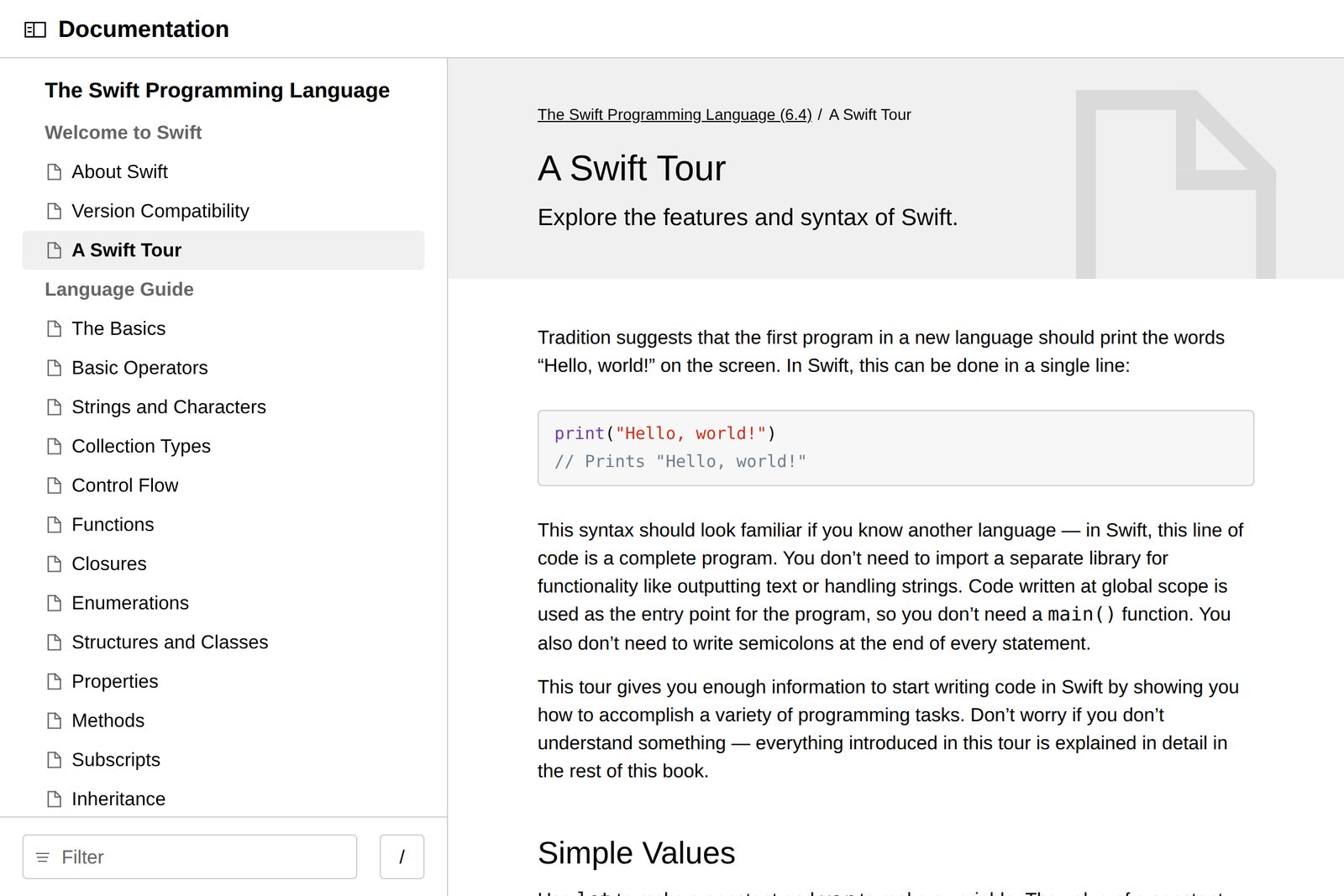
- The Swift Programming Language (official) — the language guide. Read “A Swift Tour” at the start, then use the rest as a reference
- Playgrounds in Xcode — write a few lines and see the result immediately; ideal for checking syntax
Practice: a command-line unit converter
In Xcode, choose macOS › Command Line Tool to make a program with no window. Write conversions such as centimetres to inches or Celsius to Fahrenheit, using an enum, switch and functions. readLine(), which reads keyboard input, returns an optional. Ask yourself what happens if the input is not a number? and optionals will click.
Step 2 — SwiftUI basics
In SwiftUI you never rewrite the screen yourself. You declare “when the state (data) is like this, the screen looks like that”; change the state and SwiftUI redraws. Getting used to this is the whole point of step 2.
How SwiftUI thinks — state decides the screen
The button never edits the text. It changes state, and SwiftUI redraws
The @State on count means “redraw when this changes”. The button only does count += 1; nothing rewrites the label, yet the number climbs 1, 2, 3.
Key ideas
- Views and modifiers — chain .font(), .padding() and so on onto Text, Button and friends. Order matters: it changes the result
- Layout — VStack (vertical), HStack (horizontal), ZStack (layered), Spacer, Grid
- Everyday controls — Text, Image (SF Symbols icons), Button, Toggle, TextField, Picker, Slider
- Lists — List and ForEach turn an array into rows; Identifiable tells the rows apart
- Where state lives — @State for one view, @Binding to let a child view change it, and an @Observable class for data several views share
- Navigation — on the Mac, NavigationSplitView with a sidebar is the norm
- Previews — write #Preview and the canvas shows the view without running the app
Check when a tutorial was written
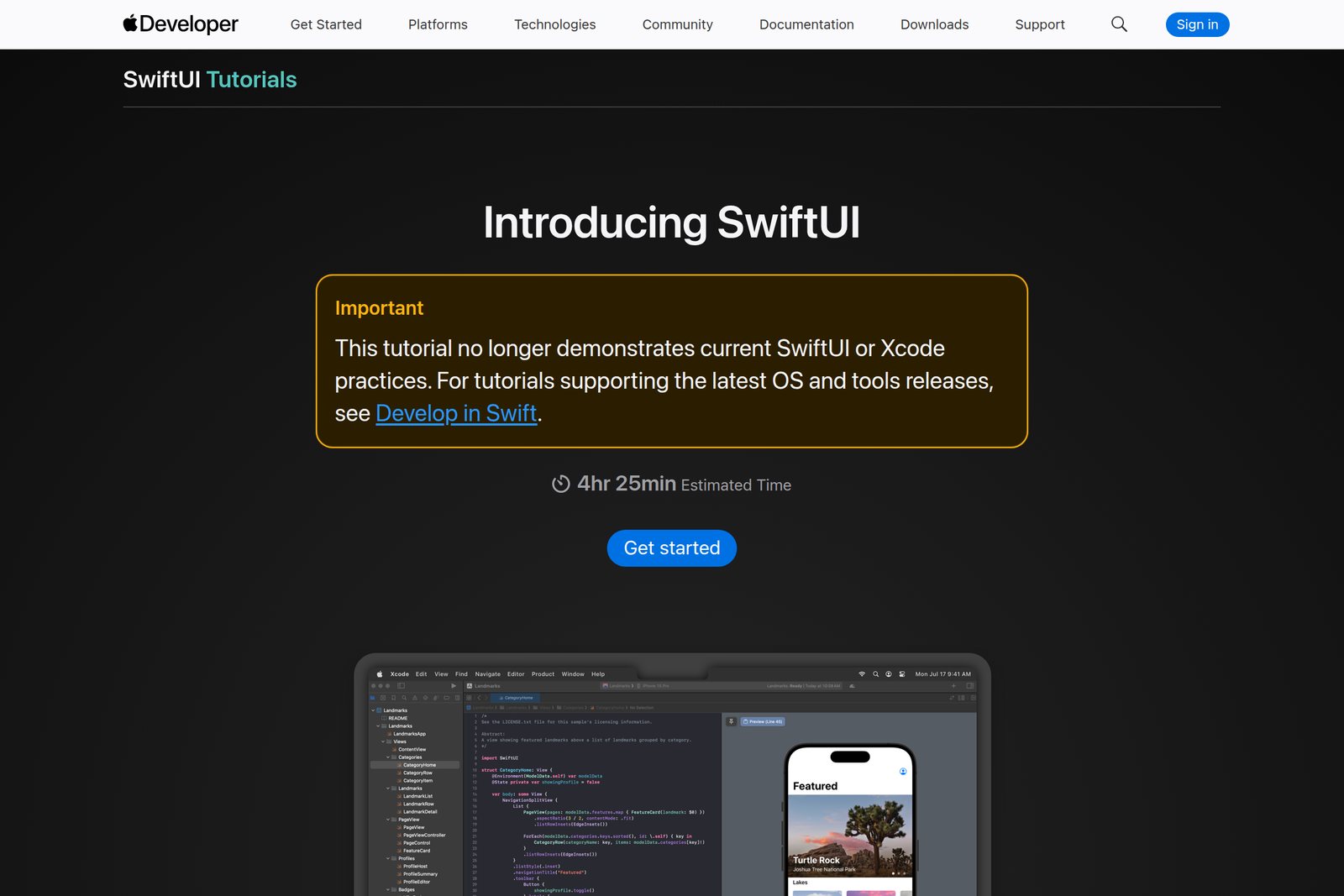
Search and Apple's “SwiftUI Tutorials” will often come up first. The page now carries a notice that it no longer demonstrates current SwiftUI or Xcode practices, and points to the newer Develop in Swift Tutorials. SwiftUI changes a little every year, so for any article or video, check the date and the Xcode version it targets.
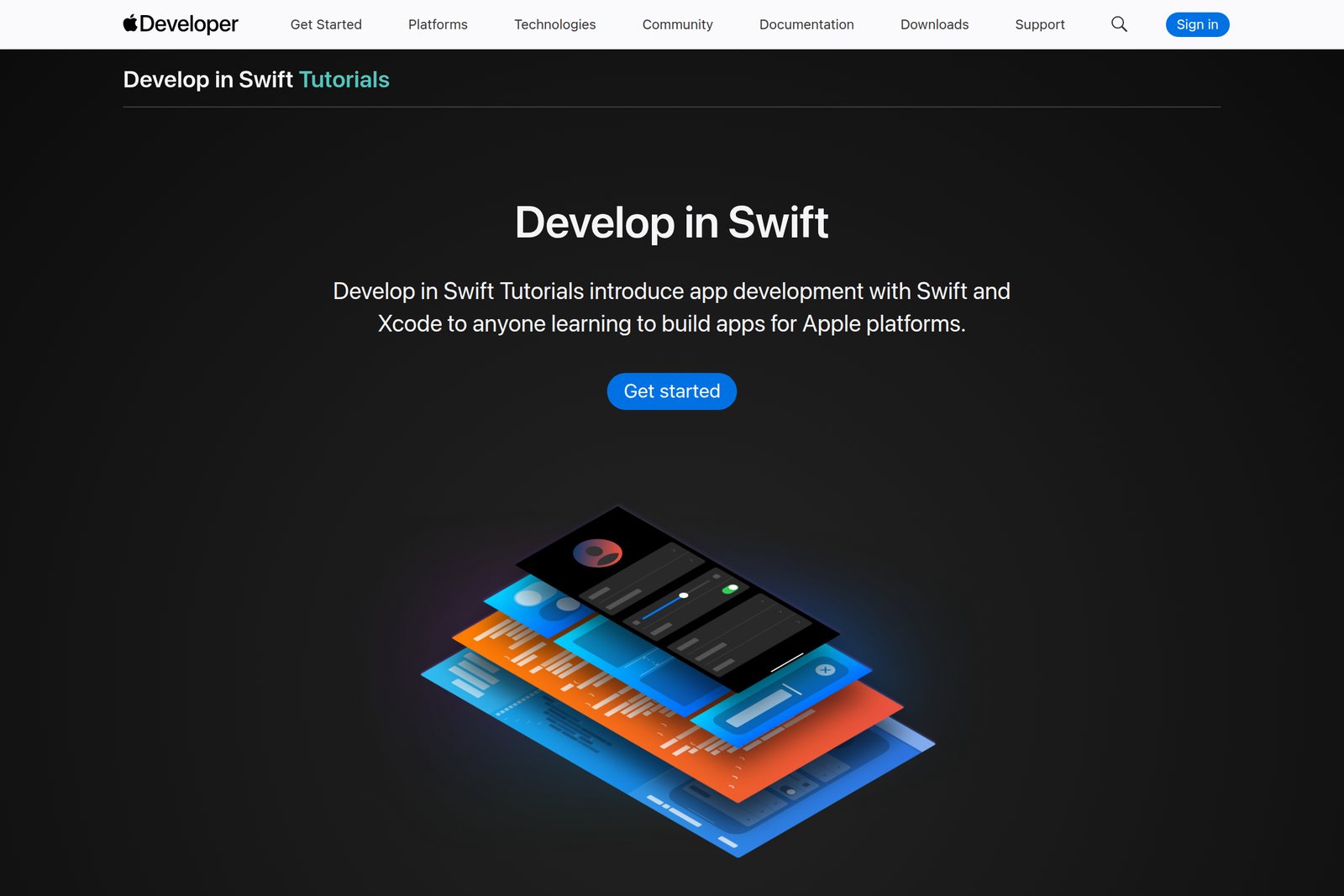
Develop in Swift is Apple's hands-on course, running in order from Xcode basics through SwiftUI, saving data with SwiftData, testing and distribution. Its projects are mostly iPhone apps, but SwiftUI's ideas and syntax are nearly identical on the Mac. Work through the SwiftUI chapters, then pick up the Mac-specific parts in step 3.
Practice: give the converter a window
Add a user interface to your step 1 converter: type a number in a TextField, pick units with a Picker, and watch the result Text update instantly. You should be able to reuse your step 1 conversion code as is. Keeping the UI and the logic in separate files will make testing much easier later.
Step 3 — Mac idioms
A stretched iPhone app is not a Mac app. The menu bar, multiple windows, a settings window, keyboard shortcuts: learn the manners Mac users take for granted. This is where building utilities really begins.
The skeleton of a Mac app — App and scenes
Remove WindowGroup and keep only MenuBarExtra, and you have a menu-bar-only app
Key ideas
- App and scenes — inside the app's entry point (the @main App), you declare “scenes” such as windows
- WindowGroup and Window — WindowGroup can open many windows of one kind; Window is a single dedicated window
- Settings — declare it and “Settings…” (⌘ ,) appears in the app menu
- MenuBarExtra — an icon that lives in the menu bar, available since macOS 13. With .menuBarExtraStyle(.window) it shows a small popover-like panel
- Stay out of the Dock — set LSUIElement to YES in Info.plist and the app no longer appears in the Dock or the app switcher. Standard for menu bar tools
- Menus and shortcuts — .commands adds items to the menus at the top of the screen; .keyboardShortcut assigns keys
- Toolbars and sidebars — .toolbar and NavigationSplitView. Set a window's starting size with .defaultSize
- Drag and drop, file choosing — drop files from Finder (.dropDestination) or pick them in an Open panel (.fileImporter)
- Bridging to AppKit — use AppKit for what SwiftUI lacks: NSPasteboard for the clipboard, NSWorkspace for opening apps and files. NSViewRepresentable embeds AppKit views in SwiftUI
That is a whole tool: a clock icon appears in the menu bar, and choosing “Copy timestamp” puts the current date and time on the clipboard. NSPasteboard is AppKit, but on the Mac you can call it straight from SwiftUI. The app has no window, so it provides its own Quit button.
Learn the Mac's manners
Apple's Human Interface Guidelines (HIG) describe how a Mac app should behave: menu order, shortcut conventions (⌘ , for settings, ⌘ W to close, ⌘ Q to quit), how windows work. Use standard components in the standard way and your app will look and feel like a Mac app. The new design introduced in macOS 26 (Liquid Glass) reaches standard components simply by building with the new SDK.
Practice: a menu bar timer
Build a Pomodoro timer that alternates 25 minutes of work with 5 minutes of rest. Show the time left in the menu bar, start and stop with a click, and let a Settings window change the durations. That covers most of step 3.
Step 4 — Data and files
A tool is only useful if it picks up where you left off. Learn where to keep settings, the user's data and the files they choose.
| To store | Use | Example |
|---|---|---|
| Small settings | @AppStorage (UserDefaults) | Display format, feature toggles |
| A block of data | Codable + a JSON file | A list of snippets |
| Many records to search and sort | SwiftData (macOS 14 and later) | Thousands of history items |
| The user's own files | FileManager, file panels | Files to batch-rename |
Key ideas
- @AppStorage — attach it to a variable and the value is saved and restored on the next launch
- Codable — turn your own structs into JSON (encode) and back (decode)
- Where to save — app data belongs in Application Support. Do not create files in Documents or on the Desktop uninvited
- FileManager and URLs — list, copy, move. When deleting, prefer moving to the Trash (trashItem) over irreversible removal
- SwiftData — mark a class with @Model and store and query it like a database. Reach for it as records pile up
- Bookmarks — in the sandbox, even a folder the user once chose becomes unreadable after a relaunch. To remember it, save a security-scoped bookmark
Practice: a snippet keeper
Store sentences you type often; pick one from the menu bar and it lands on the clipboard. Save the list as JSON, and let an @AppStorage setting choose whether it appears as a menu or a small window.
Step 5 — System hooks
A utility is worth as much as its reach into the system. This is also where you must start thinking about where you will distribute it, because that changes what you are allowed to do.
App Sandbox: putting the app in a box
Apps on the Mac App Store must run inside the App Sandbox. A sandboxed app can touch only the files the user picks and the capabilities it was granted (network, camera and so on). You declare them under Signing & Capabilities in Xcode; these declarations are called entitlements.
Safe for users, limiting for developers. Tools that move other apps' windows or read what is inside other apps rely on the accessibility API, which essentially does not work in the sandbox. Such tools are usually distributed from the developer's own site.
Key ideas
| You want to | Use | Mind |
|---|---|---|
| Launch at login | SMAppService (macOS 13 and later) | Make it a setting the user turns on |
| Read and write the clipboard | NSPasteboard | No change notifications: poll changeCount |
| Show notifications | UserNotifications | Ask permission the first time |
| Open apps, files, URLs | NSWorkspace | — |
| Be called from Shortcuts or Spotlight | App Intents | Expose features as actions |
| A shortcut that works anywhere | Global hotkeys (an old API or a package wrapping it) | Pick keys that do not clash |
| Control other apps' windows | Accessibility API | Needs user approval; outside the sandbox |
| Read what is on screen | ScreenCaptureKit | Needs Screen Recording permission |
Explain before you ask for permission
On macOS, users grant accessibility, screen recording, full disk access and similar permissions one by one in System Settings › Privacy & Security. An app cannot help itself to them. Explain on screen why you need a permission before requesting it. It is good manners, and it decides whether people keep using your app.
Practice: clipboard history
Keep the last 50 things copied and let the user re-pick them from the menu bar. Check NSPasteboard's changeCount at an interval and add to the history when it changes. Store with SwiftData from step 4, launch at login with SMAppService. Also think about how to handle secrets such as passwords — for example, skip items that password managers mark as “do not record”.
Step 6 — Polish and test
Quality is not something you bolt on at the end. Build the habit alongside every step, starting at step 1.
Debugging
- Start by printing values with print(). Then graduate to breakpoints (click a line number) to pause and inspect variables
- While paused, type po name in the debug area to see a value
- If things are slow or memory keeps growing, reach for Instruments (Time Profiler, Leaks)
Testing
A function marked @Test is a test, and #expect states what should be true (FileNamer here is a made-up example type). Start by testing logic, such as calculations or building file names, rather than screens. Separating UI from logic back in step 2 pays off here.
Care for the people using it
- Accessibility — give icon-only buttons an .accessibilityLabel, and try your app once with VoiceOver
- Localization — UI strings gather automatically in a String Catalog (.xcstrings). In Xcode 27 you can ask an agent to translate them
- Dark mode — use system colours or asset catalog colours, not hard-coded values
- Icon — design the app icon in Icon Composer
Keep history with Git
One repository per project; commit small whenever something works. Knowing you can always roll back makes you braver, and faster.
Step 7 — Distribution
Running on your Mac and running on someone else's are different things. Only after Apple's signing and checks does your app open cleanly on other people's Macs.
Three ways to ship
Routes ② and ③ need the Apple Developer Program ($99 a year; local prices vary by country and can change)
From your own site (Developer ID + notarization)
Distribute a .dmg or .zip from your website or GitHub. Notarization is Apple's automated scan of your app (for malware and signing problems) that issues a ticket when it passes. It is not App Review, and results usually come back within an hour.
Notarization requires signing with a Developer ID certificate and enabling the Hardened Runtime. For updates, the usual choice is Sparkle, the open-source framework used by many Mac apps.
On the Mac App Store
The most reassuring option for users, and the store handles payment and updates. In return, the App Review Guidelines (2.4.5) add Mac-specific rules:
- Run inside the App Sandbox
- Do not launch at login without the user's consent
- Update only through the App Store; no built-in updater
- No requests for root privileges, no licence keys
As step 5 showed, some tools cannot be built inside the sandbox. Once you know what you want to build, decide early where you will ship it, and you will not have to rebuild later.
Practice: have a friend open it
Make a notarized .dmg, send it to a friend and ask them to open it. Does it open without warnings? Can they use it without explanation? A first-time user's reaction is the best test there is.
Keeping going
- Touch it every day — twenty minutes daily beats an hour once a week. Your hands learn Xcode
- Read the whole error — the answer is often in it
- Check against primary sources — confirm what you find in search results with Apple's documentation. The older the article, the likelier the syntax has changed
- Use AI as a tutor — have it explain and compare, then write the code yourself. Be able to explain every line you paste
- Build what you use daily — a tool that fixes your own annoyance keeps you motivated to finish
- Publish your work — put the code on GitHub with a short description. It leads to work and to people
Going further
- WWDC session videos — released each June, the primary source on what is new. Start with “What's new in SwiftUI”
- Hacking with macOS (SwiftUI Edition) — a project-based book focused on the Mac (paid)
- Open-source Mac apps — find Swift menu bar apps on GitHub and read them. Real code is the best teacher
§ — On one page
- The goal: a small tool reached from the menu bar or a shortcut. The tools: Swift + SwiftUI, with AppKit for the gaps.
- Step 0: an Apple silicon Mac and free Xcode. No paid account until you ship.
- Steps 1–2: optionals are Swift's first hurdle. In SwiftUI, change the state and the screen follows.
- Step 3: App and scenes. MenuBarExtra, Settings, menus and shortcuts make it feel like a Mac app.
- Steps 4–5: where to store what, and how to reach the system. Sandbox limits decide how you ship.
- Step 6: debugging, testing and accessibility, from day one.
- Step 7: your own site means Developer ID and notarization; the App Store means the sandbox and review.
- Check the date and target version of any tutorial. Ask AI to explain rather than to write.
References
- Apple — Develop in Swift Tutorials
- The Swift Programming Language (6.4)
- Apple — Xcode 27 Release Notes (requirements, new features)
- Apple — MenuBarExtra
- Apple — SMAppService
- Apple — Notarizing macOS software before distribution
- Apple — App Review Guidelines (2.4.5, Mac App Store requirements)
- Apple — Human Interface Guidelines
- Sparkle — software update framework for macOS
- Hacking with macOS: SwiftUI Edition
- Donny Wals — Setting default actor isolation in Xcode 26
Dev Guide No. 1 — A Beginner's Roadmap to Mac Apps / 2026.09