Old-School Networking / 2026 ・ No.02
Old-School Networking
Part 2: the physical layer — 0s and 1s become electricity, light and radio
Published
In part 1 we watched one submission travel as a 266-byte packet.
This time we go to the very bottom: the physical layer. What do those 266 bytes look like on the cable?
We check, by calculation and by measurement, how bits become signals, network cables, optical fibre and Wi-Fi, hubs and switches, and what “line speed” really means.
Beneath the 266 bytes
AraiThe physical layer is about cables, right? Plug it in, the light comes on, it works. What else is there?
FuruiThen answer this. Our line is gigabit. How many times faster is the Submit button than on a 10-megabit line?
AraiA hundred times... surely?
FuruiToday we measure it.
The route map of all 12 parts (you are here: part 2)
- What's on the cable — the bytes before and after that Wireshark doesn't show, and the FCS check value, worked out by hand
- Bits into signals — the order bits go out within a byte, and how 10BASE-T, 100BASE-TX and 1000BASE-T differ
- Three paths — network cable (copper), optical fibre (light) and Wi-Fi (radio)
- What speed really means — set the practice network's “cable” to 10 M, 100 M and 1 G and measure
The physical layer's job
In a sentence, the physical layer's job is to turn 0s and 1s into signals that reach the other end: voltages on copper, brightness of light in fibre, changes in radio waves for Wi-Fi. The receiver reads the signal at fixed intervals and turns it back into 0s and 1s.
To make that work, physical-layer standards specify a lot of detail: the shape of the connector and its pin layout, the kind and length of cable, voltages or wavelengths, how long each bit lasts, and how the receiver keeps its clock in step with the sender. On the other hand, the physical layer doesn't know the content. It doesn't care whether the bits are IP or JSON.
A word on units. Line speed is counted in bps (bits per second). File sizes are in bytes, so remember to divide by 8. Even a 1 Gbps line carries at most 125,000,000 bytes (about 125 MB) a second.
The physical layer turns bits into signals and carries them. It owns shapes, materials and electrical or optical rules, and never looks at the content. Speed is in bps (bits); divide by 8 for bytes.
One frame on the cable
The submission Wireshark showed us in part 1 was 266 bytes. On the cable, though, a little more goes before and after it.
Part 1's 266 bytes as they appear on the cable
First comes the preamble: 7 bytes of alternating 0s and 1s (55 in hexadecimal). The receiver listens to it and syncs its clock to the sender's. The SFD (d5) that follows says “the frame starts here”. At the end, the FCS is a 4-byte check value, made with a calculation called CRC-32, for spotting damage on the way. After the frame there must be a gap of at least 12 byte-times.
The sender's NIC (network interface) adds the FCS and the receiver's NIC checks and removes it, so Wireshark normally doesn't show it. So I calculated it myself from part 1's 266 bytes.
# Compute the FCS added at the end on the cable, from part 1's 266 bytes (packet 8, the claim)
>>> import zlib
>>> frame = bytes.fromhex('020000000101 0200000001100800 4500 …')  # 266 bytes
>>> hex(zlib.crc32(frame))
'0xa27156ea'
>>> fcs = zlib.crc32(frame).to_bytes(4, 'little')   # goes on the cable as ea 56 71 a2
>>> hex(zlib.crc32(frame + fcs))
'0x2144df1c'   # the receiver's check: an undamaged frame always gives this value
# if one bit flips on the way and 46851 becomes 56851...
>>> broken = frame.replace(b'46851', b'56851')
>>> hex(zlib.crc32(broken + fcs))
'0xce86b422'   # no match, so the frame is dropped (never handed up)
If even one bit flips, the check fails and the frame is silently dropped. The physical and data link layers go only as far as “never deliver something broken”; they don't resend. Resending is TCP's job, in part 6.
| Part 1's 14 packets | Bytes |
|---|---|
| Total seen in Wireshark | 1,333 |
| Padding the two short ARPs up to the 60-byte minimum | +36 |
| FCS (4 × 14) | +56 |
| Preamble and SFD (8 × 14) | +112 |
| Gaps (12 × 14) | +168 |
| Time on the cable (in byte-times) | 1,705 (about 1.28 × what we saw) |
Turning bits into signals
The first thing to watch when turning bits into signals is the order. Ethernet sends bytes from first to last, but within a byte the least significant bit goes first. The SFD d5 is 11010101 in binary, yet it leaves on the cable as 1,0,1,0,1,0,1,1.
The 16 bits of the SFD (d5) and the first destination MAC byte (02)
With the plain approach (1 is high, 0 is low), a long run of 0s makes it hard for the receiver to count how many bits went by: its clock slowly drifts. So 10BASE-T uses Manchester code, which always flips in the middle of every bit, giving the receiver a transition to re-sync on. The price is a signal that changes twice as fast.
The faster the standard, the cleverer the trick.
| Standard | Speed | Wires used | How the signal is made |
|---|---|---|---|
| 10BASE-T | 10 Mbps | 2 pairs (send, receive) | Manchester code |
| 100BASE-TX (1995) | 100 Mbps | 2 pairs | 4 bits replaced by 5 (4B5B), three voltage levels (MLT-3); 125 million symbols/s |
| 1000BASE-T (1999) | 1 Gbps | all 4 pairs, both ways at once | five levels (PAM-5); 125 million symbols/s per pair |
| 10GBASE-T (2006) | 10 Gbps | all 4 pairs | sixteen levels (PAM-16); 800 million symbols/s, with error correction |
1000BASE-T changes the signal 125 million times a second, the same as 100BASE-TX, yet runs ten times faster. It uses twice the wires (4 pairs), carries more per symbol (five levels), and sends and receives on the same pair at once, thanks to “echo cancellation”, which subtracts the reflection of its own signal.
Copper: network cable
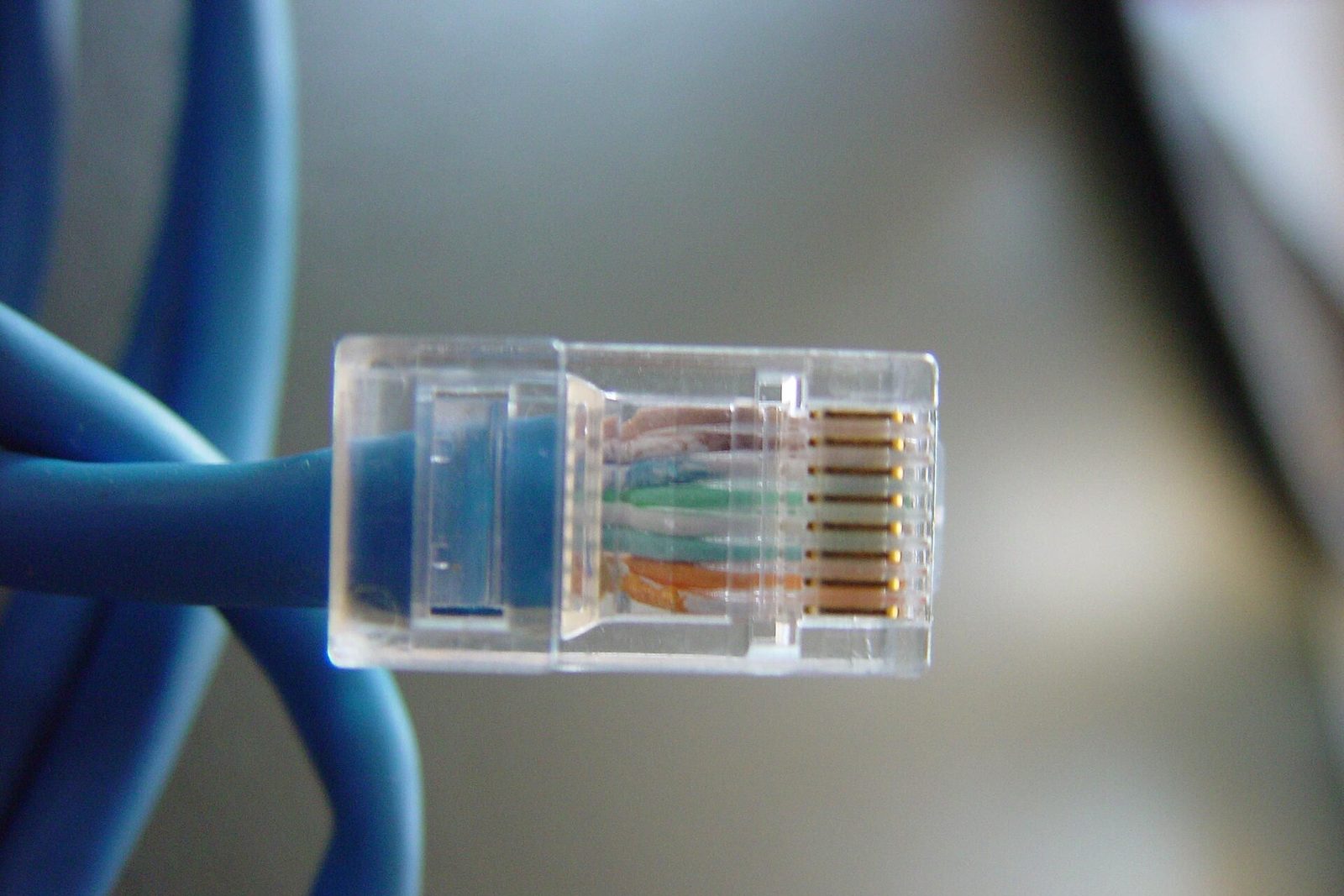
The most familiar path is network cable (twisted pair). Inside are eight copper wires, twisted together in four pairs.
The eight pins of RJ45 (T568B colours) and the pairs each standard uses
Why twist them? Each pair carries opposite “plus” and “minus” signals, and the receiver reads the difference between the two wires. Noise from outside lands equally on both twisted wires, so taking the difference cancels it. How tightly the wires are twisted (and shielded) is what separates cable categories.
| Category | Main uses | Typical length |
|---|---|---|
| Cat5e | 1000BASE-T, 2.5G and 5GBASE-T (2016) | 100 m |
| Cat6 | as above; 10GBASE-T over short runs | 100 m (10G up to 55 m) |
| Cat6A | 10GBASE-T | 100 m |
| Cat8 | 25G and 40GBASE-T (inside data centres) | 30 m |
For a home or office, buying Cat6A today keeps you out of trouble. Whatever the category, the basic limit is 100 m per run. Beyond that, you use the optical fibre in the next section.
Light: optical fibre
Optical fibre traps light inside glass as thin as a hair. With no electricity involved, it shrugs off noise and reaches far. Between buildings, inside data centres, all the way to cables on the sea floor, long distances are almost all light.
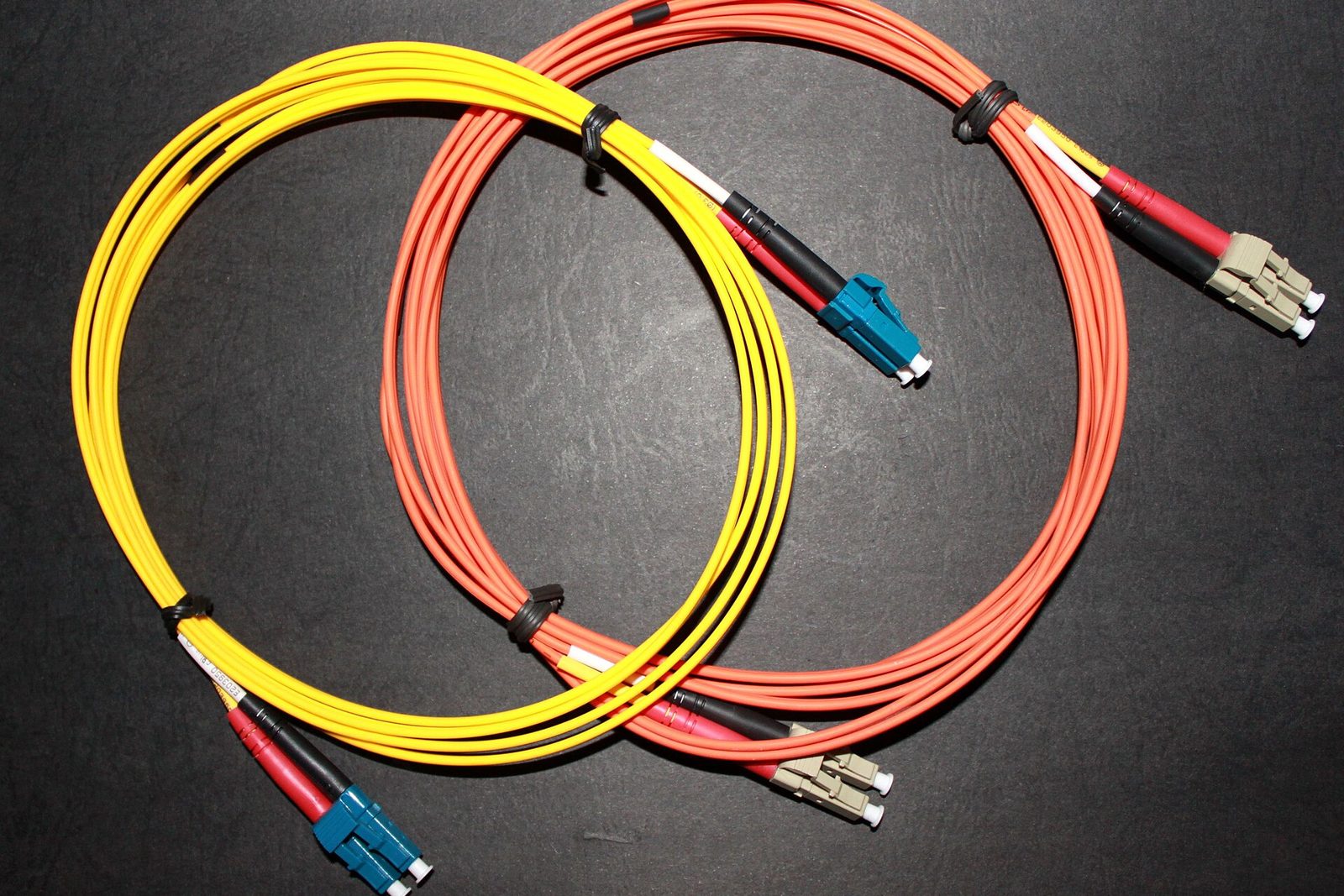
| Type | Cable colour (common examples) | Reach (1 Gbps example) |
|---|---|---|
| Multimode (wide light path) | orange (OM1, OM2), aqua (OM3, OM4) | 220–550 m with 1000BASE-SX |
| Single-mode (narrow light path) | yellow | 5 km with 1000BASE-LX |
On the switch side, a plug-in part called an SFP converts between light and electricity. The same switch can take multimode, single-mode or even copper, depending on which SFP you plug in.
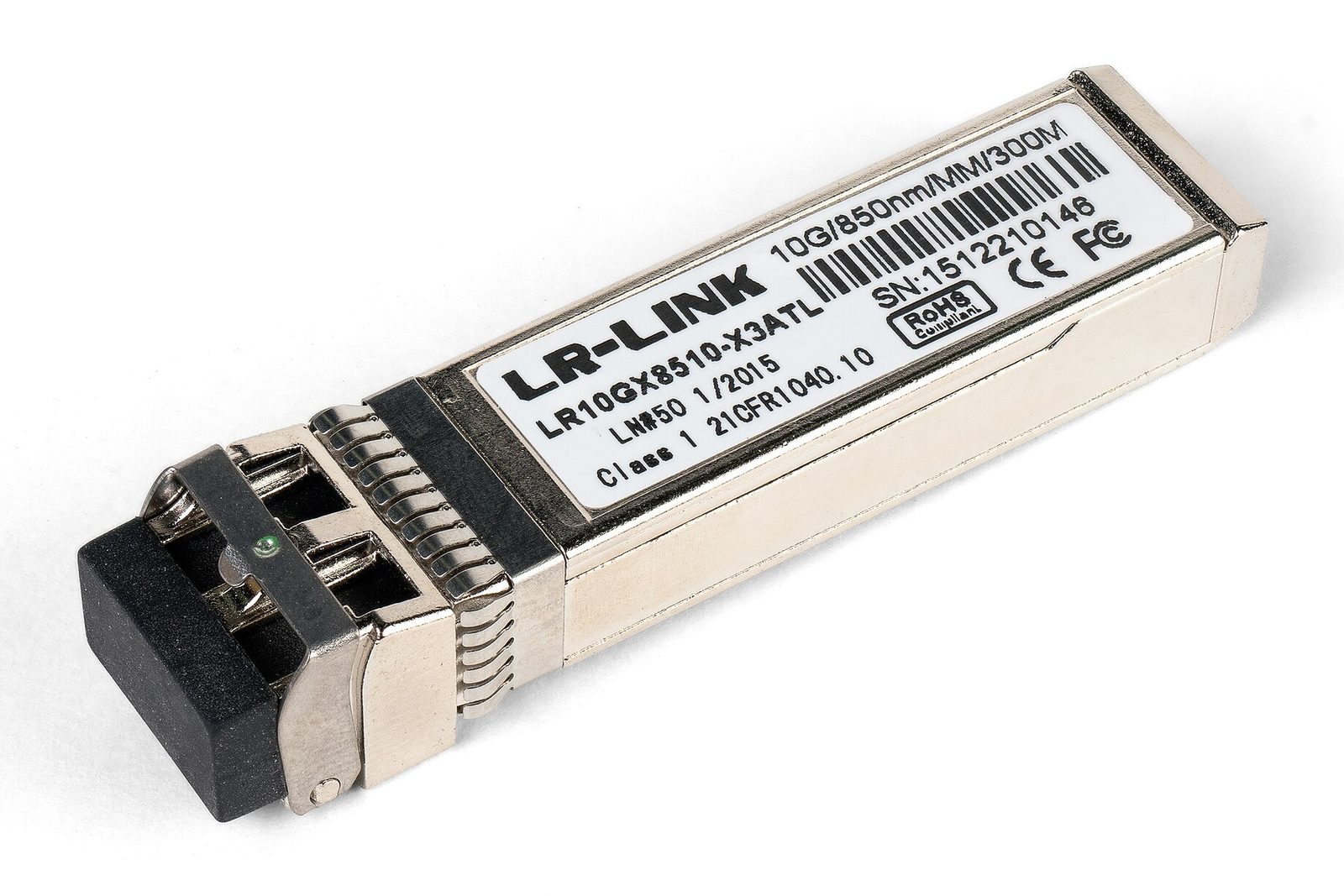
Light in glass travels at about two-thirds of its speed in a vacuum: roughly 5 microseconds per kilometre. We'll use that number again in section 9.
Radio: Wi-Fi
Wi-Fi is a physical layer that carries bits by radio (IEEE 802.11 defines its data link rules too). Each generation has got faster.
| Name | Standard | Bands | Maximum on paper |
|---|---|---|---|
| Wi-Fi 4 | 802.11n | 2.4, 5 GHz | 600 Mbps |
| Wi-Fi 5 | 802.11ac | 5 GHz | 6.9 Gbps |
| Wi-Fi 6/6E | 802.11ax | 2.4, 5 GHz (6E adds 6 GHz) | 9.6 Gbps |
| Wi-Fi 7 | 802.11be | 2.4, 5, 6 GHz | about 23 Gbps |
In Japan, 5925–6425 MHz of the 6 GHz band opened up for wireless LAN on 2 September 2022. Wi-Fi 7 certification began in January 2024.
The figures in the table, though, are theoretical maxima under perfect conditions. Radio is shared by everyone in the air, so only one device can talk at a time (half duplex). Walls and distance weaken it, and it clashes with the neighbours' Wi-Fi. For machines where speed matters, or a PC that never leaves the desk, a cable is the surest choice.
Hubs and switches
There are two kinds of box for bringing many cables together. The old hub is a physical-layer machine: whatever arrives on one port, it repeats out of every other port.
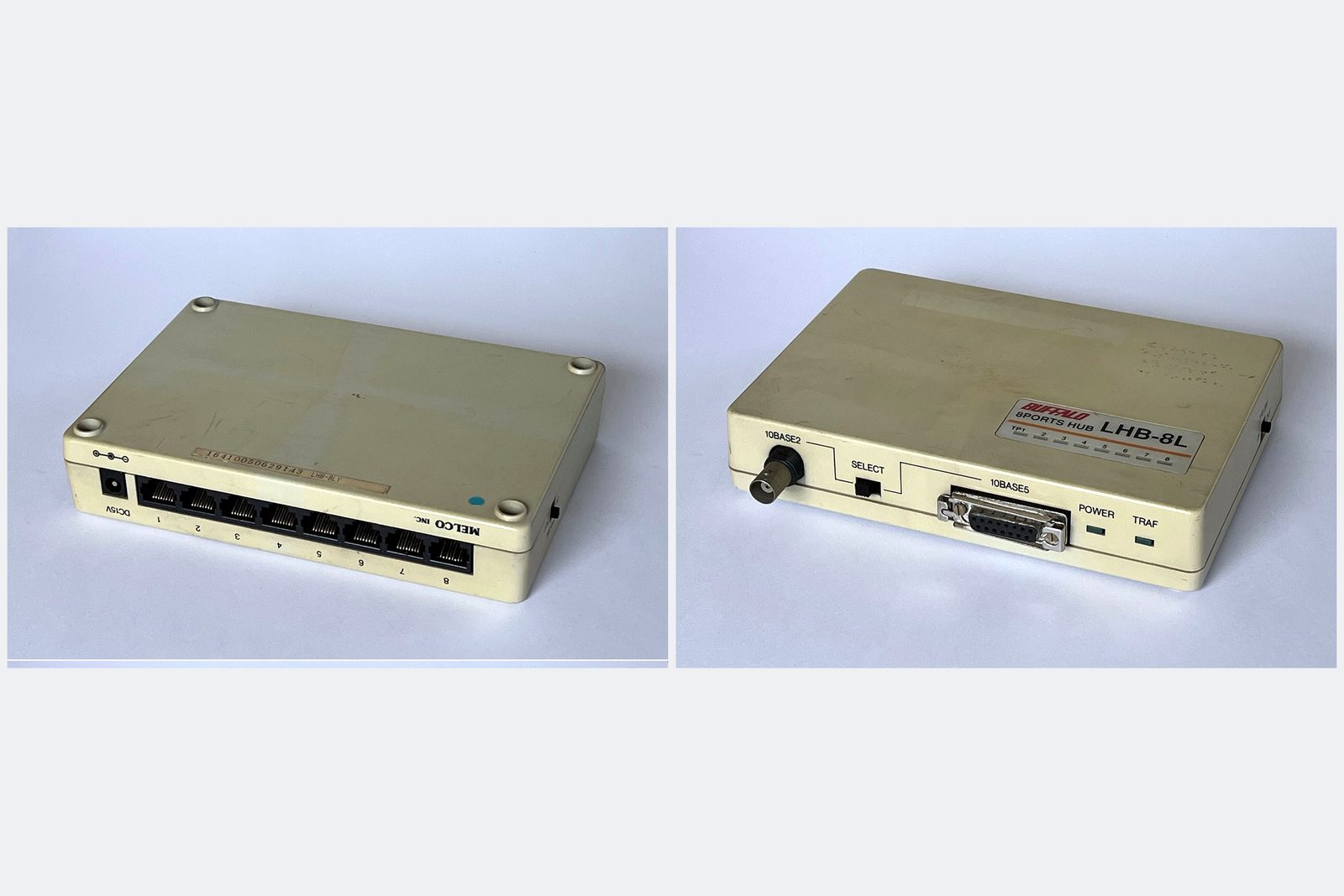
Machines on a hub effectively share one line. If two send at once the signals collide, so they took turns by a rule (CSMA/CD): listen until the line is free before sending, and if a collision happens, wait a little and send again.
A hub is shared by all; a switch gives each port its own lane
A modern switch reads the destination MAC address and sends the frame only to the port where that device sits (more in part 3). Each port has its own path, so nothing collides. Full duplex, sending and receiving at the same time, became the norm, and collisions are mostly history.
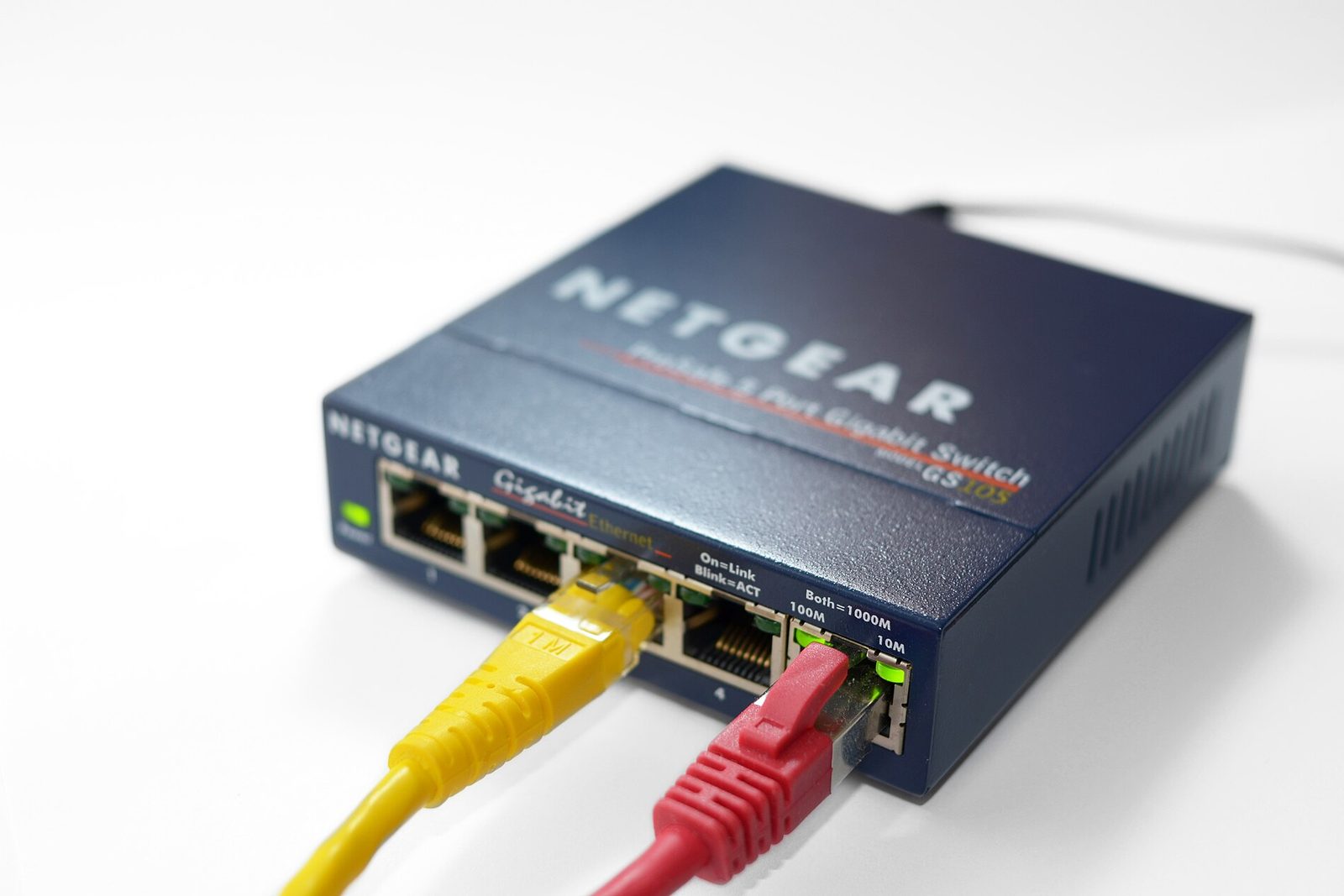
The light above each port is the physical layer's “connected” sign: the link. When you plug in a cable, the two ends tell each other what speeds and modes they support (auto-negotiation) and pick the fastest combination. That's why the light takes a moment to come on.
AraiI've heard of hubs but never seen one.
FuruiWhen I was young every office had one. Someone sends a big file and the whole floor slows down. The old-school “everybody's cable”.
Width and length
Back to the opening question: how much faster is a 1 Gbps line than a 10 Mbps one? On part 1's practice network I put a “this many bits per second at most” tap on both sides of the router, setting the cable speed to 10 M, 100 M and 1 G (using a Linux feature called tc), and measured.
# put a “10 megabits per second max” tap on both router ports (tbf)
$ tc qdisc add dev lan0 root tbf rate 10mbit burst 15kb latency 100ms
$ tc qdisc add dev wan0 root tbf rate 10mbit burst 15kb latency 100ms
# same for 100 Mbps and 1 Gbps; remove it to go back
I measured two things: downloading a 5-million-byte file, and the same single submission (POST) as in part 1.
Measured: changing the cable speed
The big download scaled with speed, 4.175 s → 0.416 s → 0.042 s: exactly a hundred times faster (the actual rates were 9.6, 96.3 and 951.2 Mbps, a little under the line speed because of the headers). The submission, however, went 1.21 → 1.07 → 1.03 ms: just 1.2 times faster. 266 bytes go through in about 0.2 ms even at 10 Mbps.
“Speed” has two meanings
A line has two kinds of speed: width (bandwidth) and length (latency). This practice network lives inside one machine, so its length is nearly zero. On a real network, the time light takes to travel alone looks like this (a theoretical floor, at about 5 microseconds per kilometre of fibre).
| From Tokyo (straight line) | One way | Round trip | Three round trips for a submission (DNS, TCP, HTTP) |
|---|---|---|---|
| Osaka (about 400 km) | 2 ms | 4 ms | 12 ms |
| Singapore (about 5,300 km) | 27 ms | 53 ms | 159 ms |
| New York (about 10,800 km) | 54 ms | 108 ms | 324 ms |
Real cables don't run in straight lines and routers along the way add waits, so actual figures are higher. However wide you make the line, light doesn't get faster. To speed up small API calls, cut the number of round trips or move the server closer. That idea will matter when we build the back end.
By the way, here is how the “cable” in the practice network from part 1 describes itself.
# ethtool on the PC's “cable” in part 1's practice network
$ ethtool eth0
    Speed: 10000Mb/s
    Duplex: Full
    Auto-negotiation: off
    Port: Twisted Pair
    Link detected: yes
$ ethtool -i eth0
    driver: veth
# veth = a virtual cable that exists only in software; the speed and “twisted pair” are nominal
AraiIt says “twisted pair, 10 gigabit”...
FuruiIt's a virtual cable that exists only in software. No copper, no light. That's why I put a tap on it this time, to make it behave like the real thing. When you measure, check that what you're measuring is real.
Checking your own PC
Here is how to see what speed your PC is connected at.
| Wired (network cable) | Wi-Fi | |
|---|---|---|
| Mac | the media: line of ifconfig | Option-click the Wi-Fi icon in the menu bar (Tx Rate) |
| Windows | PowerShell Get-NetAdapter (LinkSpeed) | netsh wlan show interfaces |
| Linux | ethtool eth0 (Speed, Duplex) | iw dev wlan0 link |
From the other layers, physical-layer faults look like “somehow slow” or “drops out now and then”. Here are the usual suspects.
| Symptom | Common cause | How to check |
|---|---|---|
| No link light | broken cable, plug not fully in, other end powered off | try another cable and another port |
| 100 Mbps instead of 1 Gbps | one of the eight wires broken, an old Cat5 cable | check the link speed as above; swap the cable |
| Slow or dropping now and then | damage or noise, so frames with a bad FCS get dropped | error counters in ethtool -S or netstat -i |
| Only Wi-Fi is slow | distance, walls, crowding (nearby Wi-Fi) | measure up close, switch to 5 or 6 GHz, compare with a cable |
When something won't connect, look at the link light and link speed first. Swapping one cable often tells you whether the physical layer is to blame (part 12 pulls it all together).
§ — On one page, and next time
- The physical layer turns bits into signals and carries them, never looking at the content. Speed is in bps; divide by 8 for bytes.
- On the cable the 266 bytes get a preamble and SFD in front and an FCS and gap behind: 290 byte-times in all.
- A frame whose FCS (CRC-32) doesn't match is silently dropped. Resending is TCP's job.
- Within a byte, bits go least significant first. Faster standards add wires, add levels and send both ways at once.
- Network cable is twisted pair, up to 100 m; long distances use fibre; Wi-Fi is shared radio.
- A hub is shared by everyone; a switch gives every port full duplex.
- A 100× faster line made big transfers 100× faster but the small submission only 1.2×. Small exchanges are limited by length (latency).
Arai1.2 times... I thought a gigabit line made everything a hundred times faster.
FuruiA wide road still takes time if it's long. Next is the address on the frame: MAC addresses and switches. Remember how, in part 1, the PC's very first move was to ask everyone?
References
- Wikipedia — Ethernet frame
- Wikipedia — Manchester code
- Wikipedia — Fast Ethernet (100BASE-TX)
- Wikipedia — Gigabit Ethernet (1000BASE-T, SX, LX)
- Wikipedia — 10 Gigabit Ethernet (10GBASE-T)
- Wikipedia — 2.5GBASE-T and 5GBASE-T
- Cabling Installation & Maintenance — TIA Category 8 standard approved
- Wikipedia — Wi-Fi 7
- ITmedia PC USER —「Wi-Fi 6E」ついに解禁(2022-09-02)
- tc-tbf(8) — Linux manual page
The FCS was computed with Python's zlib.crc32 from part 1's capture (the 266-byte submission packet). The speed measurements were made with curl on 24 October 2026 on the same cloud practice network as part 1 (Linux network namespaces), with tc's tbf capping both router ports (medians of 3 downloads and 31 submissions). They ran over virtual cables, so no real cable signals were involved. The latency by distance is a theoretical floor computed from the speed of light in fibre. The photos are from Wikimedia Commons, with author and licence under each one. The characters are fictional.
Old-School Networking, part 2 — the physical layer / 2026.10