Old-School Networking / 2026 ・ No.11
Old-School Networking
Part 11: The developer's network — localhost, inside and outside Docker, proxies
Published
By part 10 we had followed one press of the submit button from the cable all the way up to HTTP. This time we walk the place where we spend the most time and still get lost most often: inside the developer's PC.
What localhost really is, why “the phone can't see it” happens, where a Docker container actually lives, how to get out through an office proxy, and why a dev-server proxy makes CORS go away. One by one, checked with Docker and a practice network.
Where we get lost
AraiCable to HTTP, I get the whole map now. But I still don't know where my localhost:3000 is.
FuruiIt isn't off the map. There are small maps nested inside it: another PC inside your PC (a container), and inside that, another localhost.
AraiLike Russian dolls?
FuruiExactly. And every doll calls itself localhost. Of course you get lost.
Route map of all 12 parts (you are here: part 11)
- localhost and listening addresses — listen on 127.0.0.1 and the phone can't reach you; on 0.0.0.0 it can (measured)
- Docker — a container is another PC inside your PC, and -p rewrites destinations (measured, with Wireshark)
- localhost inside a container — why the database won't answer on localhost, and how to call it by name (measured)
- Proxies — the office proxy's CONNECT, NO_PROXY, and why a dev-server proxy makes CORS disappear (measured)
For the practice, a Linux machine in the cloud plays the developer's PC. It runs Docker 29, and with network namespaces it has a phone (192.168.1.20) on its home LAN and, somewhere else, an “office” with an office PC and a proxy. The expense API is a practice one that replies with who the request came from (you) and who it is (me).
localhost is a name
Besides its doors to the outside (the LAN port, Wi-Fi), a PC has a door that just loops back to itself: loopback (lo), at address 127.0.0.1. In fact every address starting with 127 is loopback; on the practice PC, sending to 127.0.0.2 also came straight back. Packets sent here never touch a cable or the airwaves.
And localhost is a name. Like the names in part 9, the OS turns it into an address through the hosts file and friends. Usually that's 127.0.0.1, but it can also be IPv6 loopback, ::1. The cloud Linux used for practice has no IPv6, so this one experiment was run on another Linux (Ubuntu 22.04).
# A server listening only on ::1 (IPv6 loopback), called as localhost
# curl tries both
pc$ curl -v http://localhost:18011/
    *   Trying 127.0.0.1:18011...
    * connect to 127.0.0.1 port 18011 failed: Connection refused
    *   Trying ::1:18011...
    * Connected to localhost (::1) port 18011
    < HTTP/1.0 200 OK
# Node.js fetch tries only 127.0.0.1
pc$ node -e "fetch('http://localhost:18011/')"
    ECONNREFUSED
# For the record: this PC's hosts file maps localhost to 127.0.0.1 only
pc$ grep localhost /etc/hosts
    127.0.0.1 localhost
    ::1 ip6-localhost ip6-loopback
How localhost is tried depends on the tool
Same “localhost”, different outcomes: curl was refused on 127.0.0.1, tried ::1 and connected; Node.js fetch tried only 127.0.0.1 and got ECONNREFUSED. A server waiting only on ::1 while the caller looks at 127.0.0.1 is the textbook case of “the server is running but I can't connect”.
In configuration files, the address 127.0.0.1 leaves less room for confusion than the name localhost. This part's dev-server configuration is written that way too (chapter 8).
Listening addresses: 127.0.0.1 and 0.0.0.0
A server chooses not just a port but which door to wait at. We started the same API on port 3000 of 127.0.0.1 and port 3001 of 0.0.0.0.
# The same API listening on 127.0.0.1:3000 and on 0.0.0.0:3001
pc$ ss -ltn
    Local Address:Port
    127.0.0.1:3000
    0.0.0.0:3001
# From the PC itself
pc$ curl http://localhost:3000/api/whoami
    {"you":"127.0.0.1","me":"pc","listen":"127.0.0.1:3000"}
pc$ curl http://127.0.0.2:3001/api/whoami
    {"you":"127.0.0.1","me":"pc","listen":"0.0.0.0:3001"}
# From a phone on the same LAN
phone$ curl http://192.168.1.10:3000/api/whoami
    curl: (7) Failed to connect to 192.168.1.10 port 3000 after 0 ms
phone$ curl http://192.168.1.10:3001/api/whoami
    {"you":"192.168.1.20","me":"pc","listen":"0.0.0.0:3001"}
# Start a second one on port 3001
    Error: listen EADDRINUSE: address already in use 0.0.0.0:3001
# Who is using port 3001?
pc$ ss -ltnp 'sport = :3001'
    0.0.0.0:3001   users:(("node",pid=748,fd=21))
Which door you wait at decides who can reach you
Listening on 127.0.0.1 means waiting only at the inner door, so the phone on the same LAN was refused (even the PC itself is refused if it aims at its LAN address, 192.168.1.10). 0.0.0.0 means “wait at every door”: the phone got through, and the API saw the phone's address, 192.168.1.20.
This is exactly what bites when you want to check a page on your phone. The Vite dev server normally waits on localhost only, and opens up to the LAN with --host.
# With --host it's exposed to the LAN too (Network lines appear; excerpt)
pc$ npx vite --host --port 5174
    ➜  Local:   http://localhost:5174/
    ➜  Network: http://192.168.1.10:5174/
    ➜  Network: http://172.17.0.1:5174/
    ➜  Network: http://172.18.0.1:5174/
phone$ curl http://192.168.1.10:5174/   → 200
phone$ curl http://192.168.1.10:5173/   → curl: (7) Failed to connect
The Network lines list every door the PC has, docker0 (172.17.0.1) included. The phone can only reach 192.168.1.10, the one on its LAN.
Listening on 0.0.0.0 says “come in through any door of this PC”. On café Wi-Fi, that includes strangers on the same network, so close it when you're done. When two programs fight over a port (EADDRINUSE), use ss -ltnp or similar to see who got the seat first.
Docker: a container is another PC
We put the API in a container and started it with -p 8080:3000, then looked around from inside and out.
# Run the API in a container and map the PC's port 8080 to its port 3000
pc$ docker run -d --name nw11-api -p 8080:3000 … node api11.mjs
# The container's view of itself
api$ ip -4 addr; ip route
    inet 127.0.0.1/8 scope host lo
    inet 172.17.0.2/16 … eth0
    default via 172.17.0.1 dev eth0
# On the PC: a bridge called docker0, and an address-rewriting rule
pc$ ip -4 addr show docker0
    inet 172.17.0.1/16 … docker0
pc$ iptables -t nat -S DOCKER
    -A DOCKER ! -i docker0 -p tcp --dport 8080
       -j DNAT --to-destination 172.17.0.2:3000
pc$ ss -ltnp 'sport = :8080'
    0.0.0.0:8080   users:(("docker-proxy",…))
# From the PC / from the phone
pc$ curl http://localhost:8080/api/whoami
    {"you":"172.17.0.1","me":"api","listen":"0.0.0.0:3000"}
phone$ curl http://192.168.1.10:8080/api/whoami
    {"you":"192.168.1.20","me":"api","listen":"0.0.0.0:3000"}
A container is another PC inside the PC; -p rewrites the destination
Inside the container there's its own eth0 (172.17.0.2) and its own lo (127.0.0.1). Its way out is 172.17.0.1: a bridge called docker0 that Docker built on the PC (a cousin of part 3's switch). A container is another small PC placed inside yours.
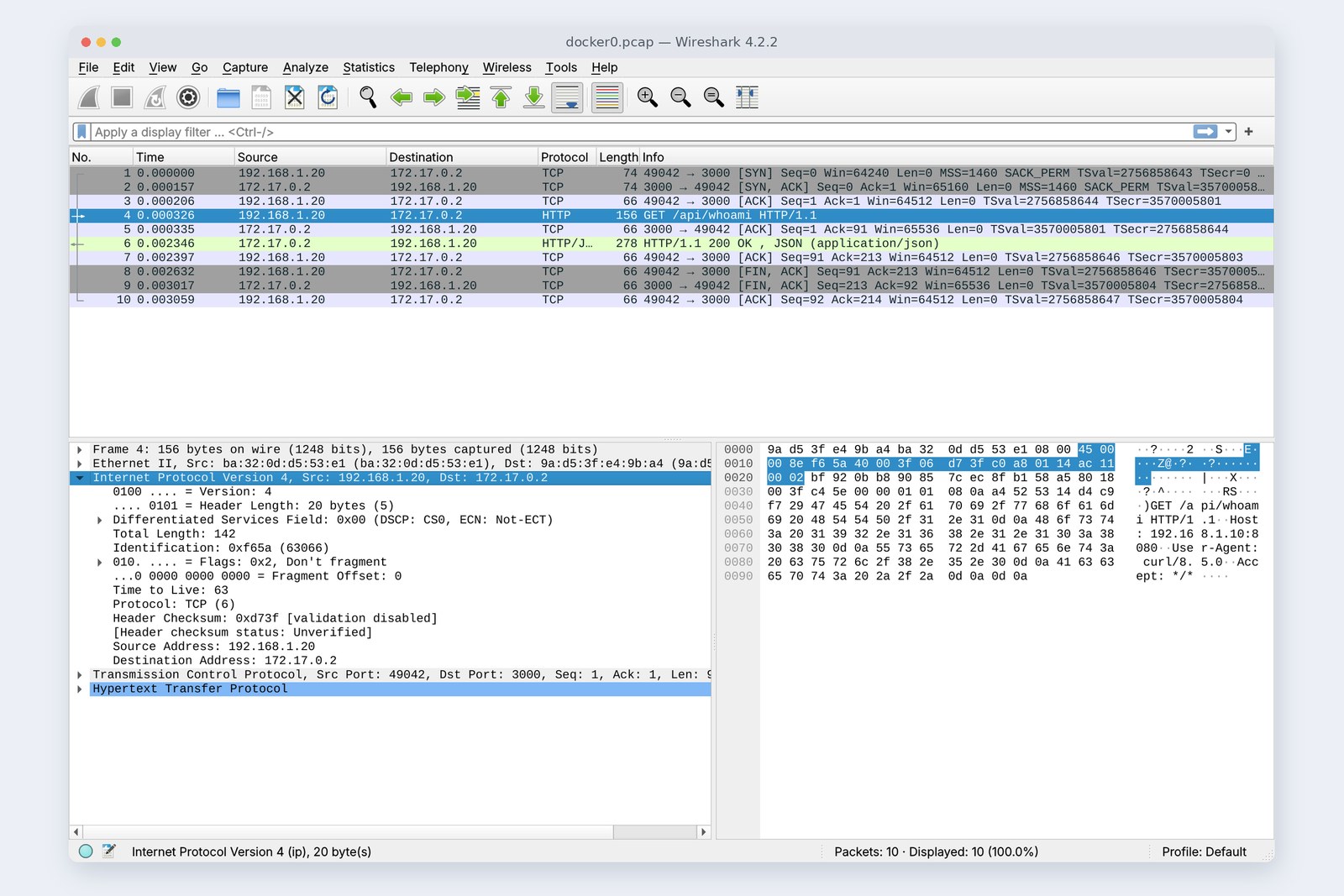
So what did -p 8080:3000 do? The PC's rules gained one line: “anything arriving on port 8080, rewrite its destination to port 3000 on 172.17.0.2” (DNAT). It's the same mechanism as the home router's NAT in part 5, with the PC playing the router.
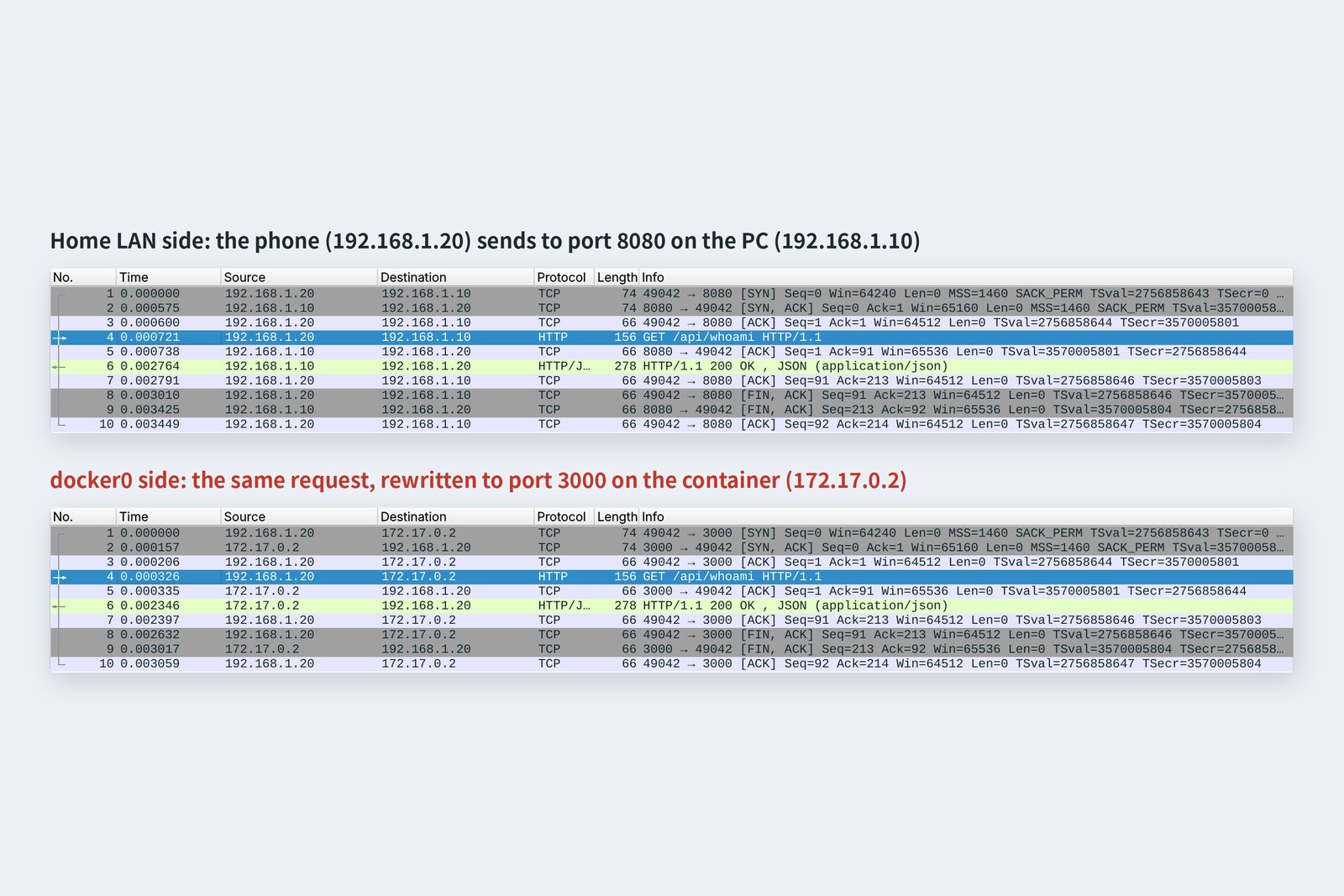
The phone's request is addressed to port 8080 on 192.168.1.10 at the PC's door, and to port 3000 on 172.17.0.2 just in front of the container. The sender is still the phone, so the API answered “from 192.168.1.20”. From the PC itself, though, localhost:8080 got “from 172.17.0.1”: that connection is taken by docker-proxy, Docker's relay, which reconnects on your behalf.
With Docker Desktop on a Mac or Windows, containers don't run on the PC itself but inside a Linux virtual machine that Docker provides. docker0 lives in there too, so the PC can't reach 172.17.0.2 directly. Using ports published with -p is the approach that works everywhere.
localhost inside a container
If a container is “another PC”, then localhost inside it means that container itself. Here are three common stumbles, reproduced.
# 1) The app inside the container listens on 127.0.0.1 (-p 8081:3000)
pc$ curl http://localhost:8081/api/whoami
    curl: (56) Recv failure: Connection reset by peer
phone$ curl http://192.168.1.10:8081/api/whoami
    curl: (7) Failed to connect to 192.168.1.10 port 8081 after 0 ms
# 2) Publish only inside the PC (-p 127.0.0.1:8082:3000)
pc$ curl http://localhost:8082/api/whoami
    {"you":"172.17.0.1","me":"local","listen":"0.0.0.0:3000"}
phone$ curl http://192.168.1.10:8082/api/whoami
    curl: (7) Failed to connect to 192.168.1.10 port 8082 after 0 ms
# 3) From a container to a dev server on the PC (3000 = 127.0.0.1, 3001 = 0.0.0.0)
pc$ docker run --add-host=host.docker.internal:host-gateway …
    localhost:3001             → 127.0.0.1    ECONNREFUSED
    host.docker.internal:3001  → 172.17.0.1   connected
    host.docker.internal:3000  → 172.17.0.1   ECONNREFUSED
1) When the app inside the container listens on 127.0.0.1, requests that DNAT delivers to eth0 find nobody home: “Connection reset by peer” from the PC, “couldn't connect” from the phone. Apps inside containers should listen on 0.0.0.0. 2) To publish only inside the PC, name the door: -p 127.0.0.1:8082:3000. Without it, Docker publishes on every door (0.0.0.0), and Docker's own documentation warns that this is visible from outside by default. 3) When a container calls a dev server on the PC, localhost is the container itself, so it never arrives. Call the PC as host.docker.internal (172.17.0.1 here), and have the PC side listen on 0.0.0.0.
Put an API and a database side by side with Docker Compose and you meet the other classic: “the database won't answer on localhost”.
# compose.yaml: api (Node.js) and db (PostgreSQL); db is not published
pc$ docker compose ps
    api   0.0.0.0:8080->3000/tcp
    db    5432/tcp
# The "phone book" inside api
api$ cat /etc/resolv.conf
    nameserver 127.0.0.11
# Connecting to the DB from inside api
api$ node ck11.mjs localhost:5432 db:5432 nothere:5432
    localhost:5432  → 127.0.0.1    ECONNREFUSED
    db:5432         → 172.18.0.2   connected (2.60 ms)
    nothere:5432    name not found ENOTFOUND
# Plain docker run containers on the default network can't call each other by name
    nw11-bad:3000   name not found ENOTFOUND
One localhost per container; call the neighbour by name
Compose creates a private network (172.18.0.0/16) and lets containers call each other by service name. The names are answered by Docker's DNS at 127.0.0.11 inside each container. Seen from api, the database is db:5432, not localhost:5432. Plain docker run containers on the network that exists from the start (called bridge) couldn't call each other by name.
AraiMy database setting was still localhost, from when it ran on my PC…
FuruiMove into a container, update the address book. Same as moving house.
The office proxy
In many offices, PCs can't go out directly and must go through a proxy (an agent acting on their behalf). In the practice “office”, the office PC (10.0.0.10) knows only the proxy (port 3128 on 10.0.0.8, running tinyproxy).
# The office PC can't look up outside names and has no route out
corp$ curl https://expenses.example:3443/api/me
    curl: (6) Could not resolve host: expenses.example
# Tell it to use the proxy via an environment variable
corp$ export HTTPS_PROXY=http://10.0.0.8:3128
corp$ curl -v https://expenses.example:3443/api/me
    * Uses proxy env variable HTTPS_PROXY == 'http://10.0.0.8:3128'
    > CONNECT expenses.example:3443 HTTP/1.1
    < HTTP/1.0 200 Connection established
    * SSL connection using TLSv1.3 / TLS_AES_256_GCM_SHA384 / X25519
    * ALPN: server accepted h2
    < HTTP/2 401
    {"error":"login required"}   (0.054 s)
# With plain HTTP, the whole URL is handed to the proxy
corp$ http_proxy=http://10.0.0.8:3128 curl -v http://expenses.example:3000/api/expenses
    > GET http://expenses.example:3000/api/expenses HTTP/1.1
    < HTTP/1.1 200 OK
    < Via: 1.1 proxy.corp.example (tinyproxy/1.11.1)
For HTTPS, the proxy digs a tunnel on CONNECT
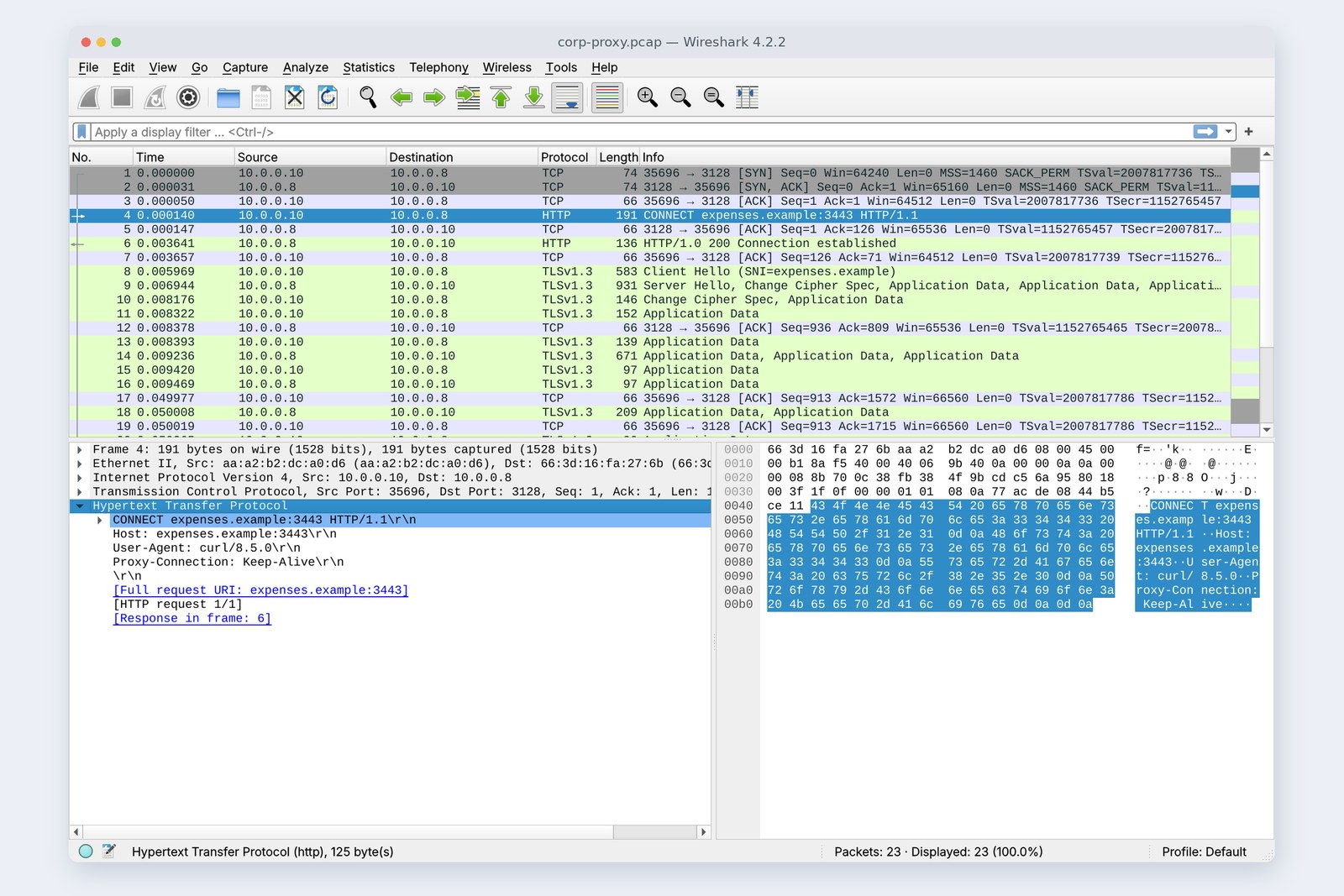
Without the proxy, the PC couldn't even look up an outside name. With HTTPS_PROXY set, curl asked the proxy to CONNECT expenses.example:3443, got “Connection established”, and then began the same TLS handshake as in part 8 inside that tunnel. With HTTPS, the proxy learns only the destination's name and port. With plain HTTP, the whole URL is handed over as GET http://…, and the reply carried the proxy's Via header.
Some offices' proxies inspect HTTPS using their own certificates. Then you'll see part 8's “unable to get local issuer certificate”. The fix is to tell your tools to trust the company CA (for Node.js, NODE_EXTRA_CA_CERTS and the like), not to switch off verification with -k.
Proxy pitfalls
Proxy settings usually reach tools through environment variables. But each tool reads them a little differently.
# 1) Even the PC's own localhost gets sent to the proxy
corp$ http_proxy=http://10.0.0.8:3128 curl http://localhost:3000/api/whoami
    500 Unable to connect
    Tinyproxy was unable to connect to the remote web server.
# NO_PROXY says "go direct for these"
corp$ http_proxy=… NO_PROXY=localhost,127.0.0.1 curl http://localhost:3000/api/whoami
    {"you":"127.0.0.1","me":"corp-pc","listen":"127.0.0.1:3000"}
# 2) curl doesn't use uppercase HTTP_PROXY for http://
corp$ HTTP_PROXY=http://10.0.0.8:3128 curl http://expenses.example:3000/api/expenses
    curl: (6) Could not resolve host: expenses.example
# 3) Node.js fetch ignores the environment variables by default
corp$ HTTPS_PROXY=http://10.0.0.8:3128 node -e "fetch('https://expenses.example:3443/api/me')"
    error EAI_AGAIN
# In Node.js 22, NODE_USE_ENV_PROXY=1 makes it look (with an "experimental" warning)
corp$ HTTPS_PROXY=… NODE_USE_ENV_PROXY=1 node -e "fetch(…)"
    Warning: EnvHttpProxyAgent is experimental, …
    ok {"error":"login required"}
1) With a proxy set, calling your own localhost makes curl hand that to the proxy too, and the proxy looks for its own localhost: “Unable to connect” (500). NO_PROXY=localhost,127.0.0.1 says “go direct for these”, and it worked. 2) curl reads http_proxy, for http://, only in lower case (its manual says so). With just uppercase HTTP_PROXY, it skipped the proxy, tried to go out directly and failed. 3) Node.js fetch ignores the environment variables by default. With NODE_USE_ENV_PROXY=1, added in Node.js 22.21, it went through the proxy, with an “experimental” warning.
AraiI once had curl working while npm, git and Docker all failed.
FuruiEach tool keeps its proxy in its own place: npm's config, git's config, the Docker daemon's config. One working doesn't mean they all do.
Dev-server proxies and CORS
We reproduced part 10's CORS on a development PC. The page comes from the Vite dev server (localhost:5173), the API sits at 127.0.0.1:3000, and the API returns no CORS permission. We opened the page in Chromium and sent the submission two ways.
# Start the dev server (Vite)
pc$ npx vite
    VITE v7.3.7  ready in 217 ms
    ➜  Local:   http://localhost:5173/
    ➜  Network: use --host to expose
# POST straight from the page (port 5173) to the API (port 3000), in Chromium's console
    Access to fetch at 'http://localhost:3000/api/expenses'
    from origin 'http://localhost:5173' has been blocked by CORS policy:
    Response to preflight request doesn't pass access control check:
    No 'Access-Control-Allow-Origin' header is present …
    → Failed to fetch
# POST through the dev server (configured to pass /api on to 127.0.0.1:3000)
    POST http://localhost:5173/api/expenses
    → 201 {"id":"EXP-2026-0012","status":"submitted"}
# The API's log: going direct, only the preflight (OPTIONS) arrived; the real POST never came
    OPTIONS /api/expenses from 127.0.0.1   ← direct
    POST /api/expenses from 127.0.0.1      ← via proxy
A different port is a different origin; let the dev server pass it on and it's one origin
Even on localhost, a different port is a different origin. Sent directly, the browser sent only the preflight (OPTIONS) and, finding no permission, never sent the real POST; the API's log shows only the OPTIONS. With proxy: { '/api': 'http://127.0.0.1:3000' } in the dev-server config and the page posting to /api/expenses, the browser talks to port 5173 the whole time. The dev server passed it on to the API behind the scenes, and 201 came back.
A dev-server proxy is a development-only shortcut. If you want the page and API to look like one origin in production too, build the same shape with a web server (nginx and the like) passing /api on to the API. If they stay separate origins, the API returns the permission headers, as in part 10.
Checking your own PC
| What to check | Mac | Windows | Linux |
|---|---|---|---|
| Listening ports and doors | lsof -nP -iTCP -sTCP:LISTEN | netstat -ano | findstr LISTENING | ss -ltnp |
| Who owns port 3000 | lsof -nP -i :3000 | netstat -ano | findstr :3000 | ss -ltnp 'sport = :3000' |
| Proxy settings | scutil --proxy | netsh winhttp show proxy | env | grep -i proxy |
| A container's published ports | docker port NAME | ||
| Container networks and addresses | docker network inspect bridge | ||
| Look from inside a container | docker exec -it NAME sh | ||
When something “won't connect”, first write one line: from where, to which door of which machine, on which port. From the PC? From inside a container? Whose localhost is it? That alone solves half the problem.
§ — On one page, and next time
- localhost is a name: 127.0.0.1 or ::1. Tools try it differently, so when in doubt write 127.0.0.1.
- Servers pick a door to wait at. 127.0.0.1 is inside the PC only; 0.0.0.0 is every door (the phone, and strangers in the café).
- A container is another PC with its own address and localhost, joined by the docker0 bridge. -p rewrites destinations (DNAT).
- Apps inside containers listen on 0.0.0.0. To publish inside the PC only, use -p 127.0.0.1:….
- Call neighbouring containers by name (db:5432) and the PC as host.docker.internal.
- HTTPS proxies tunnel with CONNECT. Watch NO_PROXY, lowercase http_proxy and each tool's own settings.
- A different port is a different origin. Make it one origin with a dev-server proxy and CORS never comes up.
AraiThree or four localhosts! But if I think about where I'm sending from, I don't get lost any more.
FuruiNext time is the last part: troubleshooting when things won't connect. We'll trace the eleven parts' map with a finger, from the bottom layer up, until we find where it stops.
References
- Docker Docs — Networking overview(127.0.0.11)
- Docker Docs — Port publishing and mapping
- Docker Docs — Bridge network driver
- Docker Docs — Networking in Compose
- Docker Docs — Networking on Docker Desktop
- Docker Docs — Networking how-tos(host.docker.internal)
- curl — man page(http_proxy, NO_PROXY)
- Node.js — HTTP(Built-in Proxy Support, NODE_USE_ENV_PROXY)
- Vite — Server Options(server.host, server.proxy)
- RFC 6761 — Special-Use Domain Names(localhost)
- RFC 9110 — HTTP Semantics(CONNECT, Via)
- Tinyproxy
The recordings were made on 25 October 2026 on a practice network the author built from a cloud Linux machine (Ubuntu 24.04, kernel 6.18) standing in for a developer's PC, with Docker 29.9.2 and network namespaces. The API is a practice program in Node.js 22.23; the container images are node:22-alpine and postgres:17-alpine; the proxy is tinyproxy 1.11.1; the dev server is Vite 7.3.7; the browser is Playwright's Chromium. That Linux has no IPv6, so the localhost and ::1 experiment alone was run on another Linux (Ubuntu 22.04.5, curl 7.81.0). Every name and address is either reserved for documentation or made up for the practice. Every number and output in the text is a real value read from those recordings and the commands' output (long outputs are trimmed). The characters are fictional.
Old-School Networking, part 11 — The developer's network / 2026.10