Old-School Front-End / 2026 ・ No.01
Old-School Front-End
Part 1: how a web page reaches the screen, and the plan for an expense app
Published
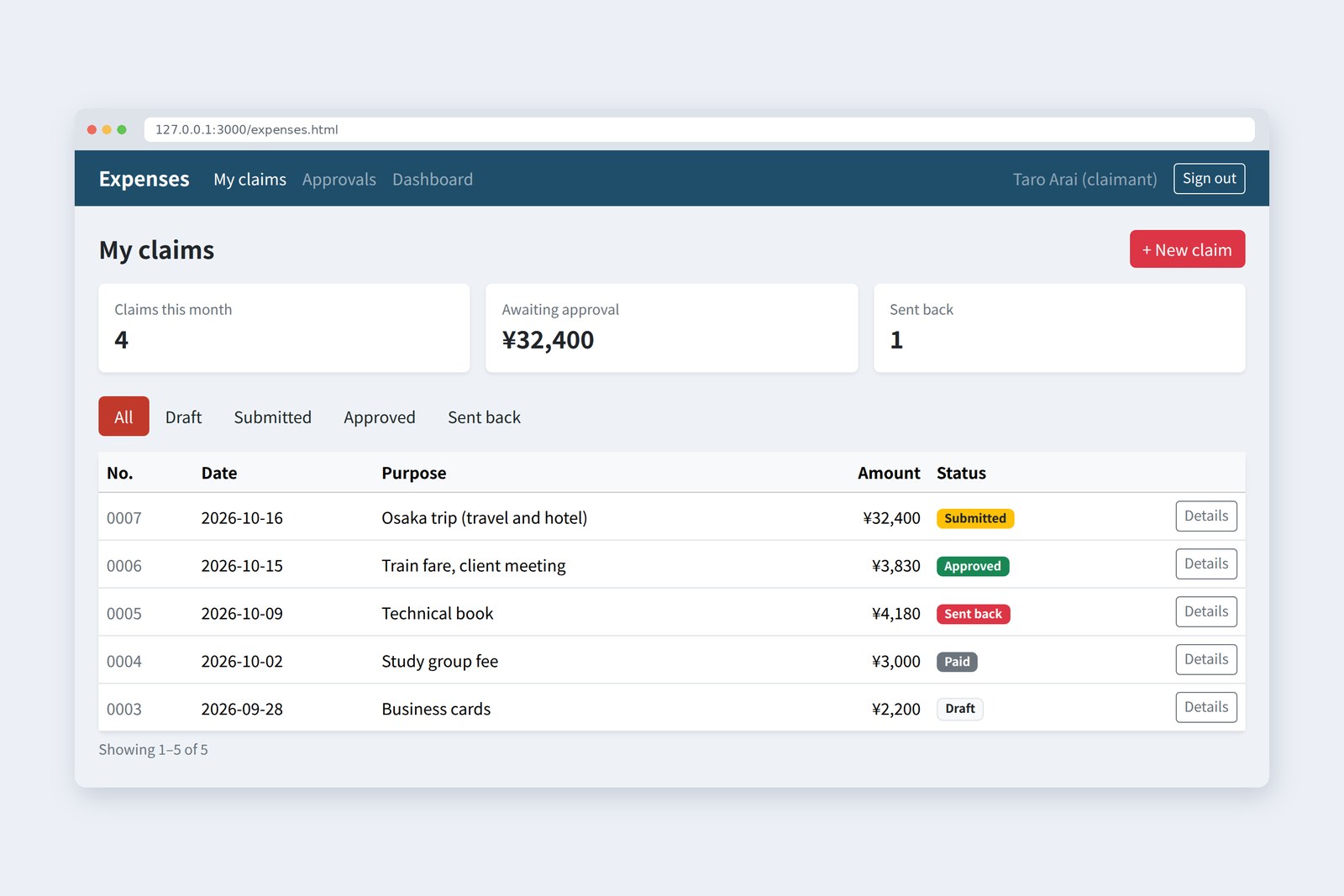
This post starts a series on building the screens of a web system: the front end. Our project is something every company has, an expense-claim app.
These days you can ask an AI for "a screen like this" and get one without reading a line of code. This is the age of vibe coding.
This series goes the other way. We write HTML, CSS and JavaScript by hand, checking what every line means, with nothing fancier than Bootstrap and jQuery.
Hence "old-school". Over fifteen parts we will get the screen above working. Part 1 is the warm-up before we touch any code.
Old-school: the opposite of vibe coding
First, meet the two people who will keep us company. Their names are a little joke in Japanese: Furui contains the character for "old", Arai the one for "new".
The cast
FuruiArai, the screens for the new expense app are yours.
AraiLeave it to me! I'll ask an AI for "an expense-claim screen" and it'll be done in a second. Vibe coding!
FuruiI see. And can you read the code it gives you? If the total is off by one yen, where do you fix it?
Arai…I'd go with the vibe?
FuruiThat's the "vibe" part. This time you write it by hand, line by line. The old-school way.
AraiBy hand? Isn't that how they built things in the Stone Age?
FuruiStone Age is a bit harsh. The 2000s, at most.
Vibe coding is a term Andrej Karpathy, one of OpenAI's founding members, coined in February 2025: you ask an AI in plain language, accept the code it writes without reading it closely, and carry on by feel. It caught on fast enough for Collins Dictionary to make it its 2025 Word of the Year. This blog covered it in the Dev Guide post Vibe Coding Field Notes. "Old-school" in this series means the exact opposite.
| Vibe coding | Old-school (this series) | |
|---|---|---|
| Who writes the code | The AI (you just ask) | You |
| The code is | Not read closely | Checked line by line |
| First screen | Very fast | Takes a while |
| When it breaks | Ask the AI again (and hope) | You can find what is wrong yourself |
| Good for | Prototypes, throwaway tools | Long-lived business apps, reviewing AI-written code |
Asking an AI is faster, no question. We write by hand anyway, for three reasons.
- A person is still responsible for AI-written code — an expense app handles money. A total that is one yen off, or a missing input check, has to be found by someone reading the code. Code you cannot read is code you cannot check or fix
- The foundations do not change — whether an AI wrote it or it was built with React or Vue, what reaches the browser is HTML, CSS and JavaScript. Know those, and you can see inside whatever you are handed
- The old-school tools are still at work — W3Techs counted jQuery on about 64.5% of the websites it surveys in October 2026, and Bootstrap at about 75% of CSS-framework use. Company in-house systems have even more of them
This is not an anti-AI series. Once you can build something by hand, you ask an AI for the right things and can judge whether its code is any good. Writing by hand is the foundation for using AI well. The goal: to be able to build a business app's screens from start to finish without leaning on AI.
What we are building
An expense claim is how staff get back money they paid on the company's behalf (train fares, hotels on business trips and so on): they claim it, a manager approves it, and accounts pays it back. Here are the people involved and how a claim moves along.
Who moves a claim to which status
Each claim has a status, and every action by a person moves it to the next one. Showing that flow well on screen is where business apps earn their keep
Roughly, these are the features we will build.
| User | What they can do |
|---|---|
| Claimant | Write a claim (adding line items and attaching receipts), save a draft, submit it, see their claims and statuses, fix and resubmit a claim that was sent back |
| Approver | Review their team's claims, then approve them or send them back with a reason |
| Accounts | Mark approved claims as paid, see monthly totals as charts, print claims |
There are rules to enforce, too. As on the expense page tested in the Dev Guide post Playwright in Practice: a receipt is required when the total reaches 30,000 yen, future dates are not allowed, dollar amounts are converted to yen, and so on. Part 9 covers how the screen enforces them.
This series builds only the screen side (the front end). In place of a server that stores data, from part 10 we use a small stand-in server that pretends to be the real thing (a mock API). For production use, sign-in and input checks must also happen on the server, because checks on the screen side are easy to bypass in the user's own browser.
How a page reaches the screen
AraiYou type a URL and the page just appears. It's basically magic.
FuruiIt looks like magic because the steps behind it finish in a blink. Let's slow it down.
What happens inside the browser
- Order (request) — the browser asks the server at the URL for the page
- Delivery (response) — the server sends HTML. The browser then fetches the CSS and JavaScript files the HTML mentions
- Reading — the HTML becomes a tree of page parts (the DOM), the CSS becomes a list of style rules (the CSSOM), and together they make a tree of only what will be shown (the render tree)
- Arranging (layout) — positions and sizes are worked out for the width of the screen
- Painting — text and colour are drawn into the screen's pixels
The key player is the DOM. When JavaScript changes a page it does not edit the HTML file; it rewrites the DOM inside the browser. Each rewrite reruns steps 4 and 5, so careless rewriting makes a page sluggish. We will meet this again in part 8.
HTML, CSS and JavaScript
The three front-end languages are easiest to picture as a body.
Who does what
Seeing is believing. Here is the same claim form with the three added one at a time.
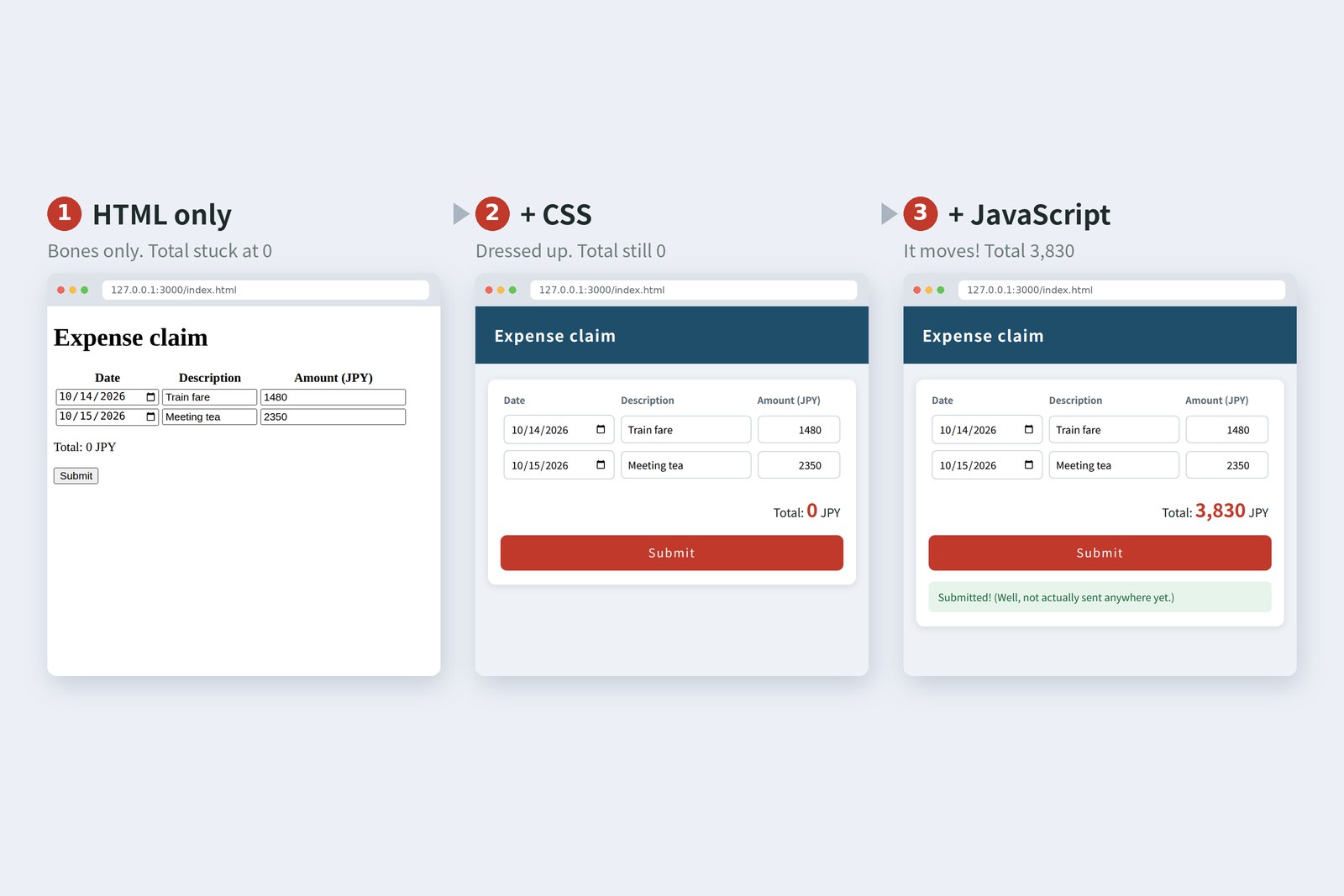
With HTML alone (1), the inputs and button already work: you can type and you can click. It just looks plain, and the total stays at 0. Adding CSS (2) makes it look like a business app, but it still does no maths. Calculating, and reacting when you click, is JavaScript's job. Here is what each step added (excerpts).
<!-- (1) HTML: what is there -->
<p>Total: <output id="total">0</output> JPY</p>
<button type="button" id="send">Submit</button>

/* (2) CSS: how it looks */
button { background: #c0392b; color: #fff; border-radius: 8px; }

// (3) JavaScript: how it moves
document.querySelector('#send').addEventListener('click', () => {
  document.querySelector('#toast').hidden = false;
});
No need to understand it yet. HTML comes in parts 2 and 3, CSS in parts 4 to 6, and JavaScript in parts 7 to 10, one step at a time.
The basic habit is to keep the three in separate files (.html for HTML, .css for CSS, .js for JavaScript). Split by role, a change that is only about looks, or only about behaviour, touches just one place.
A little history
A series that calls itself old-school owes you a few old stories.
A front-end timeline (highlights)
- 1991 — Tim Berners-Lee at CERN opens the web to the public over the internet. The first web server was info.cern.ch
- 1994–96 — Håkon Wium Lie proposes CSS (October 1994). CSS1 becomes a W3C Recommendation in December 1996, fixing the idea that looks are written separately from HTML
- 1995 — Brendan Eich at Netscape builds the first JavaScript prototype in just ten days in May; it is announced in December
- 2006 — John Resig announces jQuery. It smoothed over the wildly different ways each browser had to be coded for, and spread fast
- 2011 — Mark Otto and Jacob Thornton at Twitter release Bootstrap
- 2021 — Bootstrap 5 no longer needs jQuery
- 2026 — jQuery 4.0 arrives in January, its first major version in nearly ten years (dropping Internet Explorer 10 and older). In October the first Bootstrap 6 alpha is published
AraiJavaScript was made in ten days? Then we can finish this series in ten days too…
FuruiThe prototype took ten days. They have been fixing it for thirty years since. We get fifteen parts. More haste, less speed.
We plan to use the stable versions at the time of writing: Bootstrap 5.3 and jQuery 4.0.
Drawing the screens
Just as you draw a floor plan before building a house, you draw a plan before building screens. First, the list of screens and how you move between them. The small print says which part mainly builds each one.
The expense app's screens
Next, the most important one, the claim form, in a little more detail. A drawing like this, without colour or decoration, showing only what goes where, is called a wireframe.
A wireframe of the claim form
Pencil and paper will do. What matters is checking that nothing is missing, not making it pretty
A plan surfaces questions before you build. What if a claim has more than ten line items? Are receipts only images, or PDFs too? Will anyone claim from a phone? Asking these up front saves rework later.
Getting the tools
You need just three tools, all free.
| Tool | For | Notes |
|---|---|---|
| Browser | Showing and checking your screens | This series uses Google Chrome; Edge is almost identical |
| Editor | Writing code | Visual Studio Code (VS Code). Syntax colouring and autocomplete help a lot |
| Live Preview | Refreshing the page each time you save | A VS Code extension from Microsoft that runs a small web server on your machine |
One more essential tool comes built into the browser: the developer tools (DevTools). Think of them as an X-ray of the page. We will use them in almost every part.
The highlights of DevTools
Files go into folders by role, like this (this time we only make index.html).
Your first page
With the tools ready, let's make the first page. Five steps.
- Create a folder called keihi ("expenses" in Japanese) and open it in VS Code with Open Folder
- Create index.html, type in the code below and save (in an empty file, type ! and press Tab for an instant template)
- Install the Live Preview extension and open the preview with the button at the top right of the editor (or from the right-click menu)
- Change some text and save, and check that the preview follows along
- Open it in the browser, press F12 (Cmd + Option + I on a Mac) to open DevTools, and find the h1 in the Elements tab
<!DOCTYPE html>
<html lang="en">
<head>
  <meta charset="UTF-8">
  <title>Expense System</title>
</head>
<body>
  <h1>Expense System</h1>
  <p>Under construction.</p>
  <p>Building work starts in part 2.</p>
</body>
</html>
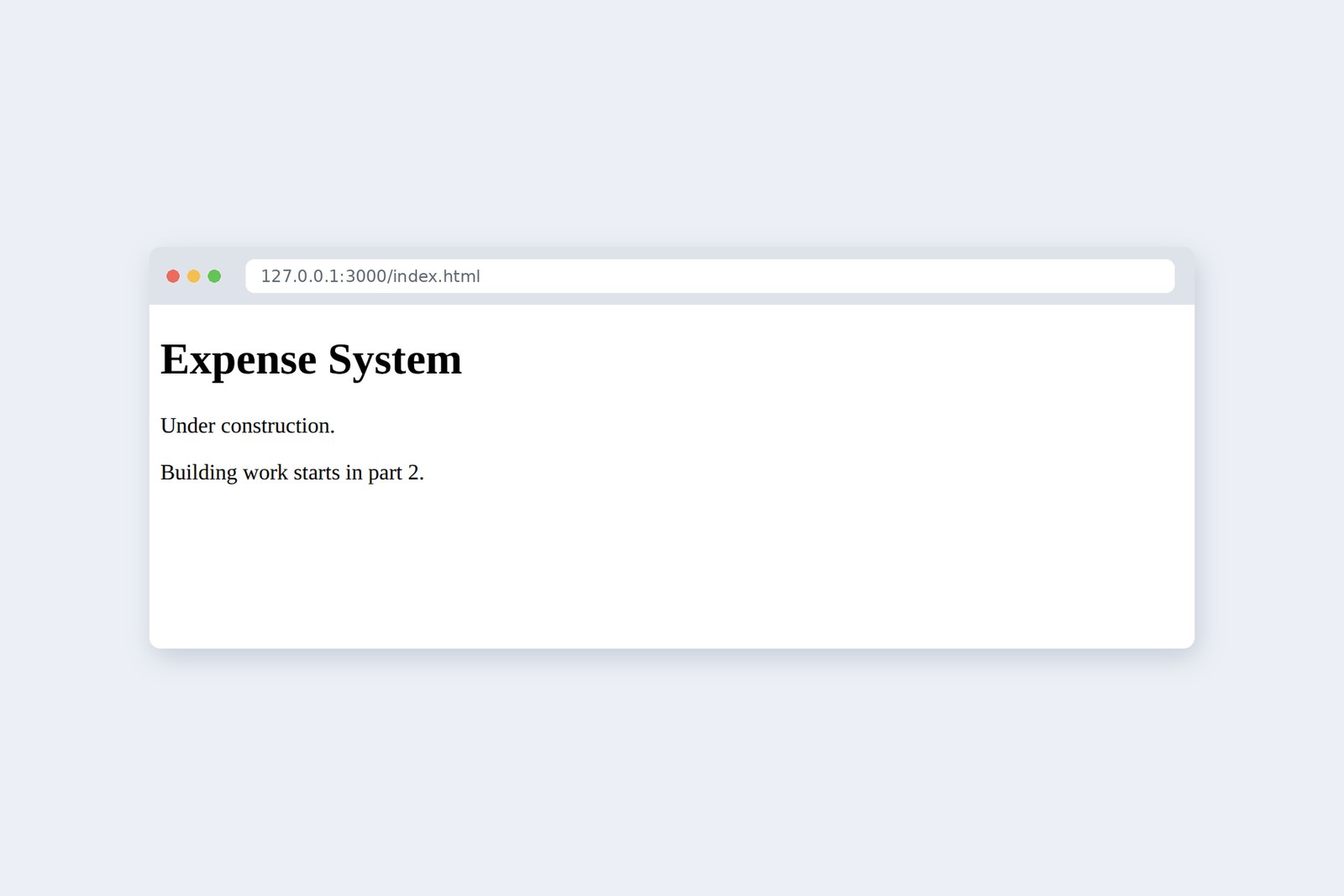
| What you wrote | What it means |
|---|---|
| <!DOCTYPE html> | "This is modern HTML." Always the first line |
| <html lang="en"> | The box around the whole page. lang gives the language, which screen readers and translation tools use |
| <head> | Information about the page that is not shown on screen |
| <meta charset="UTF-8"> | The character encoding. Without it, non-English text can turn into gibberish |
| <title> | The title on the browser tab |
| <body> | What is shown on screen |
| <h1>, <p> | A main heading and a paragraph |
Now let's break it on purpose. Delete </h1>, the heading's closing tag, and save…
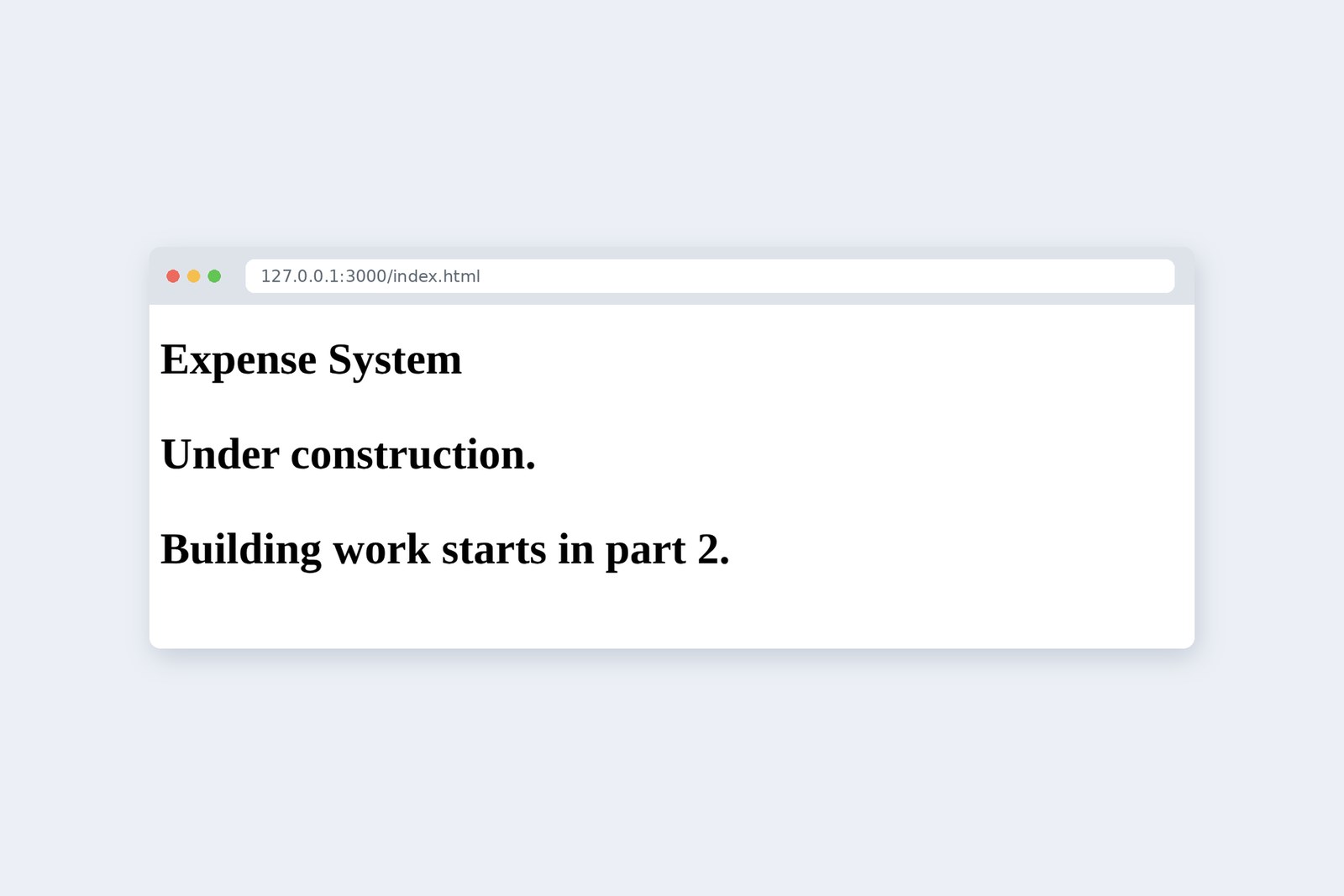
AraiWhoa, it's all heading now! But there's no error.
FuruiBrowsers are forgiving. Even with a mistake, they quietly do their best. Lean on that kindness and you'll have a hard time tracking bugs down later.
Look in the Elements tab of DevTools and you will see both paragraphs sitting inside the h1. "When something looks wrong, check the shape of the tree in Elements first." That is the first debugging step, and we will use it again and again.
The fifteen-part map
Finally, the road ahead. We are taking the stopping train, one station at a time.
Old-School Front-End: the route map
| Part | Topic | What we build in the expense app |
|---|---|---|
| 1 | The big picture, and setup | The plan, and a first page (this post) |
| 2 | HTML 1: document structure | The skeleton of the claims list (headings, a table, links) |
| 3 | HTML 2: forms | The claim form (inputs, choices, file upload) |
| 4 | CSS 1: selectors and boxes | Styling the list with our own CSS |
| 5 | CSS 2: layout | Header, menu and content placement; phone support |
| 6 | CSS 3: Bootstrap | Rebuilding the whole screen with Bootstrap |
| 7 | JavaScript 1: the language | A function that adds up the total |
| 8 | JavaScript 2: the DOM and events | Adding and removing line items, a live total |
| 9 | JavaScript 3: validation | Rules such as a receipt from 30,000 yen |
| 10 | JavaScript 4: async and fetch | Loading the list and submitting claims (mock API) |
| 11 | Sign-in and switching screens | Different screens for claimants, approvers and accounts |
| 12 | The approval flow | Managing draft, submitted, approved or sent back, and paid |
| 13 | Totals and printing | A dashboard with charts, and a printable claim |
| 14 | jQuery | Rewriting parts 8 to 10 in jQuery and comparing |
| 15 | Finishing | Quality, safety and publishing, and the door to frameworks |
The first half (parts 2 to 10) takes the three languages one at a time; the second half (parts 11 to 15) combines them into the features a business app needs. jQuery waits until part 14 because once you have written things in plain JavaScript yourself, you can see exactly what jQuery saves you.
§ — On one page, and what is next
- This is a fifteen-part, old-school introduction to the front end. The opposite of vibe coding: we build an expense app by writing HTML, CSS and JavaScript (plus Bootstrap and jQuery) by hand. That skill is also the foundation for using AI well.
- A browser shows a page by ordering, receiving, reading (the DOM and CSSOM), laying out and painting. JavaScript changes the screen by rewriting the DOM.
- The roles: HTML is the skeleton (what is there), CSS the clothing (how it looks), JavaScript the nerves and muscles (how it moves). Keep them in separate files.
- Before building, sketch the users, the flow, the rules, the list of screens and a wireframe. It saves rework.
- The tools are a browser, VS Code and Live Preview, plus DevTools. When something looks wrong, check the tree in Elements first.
AraiHTML next time! The building site gets its first pillars!
FuruiRight. We start with the skeleton of the claims list. Homework: break today's index.html, then fix it. Yourself, before you ask an AI.
References
- Shropshire Star (PA) — Collins’ Word of the Year for 2025 revealed
- CERN — Web@30: Web history
- W3C — Cascading Style Sheets, designing for the Web: The CSS saga
- Wirfs-Brock & Eich — JavaScript: The First 20 Years (HOPL IV, 2020)
- jQuery Blog — jQuery 4.0.0
- Bootstrap
- npm — bootstrap
- W3Techs — Usage statistics and market share of jQuery
- W3Techs — Usage statistics of CSS frameworks
- web.dev — Render-tree construction, layout, and paint
- Chrome for Developers — Chrome DevTools
- Visual Studio Code
- GitHub — microsoft/vscode-livepreview (Live Preview)
Usage figures are from W3Techs (jQuery as of 17 October 2026, CSS frameworks as of 16 October 2026) and are shares of the websites that W3Techs surveys. Versions and release dates are from the jQuery blog and npm's publish records (the latest stable Bootstrap is 5.3.8; 6.0.0-alpha.1 was published on 8 October 2026). The ten days come from the paper by Wirfs-Brock and Eich (HOPL IV, 2020). The screenshots show the author's demo pages, captured on 17 October 2026 with Chromium (Playwright) in a cloud sandbox; the cover is a mock-up built with Bootstrap 5.3.8. The characters are fictional.
Old-School Front-End, part 1 — How a web page reaches the screen, and the plan for an expense app / 2026.10