Old-School Front-End / 2026 ・ No.02
Old-School Front-End
Part 2: HTML structure, building the claims list from meaningful tags
Published
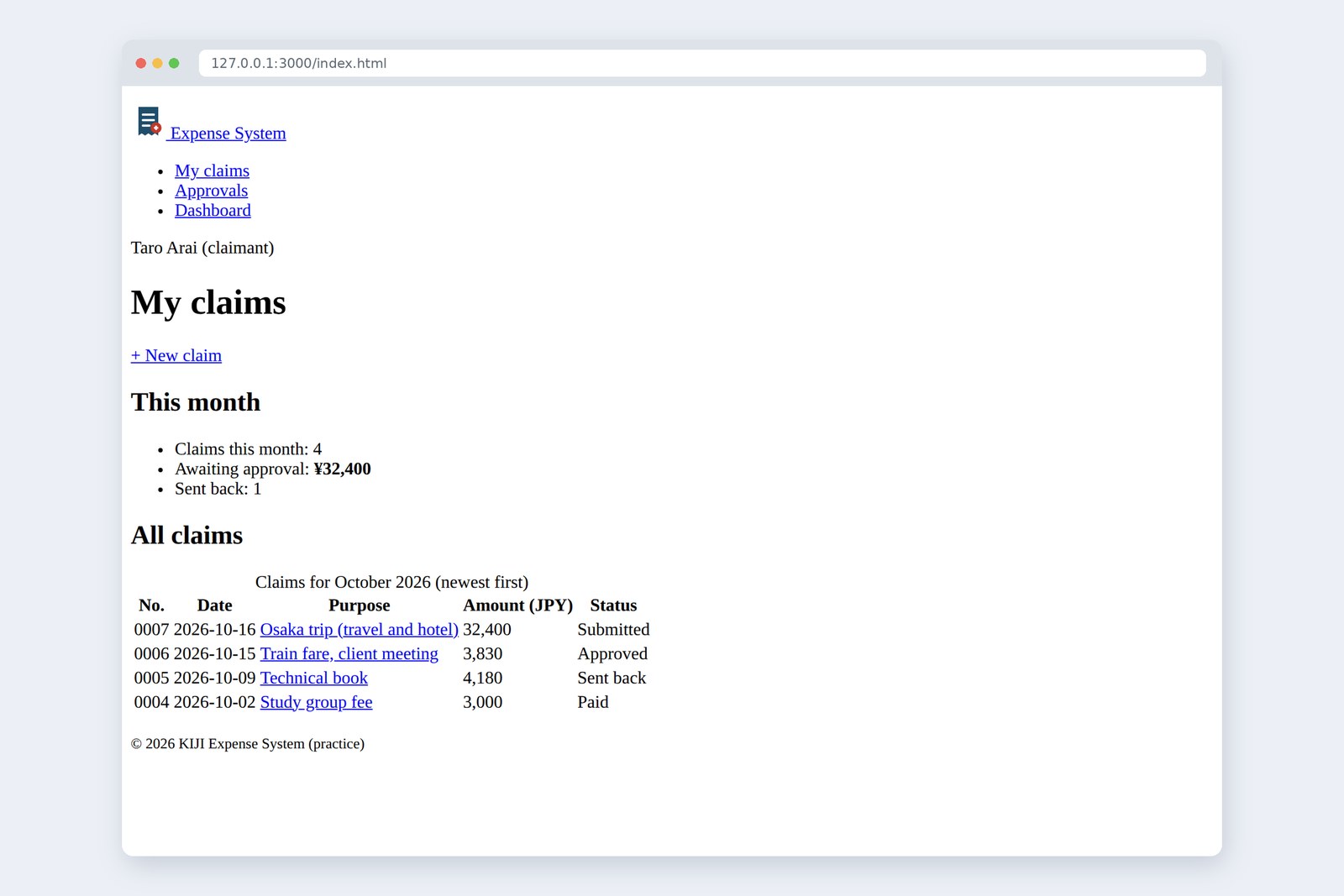
The old-school front end: no asking an AI, just writing every line by hand. In part 2 the building work finally begins.
We build the skeleton of the expense app's claims list, with HTML only: no CSS and no JavaScript.
The key idea is meaningful tags. Two pages can look identical, yet the tags you choose change completely what
screen readers, testing tools and AI can make of the page. We finish by running our HTML through a checker.
This part's goal
AraiFurui, I got an AI to make the claims list! Look, it displays fine.
FuruiLet's see… div, div, div, div. A fine bowl of div soup.
AraiBut it looks right, doesn't it?
FuruiIt looks right. Today is about the bones under the looks.
You are here: part 2
This time the index.html that was "under construction" last time becomes the claims list page. It holds:
- The page head — logo and site name, the menu (My claims, Approvals, Dashboard), and the signed-in user
- The page body — the main heading, a link to start a new claim, this month's summary, and the table of claims
- The page foot — a copyright line
No CSS yet, so it will look plain (clothes come in part 4). That leaves us free to concentrate on which tag to choose.
Tags, elements and attributes
First, the names of the parts. HTML is a language that wraps text in tags to say what it is.
Anatomy of a tag
- Element — the start tag, the content and the end tag together: "the a element", "the table element"
- Attribute — extra information on an element, written name="value" inside the start tag
- Void element — an element with no content and no end tag (img, br, input, meta and so on)
Of the attributes any element can take, these three come up most.
| Attribute | Meaning | Example |
|---|---|---|
| id | A name that is unique on the page. Never use the same id twice | <table id="list"> |
| class | A group name, on as many elements as you like. CSS (part 4) and JavaScript (part 8) use it to target things | <td class="amount"> |
| lang | The language of the content, usually set once on the html element | <html lang="en"> |
The other key rule is nesting. When you put elements inside elements, it works like boxes in boxes: the last tag opened is the first one closed.
Nesting rules
Remember how deleting </h1> last time turned the whole page into a heading? Browsers do not report mistakes; they rebuild the tree in their own way and display that. Nothing guarantees their way matches what you meant.
Page regions (landmarks)
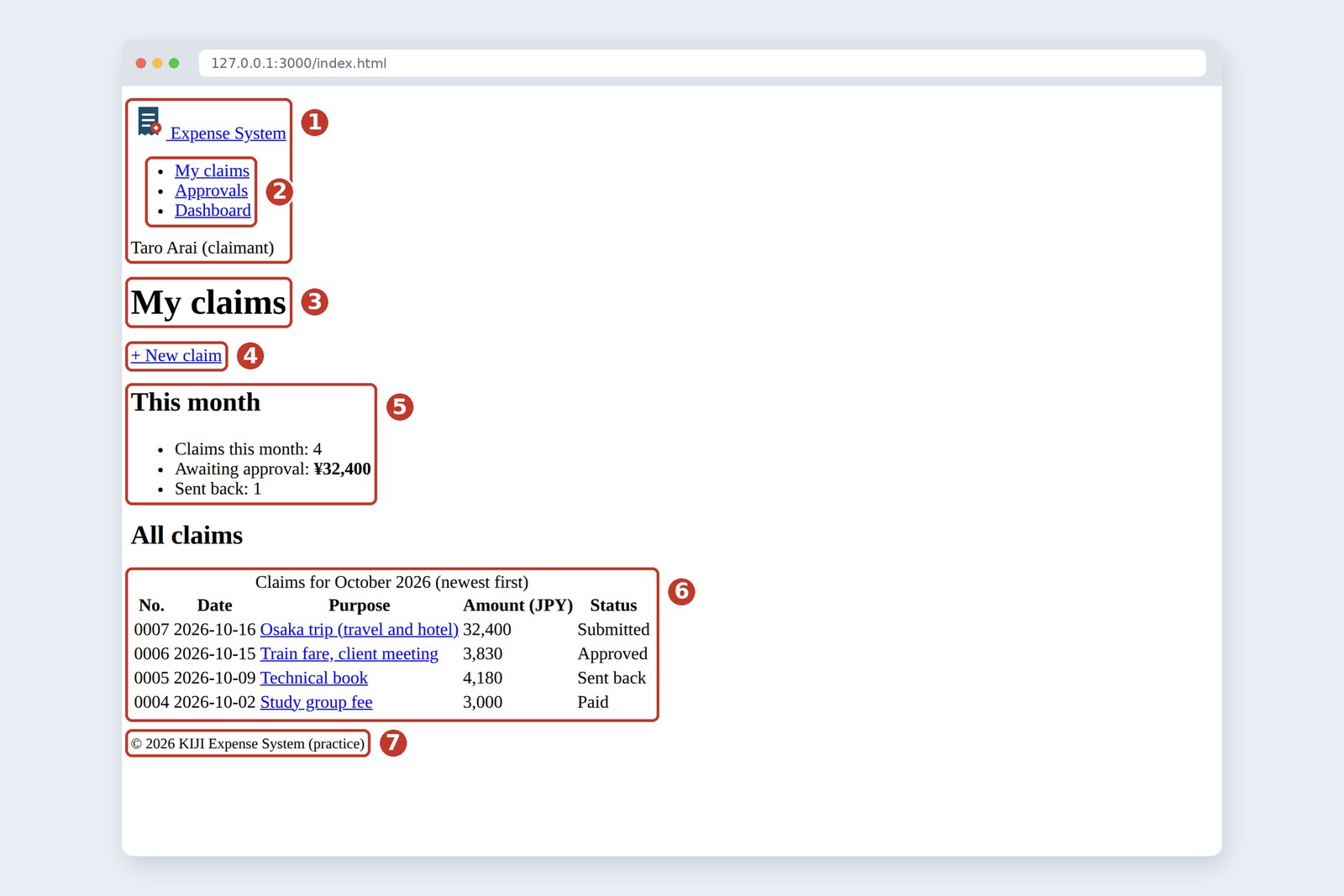
A page usually splits into a head, a menu, a body and a foot. HTML has a dedicated tag for each. These regions are called landmarks.
Div soup versus meaningful tags
| Tag | Meaning | Where this series uses it |
|---|---|---|
| header | The head of the page (or of a region) | Logo, site name, user |
| nav | The main navigation (menu) | Links to My claims, Approvals, Dashboard |
| main | The page's main content. One per page | Heading, summary, claims table |
| section | A group of content with its own heading | "This month", "All claims" |
| article | Content that stands on its own | (a blog post, a news item) |
| aside | Something to one side of the main point | (perhaps the dashboard in part 13) |
| footer | The foot of the page (or of a region) | Copyright, contact details |
| div | A box with no meaning, for grouping purely for looks | The last resort when nothing else fits |
Now let's compare a page made only of divs with one made of meaningful tags.
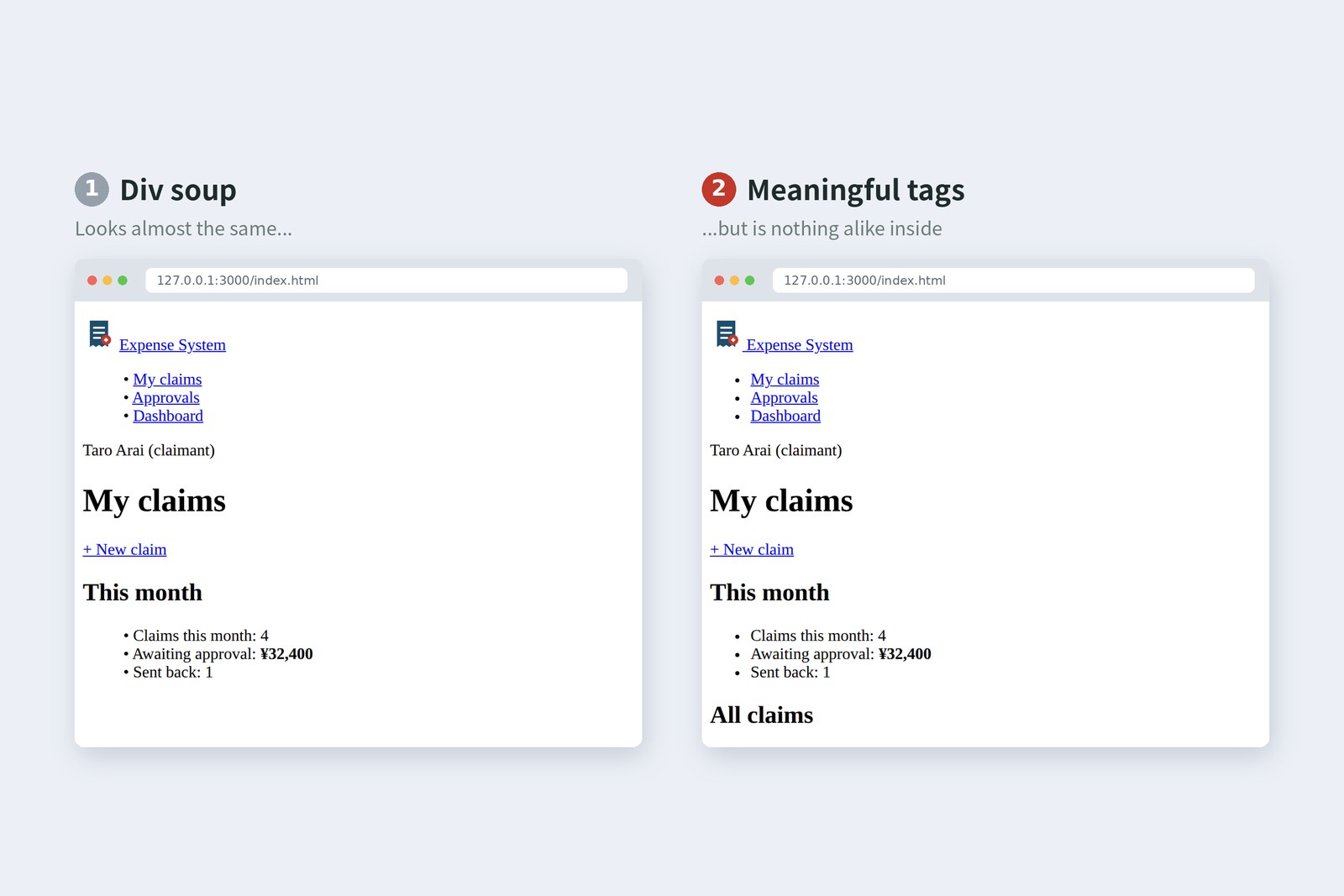
On screen they are nearly identical. To assistive technology such as screen readers, they could hardly be more different. Here is the "accessibility tree" the browser builds from each page, pulled out with the testing tool Playwright (real output, with long parts trimmed).
# (1) Div soup: roughly "one image and one long run of text"
- img
- text: "Expense System • My claims • Approvals • Dashboar …

# (2) Meaningful tags: regions, headings, lists and the table all come through
- banner:
  - paragraph:
    - link "Expense System":
      - /url: index.html
  - navigation:
    - list:
      - listitem:
        - link "My claims":
          - /url: index.html
      - listitem:
        - link "Approvals":
          - /url: approve.html
      - listitem:
        - link "Dashboard":
          - /url: dashboard.html
  - paragraph: Taro Arai (claimant)
- main:
  - heading "My claims" [level=1]
  - paragraph:
    - link "+ New claim":
      - /url: form.html
  - heading "This month" [level=2]
  - list:
    - listitem: "Claims this month: 4"
    - listitem:
      - text: "Awaiting approval:"
      - strong: ¥32,400
    - listitem: "Sent back: 1"
  - heading "All claims" [level=2]
  - table "Claims for October 2026 (newest first)":
    …
In (2), banner (header), navigation (nav), main, the heading levels, the number of list items and even the table's column headers all come through. In (1), even the links have lost their role (they are spans made clickable, so you cannot reach them with the Tab key either).
- Screen-reader users — many get an overview by jumping from heading to heading (according to WebAIM's survey), and landmarks work as a table of contents in the same way. With div soup, all they can do is listen from the top
- Testing tools — locators like getByRole('navigation'), from the Dev Guide post Playwright in Practice, only work when the meaningful tags are there
- AI tools — AI that drives a browser reads pages through these roles too. A page that is clear to people is clear to machines
FuruiA div is a nameless box. Nobody outside can tell what is in it.
AraiSo when I ask an AI, I just add "use meaningful tags". …And then read what comes back to check it's right.
FuruiNow you're getting it.
The DOM tree
In part 1 we saw that the browser reads HTML and builds a tree called the DOM. Here is this page as a tree.
The claims list's DOM (main parts)
Indent your HTML consistently and the shape of the code is the shape of the tree. Indentation is not decoration; it is how you check the tree by eye. Right-click an element in the browser and choose Inspect, and the Elements tab of DevTools shows you the real tree.
Later, CSS says which branches to dress and JavaScript says which branches to move. A tidy tree now is the surest way to make the second half easy.
Headings, paragraphs and lists
Headings come in six levels, h1 to h6. What matters is to choose them by structure, not by size.
Headings form a table of contents
The HTML specification once described a mechanism (the outline algorithm) that worked out heading levels from nested sections. No browser ever implemented it, and it was removed from the specification in 2022. Today the rule is simple: set heading levels correctly yourself.
| Tag | Meaning | In the claims list |
|---|---|---|
| h1–h6 | Headings (smaller number, bigger section) | h1 "My claims"; h2 "This month" and "All claims" |
| p | Paragraph | Site name, user name, new-claim link |
| ul / ol / li | Unordered list / ordered list / one item | The menu, this month's summary |
| strong | Importance | The amount awaiting approval |
| em | Stress emphasis | (not used this time) |
| small | Side comments, copyright and other small print | The copyright in the footer |
| time | A date or time, with a machine-readable form in datetime | Claim dates |
The menu is a ul because it is "one list of three items". A screen reader announces "list, 3 items" up front. Stack lines with <br> instead and that information is lost.
Building a table
The claims list is data with rows (one claim each) and columns (date, purpose, amount, status). That is what table is for.
Parts of a table
<table>
  <caption>Claims for October 2026 (newest first)</caption>
  <thead>
    <tr>
      <th scope="col">No.</th>
      <th scope="col">Date</th>
      <!-- ...Purpose, Amount (JPY), Status... -->
    </tr>
  </thead>
  <tbody>
    <tr>
      <td>0007</td>
      <td><time datetime="2026-10-16">2026-10-16</time></td>
      <!-- ...as many cells per row as there are headers... -->
    </tr>
  </tbody>
</table>
FuruiBack in the day we laid out entire pages with tables. To make gaps, we'd tile tiny transparent images.
AraiThat's a bit too old-school, even for us.
FuruiWhich is why I say: tables are for tables. Layout is CSS's job (part 5).
- Write the status as text — even once "Submitted" turns yellow and "Sent back" red, keep the words; colour alone fails people with colour-vision differences, and black-and-white printouts
- The amount column — put the unit in the header, "Amount (JPY)", and each cell needs only the number. Right-aligning it is CSS's job (part 4)
- Don't fix the number of rows — four rows are hand-written for now; from part 10, JavaScript builds them from loaded data
Links and images
A link's destination goes in the a element's href, an image's file in the img element's src. There are three ways to write them.
How to write link targets
| Kind | Example | Use it for |
|---|---|---|
| Relative path | form.html, img/logo.svg, ../index.html | Inside your own site: the route from the current file |
| Absolute URL | https://getbootstrap.com/ | Other sites |
| In-page link | #list | The element with id="list" on the same page |
With target="_blank", which opens a link in a new tab, you once had to add rel="noopener" for safety; today's major browsers apply it automatically. Still, people dislike business apps that sprout tabs on their own. Keep new tabs for external sites and PDFs.
The thing never to forget on an image is alt, the alternative text. It is what gets through when someone cannot see the image, or when it fails to load.
| Kind of image | How to write alt | Example |
|---|---|---|
| Conveys information | Say what the image conveys | alt="Receipt: taxi fare 2,400 yen" |
| Pure decoration | Leave it empty (write alt="", don't omit it) | A divider pattern |
| Next to text saying the same thing | Leave it empty (don't say it twice) | Our logo, right beside the words "Expense System" |
Add width and height too. The space is reserved before the image loads, so the page does not jump about while loading.
Putting the claims list together
Here are all the parts assembled: this part's finished page. Replace last time's index.html with it entirely.
<!DOCTYPE html>
<html lang="en">
<head>
  <meta charset="UTF-8">
  <meta name="viewport" content="width=device-width, initial-scale=1">
  <title>My claims | Expense System</title>
</head>
<body>
  <header>
    <p><a href="/"><img src="img/logo.svg" alt="" width="32" height="32"> Expense System</a></p>
    <nav>
      <ul>
        <li><a href="/">My claims</a></li>
        <li><a href="approve.html">Approvals</a></li>
        <li><a href="dashboard.html">Dashboard</a></li>
      </ul>
    </nav>
    <p>Taro Arai (claimant)</p>
  </header>

  <main>
    <h1>My claims</h1>
    <p><a href="form.html">+ New claim</a></p>

    <section>
      <h2>This month</h2>
      <ul>
        <li>Claims this month: 4</li>
        <li>Awaiting approval: <strong>¥32,400</strong></li>
        <li>Sent back: 1</li>
      </ul>
    </section>

    <section>
      <h2>All claims</h2>
      <table>
        <caption>Claims for October 2026 (newest first)</caption>
        <thead>
          <tr>
            <th scope="col">No.</th>
            <th scope="col">Date</th>
            <th scope="col">Purpose</th>
            <th scope="col">Amount (JPY)</th>
            <th scope="col">Status</th>
          </tr>
        </thead>
        <tbody>
          <tr>
            <td>0007</td>
            <td><time datetime="2026-10-16">2026-10-16</time></td>
            <td><a href="detail.html">Osaka trip (travel and hotel)</a></td>
            <td>32,400</td>
            <td>Submitted</td>
          </tr>
          <tr>
            <td>0006</td>
            <td><time datetime="2026-10-15">2026-10-15</time></td>
            <td><a href="detail.html">Train fare, client meeting</a></td>
            <td>3,830</td>
            <td>Approved</td>
          </tr>
          <tr>
            <td>0005</td>
            <td><time datetime="2026-10-09">2026-10-09</time></td>
            <td><a href="detail.html">Technical book</a></td>
            <td>4,180</td>
            <td>Sent back</td>
          </tr>
          <tr>
            <td>0004</td>
            <td><time datetime="2026-10-02">2026-10-02</time></td>
            <td><a href="detail.html">Study group fee</a></td>
            <td>3,000</td>
            <td>Paid</td>
          </tr>
        </tbody>
      </table>
    </section>
  </main>

  <footer>
    <p><small>© 2026 KIJI Expense System (practice)</small></p>
  </footer>
</body>
</html>
- Inside head — alongside last time's charset and title there is now meta name="viewport", which makes phones lay the page out to the screen width (more in part 5). A title in the order "page | site" stays easy to spot among many tabs
- "Expense System" appears twice — in the header it is the site name, so a p; the page name "My claims" in main is the h1. If unsure which is the h1, ask "what is this page's title?"
- Where the purpose links go — all to detail.html for now. Which claim to show will be passed as a number in the URL in parts 10 to 12
Approvals and Dashboard in the menu, and form.html and detail.html, do not exist yet. Clicking them shows "file not found", and that is fine. We will build them in turn.
Check what you wrote
Browsers swallow mistakes silently, so check your HTML's syntax with a dedicated checker. The Nu Html Checker published by W3C (validator.w3.org/nu) takes a file or pasted code. We fed it HTML with three deliberate mistakes.
<!DOCTYPE html>
<html lang="en">
<head>
  <meta charset="UTF-8">
  <title>My claims</title>
</head>
<body>
  <header>
    <p><img src="img/logo.svg"> Expense System</p>
  </header>
  <main>
    <h1 id="title">My claims</h1>
    <p><strong><a href="form.html">+ New claim</strong></a></p>
    <h2 id="title">All claims</h2>
  </main>
</body>
</html>
Here is the result (real output, long lines wrapped).
Error: An “img” element must have an “alt” attribute, except under
       certain conditions. For details, consult guidance on
       providing text alternatives for images.  (line 9)
Error: End tag “strong” violates nesting rules.  (line 13)
Error: No “a” element in scope but a “a” end tag seen.  (line 13)
Error: Duplicate ID “title”.  (line 14)
Warning: The first occurrence of ID “title” was here.  (line 12)
Document checking completed.
| Message | Meaning | Fix |
|---|---|---|
| img has no alt | No alternative text for the image | The site name is right beside the logo, so alt="" |
| End tag strong violates nesting rules | strong was closed before a (crossed boxes) | Close in the order </a></strong> |
| Duplicate ID "title" | An id that must be unique appears twice | Rename one, or remove it if not needed |
Run chapter 8's finished page through the same checker and it says "No errors found".
Run AI-written HTML through the checker first, too. AI rarely makes syntax errors, but div soup, skipped heading levels and missing alt text are common. A checker only catches syntax; whether a tag means the right thing is something a person has to read and decide.
§ — On one page, and what is next
- HTML wraps content in tags to say what it is. Start tag, content and end tag make one element; attributes are name="value"; nest by closing the last-opened tag first.
- Divide the page with landmarks such as header, nav, main and footer. A div is a nameless box, the last resort.
- Even when two pages look the same, meaningful tags pass the page's structure on to screen readers, testing tools and AI.
- Choose headings by structure, without skipping levels. Use tables only for data in rows and columns, with caption, thead and th scope. Give images alt text.
- After writing, run the Nu Html Checker, on AI-written HTML too. Whether the meaning is right is for a person to read and check.
AraiThe skeleton's done! Next is the page behind "New claim", right?
FuruiRight: part 3 is the claim form. Inputs, choices, file uploads. The heart of any business app.
References
- WHATWG — HTML Living Standard
- W3C — W3C and WHATWG to work together to advance the open Web platform (2019)
- MDN — HTML elements reference
- MDN — <table>: The Table element
- MDN — <img>: The Image Embed element
- Can I use — a: target="_blank" implies rel="noopener"
- Bruce Lawson — Why the HTML Outlining Algorithm was removed from the spec (2022)
- WebAIM — Screen Reader User Survey
- W3C — Nu Html Checker
- Playwright — Snapshot testing (ARIA snapshots)
The screenshots show the author's demo pages, captured on 17 October 2026 with Chromium (Playwright) in a cloud sandbox. The accessibility trees are real output from Playwright's ariaSnapshot() (long parts trimmed), and the checker results are real output from running the Nu Html Checker (vnu-jar 26.10.12) locally. The target="_blank" behaviour is from Can I use's compatibility table, and the removal of the outline algorithm from Bruce Lawson's account (2022). The characters are fictional.
Old-School Front-End, part 2 — HTML structure: building the claims list from meaningful tags / 2026.10