Old-School Networking / 2026 ・ No.12
Old-School Networking
Part 12 (final): Troubleshooting when it won't connect — from the bottom, one rung at a time
Published
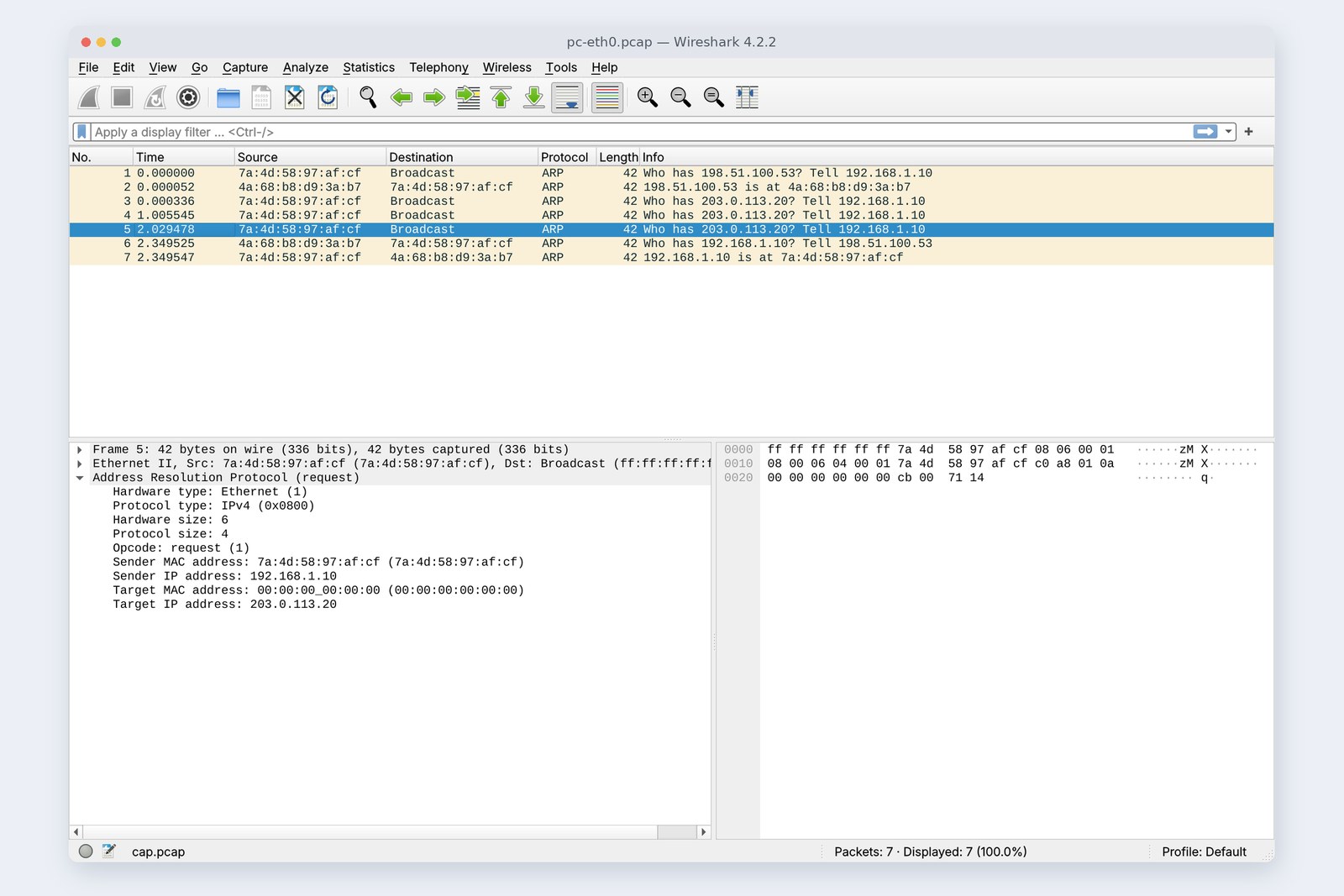
“I press the submit button and nothing happens.” The final part is the investigation that starts with that sentence.
We deliberately broke the practice network from parts 9 and 10 in one place at a time: the cable, the route, the server machine, the name, the port, the lock and the content. Each time we recorded the error message, then worked out, from the bottom layer up, which tool tells you where it stopped.
“Nothing happens”
AraiFurui, accounting's on the phone. “I press the submit button and nothing happens.” Is the server down?
FuruiMaybe. Or a cable's out, or a name won't resolve. Don't jump to the answer.
AraiSo where do I start?
FuruiAt the bottom. Trace the map we spent eleven parts drawing, with your finger.
Route map of all 12 parts (you are here: part 12)
- The troubleshooting ladder — one question and one tool per layer, from the bottom up
- Seven ways to break it — cable, route, server machine, name, port, lock, and what's behind nginx, with the message and time for each (measured)
- Refused or dropped? — a 0.041 s RST versus a 10 s timeout (measured, with Wireshark)
- When it's slow — splitting the time into name, TCP, TLS and server with curl (measured)
The practice network is the one from parts 9 and 10: the PC and the provider's resolver on this side, the DNS servers and the expense server across part 6's mischief wire (20 ms each way). This time nginx (port 80) also sits in front of the expense server. Each experiment breaks exactly one thing, records the result, and puts it back.
The troubleshooting ladder
The first step, as in part 11, is to write one line: from where, to which machine, on which port. Here: “from the PC, to port 3443 on expenses.example, over HTTPS”. Then ask one question per layer.
One question and one tool per layer
Climb the ladder from the bottom. Each rung rests on the one below: without a connected port there's no name lookup, without a name TCP never starts, and without TCP there's no TLS or HTTP. Conversely, once a rung works, everything below it is proven to work, and you can stop doubting it.
Don't trust the error message
First, we unplugged the cable (in the practice, by taking down the port at the other end of the wire).
# Unplug the cable (take down the port at the other end)
pc$ curl https://expenses.example:3443/api/expenses
    curl: (6) Could not resolve host: expenses.example   (6.025 s)
# Look at your own port first
pc$ ip -br link show eth0
    eth0   DOWN   <NO-CARRIER,BROADCAST,MULTICAST,UP>
pc$ ping -c2 198.51.100.53
    2 packets transmitted, 0 received, 100% packet loss
curl said “Could not resolve host”, a name lookup failure, after waiting 6.02 seconds. Yet DNS was perfectly fine. The first thing curl tries is the name lookup, so that's where it got stuck and that's what it reported. An error message only describes the top step that failed. Look from the bottom of the ladder instead, and ip link shows NO-CARRIER (nobody at the other end) at a glance.
Before saying “DNS is broken”, check your own port and ping the resolver. A Wi-Fi drop, an unplugged cable or a lost VPN often shows up as a failed name lookup.
Addresses and routes
Next, layer 3. First we deleted the route to 203.0.113.0/24.
# Delete the route to 203.0.113.0/24
pc$ curl -v https://expenses.example:3443/api/expenses
    *   Trying 203.0.113.20:3443...
    * Immediate connect fail for 203.0.113.20: Network is unreachable
    curl: (7) Failed to connect … after 0 ms: Couldn't connect to server
pc$ ip route get 203.0.113.20
    RTNETLINK answers: Network is unreachable
With no route, the packet can't even leave the PC: “Network is unreachable” in 0 ms. ip route get asks directly whether there is a route to an address.
Now a route that exists, but no machine at the other end. We removed the server's address, 203.0.113.20.
# The other machine isn't there (203.0.113.20 removed)
pc$ curl https://expenses.example:3443/api/expenses
    curl: (7) Failed to connect … after 3053 ms: Couldn't connect to server
# Did the neighbour's address (MAC) resolve?
pc$ ip neigh show 203.0.113.20
    203.0.113.20 dev eth0 FAILED
pc$ ping -c3 203.0.113.20
    3 packets transmitted, 0 received, 100% packet loss
curl waited 3.05 seconds and couldn't connect. The cover picture is the PC's port at that moment: part 3's ARP asking “who is 203.0.113.20?” three times and getting no reply. FAILED in ip neigh records that the neighbour's address (MAC) couldn't be found; suspect a stopped machine or a wrong address setting.
Names
We broke the name rung two ways: by stopping the resolver, and by mistyping the name.
# 1) The resolver stopped
pc$ curl https://expenses.example:3443/api/expenses
    curl: (6) Could not resolve host: expenses.example
pc$ dig expenses.example
    ;; communications error to 198.51.100.53#53: connection refused
# 2) A typo in the name (exmaple)
pc$ curl https://expenses.exmaple:3443/api/expenses
    curl: (6) Could not resolve host: expenses.exmaple
pc$ dig expenses.exmaple
    ;; ->>HEADER<<- opcode: QUERY, status: NXDOMAIN
# The correct name
pc$ dig +short expenses.example
    203.0.113.20
curl says “Could not resolve host” both times, so you can't tell them apart. dig can. A stopped resolver gives “communications error” (no answer at all); the typo gives status: NXDOMAIN (a proper answer, and the answer is “no such name”). The first is a problem up to layer 3 or with the resolver; the second is the name itself.
As in part 9, dig ignores the hosts file. If only your app is acting up, also look the name up with getent hosts (dscacheutil on a Mac) and suspect a stale hosts entry.
Ports: refused or dropped?
The most important distinction at layer 4 is refused versus dropped. We compared stopping the server program with having the server's firewall silently drop the connection.
# 1) The server program stopped (nobody waiting on that port)
pc$ curl https://expenses.example:3443/api/expenses
    curl: (7) Failed to connect … after 41 ms: Couldn't connect to server
pc$ nc -vz expenses.example 3443
    … port 3443 (tcp) failed: Connection refused
srv$ ss -ltn 'sport = :3443'
    (nothing)
# 2) The other side's firewall silently drops it (DROP)
pc$ curl --connect-timeout 10 https://expenses.example:3443/api/expenses
    curl: (28) Failed to connect … after 10002 ms: Timeout was reached
pc$ nc -vz -w 3 expenses.example 3443
    … port 3443 (tcp) timed out: Operation now in progress
An instant RST versus an unanswered SYN
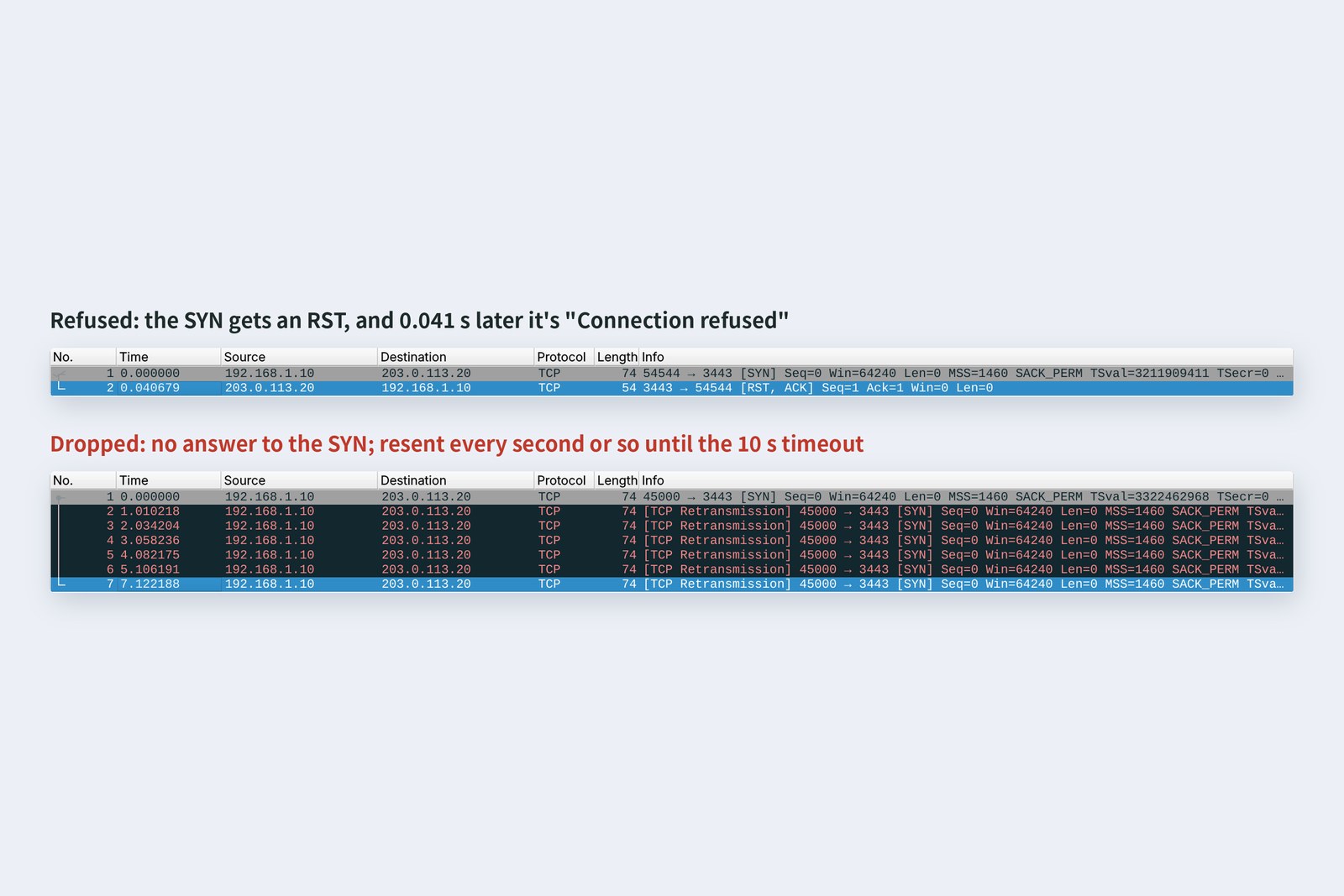
With the program stopped, the server's OS answers at once with an RST: “nobody's waiting on that port”. 0.041 s is exactly one round trip on the mischief wire. You reached the server machine, so check whether the program is running there (ss -ltn) and whether the port is right.
When a firewall drops it, nothing comes back. The PC resends the SYN, as we saw in part 6, and curl times out at 10 seconds. This time it vanished somewhere on the way: suspect firewalls, security groups and the route in between.
The lock
Even with TCP connected, things can stop at the TLS rung. We sent over HTTPS without telling curl about the practice CA.
# HTTPS without knowing the practice CA
pc$ curl https://expenses.example:3443/api/expenses
    curl: (60) SSL certificate problem: unable to get local issuer certificate
# Look at the certificate the server shows, directly with openssl
pc$ openssl s_client -connect expenses.example:3443 -servername expenses.example
    subject=CN = expenses.example
    issuer=CN = Kiji Practice Root CA
    Verify return code: 21 (unable to verify the first certificate)
# Once it knows the CA
pc$ openssl s_client … -CAfile ca.pem
    Verify return code: 0 (ok)
openssl s_client looks straight at the certificate the server presents: whose it is (subject), who issued it (issuer), and the verification result (Verify return code). Give it the CA and the code is 0 (ok). This is where you tell apart part 8's four cases (unknown issuer, wrong name, expired, self-signed). The fix is to supply the right CA or fix the certificate; switching verification off with -k doesn't count as fixing it.
Content: who sent the 5xx?
The last rung is HTTP. With nginx in front of the expense server, we broke what's behind it in two ways: a new version (/v2/) of the app that was never started, and an app that's too slow.
# nginx (port 80) in front of the server; what's behind /v2/ (port 4000) was never started
pc$ curl http://expenses.example/api/expenses
    → 200  (0.089 s)
pc$ curl http://expenses.example/v2/api/expenses
    → 502 Bad Gateway  (0.083 s)
pc$ curl 'http://expenses.example/api/report?ms=3000&n=1'
    → 504 Gateway Time-out  (2.085 s)
# nginx's error.log (excerpt)
    connect() failed (111: Connection refused) while connecting to upstream,
      upstream: "http://127.0.0.1:4000/api/expenses"
    upstream timed out (110: Connection timed out) while reading response header
      from upstream, upstream: "http://127.0.0.1:3000/api/report?ms=3000&n=1"
nginx in front sent the 5xx; the fault is behind it
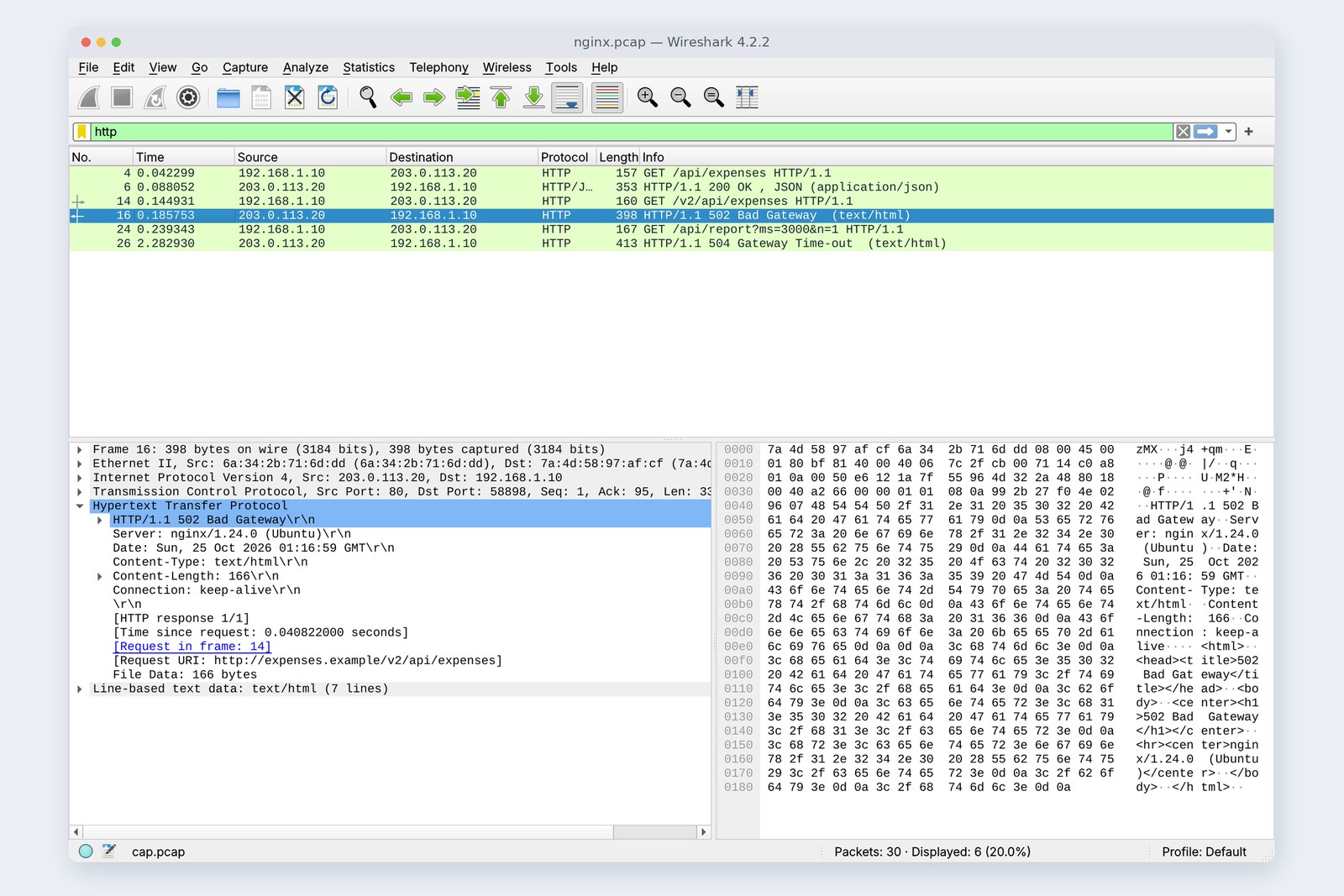
A reply arriving means all five rungs below worked. What matters now is who sent it. Both the 502 and the 504 came from nginx, right in front of the PC (note Server: nginx in the picture). 502 means “I tried to reach what's behind me and was refused”; 504 means “what's behind me didn't answer within 2 seconds”. nginx's error.log names the cause, with the address behind. A 4xx is about how you asked (part 10), a 5xx is the server side, and a 502 or 504 is “behind the server you're talking to”.
When it's slow
A close relative of “won't connect” is “slow”. When it's slow, split the time by rung. curl's -w reports, counted from the start, when the name lookup, TCP, TLS and the first byte finished.
# A 300 ms report, fetched twice after clearing the resolver's memory (time split with curl -w)
pc$ curl -w 'dns %{time_namelookup} tcp %{time_connect} tls %{time_appconnect}
        first-byte %{time_starttransfer} total %{time_total}\n' …
    1st  dns 0.166  tcp 0.206  tls 0.252  first-byte 0.595  total 0.595
    2nd  dns 0.002  tcp 0.043  tls 0.090  first-byte 0.434  total 0.434
Where 0.595 s went (measured)
Taking differences, the first run spent 0.166 s on the name, 0.041 s on the TCP handshake, 0.045 s on the TLS handshake and 0.344 s on server work and the reply. The second run's name lookup shrank to 0.002 s (part 9's cache). In both, the biggest slice is about 0.34 s on the server side (300 ms of work plus one round trip), not the network. Before saying “the network is slow”, look at this breakdown first.
Cheat sheet, and your own PC
Error messages we actually met in this series, and the rung to suspect first.
| Message (example) | Suspect first | First move |
|---|---|---|
| Could not resolve host | the name, and below it | ip link and dig |
| Network is unreachable | the route (none) | ip route get ADDRESS |
| a few seconds, then no connection (no ARP reply) | the server machine, address settings | ip neigh |
| Connection refused | the port (reached, nobody waiting) | ss -ltn on the server |
| Timeout was reached | dropped on the way | firewalls, nc -vz |
| SSL certificate problem | the lock (part 8's four cases) | openssl s_client |
| 502 / 504 | behind the server in front | its error.log |
| a CORS error | the browser's guard (parts 10, 11) | the API's response headers |
| ECONNREFUSED 127.0.0.1 | the wrong localhost (part 11) | where you're sending from |
The ladder's tools go by slightly different names on each OS.
| Rung | Mac | Windows | Linux |
|---|---|---|---|
| wire and port | ifconfig | ipconfig /all | ip -br link |
| route | netstat -rn | route print | ip route get ADDRESS |
| neighbours | arp -a | arp -a | ip neigh |
| name | dig NAME | Resolve-DnsName NAME | dig NAME |
| port | nc -vz NAME PORT | Test-NetConnection NAME -Port PORT | nc -vz NAME PORT |
| lock and content | curl -v https://NAME/ | ||
§ — All twelve parts on one page
Twelve parts following one press of the submit button, bottom to top
- Write one line first: from where, to which machine, on which port.
- Climb the ladder from the bottom, and stop doubting the rungs that work.
- An error message only describes the top step that failed. An unplugged cable can say “Could not resolve host”.
- Refused (instantly) proves you reached the server; a timeout (after a wait) means it vanished on the way.
- Check names with dig, and tell a stopped resolver from NXDOMAIN.
- Check the lock with openssl s_client, and fix it without switching verification off.
- For a 5xx, look at who sent it. When it's slow, split the time by rung.
AraiAccounting's problem: I went up from ip link, and their wireless had dropped while switching networks. The server was fine.
FuruiWell done. With the twelve parts' map, you won't get lost wherever it stops.
AraiNext I want to know what goes on inside the server that receives the submission.
FuruiGood. That's the end of the network journey. We'll pick it up inside the server.
References
- ip-link(8) / ip-route(8) / ip-neighbour(8)
- dig(1)
- OpenSSL 3.0 — openssl-s_client
- Everything curl — Write out(-w)
- nginx — ngx_http_proxy_module(proxy_read_timeout)
- RFC 9110 — HTTP Semantics(502, 504)
- RFC 9293 — Transmission Control Protocol (TCP)
- RFC 826 — An Ethernet Address Resolution Protocol
- Microsoft Learn — Test-NetConnection
The recordings were made on 25 October 2026 on a practice network the author built with network namespaces on Linux (Ubuntu 24.04, kernel 6.18) in the cloud. It is the same as in parts 9 and 10 (resolver Unbound 1.19.2, DNS servers NSD 4.8.0, expense server Node.js 22.23), with nginx 1.24.0 placed in front of the expense server; the PC side uses curl 8.5.0 and OpenSSL 3.0. Every name and address is either reserved for documentation or made up for the practice. Between the PC and the servers runs part 6's mischief wire (20 ms each way). Every number and output in the text is a real value read from those recordings and the commands' output (long outputs are trimmed). The characters are fictional. Thank you for reading all twelve parts.
Old-School Networking, part 12 — Troubleshooting when it won't connect / 2026.10