Dev Guide / 2026 ・ No.03
A RustDesk Manual
What remote desktop needs, and when you need a server
Published
Last time, Tailscale gave us a path between faraway devices.
But what does it take to actually see and control the screen at the other end?
Do you need RustDesk? Does it work as soon as you install it? When do you need your own server?
This guide answers those three questions while walking through how RustDesk works and how to use it.
What remote desktop needs: a path, and an app that sends the screen
Remote desktop receives the other machine's screen as video and sends your keyboard and mouse back. That takes two parts.
The app and the path are separate parts
Mix and match freely. RustDesk brings its own path, so it also works on its own
Tailscale, from the last article, is the path. It lets devices reach each other safely, but it doesn't show screens or send input. For that you need an app that sends the screen. RustDesk is one such app, and what sets it apart is that it also brings its own path: an ID server and a relay server.
Do you need RustDesk? Built-in options compared
Short answer: no, not necessarily. Once Tailscale connects your devices, the tools built into your OS are often enough.
| Option | Controlled device | Controlling device | Cost, caveats |
|---|---|---|---|
| Windows Remote Desktop (RDP) + Tailscale | Windows Pro or higher | Built into Windows; Windows App on Mac, iPhone, Android | Free. Windows Home can't accept connections |
| Mac Screen Sharing + Tailscale | Mac | Built into Mac; a VNC app on Windows or phones | Free. Easiest between Macs |
| Chrome Remote Desktop | Windows, Mac, Linux | Browser, phone apps | Free; needs a Google account |
| TeamViewer, AnyDesk, etc. | Major OSes | Major OSes | Free for personal use; paid for work |
| RustDesk | Windows, Mac, Linux, Android | All of those plus iPhone and web | Free and open source; choose your server |
RustDesk shines when the machine to control runs Windows Home (no RDP host), when you want one tool across Windows and Mac, when Android is on either end, and when you're helping family with their PC: they don't need Tailscale, just to read you an ID and password.
What RustDesk is
RustDesk is an open-source remote desktop built as an alternative to TeamViewer and AnyDesk. As the name suggests it is written in Rust, with a Flutter interface. It has more than 120,000 stars on GitHub; the stable version at the time of writing is 1.4.9 (July 2026), and a 1.5.0 pre-release appeared in September.
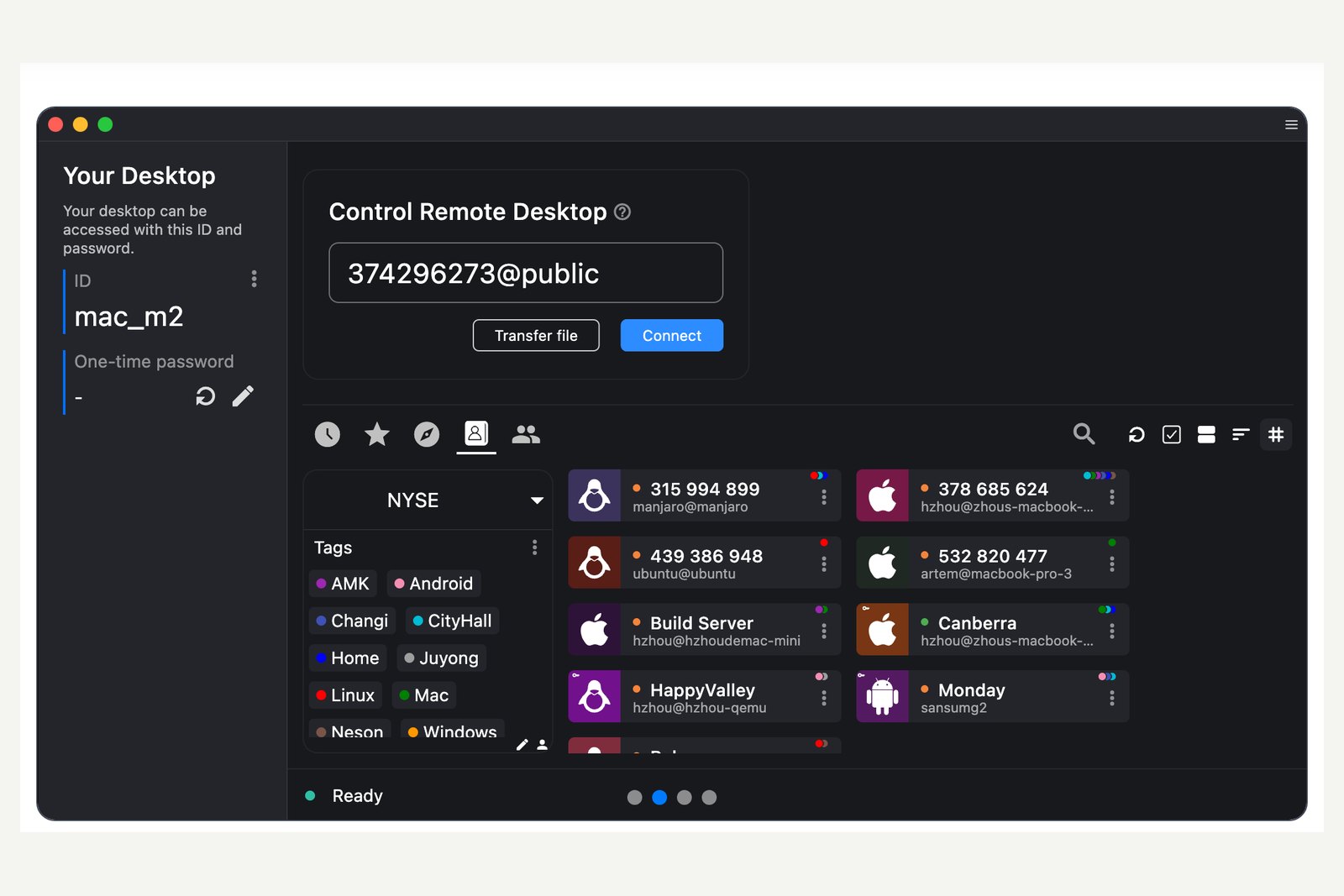
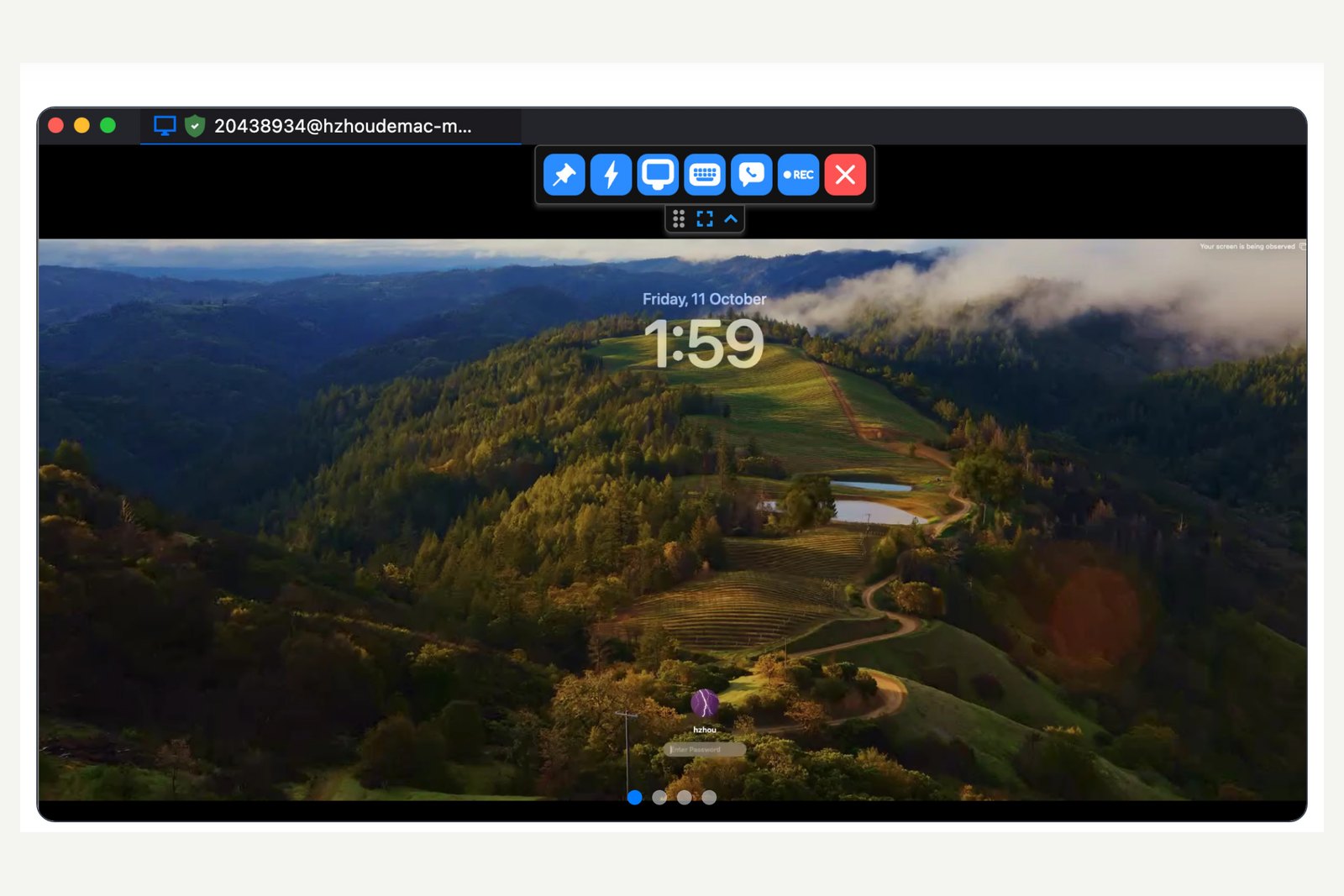
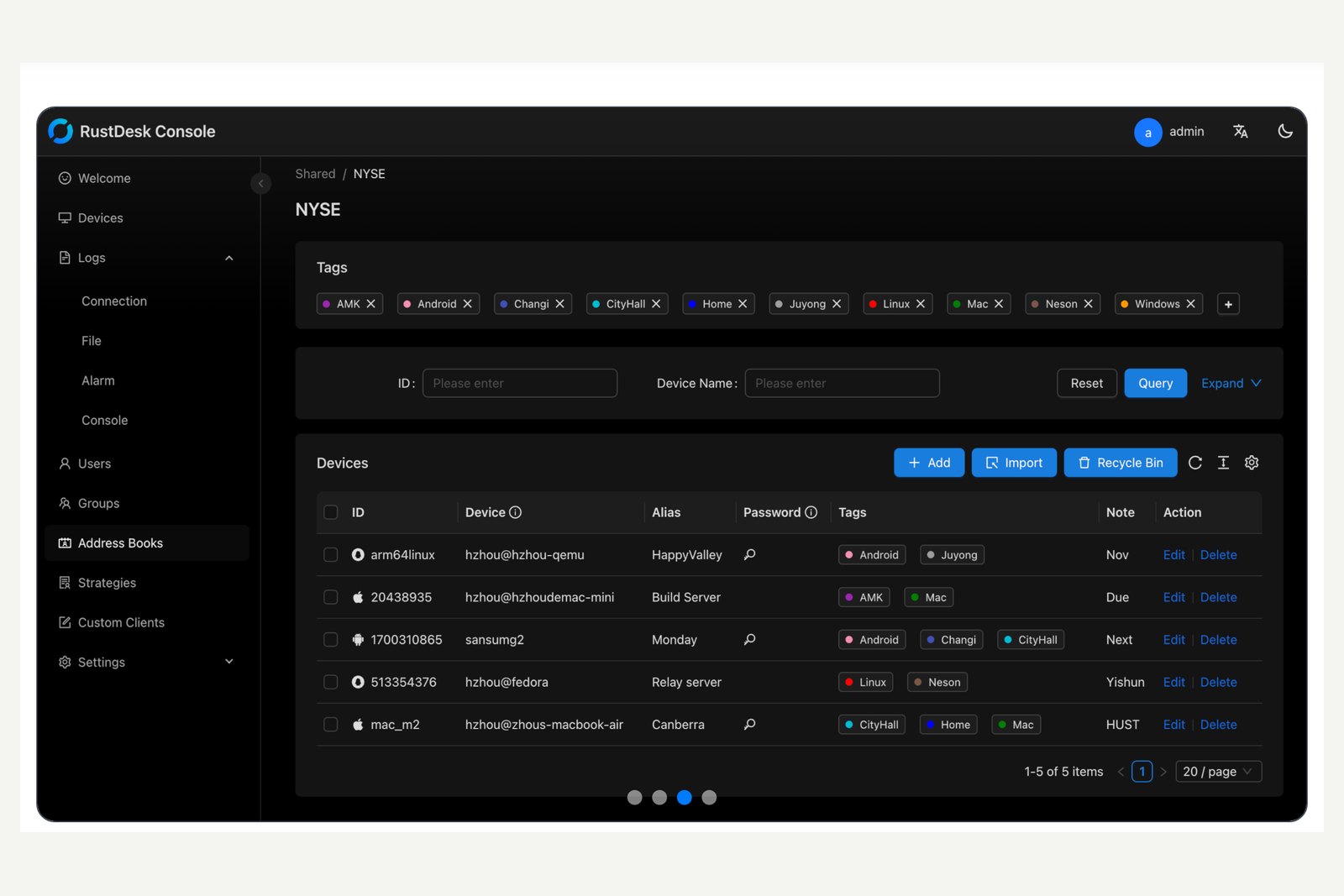
- What it does — screen control, file transfer, shared clipboard, audio, chat, multiple monitors, recording and TCP tunnelling
- Platforms — Windows, macOS, Linux and Android can control and be controlled; iPhone and iPad can only control (iOS can't be controlled). There is also a web client for browsers
- Cost — the app is free, and so is the server if you run the open-source (OSS) version yourself. Only RustDesk Server Pro, with its admin console and other features, is paid (billed yearly; the one-user, 20-device Individual plan works out at $11.88 a month)
How RustDesk works: ID server and relay server
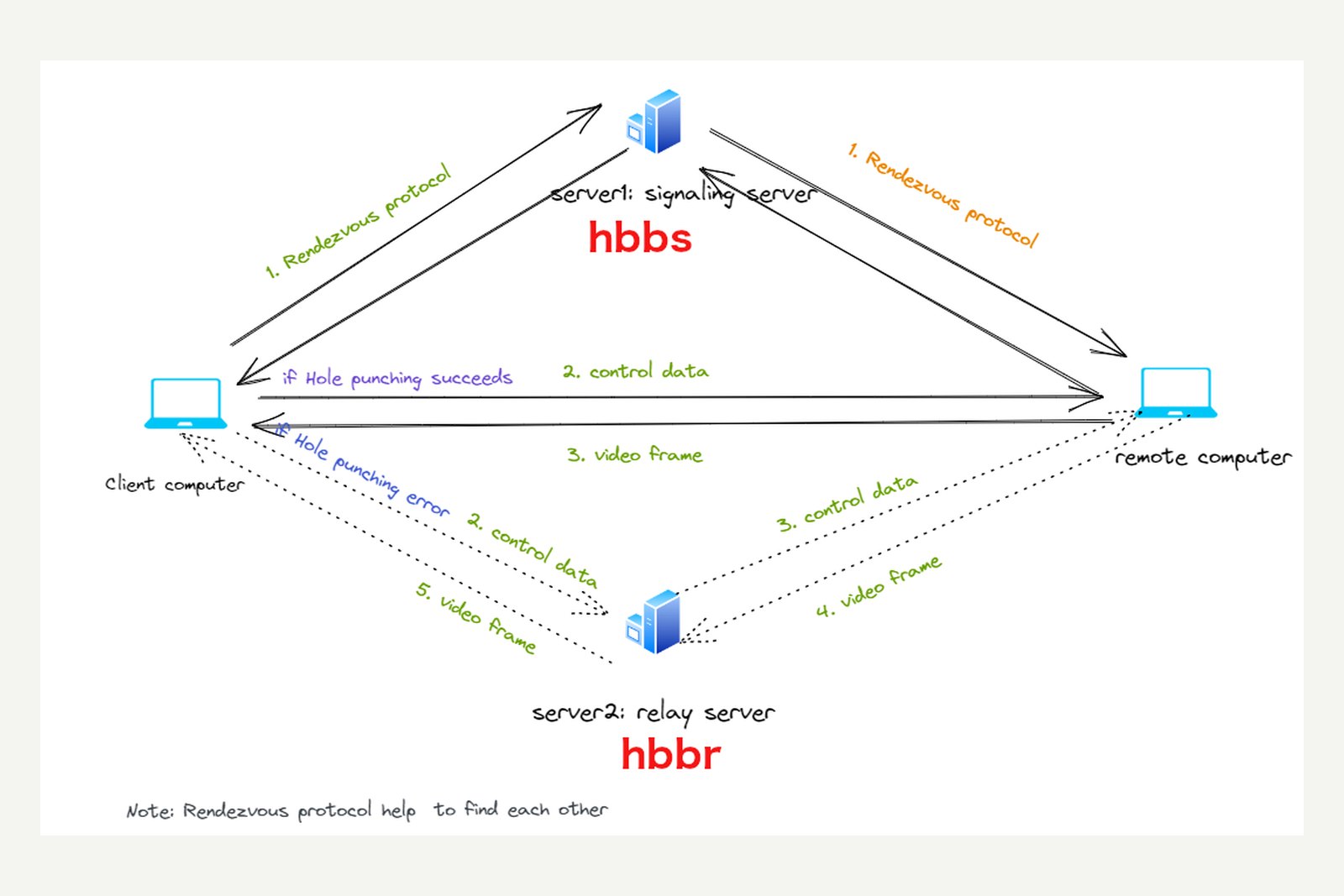
RustDesk has two kinds of server with clearly separate jobs, much like Tailscale's coordination server and DERP relays.
Call by ID, connect directly if possible
The ID is an example; each device gets its own
- ID server (hbbs) — every device running RustDesk keeps telling this server its ID and current address (IP and port). When you enter an ID, it introduces the two devices
- Hole punching — after the introduction, both sides send packets at once to get through NAT and connect directly. According to the official docs, this usually works and the relay is never used
- Relay server (hbbr) — only when a direct connection fails does it carry the screen and input. Relay speed and stability depend on the server's capacity and its distance from you
Does it work as soon as you install it?
Yes. Once installed (or simply run), RustDesk connects to public servers run by RustDesk and shows an ID and a one-time password. Enter someone else's ID and you can connect. But there are three conditions to know about today.
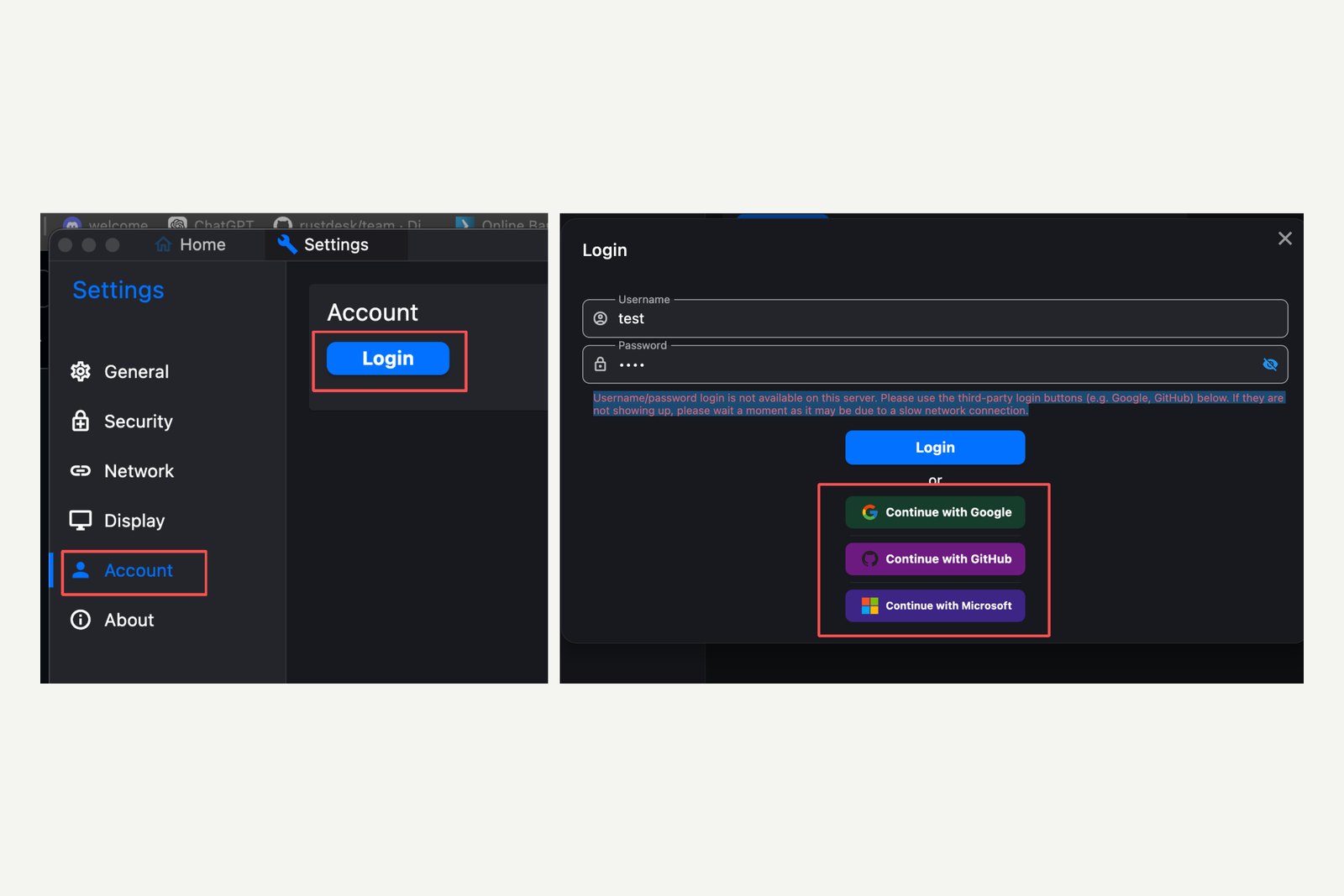
- The controlling side must sign in — after continued scams and botnet abuse, since April 2026 the public server requires the controlling side to sign in with Google, GitHub or similar (free). The controlled side doesn't need to, for now; RustDesk warns that may change if abuse continues
- The public server is for trying things out — the official wiki states it is for demonstration and testing only and should not be used for production or sensitive work. RustDesk is designed to be self-hosted
- Macs and phones need permissions — on a Mac, Accessibility and Screen Recording; on Android, screen capture and more. Without them you get no picture, or no control
The line at the bottom of the main window, “Ready, For faster connection, please set up your own server”, sums up where the public server stands.
Downloads and preparation
The only official site is rustdesk.com, whose download button leads to the GitHub release page. Don't download from look-alike domains.
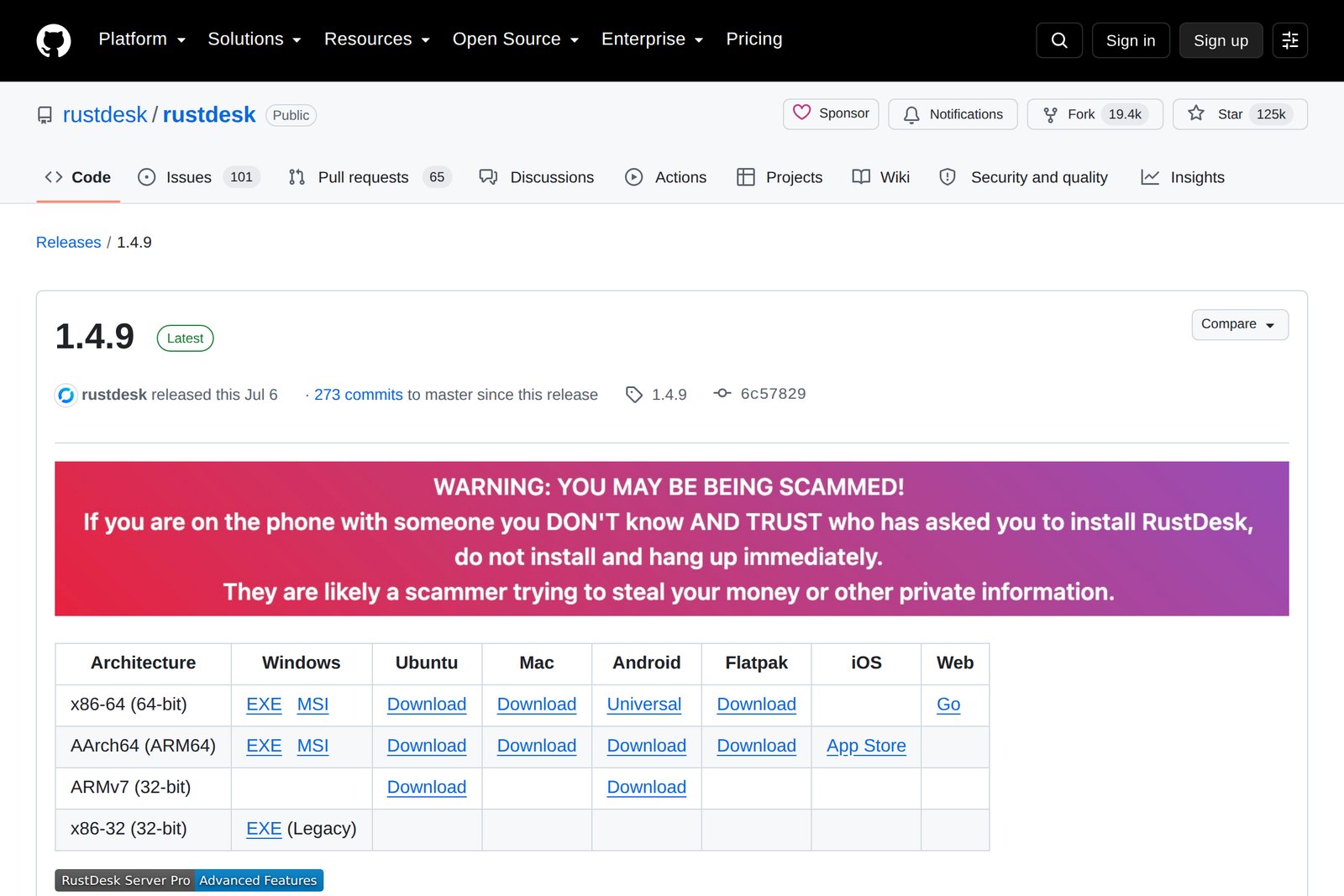
| Device | Get it from | Notes |
|---|---|---|
| Windows | The EXE (x86-64) on the GitHub release page | An MSI exists for mass deployment |
| Mac | Mac “Download” (.dmg) on the same page | AArch64 for Apple silicon, x86-64 for Intel |
| iPhone, iPad | App Store: RustDesk Remote Desktop | Controlling side only |
| Android | Android (.apk) on the same page | Withdrawn from Google Play because of scams |
| Browser | rustdesk.com/web | Controlling side only; nothing to install |
The stable version at the time of writing is 1.4.9. The 1.5.0 listed above it is a pre-release; for everyday use, pick the one marked Latest.
Step 1: install on Windows (the machine you'll control)
| Step | What to do |
|---|---|
| 01 | Download rustdesk-1.4.9-x86_64.exe from the GitHub release page and run it |
| 02 | It works without installing, but for a PC you'll reach from outside, follow the prompt to install it (it runs as a service from startup) |
| 03 | The left of the main window shows this PC's ID and one-time password |
| 04 | To reach your own PC remotely, open Settings (⋮ next to the ID) → Security, unlock the security settings and set a permanent password |
The one-time password changes with every connection. When helping family, asking for it over the phone is enough. To reach your own PC when nobody is at it, you need a long, hard-to-guess permanent password.
Step 2: install on a Mac (permissions matter most)
| Step | What to do |
|---|---|
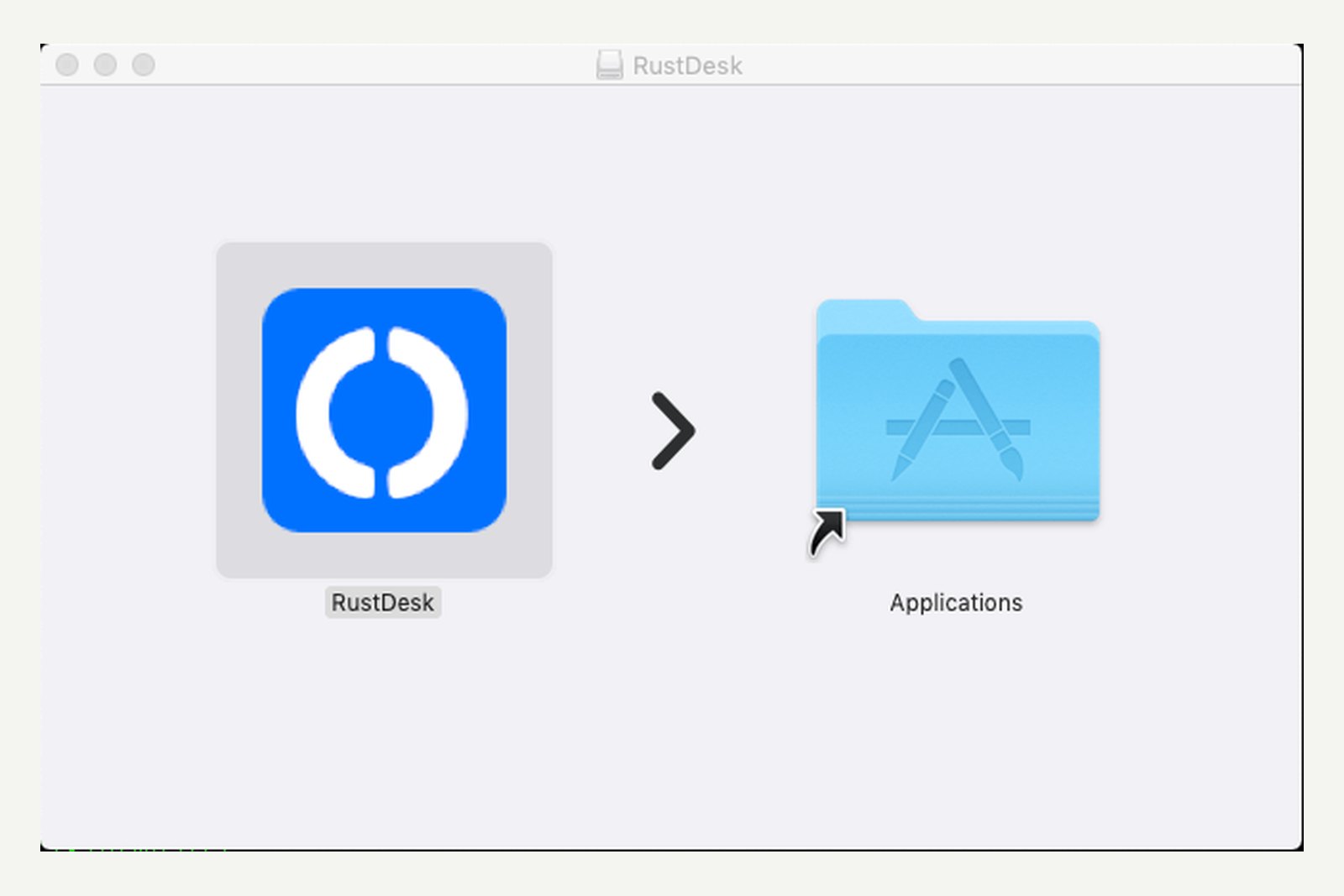
| 01 | Open the .dmg and drag RustDesk to Applications |
| 02 | If macOS blocks it at launch (unverified developer and so on), allow it under System Settings → Privacy & Security |
| 03 | From Configure in RustDesk's left panel, grant Accessibility (needed for keyboard and mouse control) |
| 04 | Likewise grant Screen Recording (“Screen & System Audio Recording” from macOS 15), needed to show the screen |
| 05 | If keystrokes don't reach the other side when you control from a Mac, also grant Input Monitoring |
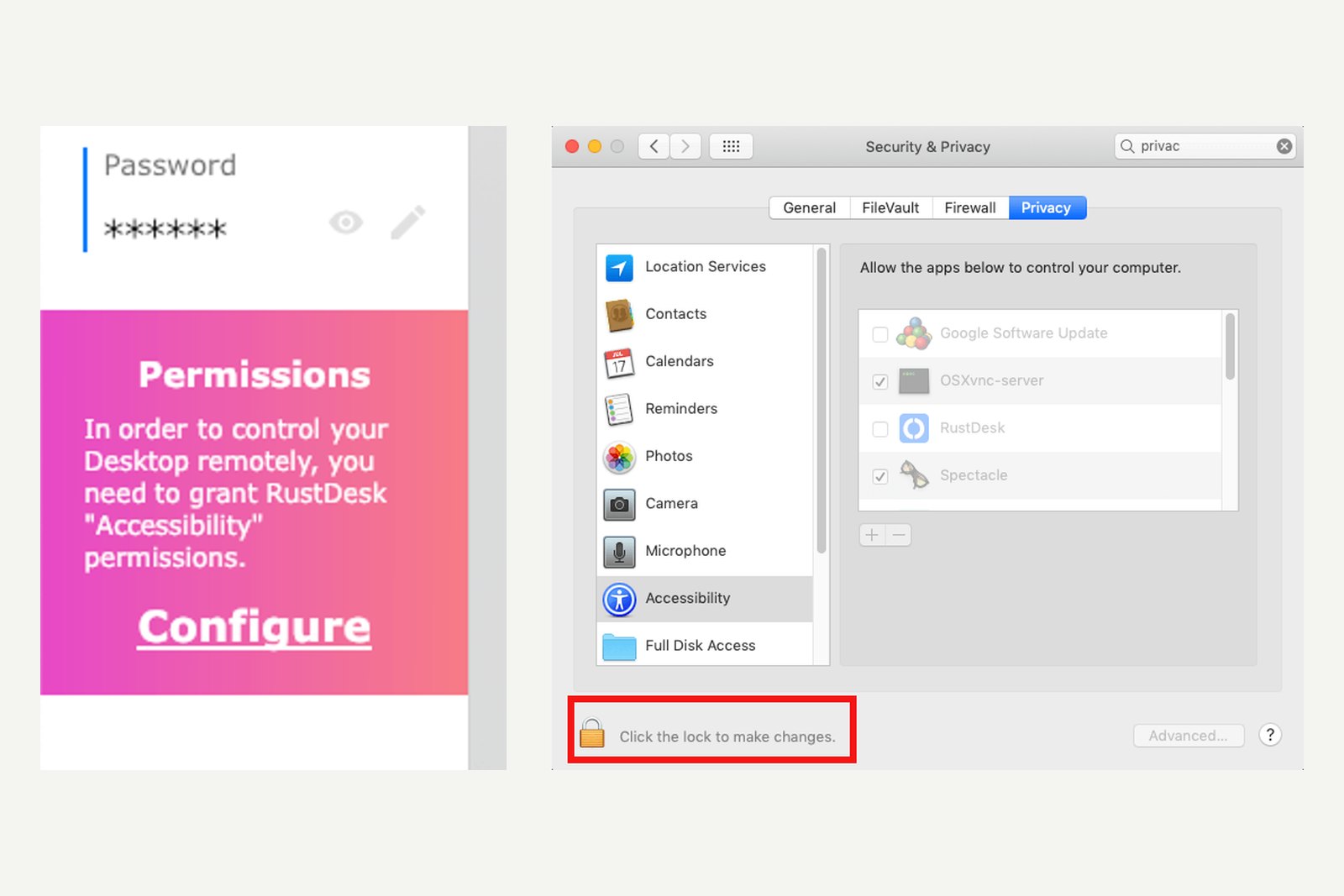
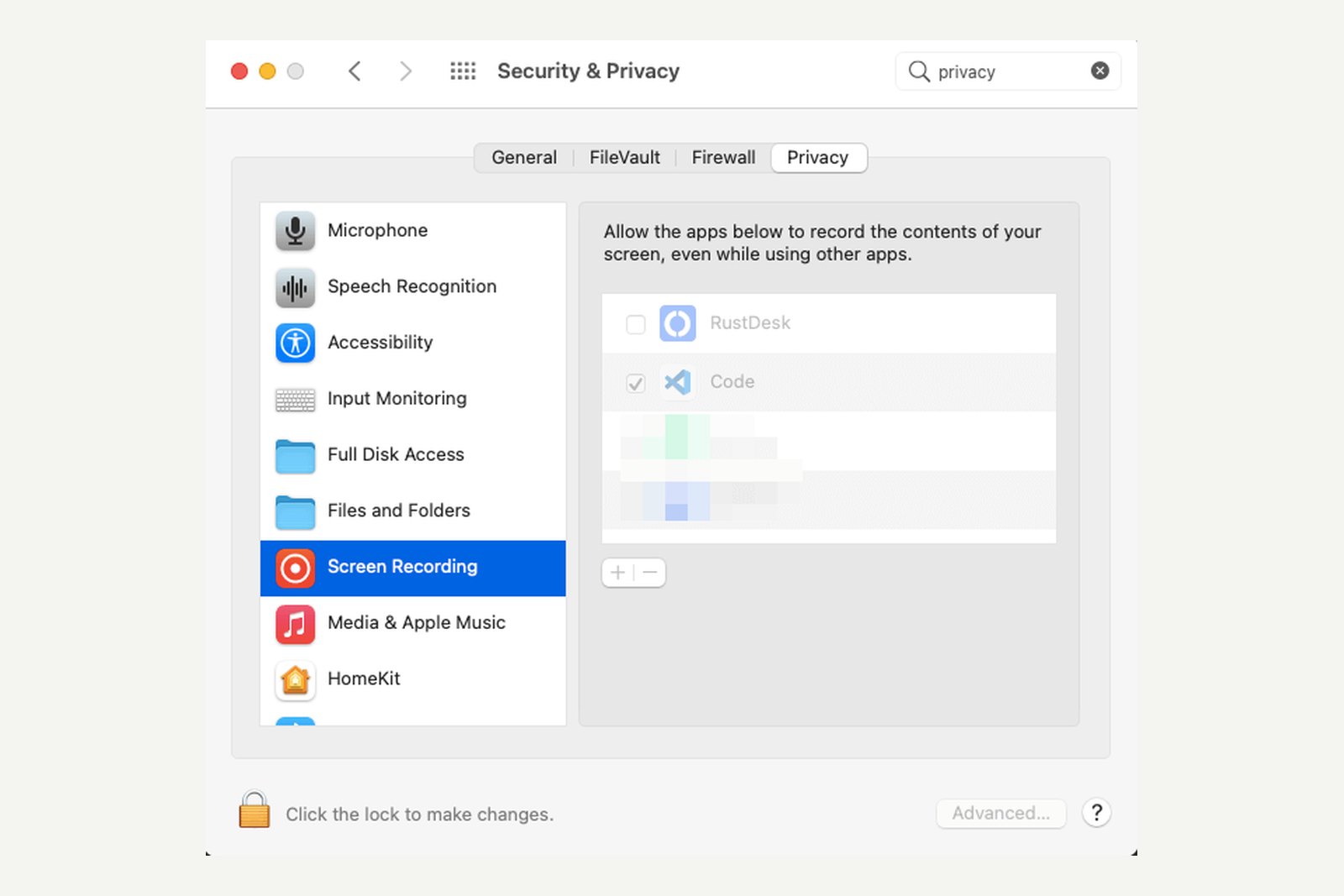
If RustDesk keeps warning after you've switched permissions on, remove it from the list with “−” and add it back with “+”. The official docs say a restart may still be needed.
Step 3: use it from a phone (iPhone, Android)
- iPhone, iPad — install from the App Store and connect by ID. Controlling side only. On the public server you also need to sign in from settings
- Android — install the .apk from GitHub (allow installs from unknown sources). It can control and be controlled
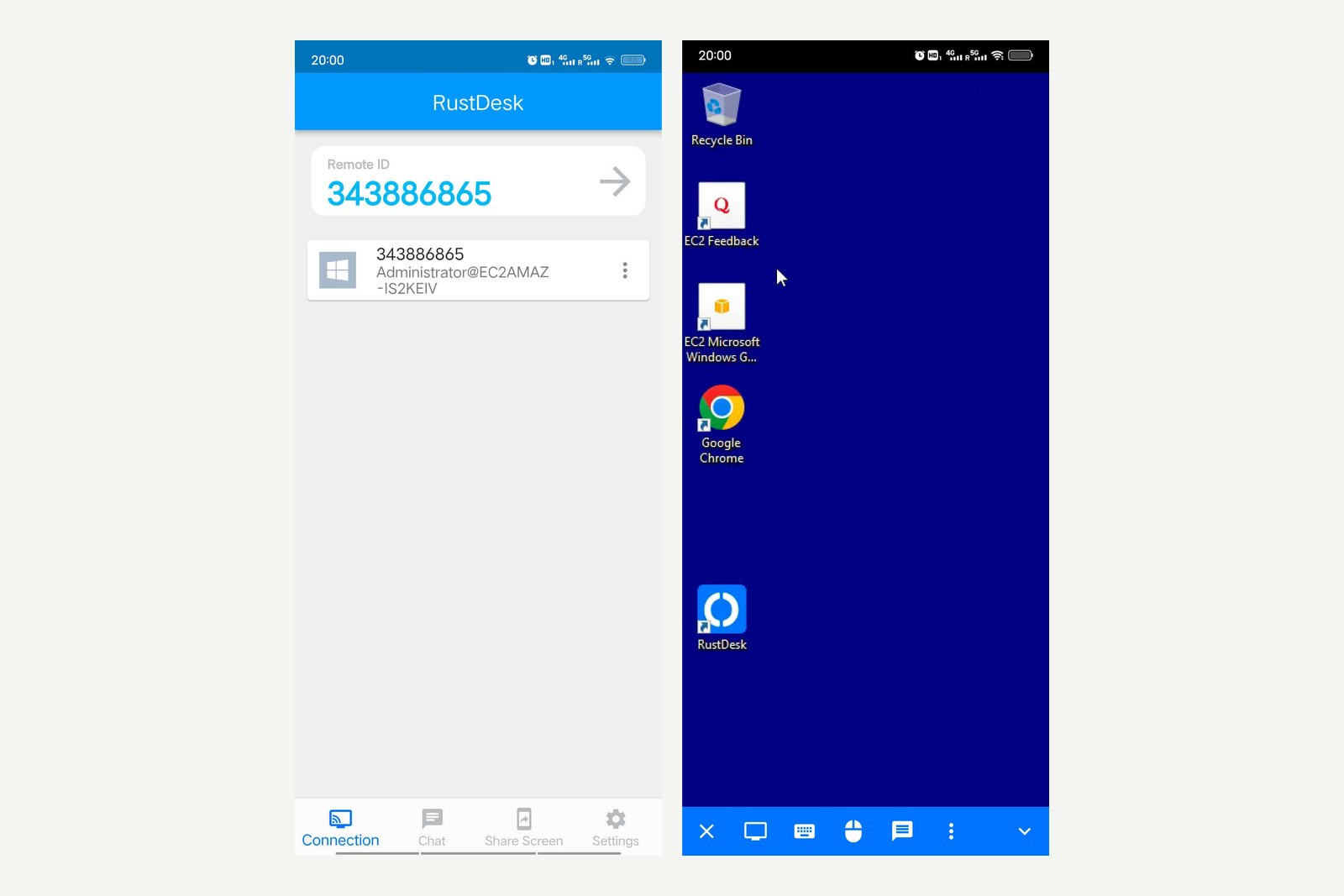
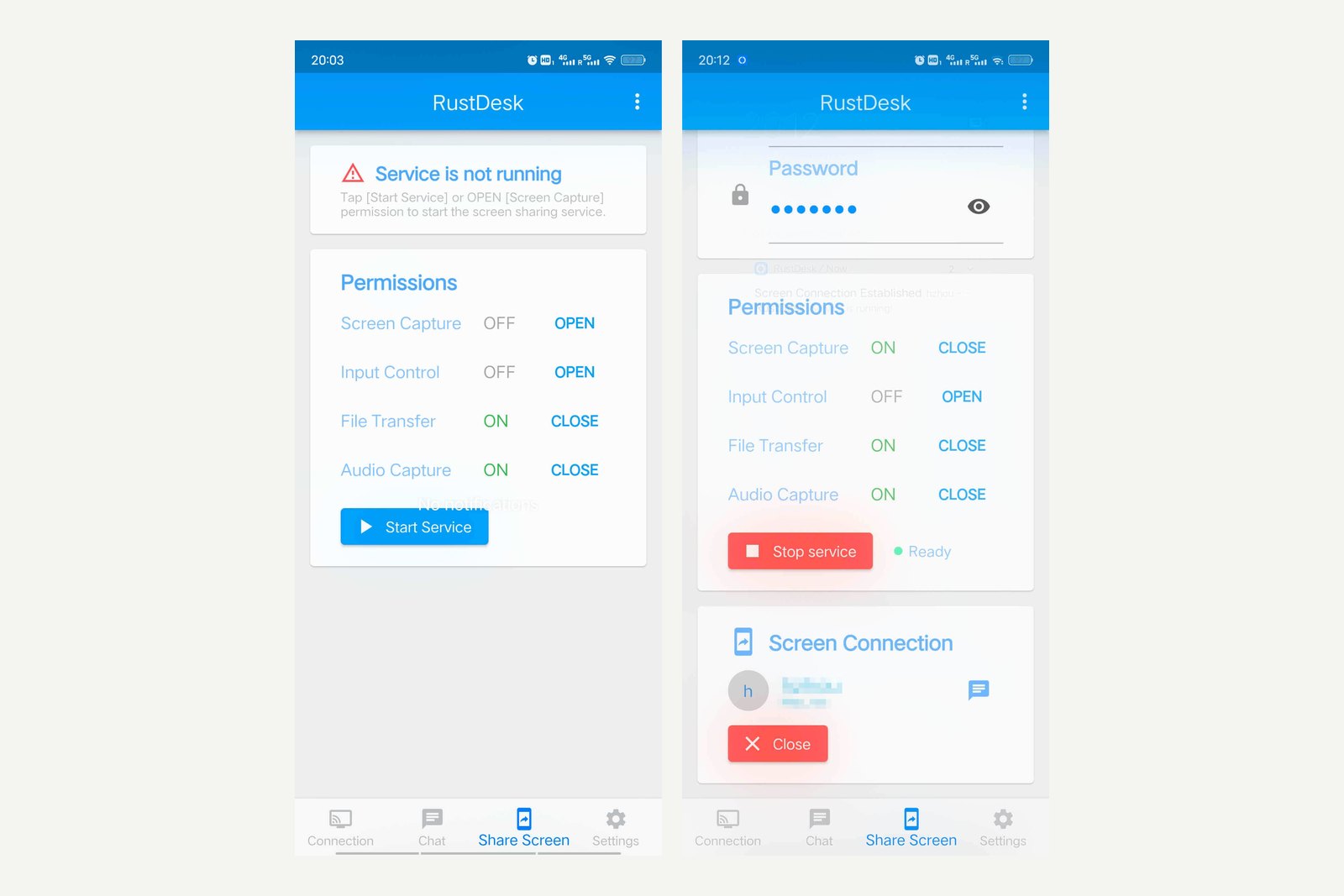
To let an Android phone be controlled, grant the permissions under Share Screen in the bottom bar and tap Start Service. Screen sharing needs Android 6 or later; sharing the phone's internal audio needs Android 10 or later. To accept mouse input, turn on RustDesk Input under Accessibility (installed services) in Android settings.
Step 4: connect
| Step | What to do |
|---|---|
| 01 | On the controlling device, type the other machine's ID into Control Remote Desktop and click Connect |
| 02 | Enter the password (one-time or permanent). If the other side is set to approve by clicking, wait for them to accept |
| 03 | Once the screen appears, use the toolbar at the top for quality, file transfer, chat and switching displays |
| 04 | Close the window to finish. The controlled side can also end it at any time with Disconnect |
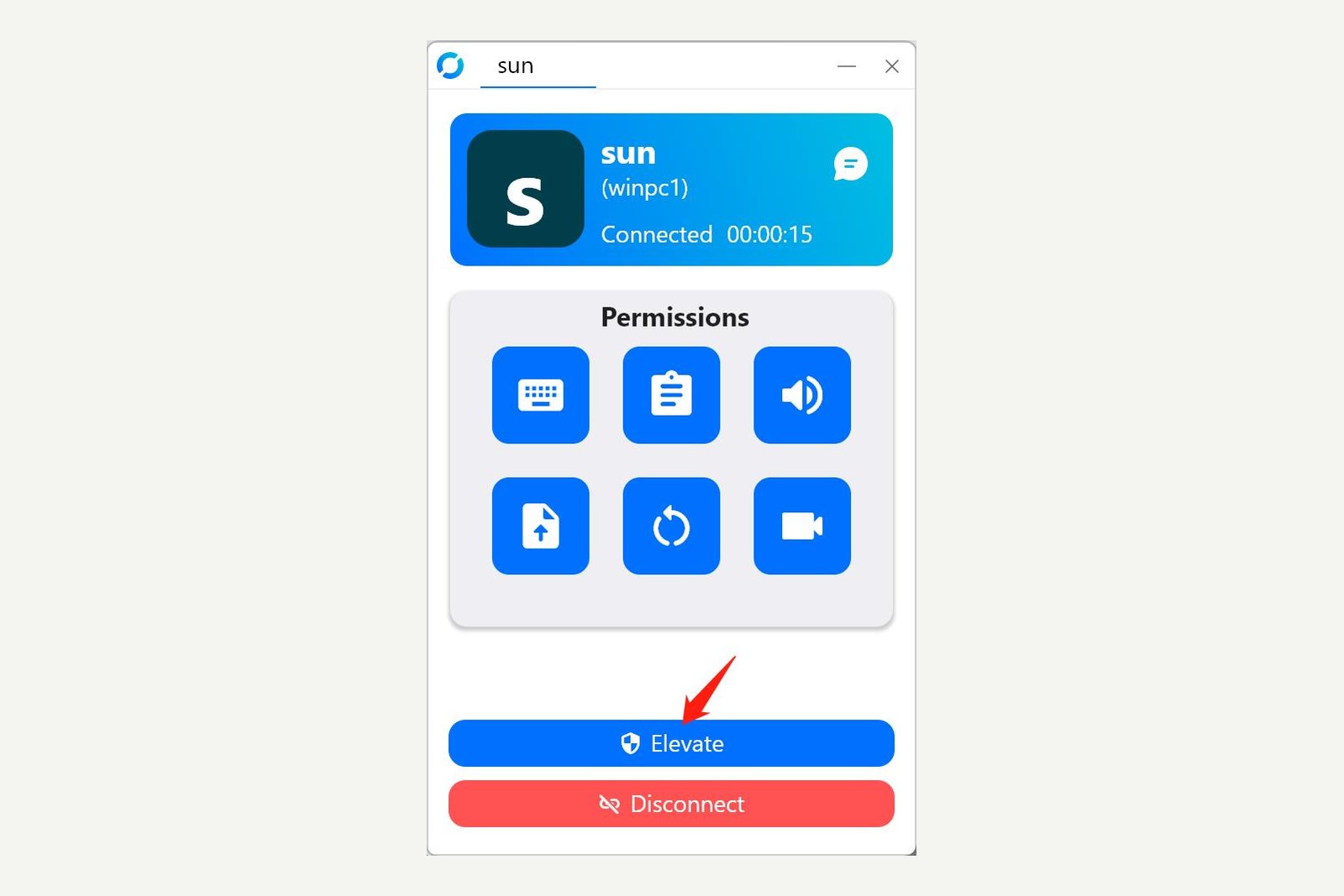
To move files without opening the desktop, use Transfer file under the ID box.
When you need a relay or your own server
Whether to stay on the public server or run your own comes down to this:
Do you need a server?
Work down from the top. If the first applies, you need no server
| When | Why | What to do |
|---|---|---|
| The other end is on an office or mobile network | Blocked UDP or strict NAT often prevents a direct link, so you end up relayed | Put a relay nearby (your own hbbr) or pair with Tailscale |
| The public server is slow or drops | Its relays are shared with users worldwide and affected by load and outages | Run your own server on a nearby VPS |
| Work or confidential tasks | RustDesk itself calls the public server “for demonstration and testing” | Self-host (Pro if needed) |
| Many devices and people to manage | You want address books, users, logs and two-factor authentication in one place | RustDesk Server Pro |
| Only your own devices | If both can run Tailscale, the path is already there | Tailscale + direct IP access (no server) |
According to the official docs, a relayed session uses roughly 30 KB/s to 3 MB/s (for a 1920×1080 screen, depending on resolution and how much changes), and around 100 KB/s for office work. Budget for that traffic if you run your own relay.
Option A: pair it with Tailscale (no server)
If both devices already run Tailscale from the last article, this is the simplest route. With RustDesk's direct IP access, you bypass both the public server and any server of your own, and the devices connect directly over the Tailscale path.
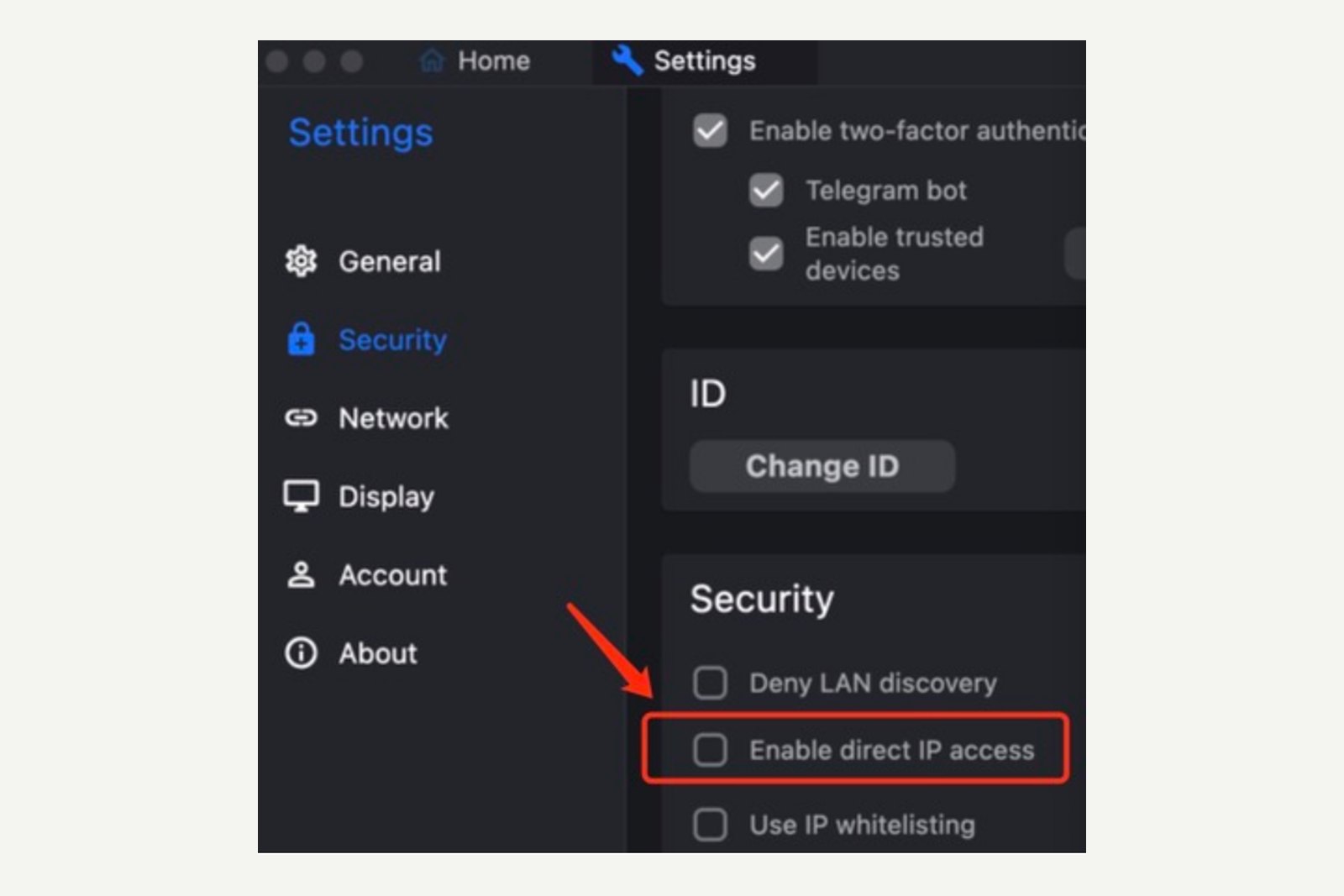
| Step | What to do |
|---|---|
| 01 | On the controlled device, unlock Settings → Security and turn on Enable direct IP access (it listens on port 21118 by default) |
| 02 | To be safe, put 100.64.0.0/10 (Tailscale's address range) in Use IP whitelisting on the same screen, so nothing outside your tailnet is accepted |
| 03 | On the controlling device, type the other device's Tailscale IP address (100.x.y.z) into the ID box and click Connect |
- Use the IP, not the name — RustDesk can't tell whether what you typed is an ID or a name, so direct IP access won't take a MagicDNS name as is. Enter the 100.x address
- Tailscale does the encryption — RustDesk's FAQ says a direct IP connection itself is not encrypted. Inside Tailscale it is encrypted by WireGuard, so that's fine; but never open port 21118 to the internet on your router
Option B: run your own server (OSS)
If some of the people you help can't run Tailscale, or this is for work, run your own server. It needs very little: the official docs say the smallest cloud server is plenty, and a Raspberry Pi will do. Put it on a VPS in a region near you and even relayed sessions get faster, simply because the relay is closer.
| Step | What to do |
|---|---|
| 01 | Get a Linux server and open TCP 21115–21117 and UDP 21116 in its firewall (TCP 21118 and 21119 only if you use the web client) |
| 02 | Install Docker and start hbbs and hbbr with the official compose file (commands below) |
| 03 | Note the public key created on first run (id_ed25519.pub in the data folder) |
| 04 | On every device, unlock Settings → Network, put the server's address in ID server and the public key in Key, then Apply (leave Relay server blank; it's inferred) |
# Install Docker
bash <(wget -qO- https://get.docker.com)

# Fetch the official compose file and start hbbs and hbbr
wget rustdesk.com/oss.yml -O compose.yml
sudo docker compose up -d

# The public key to enter in each client
cat ./data/id_ed25519.pub
The key lives in the data folder set in the compose file (./data in the official example).
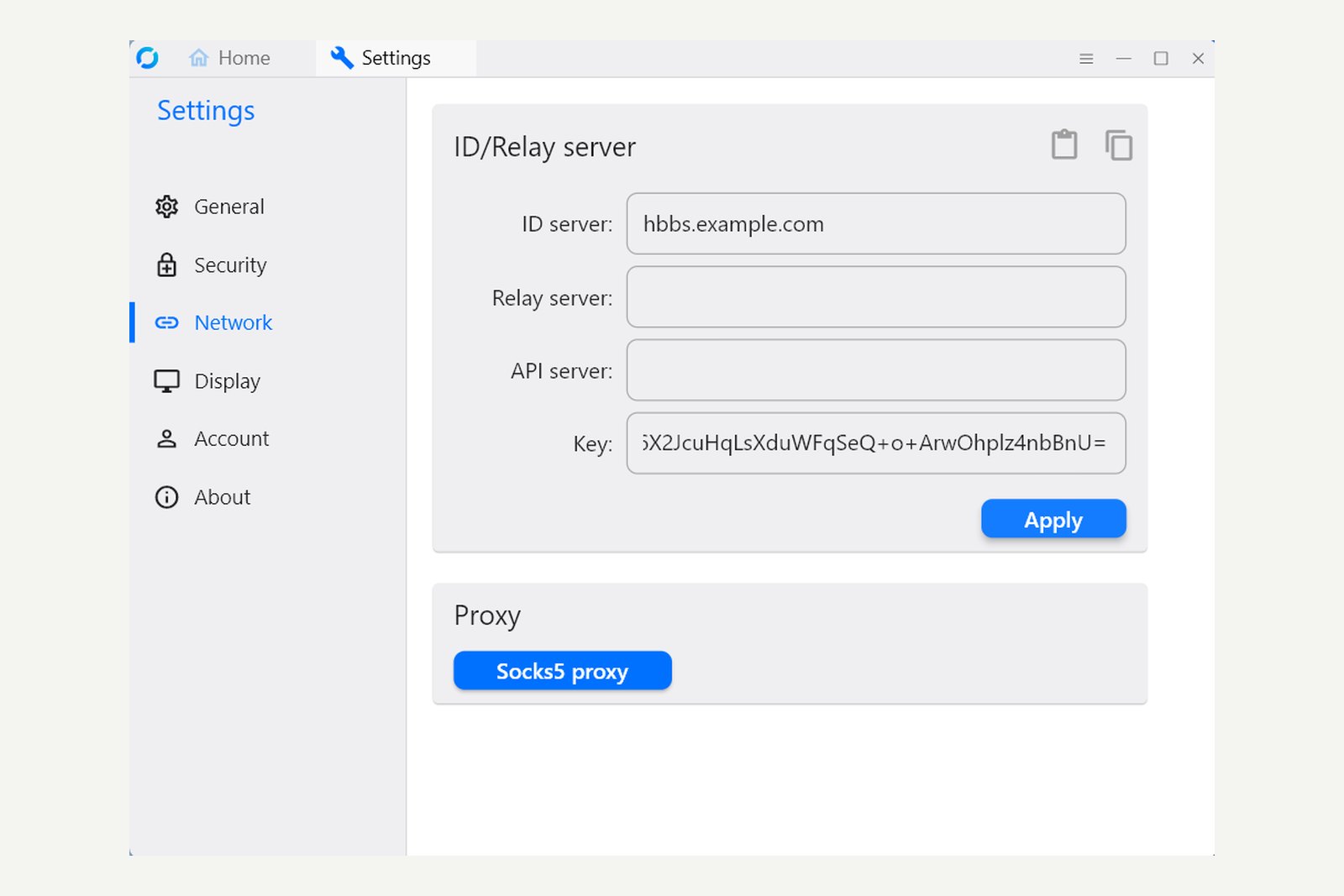
- Hosting at home — with the server behind your home router, devices inside the home may fail to reach it by your public IP or domain (a NAT loopback problem). The docs have an article on fixing this
- Going Pro — adds a web console, user and address book management, audit logs, two-factor authentication, OIDC and LDAP, and branded custom clients. Billed yearly: Individual (1 user, 20 devices) at $11.88 a month, Basic (10 users, 100 devices) at $23.88 a month
Staying safe
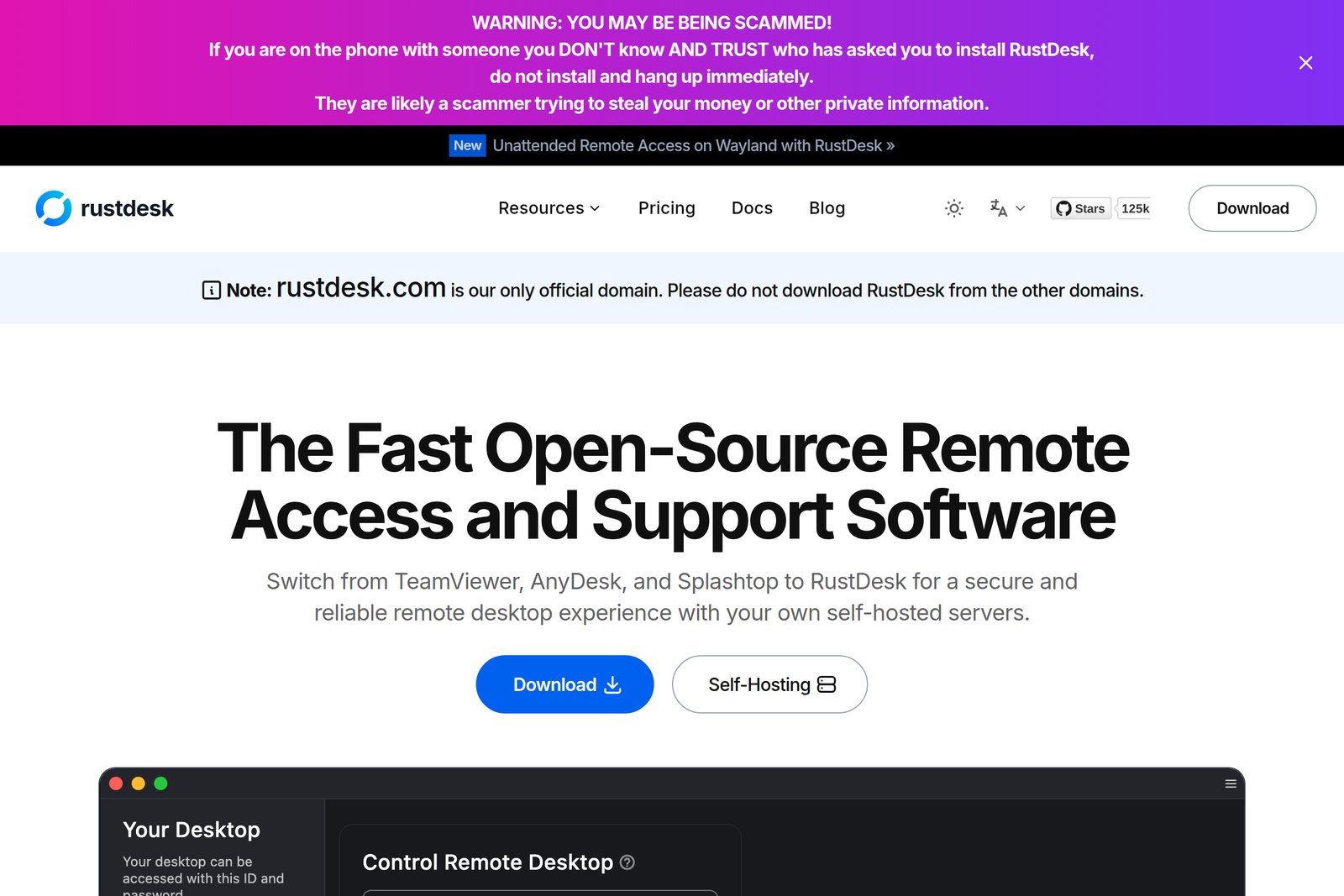
Remote desktop means handing someone your whole computer. RustDesk's site and release page carry a prominent warning: if someone you don't know asks you on the phone to install RustDesk, don't, and hang up. Tools like this are a favourite of tech-support scammers.
- Only from rustdesk.com and GitHub — RustDesk says rustdesk.com is its only official domain
- Keep your ID and password to yourself — share them only with people you trust. Make the permanent password long and unique
- Two-factor authentication and allow lists — Security settings offer 2FA and IP and ID allow lists
- Stop it when you don't need it — on a PC you don't plan to reach remotely, you can stop the service
- Keep it updated — follow the stable (Latest) release and don't linger on old versions
§ — On one page
- Remote desktop needs a path and an app that sends the screen. Tailscale is a path; RustDesk is an app that brings its own path.
- RustDesk is not required. RDP on Windows Pro or Screen Sharing on a Mac may be enough. For Windows Home, mixed OSes, Android or helping family, RustDesk is handy.
- It works straight away on the public server, but the controlling side must sign in (since April 2026), the public server is for demos and testing, and Macs and phones need permissions.
- Most sessions connect directly; the relay (hbbr) is used only when that fails. If it's slow, the other end is on an office or mobile network, or it's for work, run your own server.
- Between your own devices, Tailscale plus direct IP access needs no server at all. Never open port 21118 to the internet.
References
- RustDesk Docs — RustDesk Client
- RustDesk Docs — Mac
- RustDesk Docs — Android
- RustDesk Docs — Self-host (hbbs, hbbr and ports)
- RustDesk Docs — RustDesk Server OSS: Installation
- RustDesk Docs — RustDesk Server OSS: Docker
- RustDesk Docs — Client Configuration
- RustDesk Docs — Advanced Settings (direct IP access, allow lists)
- RustDesk Wiki — Login required for public server
- RustDesk Wiki — FAQ
- GitHub — rustdesk/rustdesk Releases
- RustDesk — Pricing
- Microsoft Support — How to use Remote Desktop
- Apple Support — Turn Mac screen sharing on or off
Screenshots marked “captured” are my own captures of the official site and the GitHub release page. The rest are images published in RustDesk's official documentation and wiki, quoted with their source (resized, padded or placed side by side only). The Mac screenshots in the official docs show an older macOS. Versions, prices and the public server's conditions are as of 1 October 2026 and may change.
Dev Guide No. 3 — A RustDesk Manual / 2026.10