Dev Guide / 2026 ・ No.02
A Tailscale Manual
From networking basics to how it works, setting it up, and using it every day
Published
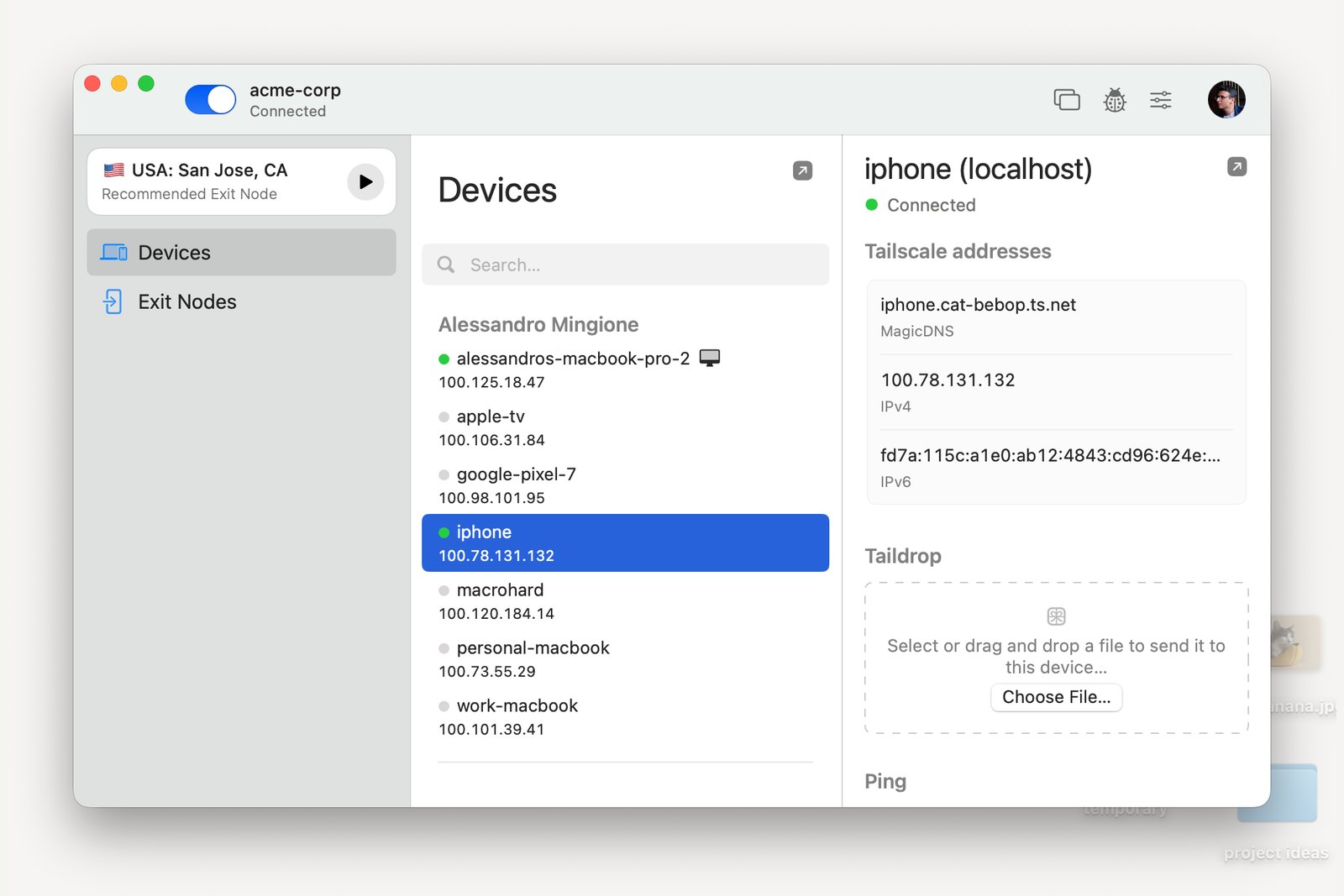
“I want to reach my home PC or NAS when I'm out.”
Tailscale is one of the simplest answers. This guide first runs through networking basics such as IP addresses and NAT,
shows in diagrams why you normally can't get into your home network from outside, and how Tailscale gets round that.
The second half walks through setup and use on Windows, Mac, iPhone and Android, screen by screen.
Basics: addresses and routes (IP, routers, ports)
Data crosses the internet in small parcels called packets. Every packet carries a destination and a sender, and the address on it is an IP address.
What a home network looks like
The numbers are examples (203.0.113.x and 198.51.100.x are reserved for documentation)
Devices at home get private IP addresses (192.168.x.x and the like) that only mean something inside the home. Facing the internet, the whole home is represented by a single public IP address held by the router. From outside you can see the street address, but not which room, or device, is behind it.
- Router — the box on the border between your home network (LAN) and the internet (WAN). Everything going out passes through it
- Port numbers — the room number inside one device, saying which app a packet is for. The web uses 443, Remote Desktop uses 3389, and so on
- DNS — the phone book that turns a name like example.com into an IP address. People remember names; machines connect by number
Basics: why you can't get in from outside (NAT)
A home has one public IP address, yet several devices can use the internet at once. That works because the router performs NAT, network address translation.
The NAT table: only outgoing traffic opens a path
Real routers rewrite IP address and port together (sometimes called NAPT)
When a device inside sends something out, the router rewrites the sender as itself and writes the mapping in a table, so replies find their way back to the right device. Traffic that arrives out of the blue has no row in the table, so the router doesn't know who it's for and drops it. That is why you can't reach your home PC from outside, and it is also a wall that protects you.
The usual ways of getting through that wall have been:
- Port forwarding — adding a row to the router's table by hand: “anything for this port goes to that device.” But the hole is open to the whole world, and it attracts attacks
- Often you can't — mobile networks and some broadband lines add a second layer of NAT at the provider (CGNAT). Some IPv6-based ISP setups common in Japan (IPv4 over IPv6) limit the ports you can use or rule out port forwarding entirely
- Running your own VPN server — secure, but it still needs port forwarding and a fair amount of setup
VPNs, and Tailscale's idea
A VPN (virtual private network) builds an encrypted tunnel across the internet so that faraway devices can talk as if they were in the same house. Many people know it from work.
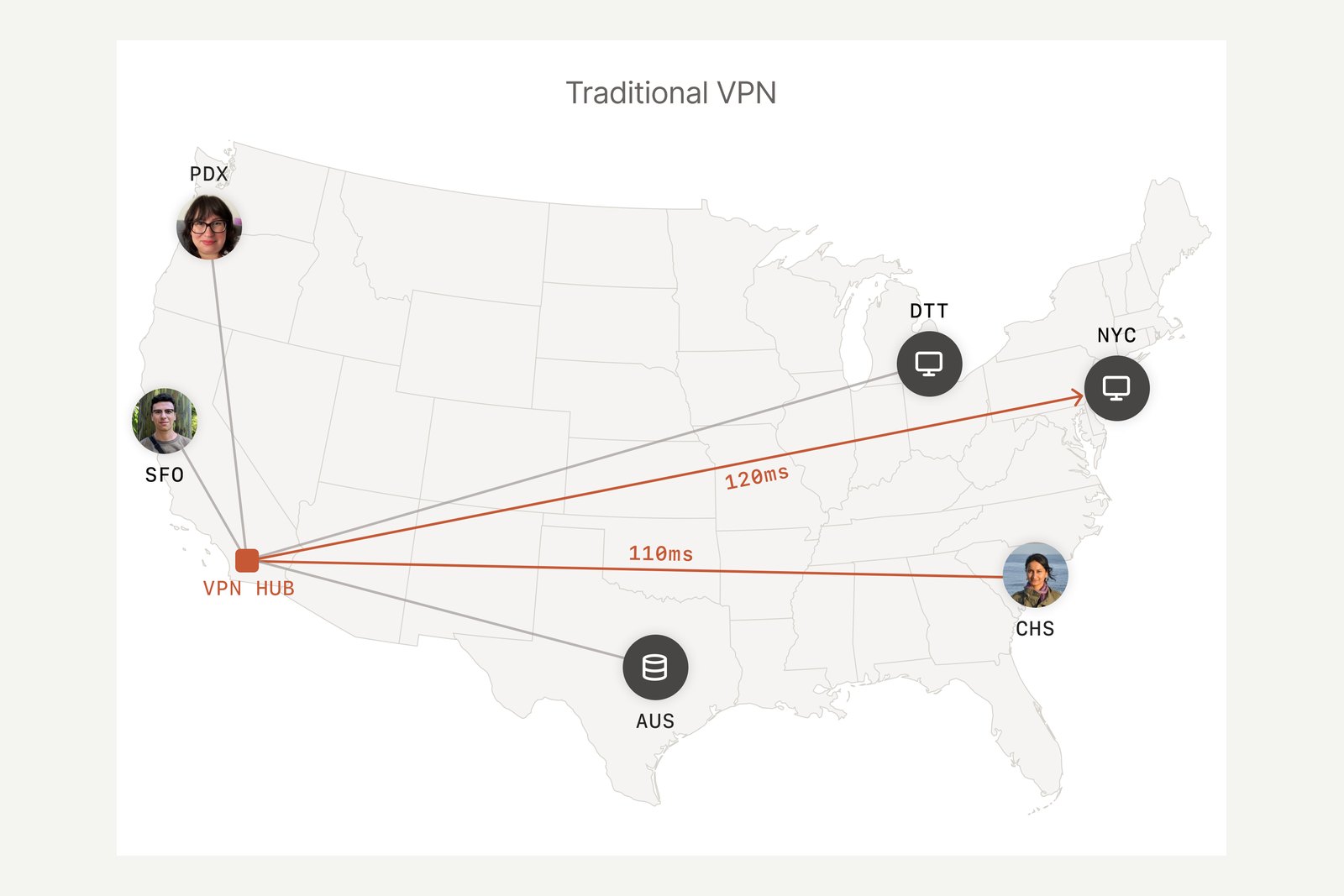
A traditional VPN has everyone connect to a central VPN server, the hub. Even if the other device is next door, the traffic goes to the hub and back. When the hub is busy everyone slows down; when it stops, everyone stops.
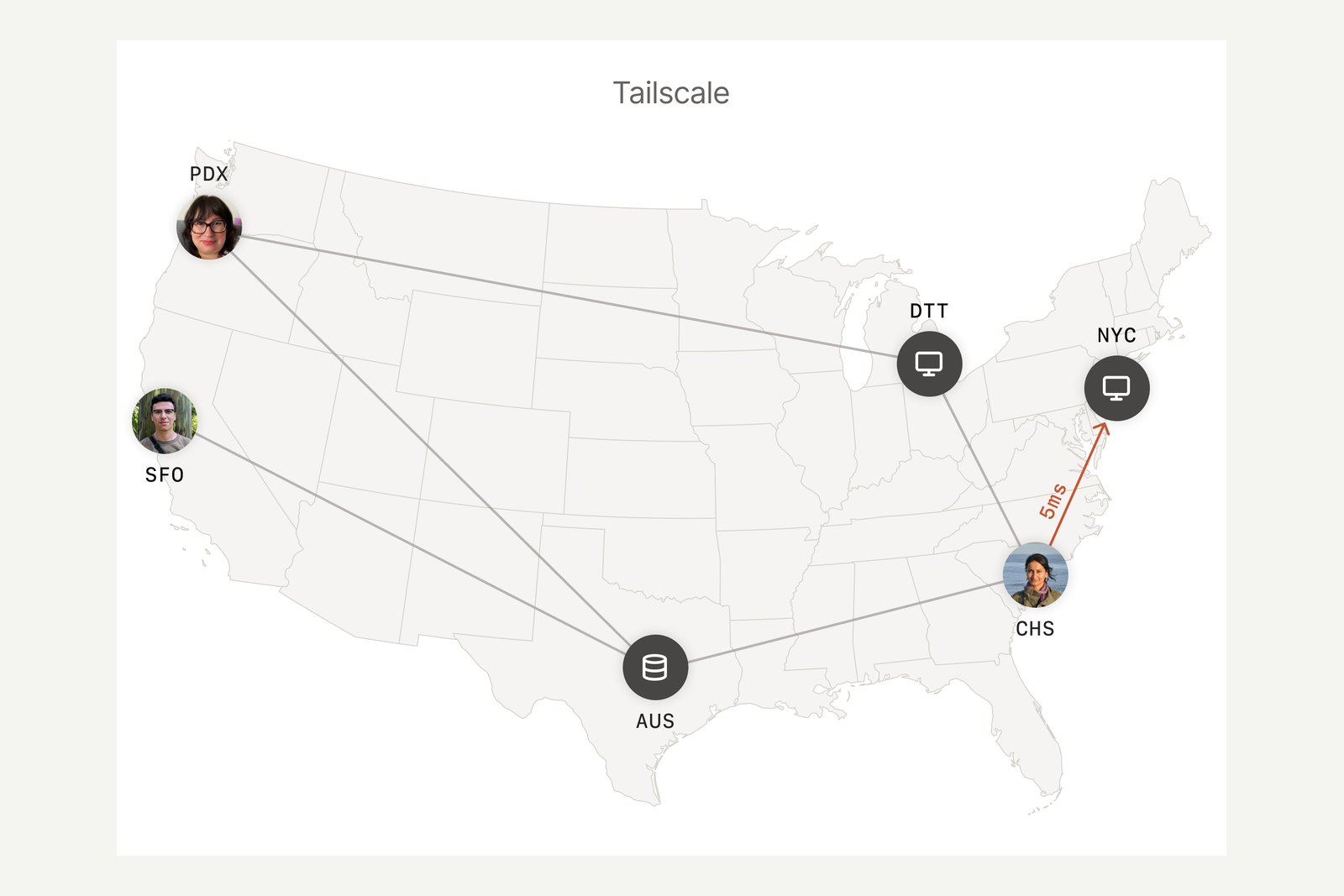
Tailscale is a mesh VPN that connects devices directly to each other. Encryption is handled by the proven WireGuard protocol, and Tailscale's servers do only the fiddly work of figuring out how to connect. No port forwarding is needed: sign in, and your devices gather on one network, which Tailscale calls a tailnet.
How Tailscale works
The key idea is that Tailscale separates deciding how to connect from carrying the data. Tailscale's servers do the first; your devices do the second.
Control (dotted) and data (red) travel separately
The 100.x addresses are examples; each device is assigned its own automatically
- The coordination server — the tailnet's registrar. It tracks which devices belong, their public keys and how to reach them, and hands that out. Your data never passes through it, and if it goes down briefly, devices that are already connected keep talking
- WireGuard keys — each device makes its own key pair and the private key never leaves the device. Only public keys go to the server, so Tailscale itself can't read your traffic
- 100.x.y.z addresses — each device gets a stable address from the 100.64.0.0/10 range. It stays the same when you switch from Wi-Fi to mobile data
- MagicDNS — lets you connect with just a device name such as my-nas. It is on by default for new tailnets
Getting through NAT to a direct connection
As chapter 2 showed, incoming traffic is normally dropped by NAT. Tailscale has both sides send outgoing packets to each other at the same moment, so each router creates a table entry, and a direct path opens up. This is NAT traversal, or hole punching.
From sign-in to a connection
Where direct connections are impossible, you can also set up Peer Relays, which use another device on your tailnet as the relay
On strict networks where hole punching fails, such as corporate firewalls and some mobile networks, Tailscale's DERP relay servers around the world, including Tokyo, carry the packets still encrypted. A relay can't read them either, but it is slower than a direct link.
What it's good for
The basic promise is: your own devices, safely connected, wherever they are. Common uses:
| You want to… | With Tailscale |
|---|---|
| Use your home or office PC remotely | Point Remote Desktop at its Tailscale address or name. No port forwarding |
| See photos and videos on your NAS | Reach the NAS admin page or media server straight from your phone |
| Reach a development server | SSH into a server at home or on a VPS; share a test machine without exposing it |
| Move files between your devices | Taildrop sends files directly between Mac, Windows, iPhone and Android |
| Use café Wi-Fi safely | Make your home PC an exit node and send all your traffic via home |
| Share a little with family or friends | Share selected devices into their tailnet |
It is not really meant for publishing a website to the public (though a feature called Funnel can do that). And before installing it on a work computer, check your company's policy and get IT's approval.
Before you start (price, account, downloads)
The Personal plan is free, with up to six users and unlimited user devices (as of October 2026). For yourself, family or a small group, that is plenty.
- Account — Tailscale has no passwords of its own. You sign in with a Google, Microsoft, GitHub or Apple account (or OIDC). Remember which one you used; it matters later
- Use the same account everywhere — sign in to all your devices with the same account. A different account means a different tailnet
- Two devices or more — you need something to connect to. This guide uses a Windows PC at home plus a Mac and a phone
Official download links are below. The current version at the time of writing was 1.102.4.
| Device | Get it from | Requires |
|---|---|---|
| Windows | tailscale.com/download/windows | Windows 10 or later |
| Mac | tailscale.com/download/mac (recommended) Mac App Store version | macOS 12 Monterey or later |
| iPhone, iPad | App Store | iOS 15 or later |
| Android | Google Play | Android 8.0 or later |
| All platforms | tailscale.com/download | Linux and others too |
Step 1: create an account (your tailnet is born)
Your account is created automatically the first time you sign in from the app. You can also create it in a browser first (login.tailscale.com/start).
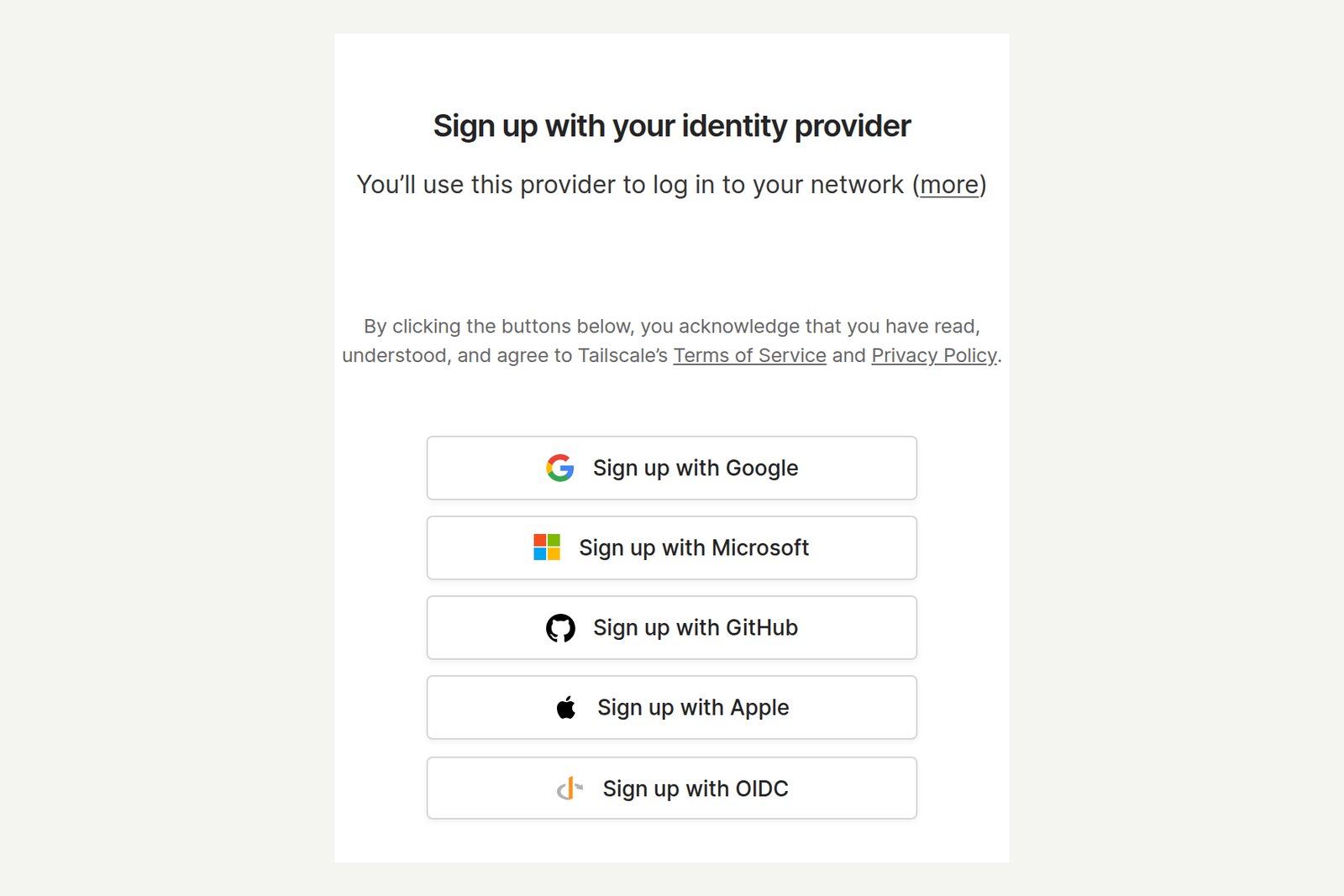
| Step | What to do |
|---|---|
| 01 | On the sign-up page, click the account you want to use (for example Sign up with Google) |
| 02 | Sign in on Google's (or the other provider's) page. Two-step verification is a good idea |
| 03 | On “Welcome to Tailscale!”, choose Personal use, then Next |
| 04 | On “Let's add your first device”, pick your device's OS and install the app as described in the next chapters |
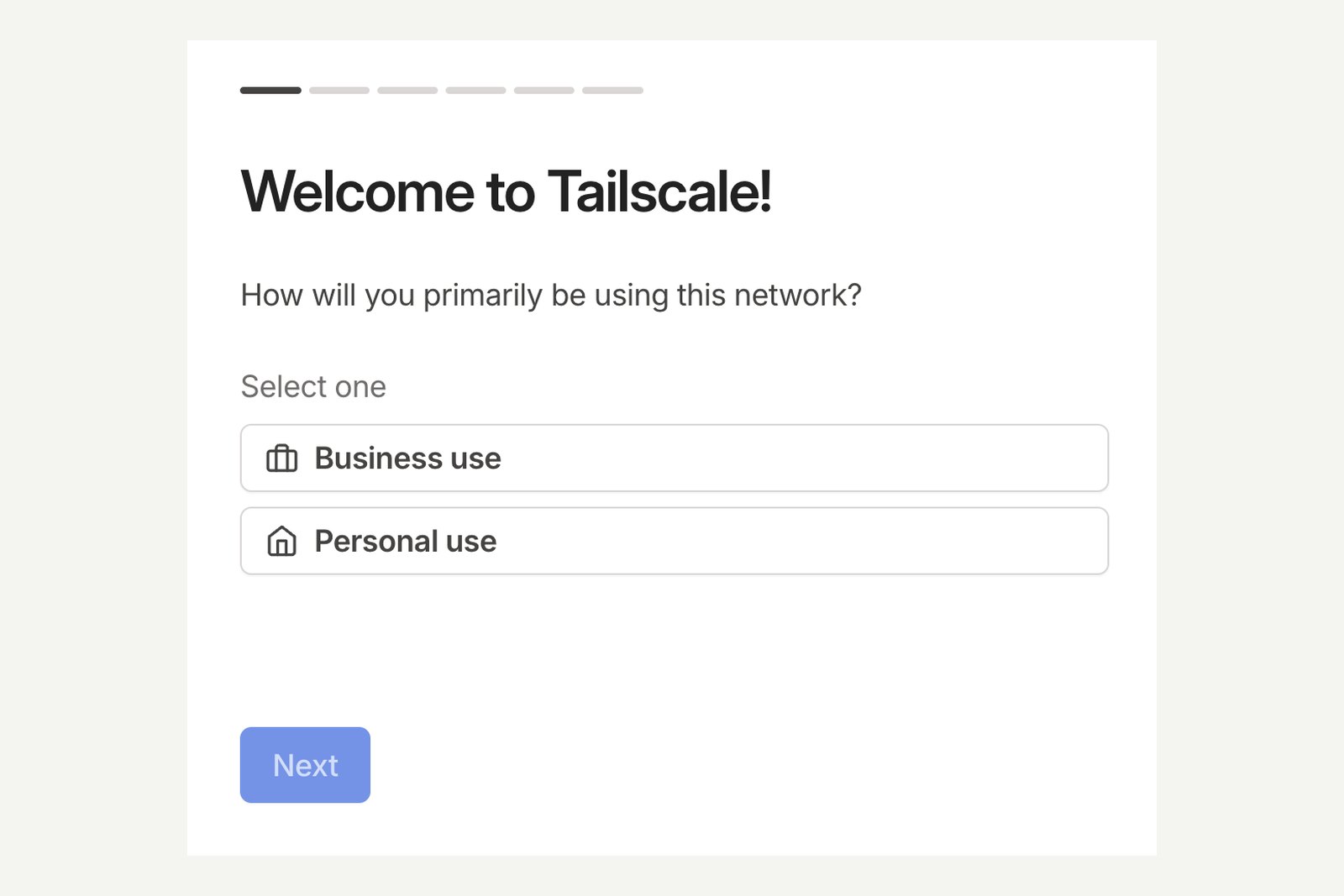
Signing up with an email address on a company domain starts a 14-day trial of the Enterprise plan. To try it for yourself, use a personal account such as Gmail.
Step 2: install on Windows
Start with the machine you'll connect to: the Windows PC at home.
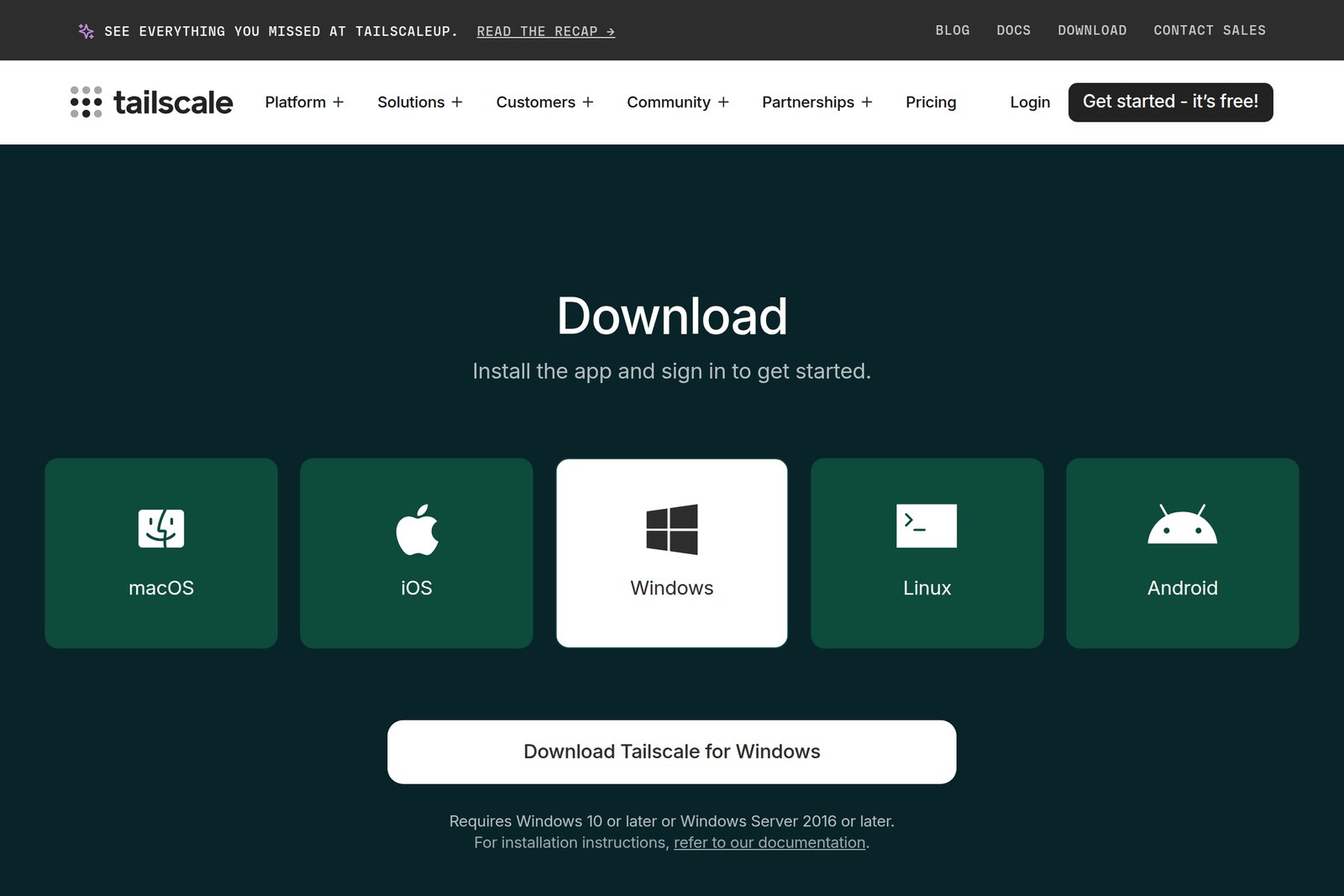
| Step | What to do |
|---|---|
| 01 | Open tailscale.com/download/windows and click Download Tailscale for Windows |
| 02 | Run the downloaded tailscale-setup-…exe. The same file works on 32-bit and 64-bit Windows |
| 03 | When it finishes, the Tailscale icon (a grid of nine dots) appears in the notification area at the bottom right. If not, look under the “^” |
| 04 | Right-click the icon and choose Log in. A browser opens; sign in with the same account as in step 1 |
| 05 | When the browser says you're signed in and the menu shows Connected and an address starting 100, the PC has joined |
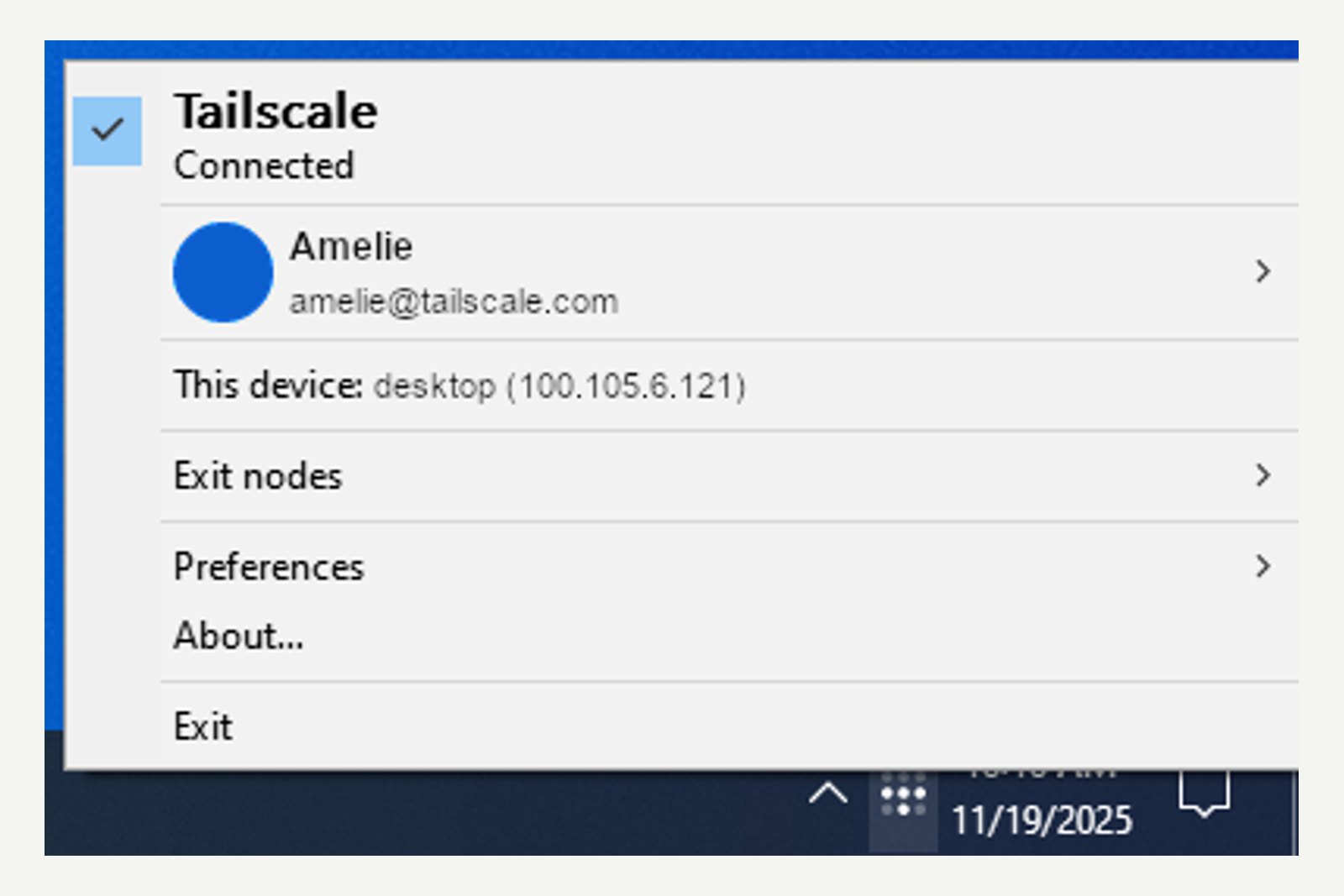
To make this PC reachable from outside at any time, turn on Preferences → Run unattended. Tailscale then keeps running even when nobody is signed in to Windows, for example just after a restart.
Step 3: install on a Mac
There are three ways to get Tailscale for Mac. Tailscale recommends the standalone version from its own site: updates arrive without waiting for App Store review, and nothing is restricted. If you'd rather keep it simple, the Mac App Store version is fine too.
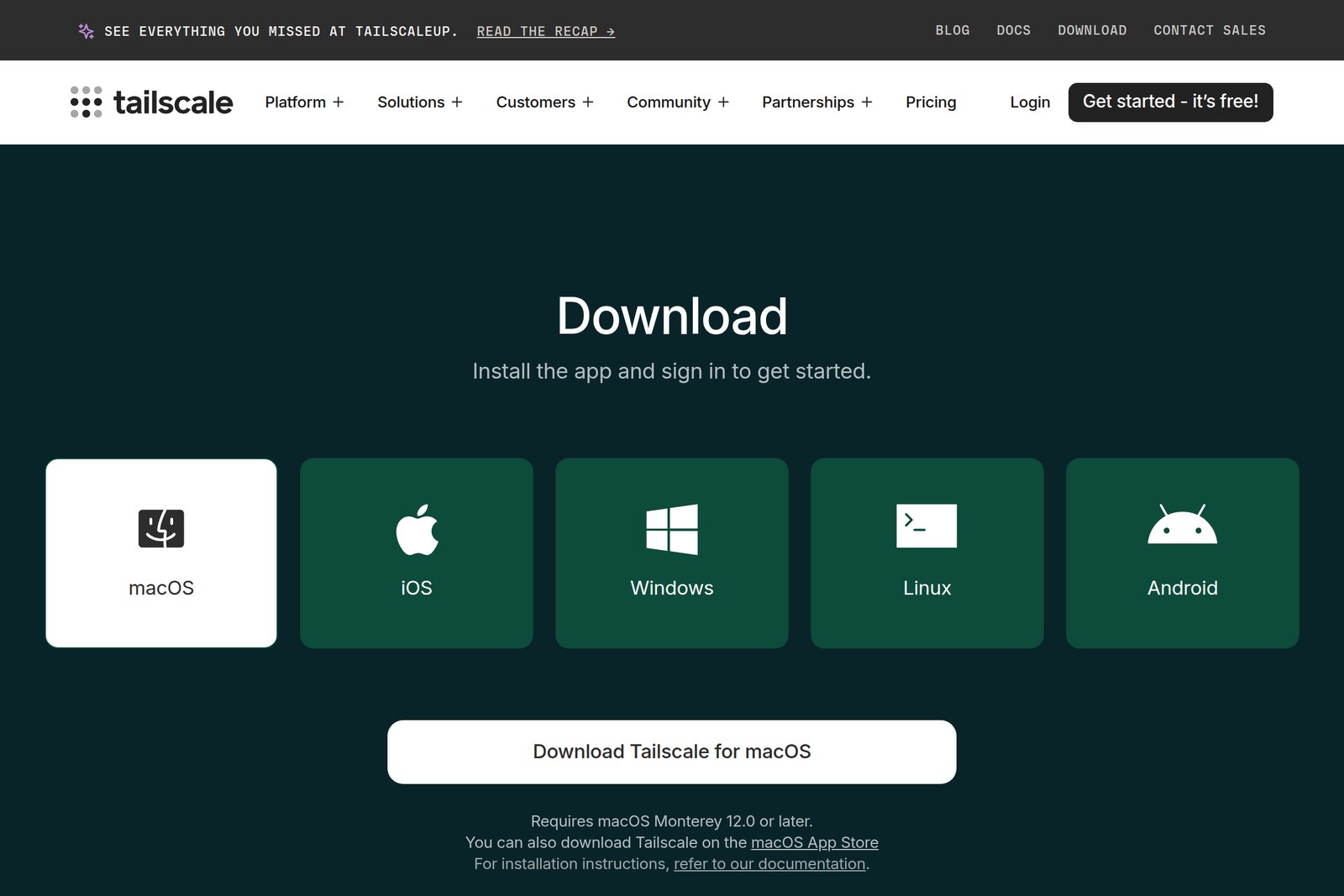
| Step | What to do |
|---|---|
| 01 | At tailscale.com/download/mac, click Download Tailscale for macOS, then open the .pkg to install |
| 02 | Launch the app and follow the onboarding. When “System Extension Approval Required” appears, click Open Settings |
| 03 | macOS 15 Sequoia or later: in System Settings → General → Login Items & Extensions, click ⓘ next to Network Extensions, switch Tailscale on and click Done macOS 14 or earlier: in System Settings → Privacy & Security, click Allow next to Tailscale's system software |
| 04 | Confirm with Touch ID or your admin password. When asked to add a VPN configuration, click Allow |
| 05 | Click Log in and sign in in the browser with the same account as in step 1 |
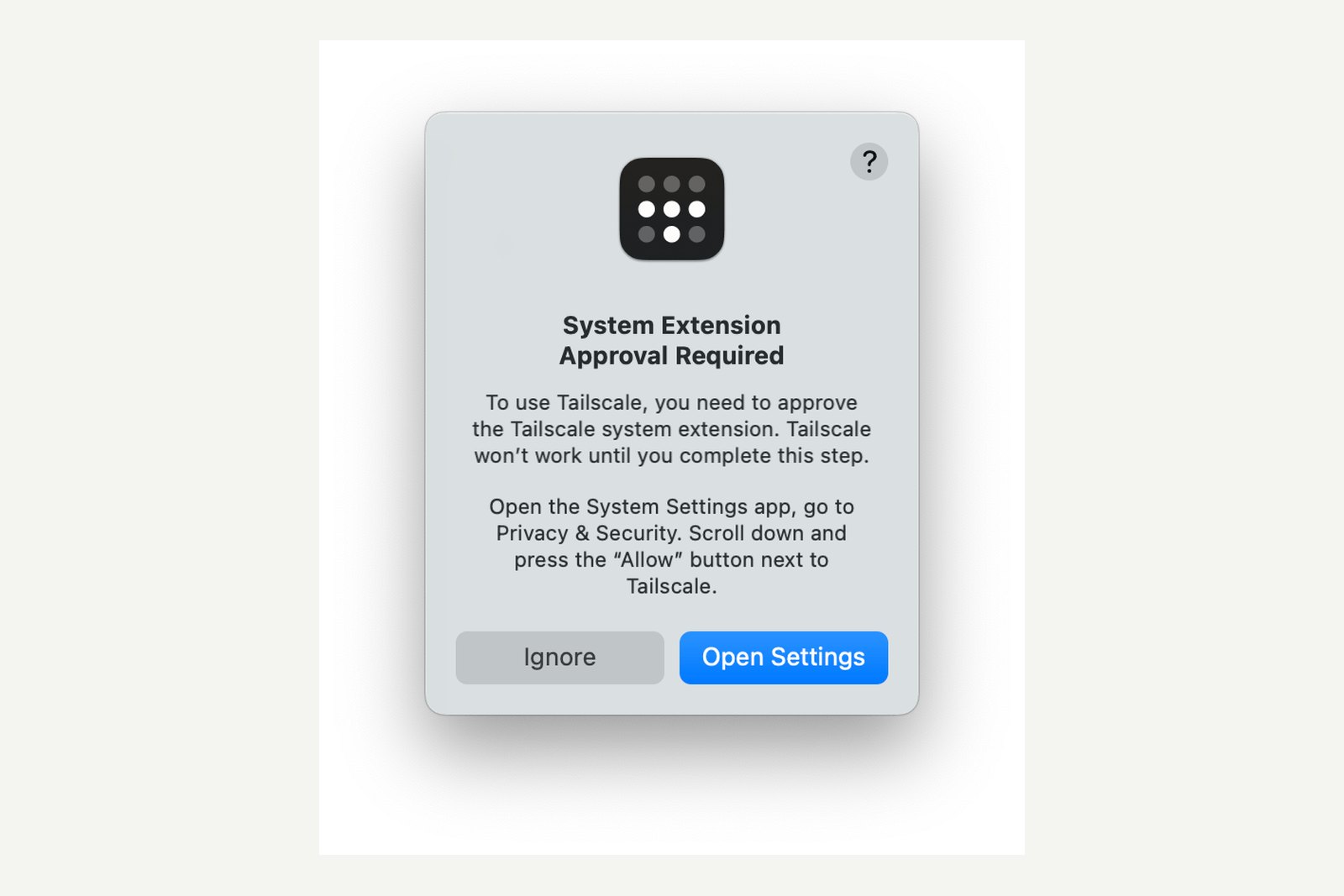
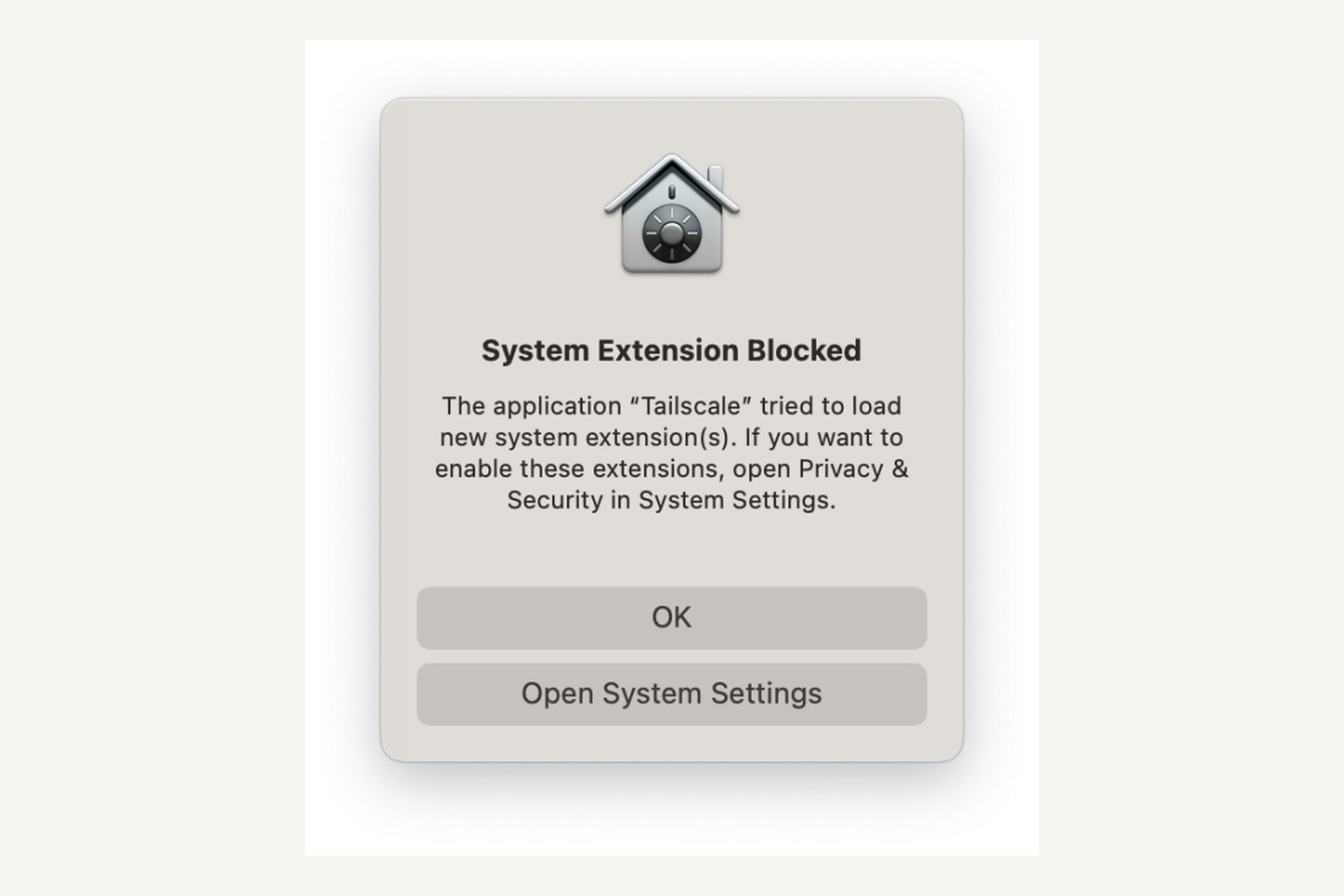
Once signed in, the menu bar icon lets you connect, disconnect and see your devices. Since March 2026 the windowed interface shown at the top of this article has been generally available too, which helps when the menu bar icon is hidden behind a MacBook's notch.
With the App Store version, steps 02–03 are replaced by simply allowing the VPN configuration. Tailscale notes that the App Store version can clash with Screen Time's web content filter.
Step 4: install on iPhone and Android
| Step | What to do |
|---|---|
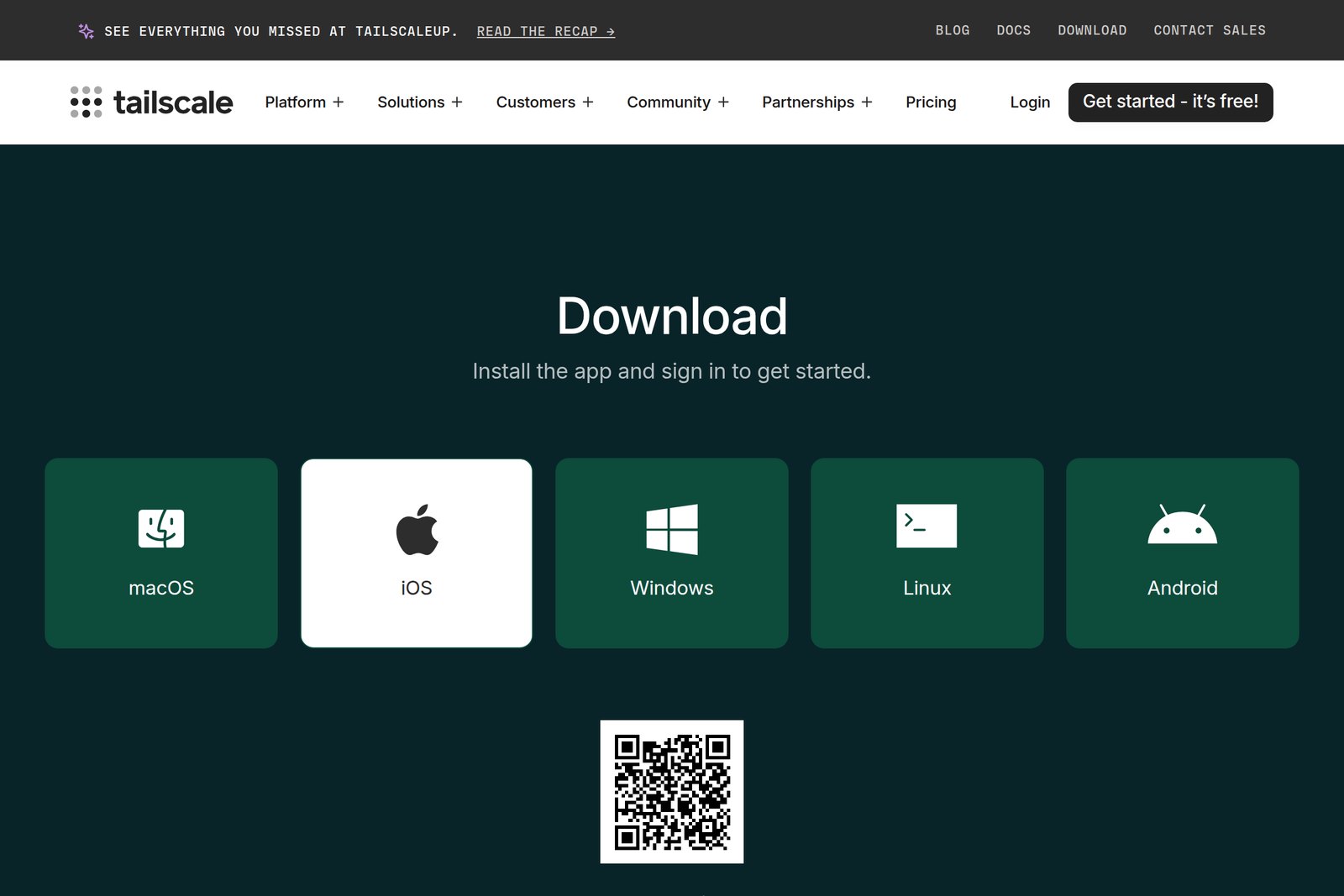
| 01 | Install “Tailscale” from the App Store (iPhone) or Google Play (Android), or scan the QR code on the download page |
| 02 | Open the app and tap Get Started |
| 03 | Allow the VPN configuration (on iPhone, confirm with your passcode or Face ID). Allow notifications too: they warn you when a key is about to expire |
| 04 | Tap Log in (on Android, Sign in with Google or Sign in with other) and sign in with the same account as in step 1 |
| 05 | When the switch at the top is on and says Connected, you're done. Your home PC and other devices appear below |
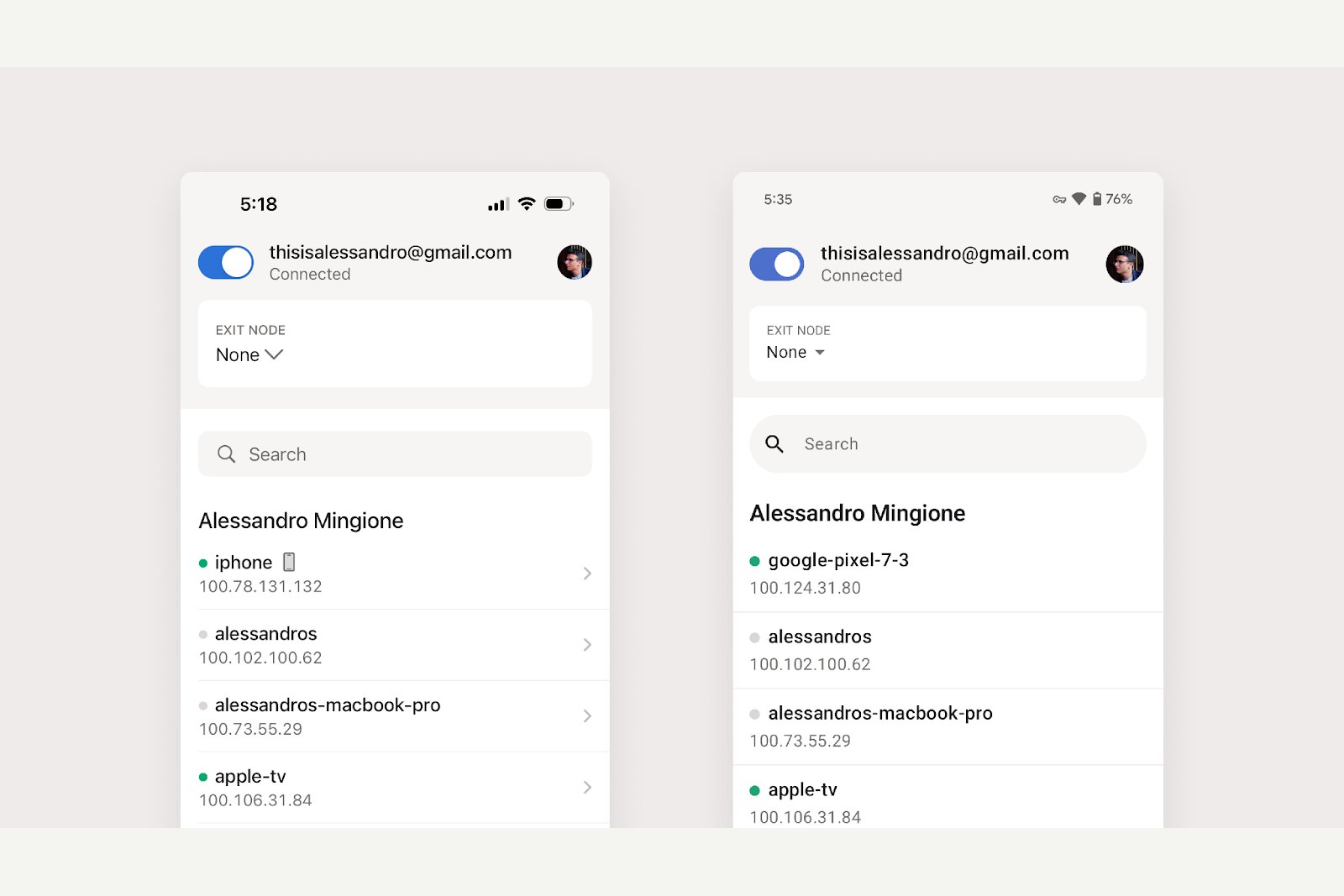
A phone can use only one VPN at a time. Turning on another VPN app, such as a work VPN or an ad blocker, disconnects Tailscale.
Step 5: check the admin console
Open the admin console in a browser (Machines in the admin console) to see every device on your tailnet. This is where all the settings live.
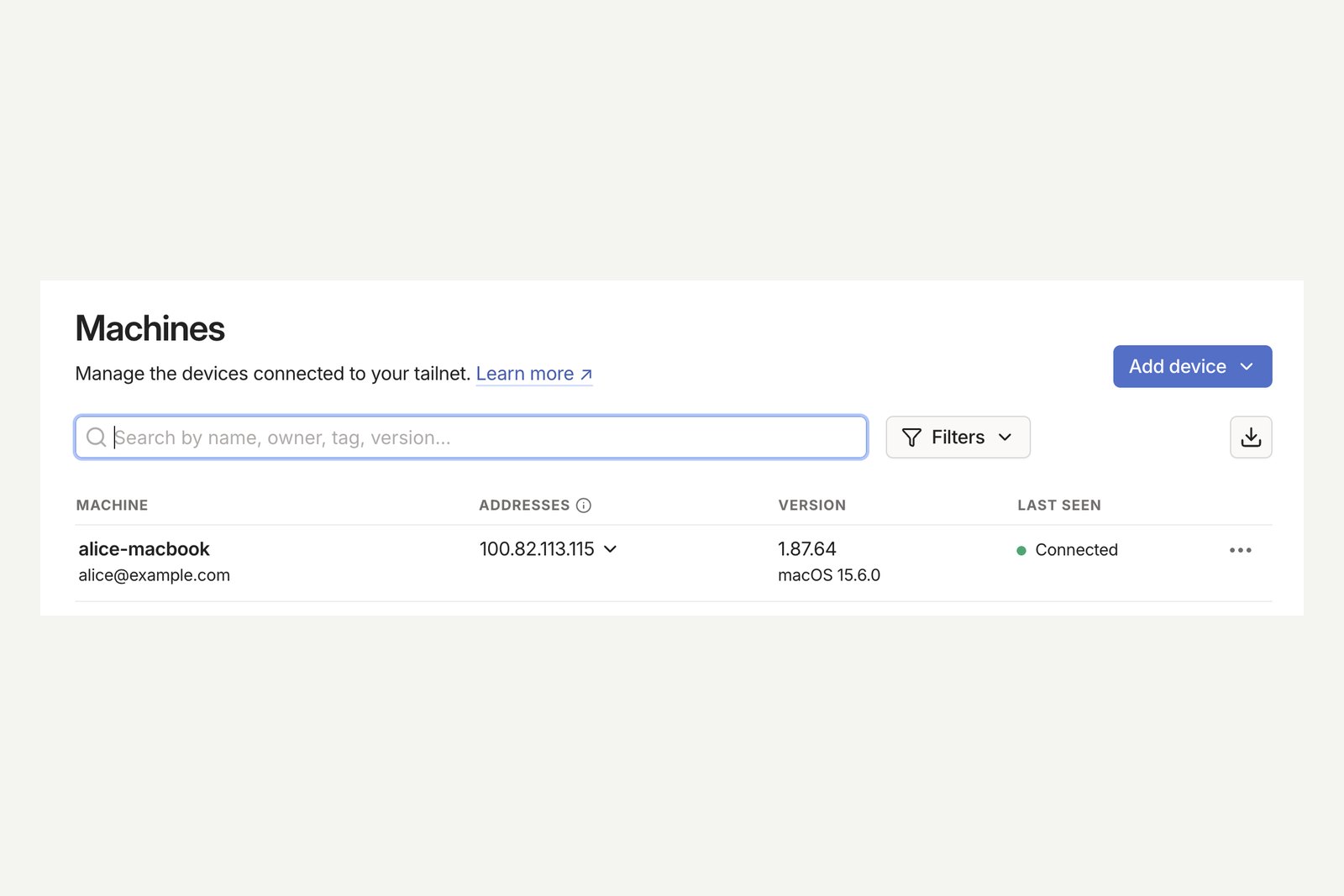
- ADDRESSES — each device's 100.x address. The “∨” next to it lets you copy it along with the MagicDNS name
- LAST SEEN — a green Connected means online; otherwise it shows when the device was last seen
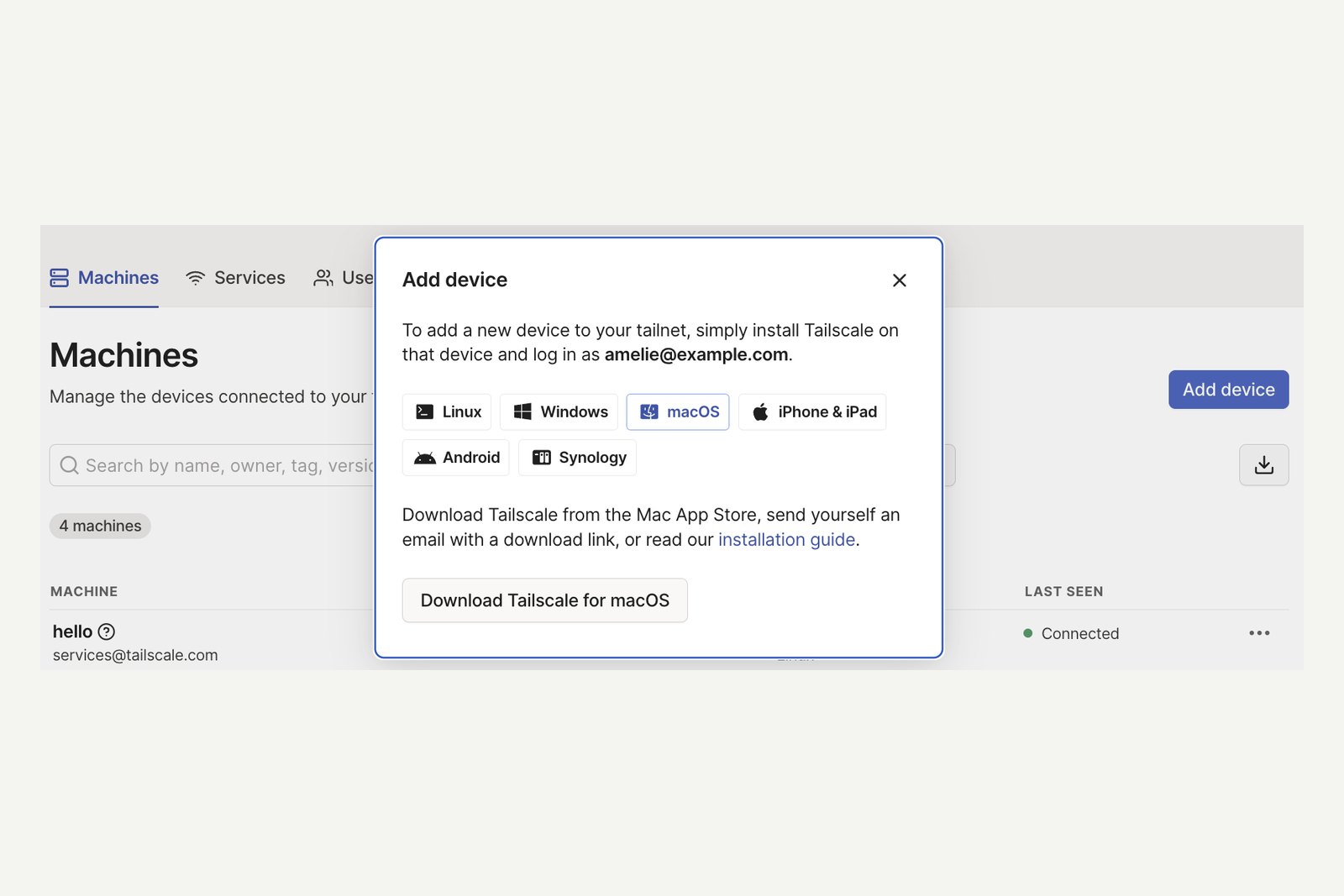
- Add device — tells you where to download Tailscale for each OS
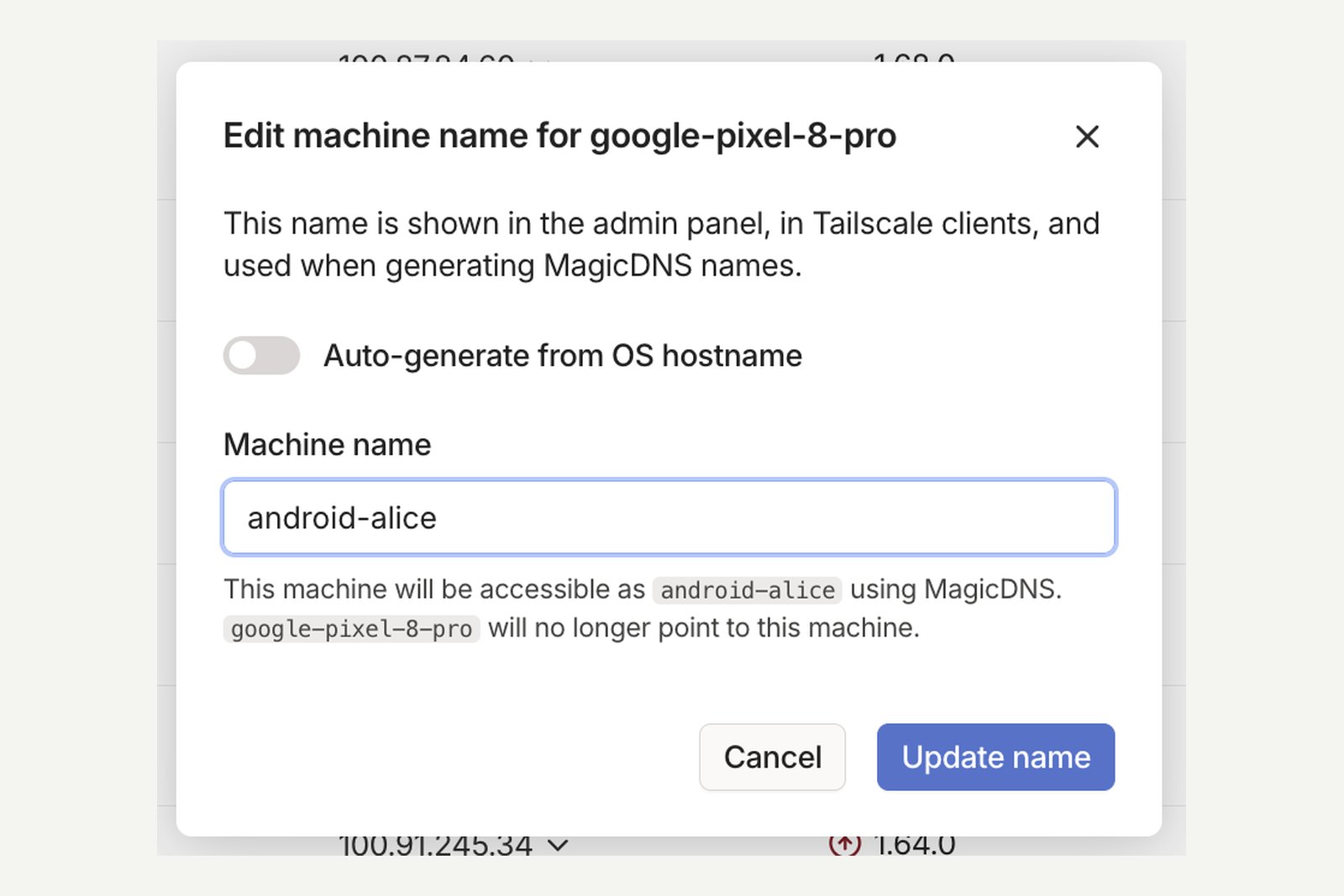
Give devices sensible names
Names are generated from each device's hostname (“desktop-7k2…” and so on). Rename them via … at the end of the row → Edit machine name, and connecting by name later becomes much easier.
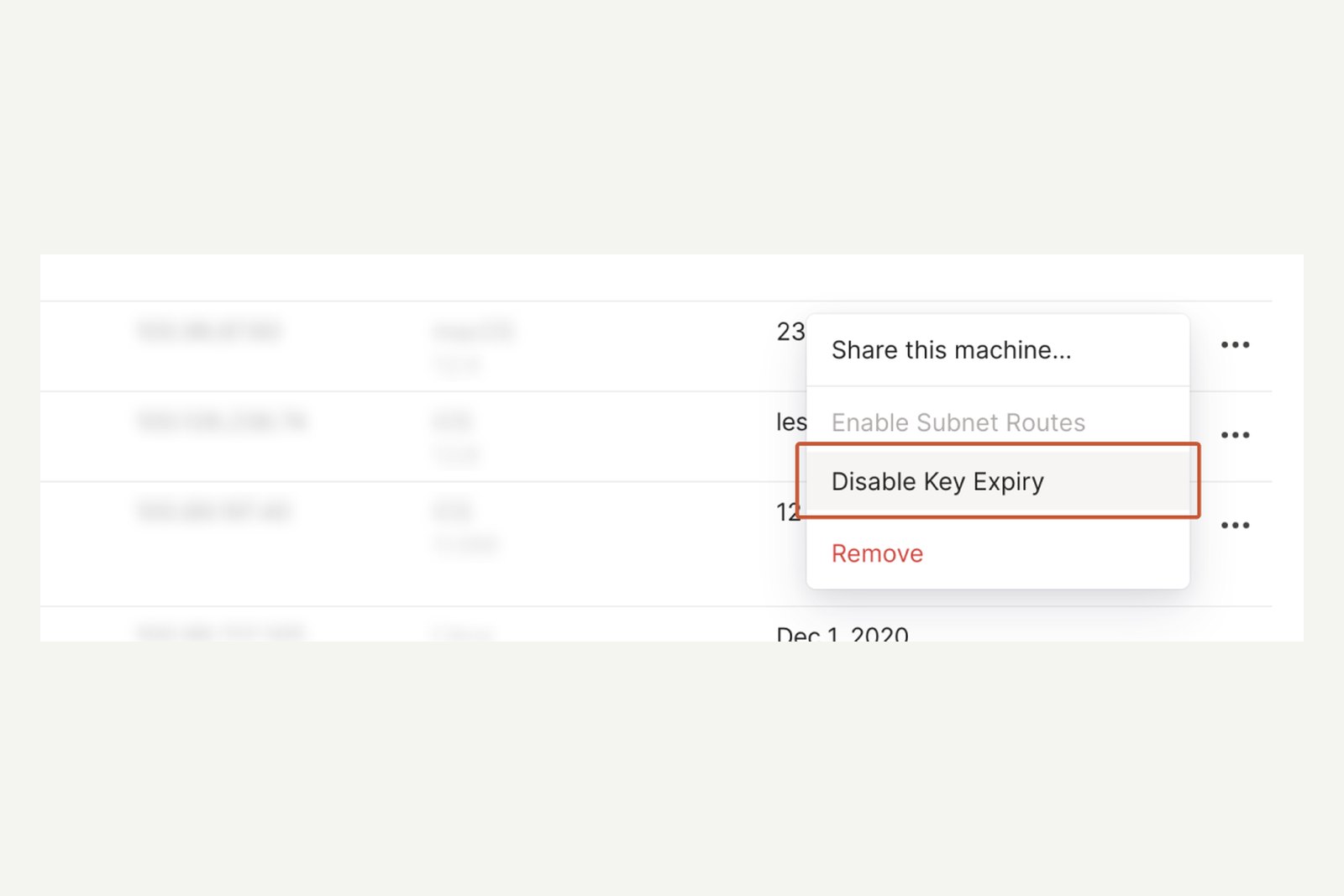
Turn off key expiry on always-on devices
For security, each device's key expires (after 180 days on new tailnets) and you have to sign in again. If the home PC you use remotely expires, you're locked out until you get home. For machines like that, use … → Disable key expiry.
Putting it to use
1. Check that it works
On Windows, in Command Prompt or PowerShell; on a Mac, in Terminal after installing the CLI from the app's settings:
# List devices on the tailnet (address, name, OS, status)
tailscale status

# Can I reach it over Tailscale, and is it direct or relayed?
tailscale ping my-nas
pong from my-nas (100.88.4.5) via 203.0.113.9:41641 in 9ms   ← direct
pong from my-nas (100.88.4.5) via DERP(tok) in 38ms         ← relayed
Example output. Even if it stays “via DERP” you can still communicate, and after a few tries it often switches to direct.
2. Connect by name (MagicDNS)
In a browser or app you can type the device name instead of an IP address. For a NAS admin page, something like http://my-nas:5000 in the address bar is all it takes.
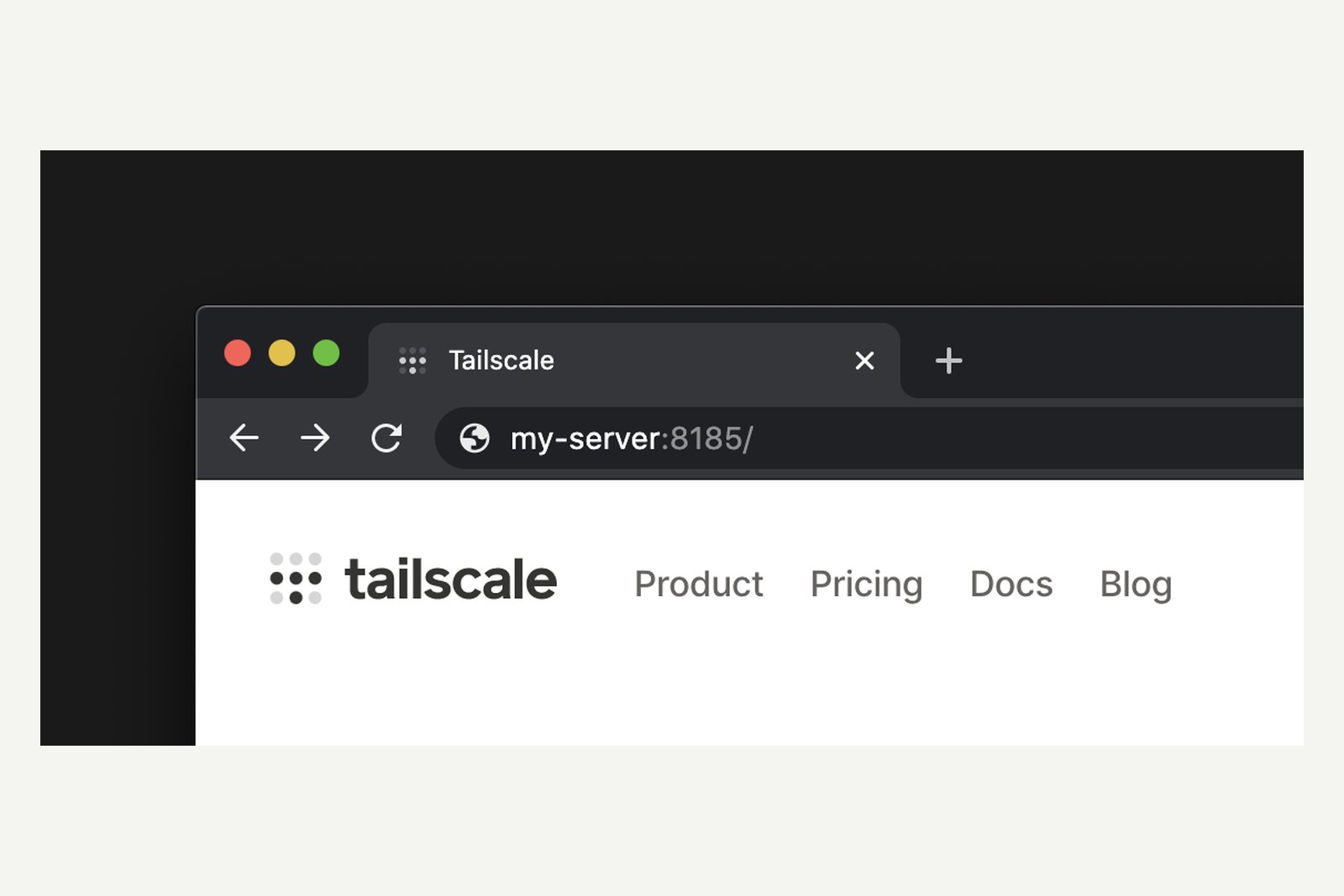
3. Use your home Windows PC remotely (Remote Desktop)
| Step | What to do |
|---|---|
| 01 | On the home PC, turn on Settings → System → Remote Desktop (needs Windows 11 Pro or another Pro-or-higher edition; Home can't accept connections) |
| 02 | On that PC, also turn on Run unattended (chapter 8) and disable key expiry (chapter 11) |
| 03 | On the device you connect from, install Microsoft's Windows App (Mac, iPhone, Android). On Windows, use the built-in Remote Desktop Connection |
| 04 | Enter the home PC's 100.x.y.z address or device name as the PC name, and sign in with your Windows username and password |
No port forwarding at all. Remote Desktop's port 3389 is never opened to the internet.
4. Send files between your devices (Taildrop)
Taildrop is still an alpha feature, so first turn on Send Files under Settings → General in the admin console. On a Mac, also enable Tailscale under System Settings → General → Login Items & Extensions → Sharing.
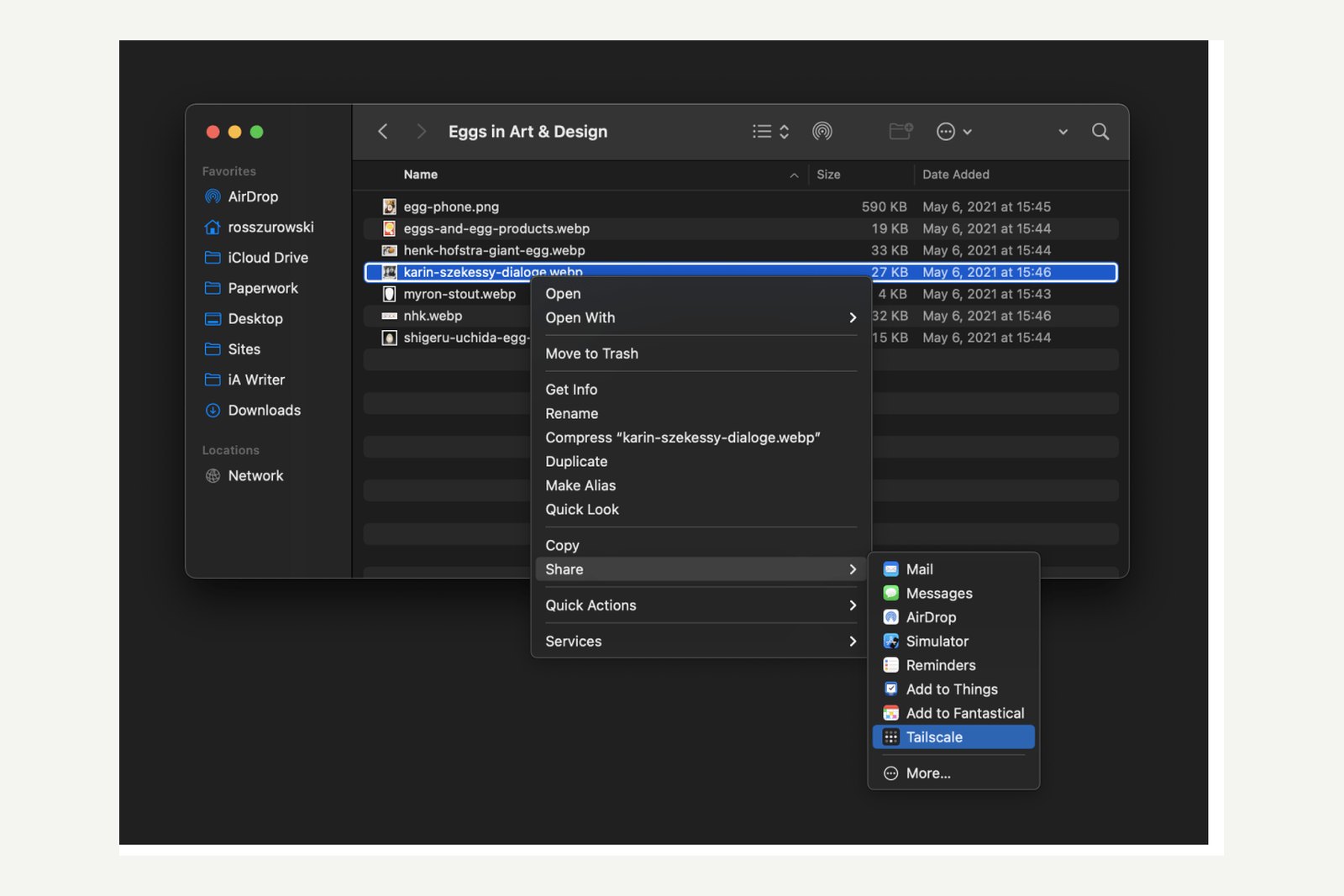
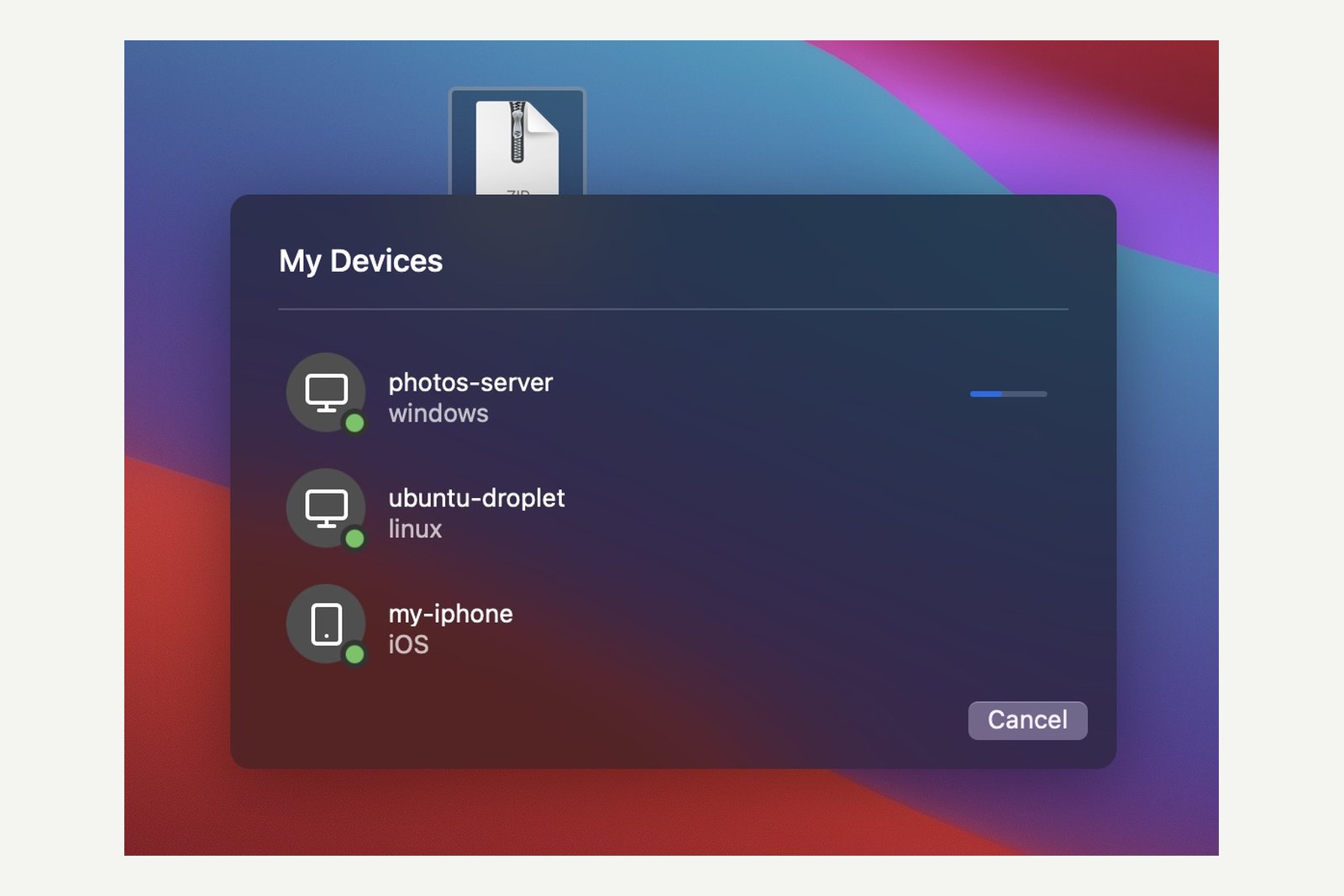
- Sending — Mac: right-click in the Finder → Share → Tailscale / Windows: right-click → Send with Tailscale / iPhone and Android: the Share button → Tailscale
- Receiving — on Mac and Windows, files go to Downloads; on iPhone and Android, open them from the notification
- Limit — only between your own devices (not to other people's, even on the same tailnet)
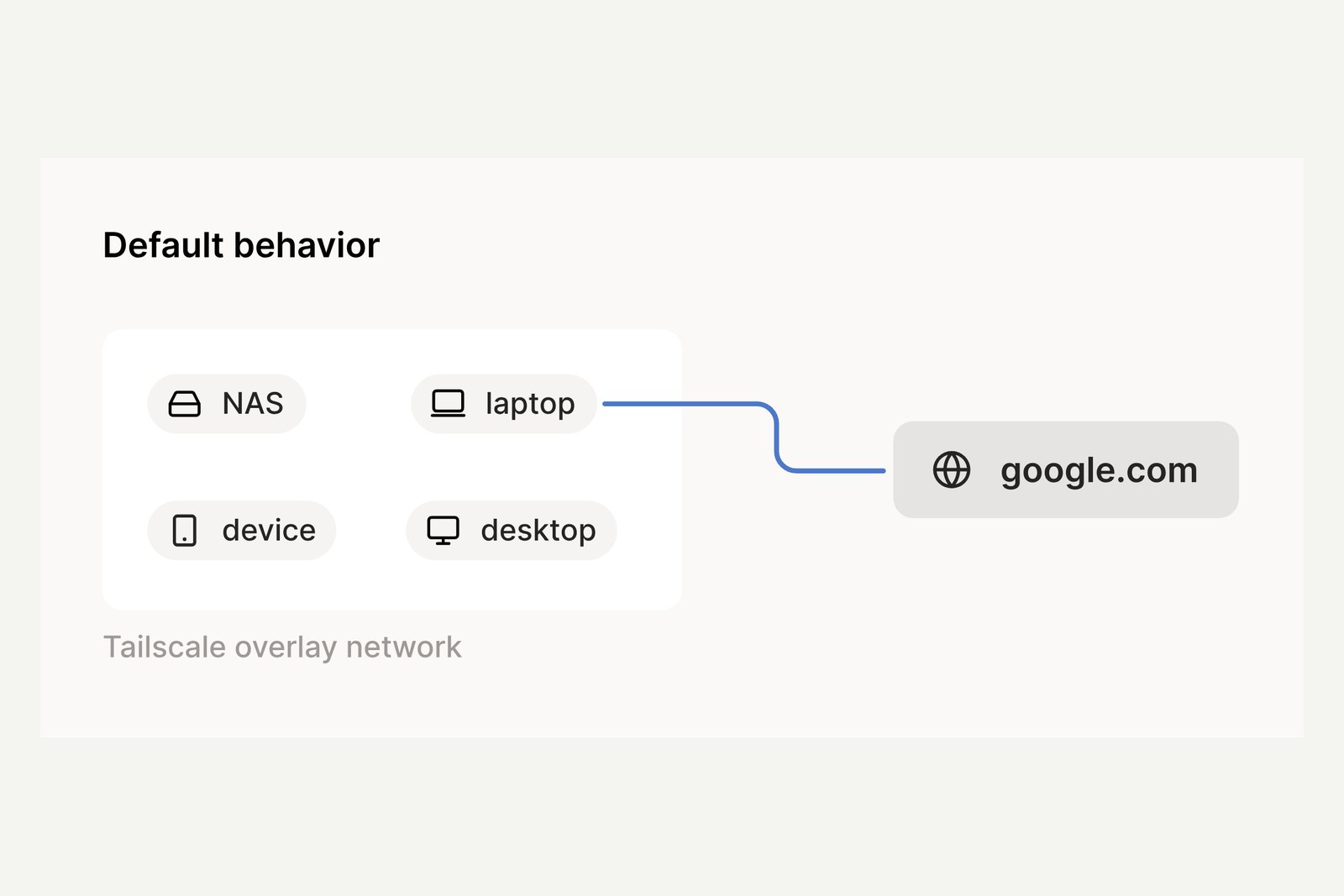
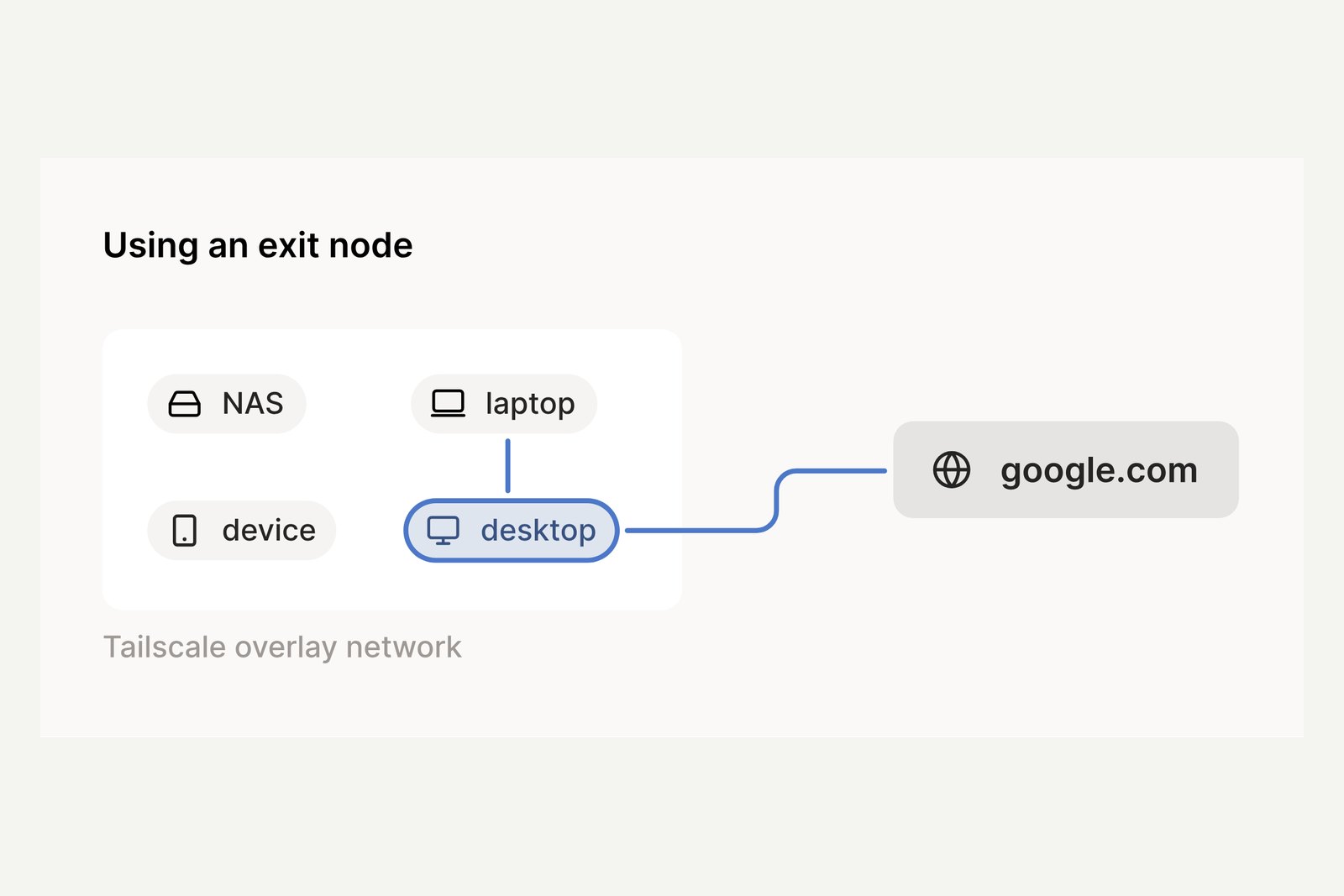
5. Route your traffic through home when you're out (exit node)
| Step | What to do |
|---|---|
| 01 | Offer the home PC as an exit node. Windows: icon → Exit node → Run exit node / Mac: Exit Node → Run Exit Node |
| 02 | In Machines in the admin console, open that device's … → Edit route settings and turn on Use as exit node (an admin has to approve it, for safety) |
| 03 | On the device you have with you, choose the exit node: the Exit Node field at the top of the app on iPhone and Android, or Exit nodes in the menu on Mac and Windows |
| 04 | To stop, set the exit node back to None |
While using an exit node, your home connection's speed is the ceiling. To keep using local devices where you are, such as a printer, turn on Allow local network access.
Troubleshooting and staying safe
| Symptom | Check |
|---|---|
| The other device isn't listed | Is it signed in with the same account? A different account means a different tailnet |
| Listed, but won't connect | Is it online (LAST SEEN in the console)? Is the PC asleep? Check its firewall and whether the app is listening |
| Slow | If tailscale ping says “via DERP”, you're relayed. Common on corporate networks that block UDP |
| Suddenly stopped working | The key has expired. Sign in again on that device, and disable expiry on always-on machines |
| Drops on the phone | Is another VPN app switched on? |
| Names don't work | Try the 100.x.y.z address. If that works, it's a MagicDNS setting; if not, it's the connection itself |
Tailscale is only as safe as the account you sign in with, so turn on two-step verification for it. Also, a personal tailnet starts out with every device allowed to reach every other. Before inviting family or friends, use access controls (ACLs or grants) to limit what they can reach.
- Remove devices you no longer use — for a sold or lost device, choose … → Remove in the console. Its key is revoked immediately
- What if Tailscale goes down? — if the coordination server is unavailable, connected devices keep talking, but you can't make new connections or change settings
- If you want to run everything yourself — there is an open-source, compatible coordination server you can host (Headscale). The upkeep is then yours
§ — On one page
- Home devices sit behind private IP addresses, and NAT keeps outsiders out. Port forwarding is risky, and some connections can't do it at all.
- Tailscale is a VPN that separates direct WireGuard traffic from a server that arranges the connections. It punches through NAT for a direct link, and DERP relays the encrypted packets when that fails.
- The personal plan is free (six users, unlimited devices). Sign in with Google or similar, and use the same account on every device.
- Windows: the installer. Mac: the standalone version plus approving the system extension. Phones: the app stores. Don't forget to allow the VPN configuration.
- On always-on PCs, turn on Run unattended and disable key expiry. Then connect by name; even Remote Desktop works without port forwarding.
References
- Tailscale Docs — Tailscale quickstart
- Tailscale Docs — Control and data planes
- Tailscale Docs — Connection types
- Tailscale Docs — DERP servers
- Tailscale Blog — How NAT traversal works
- Tailscale Docs — What are these 100.x.y.z addresses?
- Tailscale Docs — Install Tailscale on Windows
- Tailscale Docs — Install Tailscale on macOS
- Tailscale Docs — Authorizing the Tailscale system extension on macOS
- Tailscale Docs — Install Tailscale on iOS
- Tailscale Docs — Install Tailscale on Android
- Tailscale Docs — MagicDNS
- Tailscale Docs — Access remote desktops using Windows RDP
- Tailscale Docs — Taildrop
- Tailscale Docs — Exit nodes
- Tailscale Docs — Key expiry
- Tailscale Blog — Escaping the notch: Tailscale's new macOS home (March 2026)
- Tailscale Blog — Using Tailscale for Android just got a whole lot better
- Tailscale — Pricing
Screenshots marked “captured” are my own captures of official pages that need no sign-in. The rest are images published in Tailscale's official documentation and blog, quoted with their source (resized and padded only). The apps and admin console change in appearance between versions. Prices, requirements and version numbers are as of 1 October 2026.
Dev Guide No. 2 — A Tailscale Manual / 2026.10