App Notes / 2026 ・ No.01
A Guide to Docker Desktop
What it does and how it works, the screens step by step, choosing among similar apps, and the basics worth knowing
Published
This blog has a new Software category. Each post picks one app we use a lot
and shows how to use it, screen by screen. First up is a developer staple: Docker Desktop.
Every screenshot here was taken while actually operating it on the author's Mac, with ①②③ marking where to click.
We go through what it does and how, the core vocabulary, each screen, how it compares with similar apps, and tips for using it well.
What Docker Desktop is
Docker Desktop is an all-in-one app for using Docker on a Mac, Windows or Linux computer. Made by Docker, Inc., it installs everything in one go: the engine that runs containers, the command-line tools, and a graphical dashboard.
A "container" is a box holding an app together with everything it needs to run: OS components, libraries, configuration. Because the whole box moves as one, it runs the same on anyone's laptop or on a server. The idea of containers itself is covered in the Dev Guide post Docker from the Basics to Practice. This article is about the app that brings Docker to your own computer.
What is inside Docker Desktop
A button pressed on screen and a command typed in a terminal both end up at the same Docker Engine. Either way, the result is the same
- Docker Engine — the part that actually runs containers; the same engine used on Linux servers
- Command-line tools — docker, docker compose for running several containers together, docker buildx for building images, kubectl for Kubernetes, and more
- Dashboard — the screens shown in this article: lists of containers, images and volumes, the actions on them, logs, and settings
- Extras — single-node Kubernetes, Docker Scout for vulnerability checks, extensions, the AI assistant Gordon, Model Runner for running AI models, and others
Its predecessors were "Docker for Mac" and "Docker for Windows", which appeared in 2016. Before then, using Docker on a Mac or Windows PC meant setting up a virtual machine yourself. These apps made it work just by installing; they were later brought together under the name Docker Desktop, and a Linux version followed.
Docker Desktop's job is to turn your computer into a development environment where containers run straight away, and to make the state of containers, otherwise hard to see, visible on screen. It is not meant for running production servers.
How it works: a small Linux behind the scenes
Containers rely on features of the Linux kernel (the core of the OS). The macOS and Windows kernels lack them, so Docker Desktop runs a small Linux virtual machine in the background and runs Docker Engine and your containers inside it.
How it works on each OS
On a Mac, the type of virtual machine is chosen in Settings > General. Docker VMM is a newer option aimed at speed and was in beta at the time of writing
Knowing this makes several things fall into place.
- It uses a lot of memory and disk — a whole Linux machine runs behind it. You can set limits (chapter 9)
- Reading and writing your own folders can be slow — files are passed between your computer and the virtual machine (chapter 13)
- You cannot reach a container's IP address directly — containers live on a network inside the virtual machine. To use them from outside, publish a port (chapter 3)
- Intel images are slow on Apple silicon Macs — the virtual machine runs ARM Linux, so images built for Intel (amd64) have to run under emulation
The vocabulary you need
Before touching the screens, let us pin down Docker's vocabulary. Once these words are clear, where things sit on screen becomes obvious too.
Images, containers, ports and volumes
| Term | Meaning | Think of it as |
|---|---|---|
| Image | A read-only bundle of an app and the environment it runs in | A recipe plus its ingredients |
| Tag | The version name of an image: the "stable-alpine" in nginx:stable-alpine. Leave it out and you get latest | The recipe's edition |
| Registry | Where images are stored. Docker Hub is the best known; companies may run their own | A library of recipes |
| Container | A running (or stopped) instance made from an image. One image can make any number | The dish you cooked |
| Layer | Images are stacks of layers. Shared layers are reused, so the second image is faster and smaller | Shared prep work |
| Port publishing | Connecting a number on your computer (say 8080) to one in the container (say 80): -p 8080:80 | The sign at the shop door |
| Volume | Storage managed by Docker that survives when the container is deleted | The fridge |
| Bind mount | Showing a folder on your computer directly to the container | Lending a shelf from home |
| Network | A virtual LAN linking containers. On the same network they can call each other by name | The kitchen intercom |
| Dockerfile | A text file describing how to build an image | The recipe itself |
| Compose | Describing a set of containers in compose.yaml and running them together | The menu for a set course |
The most important instinct is that containers are disposable. Anything written inside a container disappears when the container is deleted. Data you want to keep goes in a volume or a bind mount. Chapter 8 returns to this distinction.
Getting it, and what it costs
Download Docker Desktop from the official site (docker.com). For the Mac there are separate downloads for Apple silicon and Intel.
| OS | Main requirements (official docs at the time of writing) |
|---|---|
| Mac | The current macOS and the two previous releases; 4 GB of RAM or more. Open Docker.dmg, drag Docker into Applications and launch it |
| Windows | 64-bit Windows 10 (22H2 or later) or Windows 11 (23H2 or later), using WSL 2 or Hyper-V. Virtualisation enabled in the BIOS/UEFI; 8 GB of RAM |
| Linux | Packages for major distributions such as Ubuntu, Debian and Fedora |
The part to watch is the price. Docker Desktop is not free for everyone.
| Who uses it | Price |
|---|---|
| Individuals, education, non-commercial open source | Free (Personal) |
| Companies with fewer than 250 employees and under US$10 million in annual revenue | Free (Personal) |
| Larger companies, and government work | A paid plan is required: Pro (US$9 per user per month, billed annually), Team ($15), Business ($24) |
Signing in is not required. The screenshots in this article were taken on Personal without signing in ("PERSONAL" appears at top left). Signing in has benefits, such as looser rate limits when pulling images from Docker Hub.
For work use, always check the size conditions (250 employees, US$10 million). It is free only when a company is below both. Prices and terms can change, so confirm the latest on the official site before rolling it out. If you do not qualify, the similar apps in chapter 12 are also options.
The main window
Launch it and the window below (the dashboard) opens. You can also open it at any time from the whale icon in the menu bar.
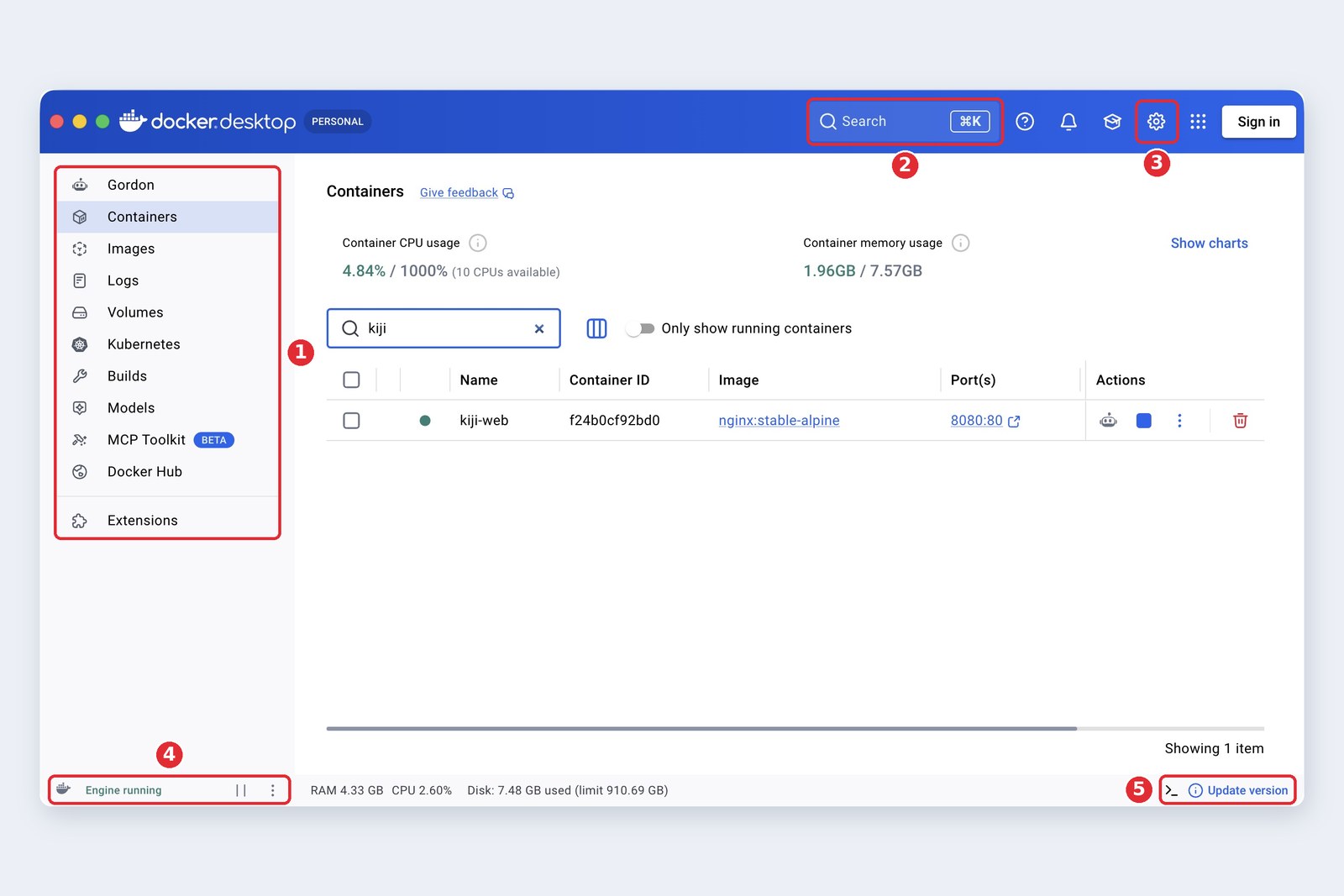
| Menu | What it is for |
|---|---|
| Gordon | Ask the AI assistant (chapter 11) |
| Containers | List, start, stop and delete containers; check logs and files |
| Images | List and delete local images; check vulnerabilities |
| Logs | Logs from all containers in one place |
| Volumes | List, create and inspect volumes |
| Kubernetes | Create a single-node Kubernetes cluster (only when you need it) |
| Builds | History of image builds, with timings and logs |
| Models / MCP Toolkit | Run AI models; connect tools to AI (chapter 11) |
| Docker Hub | Find public images, then pull and run them |
| Extensions | Extensions (extra screens and tools) |
Using it 1: find an image and run it
Let us start by running the web server nginx ("engine-x"), without typing a single command.
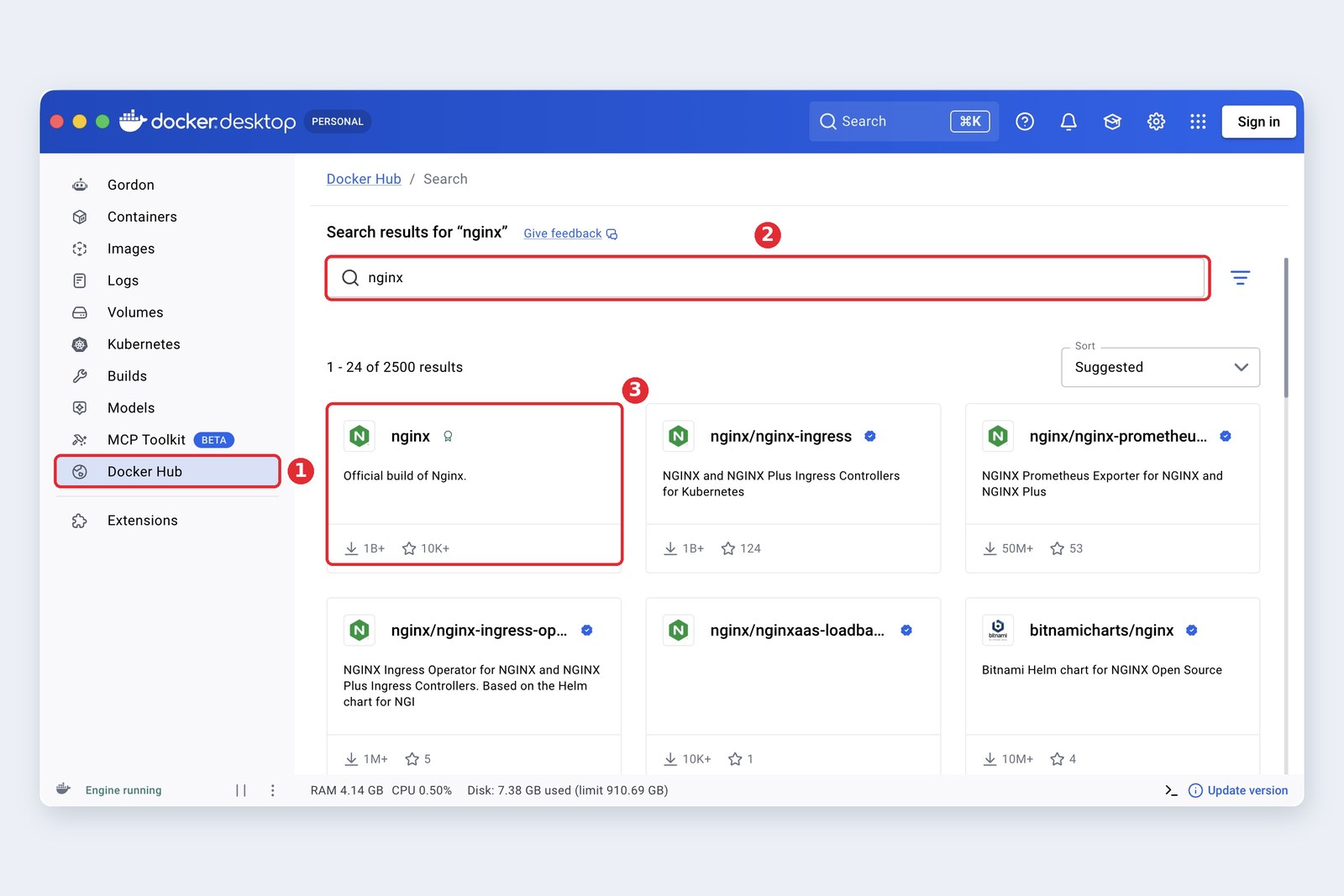
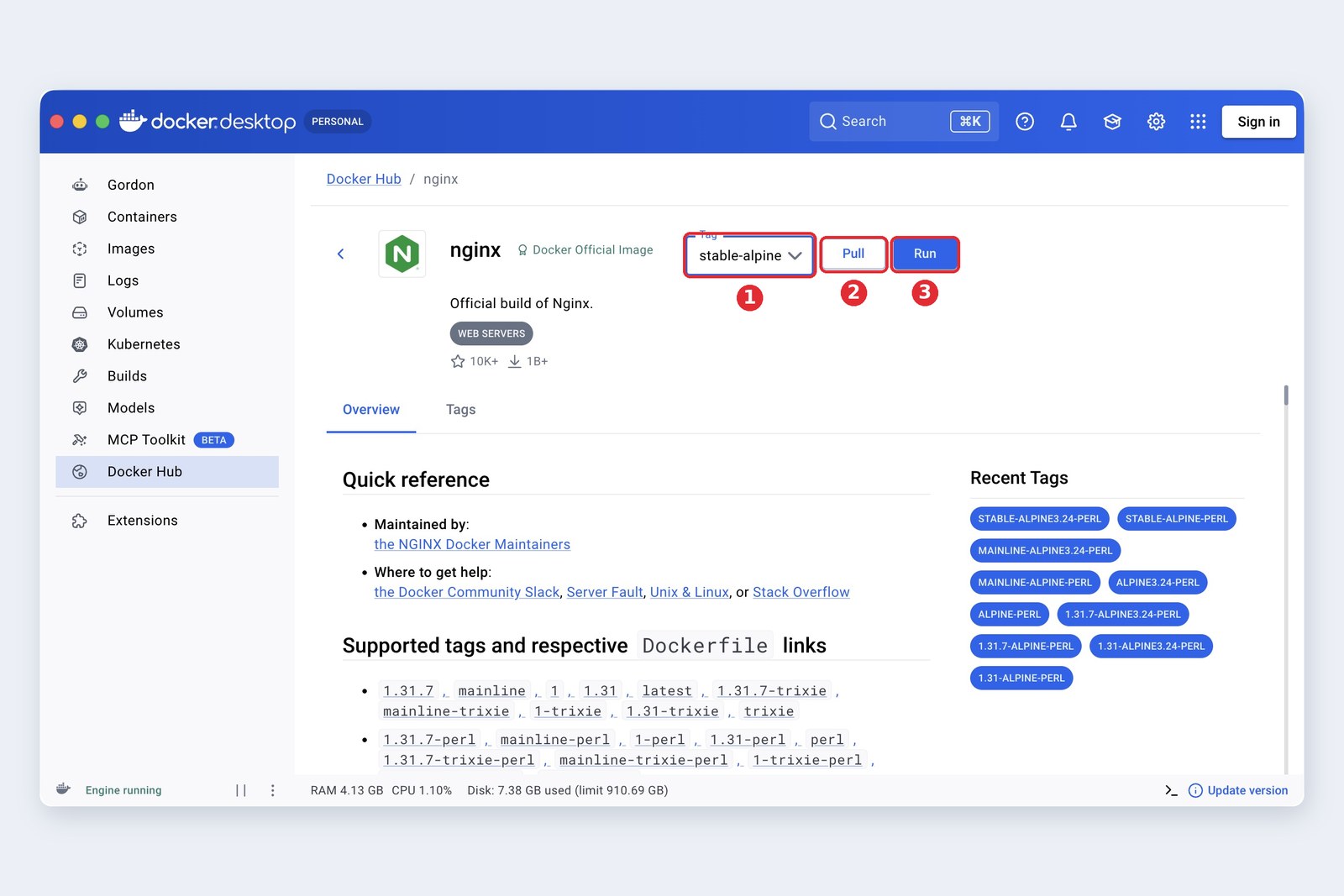
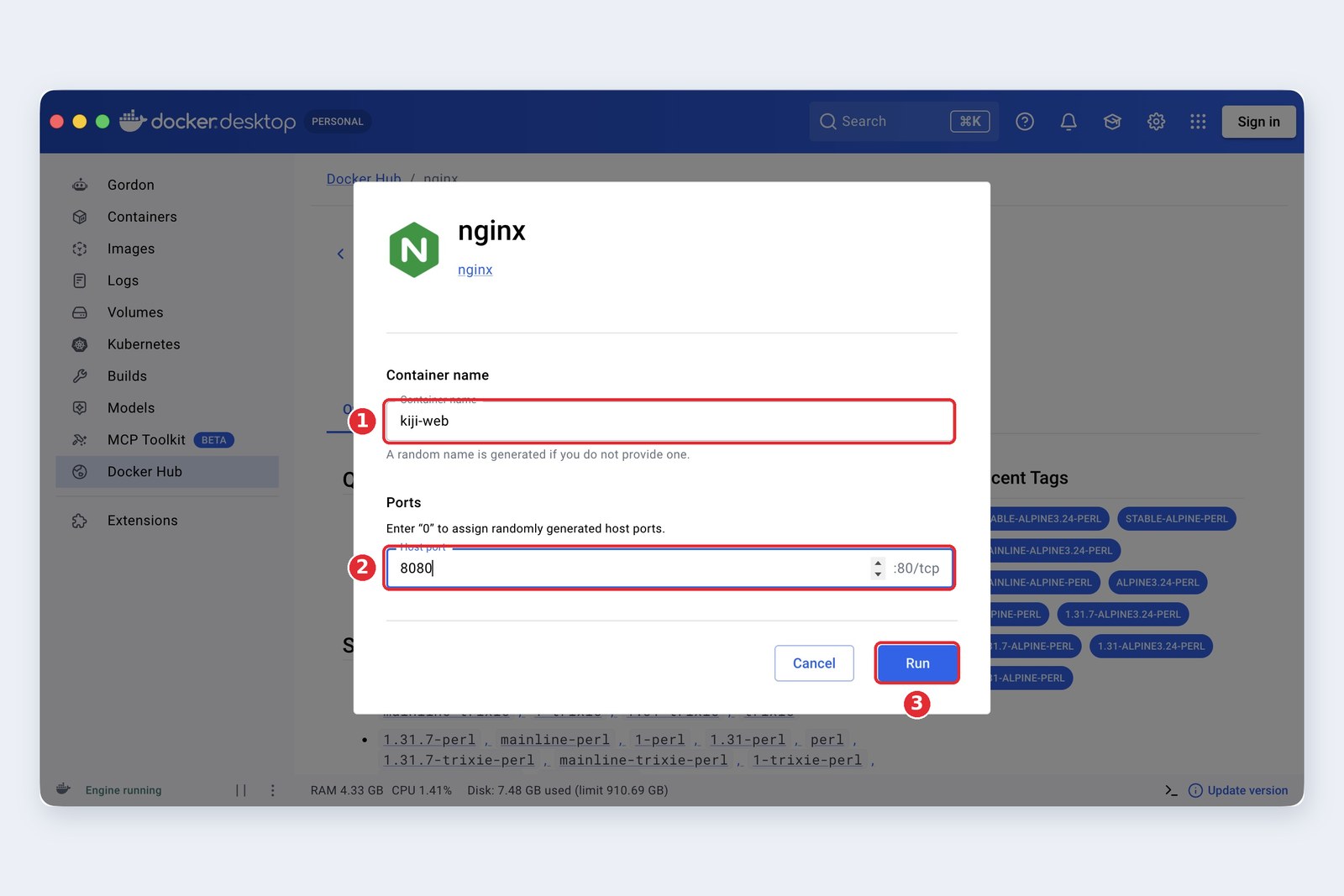
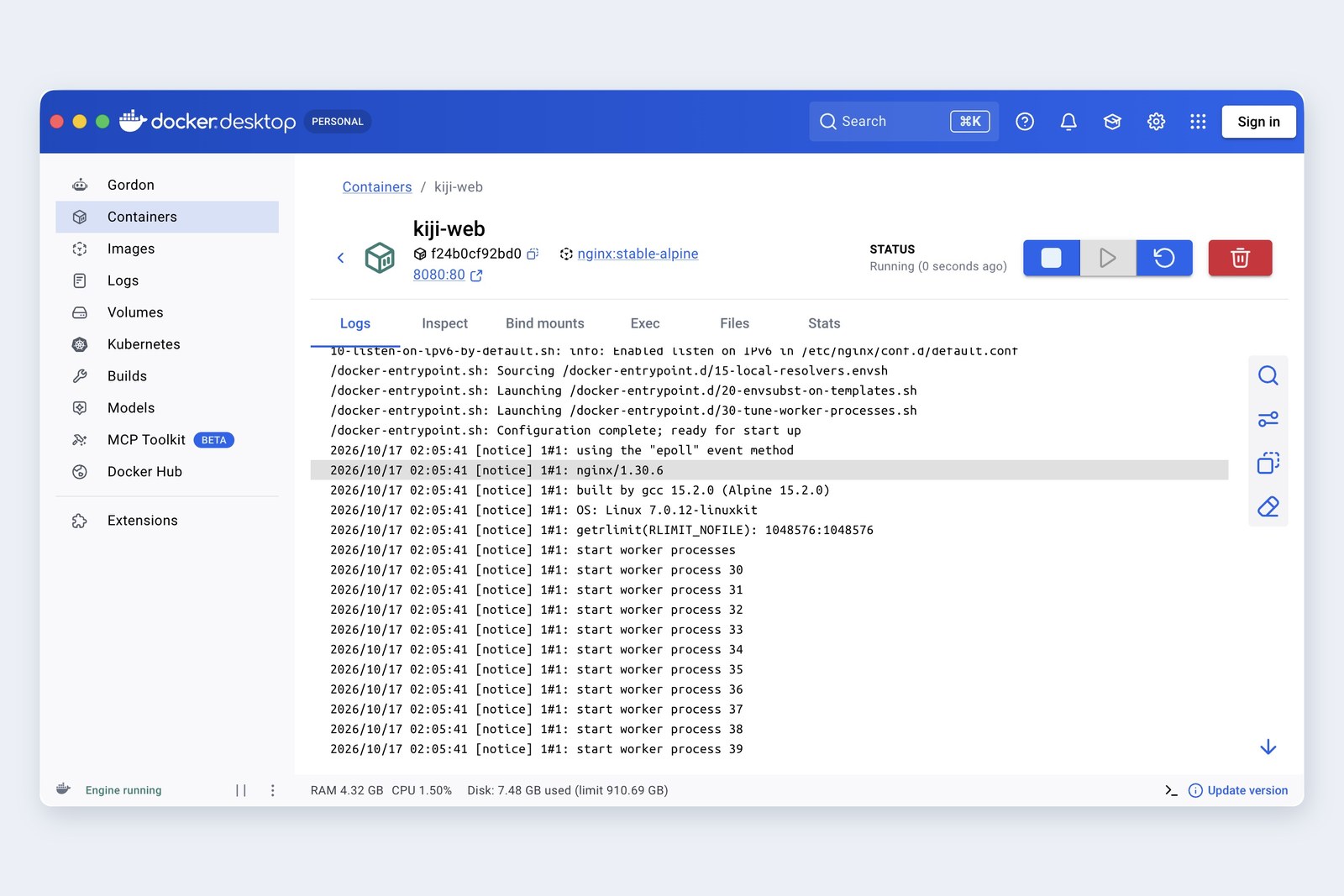
After Run, the container starts as soon as the image has downloaded, and the view switches to the container's detail screen (the photo at the top). Opening http://localhost:8080 in a browser showed the "Welcome to nginx!" page, confirming that port 8080 on the computer is now connected to port 80 in the container.
When choosing an image, prefer ones marked "Docker Official Image" or "Verified Publisher". Anyone can publish an image, so a similar name can hide something quite different. And pin a version rather than using latest, so the contents do not change under you.
Using it 2: working with containers
Running containers appear on the Containers screen. This Mac has other containers too, so the list is filtered by name with the search box.
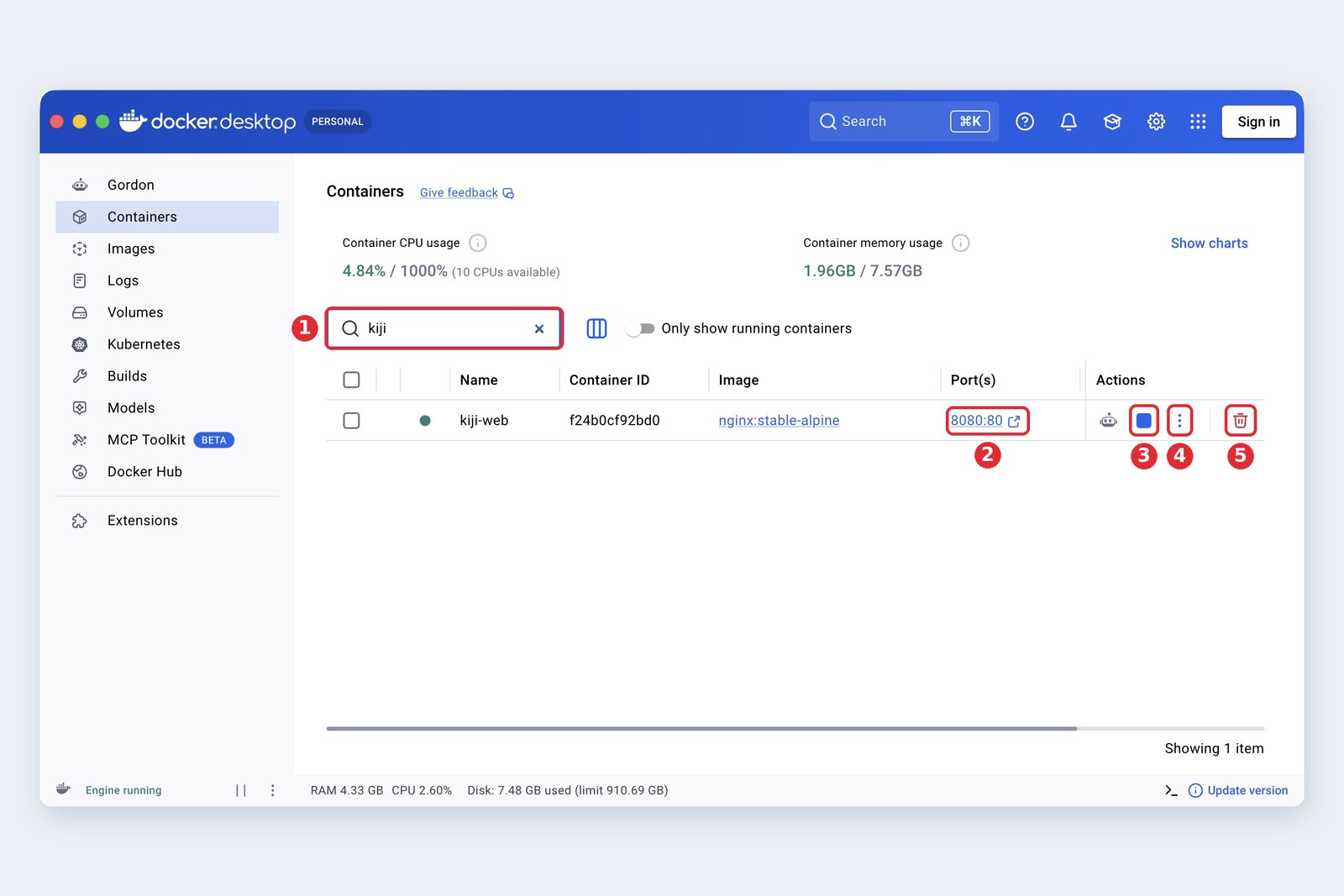
A container has a life cycle. Here is how the buttons and the commands relate to it.
A container's life cycle, with buttons and commands
A stopped container is not gone. Its data is still there, and the play button starts it again. It disappears only when you delete it
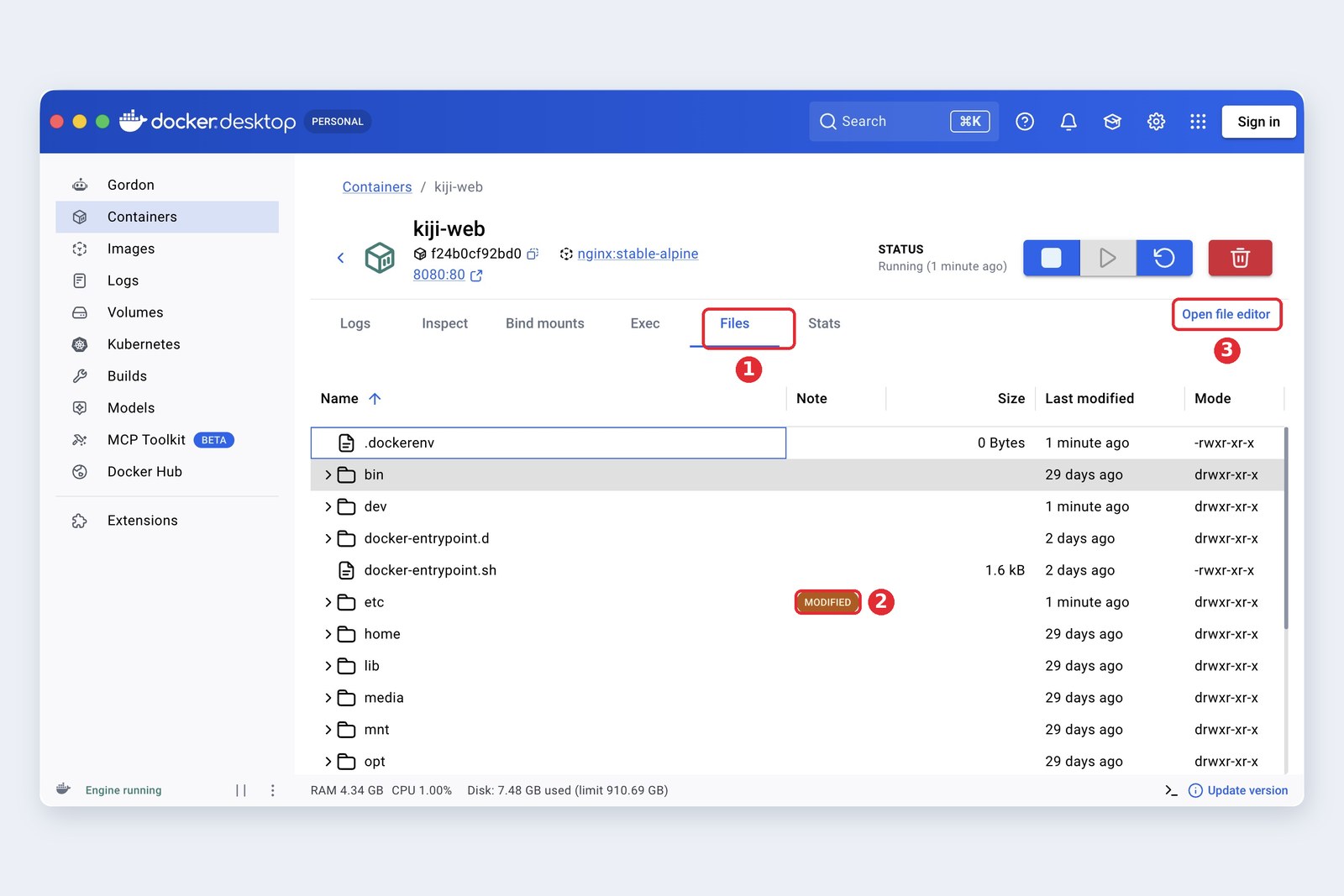
Click a container's name to open its detail screen. This is the screen you will use most in Docker Desktop.
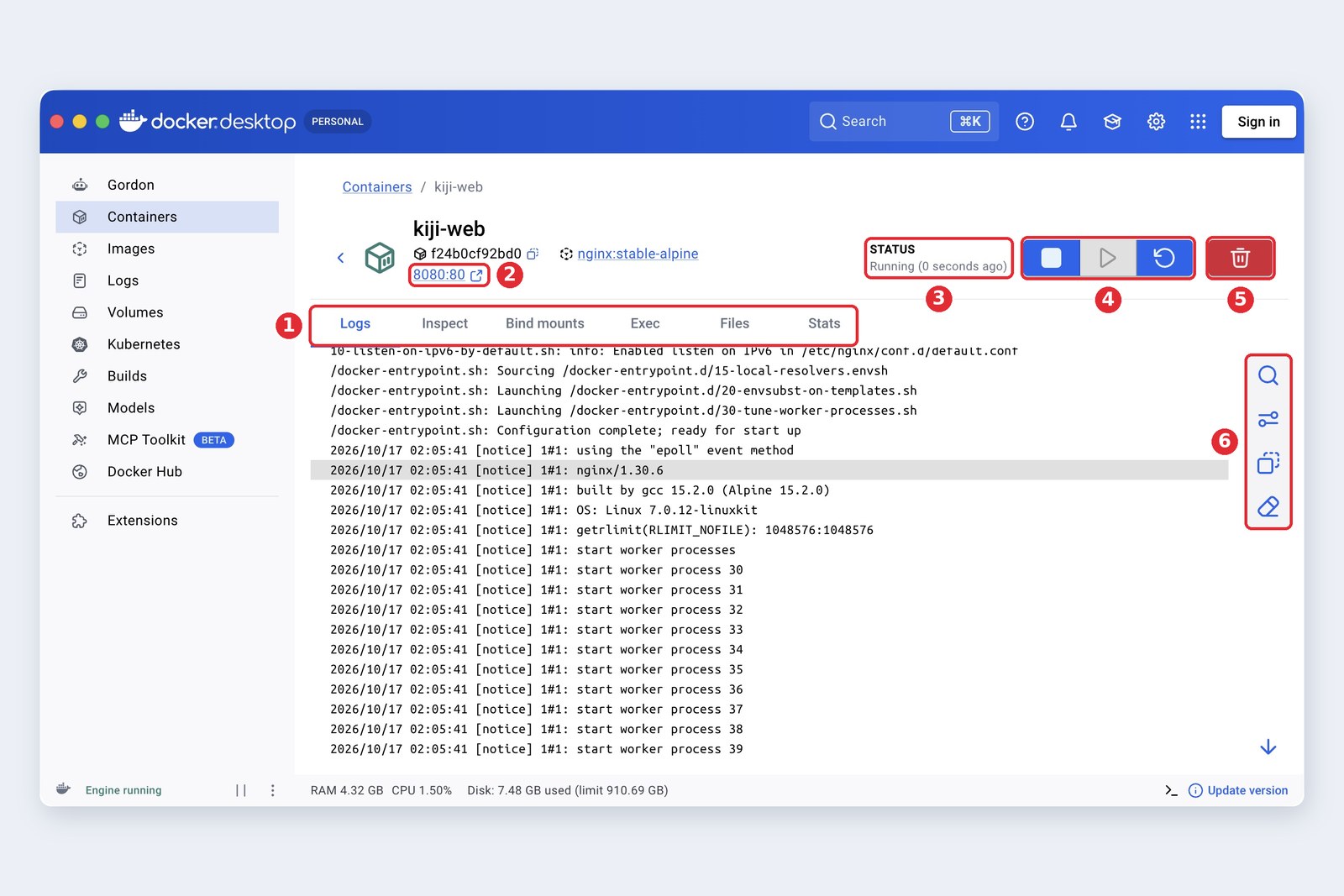
| Tab | What it shows | When to use it |
|---|---|---|
| Logs | Messages the container writes out | First stop when it will not start or shows errors |
| Inspect | Configuration: environment variables, ports, networks | Checking the setup is what you meant |
| Bind mounts | Folders from your computer that are attached | When files are not where you expect |
| Exec | A shell (terminal) inside the container | Going inside to run commands |
| Files | The files inside the container | Reading or pulling out config files |
| Stats | CPU, memory, disk and network usage | Finding a heavy container |
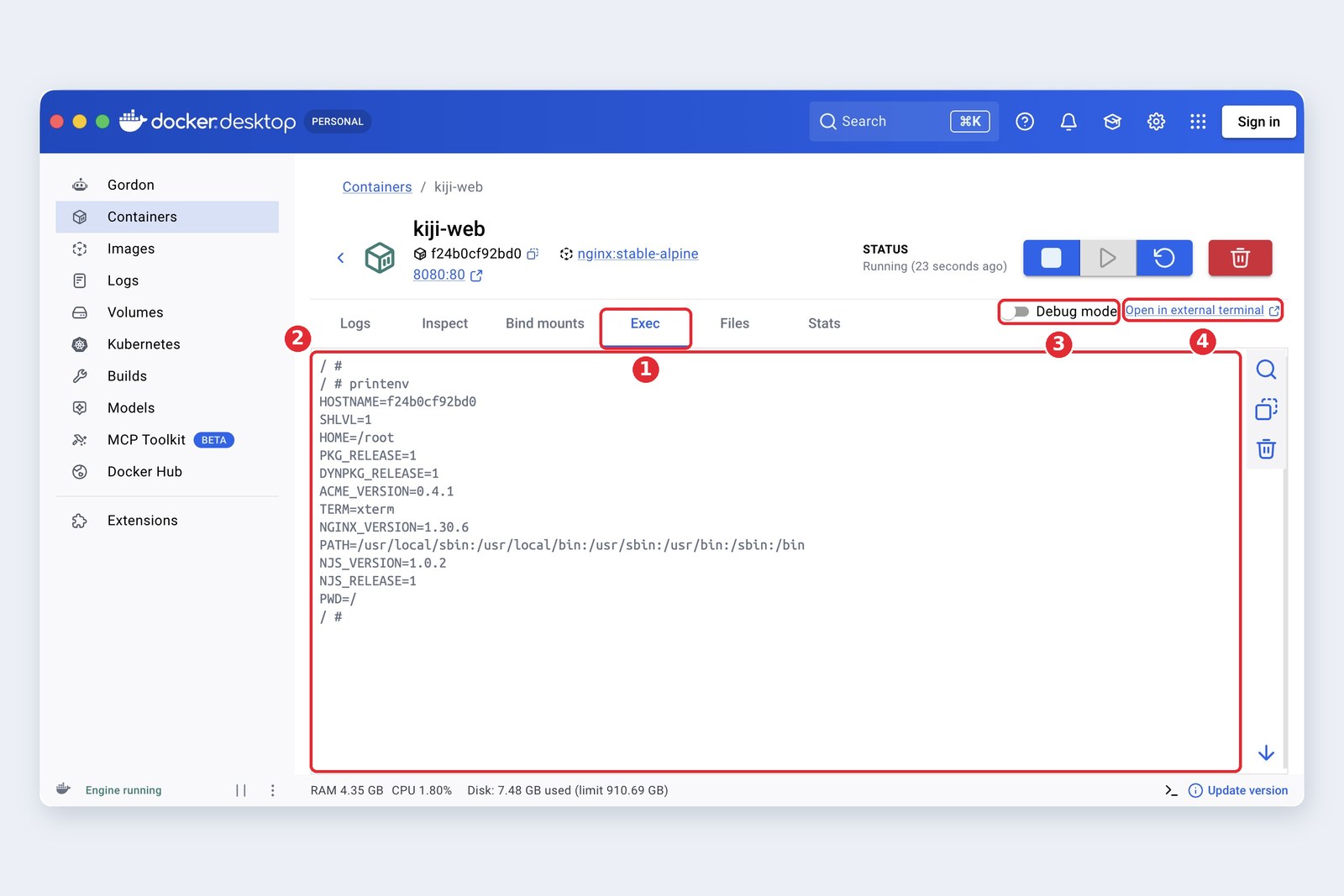
Using it 3: images and volumes
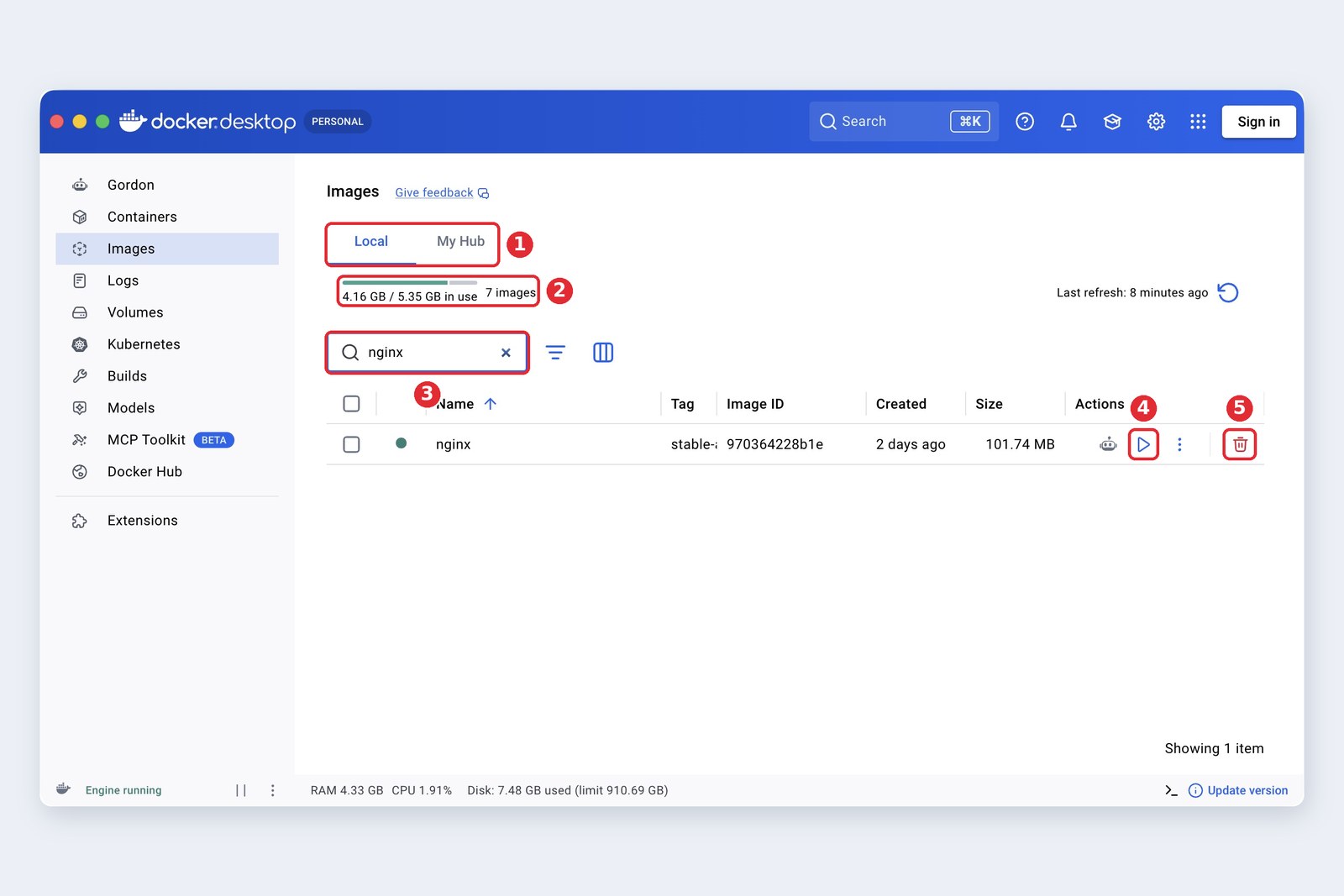
Pulled images are listed on the Images screen. A single image can run to hundreds of megabytes, and letting them pile up eats your disk. Delete the ones you no longer use from here.
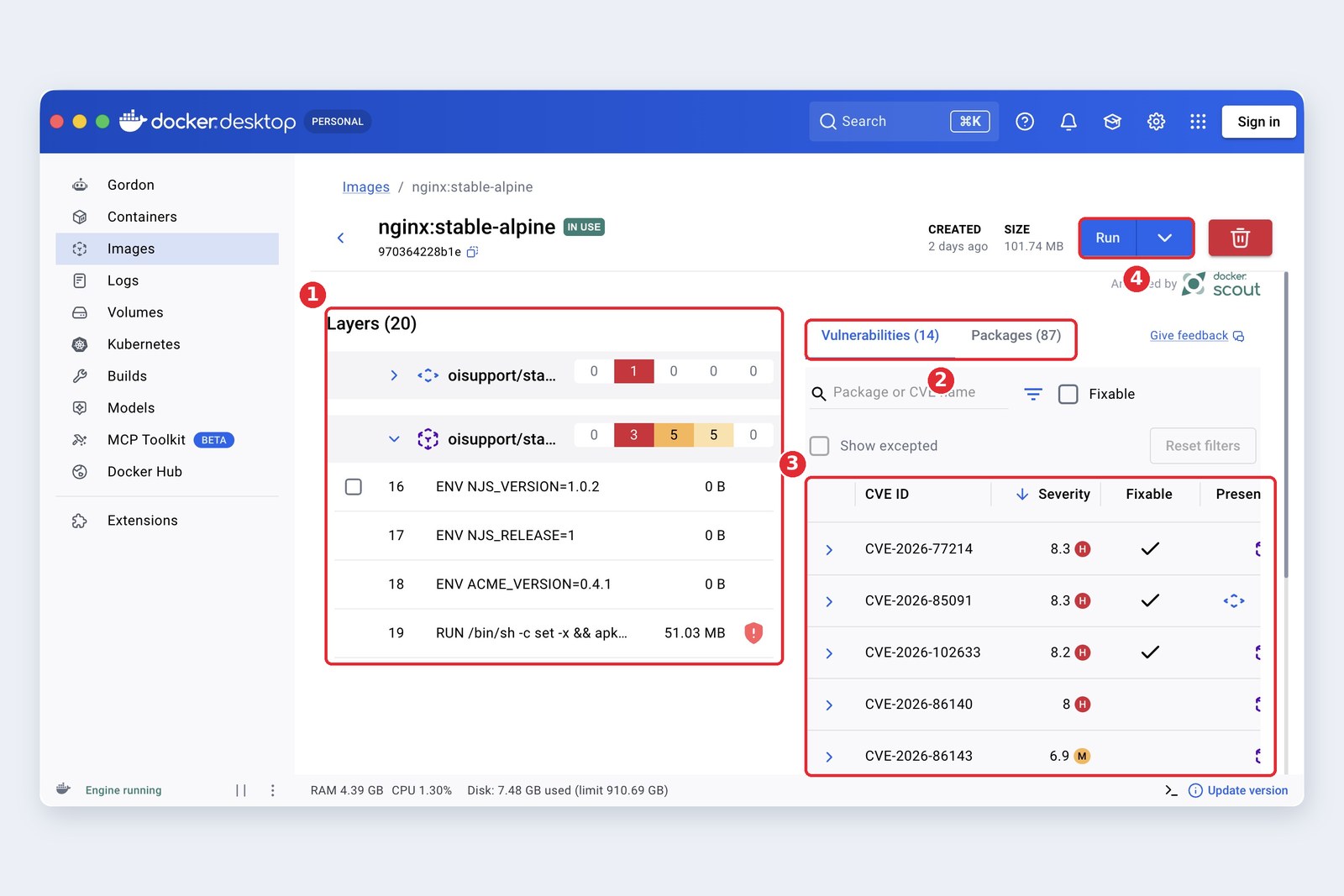
Docker Scout's analysis builds a list of the packages in the image (an SBOM) and matches it against known vulnerabilities. "Has vulnerabilities" does not mean "dangerous right now", but items marked "Fixable" can often be cleared by switching to a newer image, so a regular look is reassuring.
Next, where data lives. The figure sums up the three places.
Where to keep data
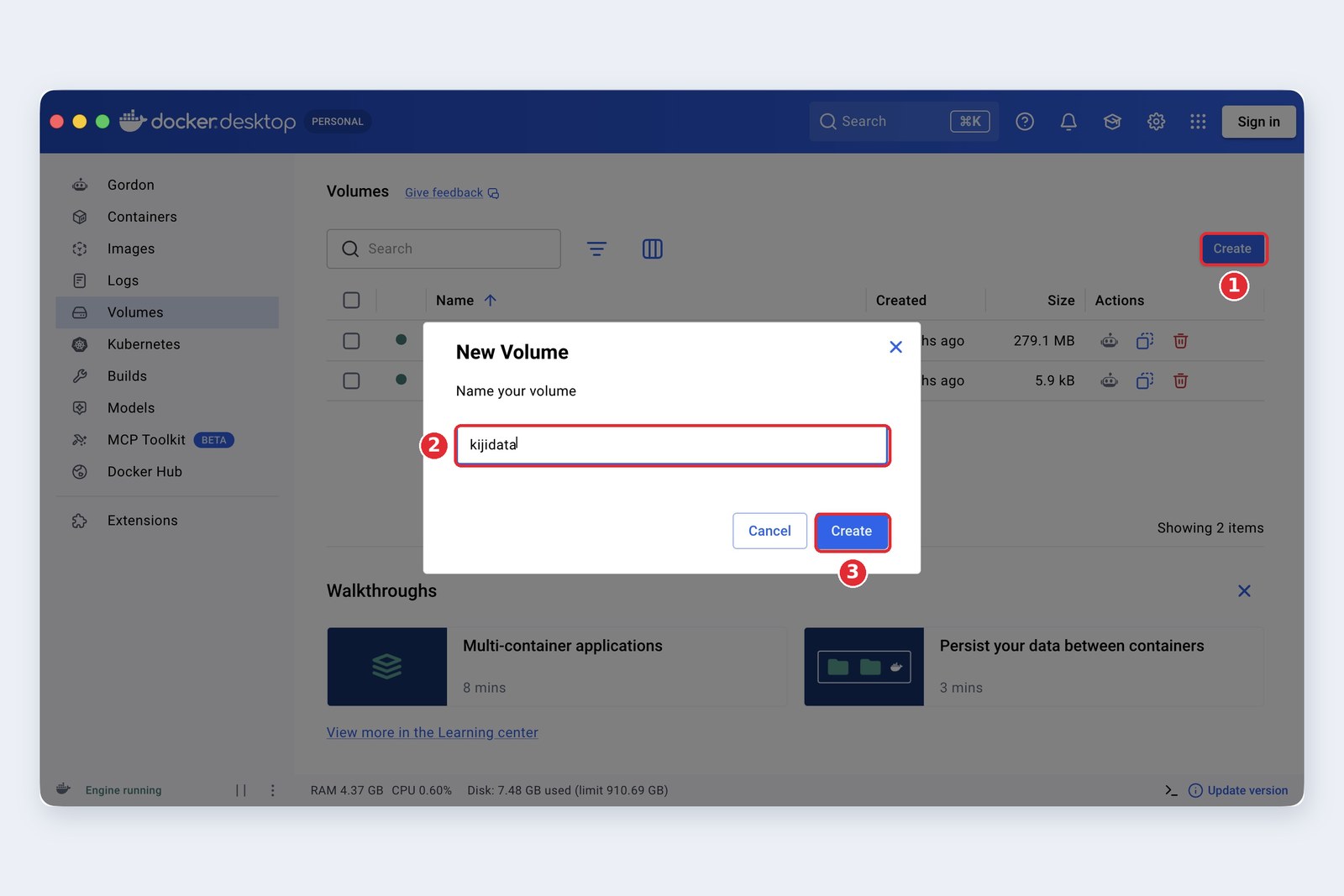
Attaching a volume made on screen to a container is done with a command (docker run -v) or in a Compose file. It helps to think of the screen as the place to list volumes, look inside them, and delete the ones you no longer need.
Using it 4: settings
Open Settings from the gear at top right. The first page worth a look is Resources.
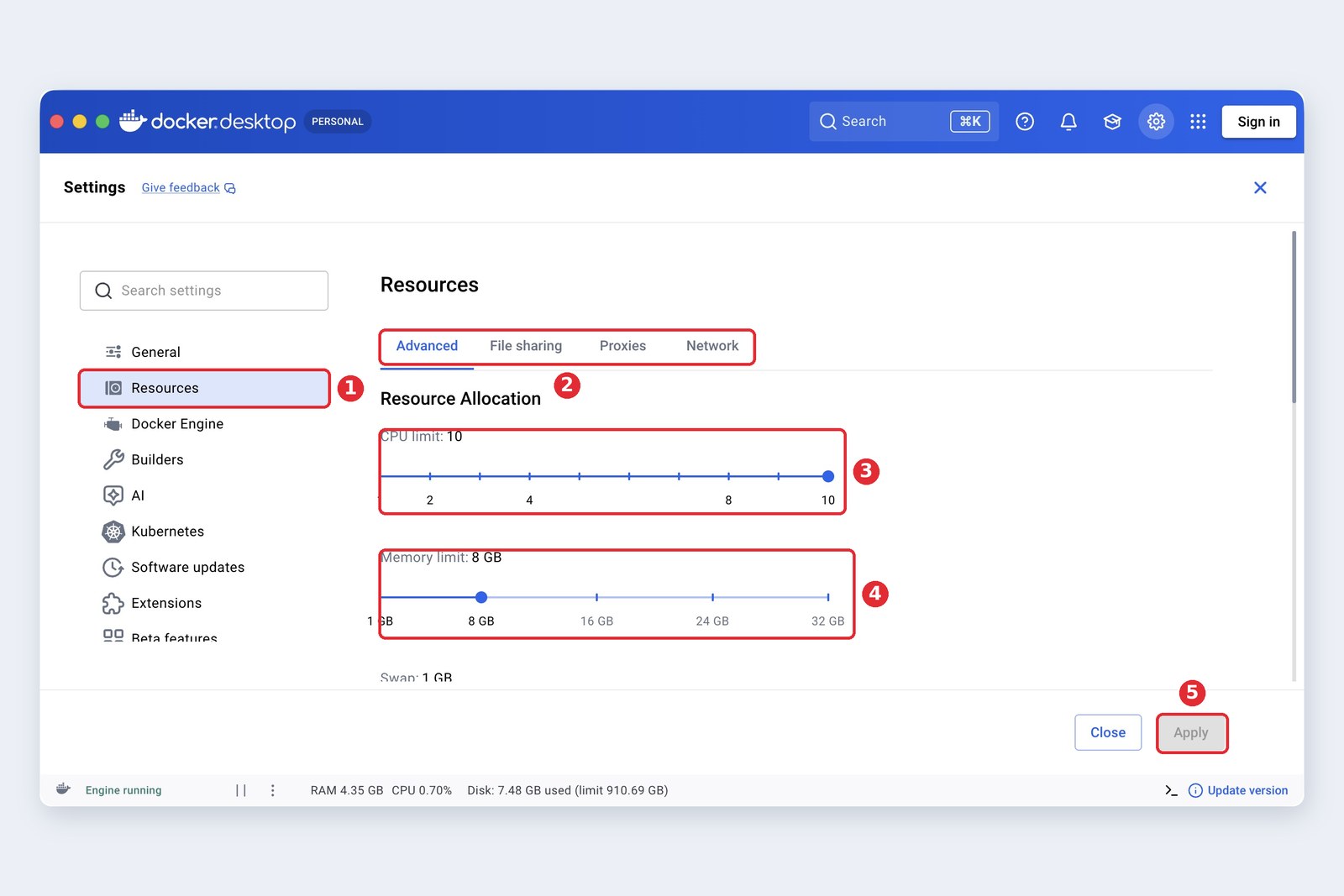
| Setting | Where | Guideline |
|---|---|---|
| CPU and memory limits | Resources > Advanced | Start around half your computer's memory; raise it for heavy databases. Too little and containers stop without warning |
| Disk limit | Resources > Advanced | Size of the virtual disk that holds images and volumes |
| File sharing | Resources > File sharing | Folders containers may see. Check your project folder is covered |
| Proxies | Resources > Proxies | For pulling images through a company proxy |
| Start at login | General | On if you use it daily; off to save memory if only now and then |
| Virtual machine type | General (Mac) | When unsure, keep the default (Apple Virtualization) |
| Automatic updates | Software updates | New versions arrive almost weekly. Set to manual if your team keeps versions in step |
| Kubernetes | Kubernetes | Enable only when needed; when on it always uses memory |
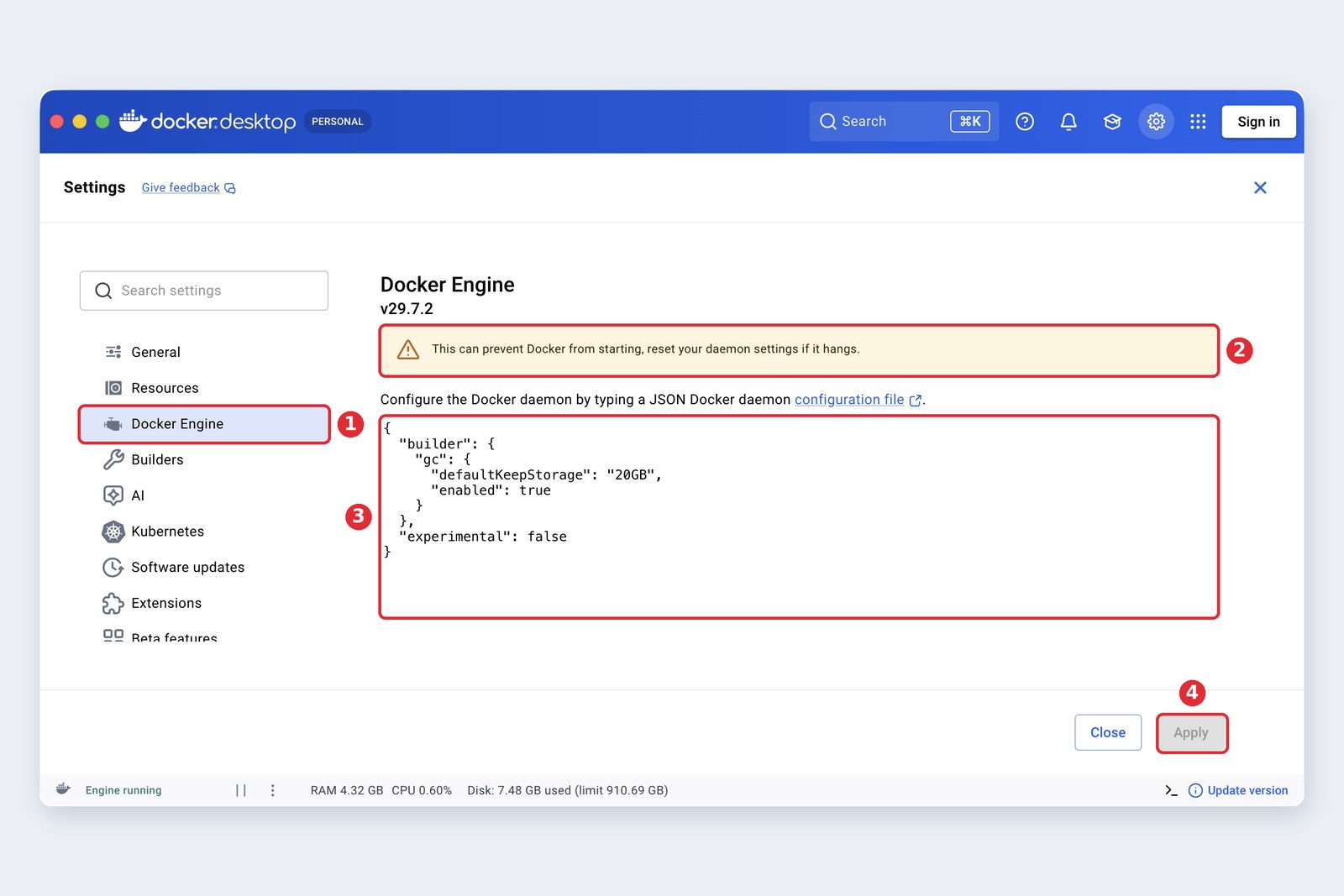
The Docker Engine page is for advanced users. Here you write settings such as a registry mirror (an alternative download source) or a cap on log file size. Keep a copy of the original before editing so you can restore it quickly if the engine stops starting.
Screens and their commands
Everything the screens do can also be done with commands. Learn on screen first, then move to commands as you get comfortable; commands are easy to record in documents and scripts. Here is everything so far as commands.
# (1) Pull the image (Pull on screen)
docker pull nginx:stable-alpine

# (2) Start it with a name and a port (Run on screen)
docker run -d --name kiji-web -p 8080:80 nginx:stable-alpine

# (3) List containers (Containers screen; -a includes stopped ones)
docker ps -a

# (4) Read the logs (Logs tab; -f follows new lines)
docker logs -f kiji-web

# (5) Go inside (Exec tab)
docker exec -it kiji-web sh

# (6) Create a volume (Create on the Volumes screen)
docker volume create kijidata

# (7) Clean up (the delete buttons)
docker rm -f kiji-web
docker volume rm kijidata
docker image rm nginx:stable-alpine

# (8) See disk usage, and clear out what is unused
docker system df
docker system prune
To combine several containers, use Compose (see chapter 6 onwards of Docker from the Basics to Practice). Containers started with docker compose up are grouped under the project name on the Containers screen, so you can stop or delete them together.
The new AI features
Over the past year or two, Docker Desktop has gained a run of AI-related features. Here they are, from the top of the left menu.
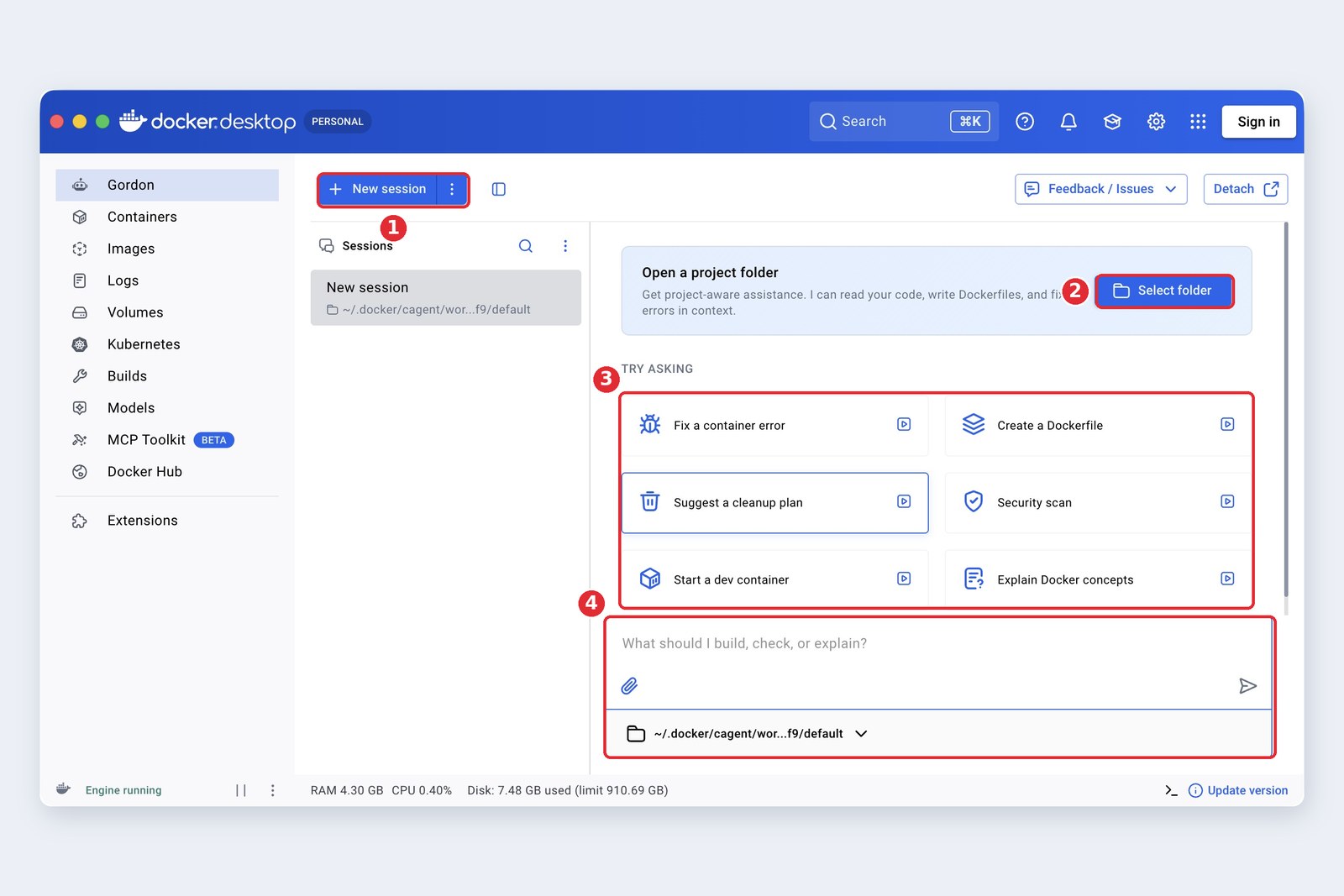
| Feature | What it does |
|---|---|
| Gordon | An AI assistant that knows Docker: investigating errors, writing and reviewing Dockerfiles, planning a clean-up of unused images, and so on. Also usable from the command line, and from the robot icon on each row of the container list |
| Model Runner | Pulls AI models (such as large language models) the way you pull images and runs them locally. Enable it under Settings > AI first |
| MCP Toolkit (beta) | Pick servers for MCP, a way of connecting outside tools to AI assistants, from a catalogue and run them in containers |
All of these are new, many are in beta, and their screens and names change often. When you let Gordon read a project folder, remember that its contents are sent to an AI service, and check beforehand whether that is allowed for company code. For running AI models locally, the Dev Guide post Running Large Models Locally may also help.
Choosing among similar apps
Docker Desktop is not the only app that runs containers locally. They all use the same image format (OCI), so switching later is not hard.
| App | OS | Price / licence | Suits |
|---|---|---|---|
| Docker Desktop | Mac, Win, Linux | Free for individuals and small companies; paid for large ones | Those who value plentiful documentation, team consistency and official support |
| Rancher Desktop | Mac, Win, Linux | Free (Apache 2.0, SUSE) | A free app with a GUI; easy Kubernetes (k3s). Choice of containerd or dockerd as the engine |
| Podman Desktop | Mac, Win, Linux | Free (Apache 2.0) | Those who want Podman, with no resident daemon and no root needed; Red Hat environments |
| OrbStack | Mac only | Free for personal use; paid for work (US$8 per user per month) | Mac users who put lightness, speed and fast start-up first |
| Colima | Mac, Linux | Free (MIT) | No GUI needed; the command line is enough |
| Apple's container | Mac (Apple silicon, macOS 26) | Free (Apache 2.0) | Trying Apple's own new approach, a lightweight virtual machine per container |
| Docker Engine (directly) | Linux | Free (open source) | Servers and Linux desktops; no virtual machine needed |
Which one to pick (a rough guide)
On Windows you can also install the Linux Docker Engine directly inside WSL 2. It is free, but you have to sort out the integration with Windows (file sharing, starting it up) yourself.
Tips and troubleshooting
- Clean the disk regularly — images, stopped containers, unused volumes and build cache all pile up. See the breakdown with docker system df and clean up with docker system prune (volumes are removed only if you add --volumes)
- Choose ARM images on Apple silicon Macs — most official images contain both and the right one is picked automatically. Intel-only images run with --platform linux/amd64, but slowly
- When shared source code is slow — put masses of small files such as node_modules in a volume. The paid plans' Synchronized file shares are another option
- Calling services on your computer from a container — use host.docker.internal, not localhost. Inside a container, localhost means the container itself
- If you see "port is already allocated" — another app or container is using that port. Change the number (say 8081:80) or stop whatever is using it
- When it will not start or misbehaves — from the "?" (Troubleshoot) at top right, try "Restart" first. If that fails, gather diagnostics (also possible with docker desktop diagnose)
- Only trusted extensions — the settings screen itself warns that extensions run with host privileges. They can read and write files and control Docker Engine, so check where one comes from before installing it
- Keep versions in step — in a team, align Docker Desktop and Compose versions, and write the versions into your setup guide
Troubleshoot's "Clean up data" keeps your settings but deletes every container and image. "Reset to factory defaults" returns everything, settings included, to a fresh install. Important data in volumes (a development database, say) can be lost too, so always move it somewhere safe first.
§ — On one page
- Docker Desktop is an all-in-one app for using Docker on your computer: engine, commands, GUI, Kubernetes, vulnerability checks and an AI assistant.
- On Mac and Windows, a small Linux virtual machine runs behind the scenes. Most worries about memory, disk and speed come from there.
- The core words are image (the template), container (the instance), port (the entrance) and volume (storage that stays). Containers are disposable; data you keep goes in a volume.
- On screen, search Docker Hub, pick a tag and press Run, then set a name and port, and it is running. The detail screen's Logs, Exec and Files let you look inside, and every action has a matching command.
- Free for individuals and small companies, paid for large ones. Depending on your situation and taste, Rancher Desktop, Podman Desktop, OrbStack or Colima are alternatives.
References
- Docker Docs — Docker Desktop
- Docker Docs — Docker Desktop release notes
- Docker Docs — Install Docker Desktop on Mac
- Docker Docs — Install Docker Desktop on Windows
- Docker Docs — Virtual Machine Manager for Docker Desktop on Mac
- Docker Docs — Docker Desktop license agreement
- Docker — Pricing
- Docker Docs — Explore networking how-tos on Docker Desktop
- Docker Docs — Troubleshoot Docker Desktop
- Rancher Desktop
- Podman Desktop
- OrbStack Docs — Licensing
- GitHub — abiosoft/colima
- GitHub — apple/container
The screenshots were taken on 17 October 2026 on the author's Mac (Apple silicon) with Docker Desktop 4.89.0 (Docker Engine 29.7.2, Compose v5.5.0). The latest version at the time of writing was 4.95.0 (12 October 2026), and screens can differ slightly between versions. Lists were filtered with the search box so that other containers and images would not appear. Prices, licence terms and requirements are from the official site and documentation as of October 2026. The comparison of similar apps and the selection chart are the author's rough guide.
App Notes No. 1 — A Guide to Docker Desktop / 2026.10